Can You Turn Off Cellular On Apple Watch And Save Battery
Yes, you can turn off cellular on Apple Watch and save significant battery life. Whether you own a cellular model or just want to reduce power drain, disabling the LTE connection is simple and effective. This guide walks you through every method, from quick settings toggles to advanced battery optimization tips. You will learn exactly how turning off cellular affects your watch experience and what you gain in return. Read on to discover the best ways to keep your Apple Watch lasting longer on a single charge.
Have you ever looked at your Apple Watch battery at the end of the day and wondered what went wrong? If you own a cellular model, the answer might be staring right at you. The cellular connection on your watch uses a lot of power, especially when it is constantly searching for a signal. Many users ask the same question: can you turn off cellular on Apple Watch and actually save battery? The short answer is yes, and the process is simpler than you might think.
In this guide, we will walk you through every way to disable cellular on your Apple Watch. We will cover step-by-step instructions, battery savings you can expect, and the trade-offs you need to know about. Whether you are trying to stretch your battery during a long day or just want to simplify your watch setup, this article has you covered. Let us dive in and help you get more out of every charge.
Key Takeaways
- Turning off cellular is possible: You can disable the LTE connection on any Apple Watch cellular model through the watch itself or your iPhone.
- Battery savings are real: Disabling cellular can add several hours to your Apple Watch battery life, especially with heavy use.
- You still get full GPS功能: Even without cellular, your watch tracks workouts and notifications using the GPS chip.
- Multiple methods exist: You can turn off cellular from the watch settings, the iPhone Watch app, or via Airplane Mode.
- Cellular plans can be removed: You are not locked into a cellular plan and can remove it through your carrier or Apple.
- Trade-offs exist: You lose the ability to make calls, send texts, or stream music without your iPhone nearby.
📑 Table of Contents
- Understanding Apple Watch Cellular Connectivity
- Can You Turn Off Cellular On Apple Watch
- Does Turning Off Cellular Actually Save Battery
- What Happens When You Turn Off Cellular
- How to Remove Your Cellular Plan Completely
- Comparison: Cellular On vs Cellular Off
- Expert Tips to Maximize Apple Watch Battery Life
- Common Mistakes People Make With Apple Watch Cellular
- Key Takeaways
Understanding Apple Watch Cellular Connectivity
Before you change any settings, it helps to understand what cellular actually does on your watch. Not every Apple Watch has a cellular connection. Only specific models, like the Apple Watch Cellular versions, include an LTE chip built inside. This chip lets your watch connect to a mobile network all on its own.
What Cellular Connectivity Means for Your Watch
When your watch has cellular enabled, it can do things without your iPhone nearby. You can make phone calls, send texts, stream music, and receive notifications even when your phone is not in the room. This is incredibly convenient, but it comes at a cost. The LTE radio inside your watch constantly searches for a network signal. That search uses a significant amount of battery power.
Here is a quick look at what cellular connectivity affects:
- Call quality: You can make and receive calls anywhere with cell coverage.
- Text messaging: Send and receive iMessages without your phone.
- Music streaming: Stream Apple Music or podcasts on the go.
- Notifications: Get alerts even when your phone is far away.
- Battery drain: The LTE chip uses more power than GPS alone.
GPS Only vs Cellular Models
It is important to know the difference between a GPS-only watch and a cellular watch. A GPS-only model, sometimes called a GPS Apple Watch, does not have the LTE chip at all. It connects to your phone using Bluetooth and uses GPS for location tracking during workouts. A cellular model has both Bluetooth and LTE, giving you full independence from your phone.
If you own a GPS-only watch, you do not need to worry about turning off cellular. The option simply does not exist because the hardware is not there. But if you have a cellular model, the cellular radio is always active unless you manually turn it off.
Can You Turn Off Cellular On Apple Watch
The short answer is absolutely yes. You can turn off cellular on Apple Watch in several different ways. Each method works well depending on your situation. Let us look at the most common approaches so you can pick the one that fits your needs best.
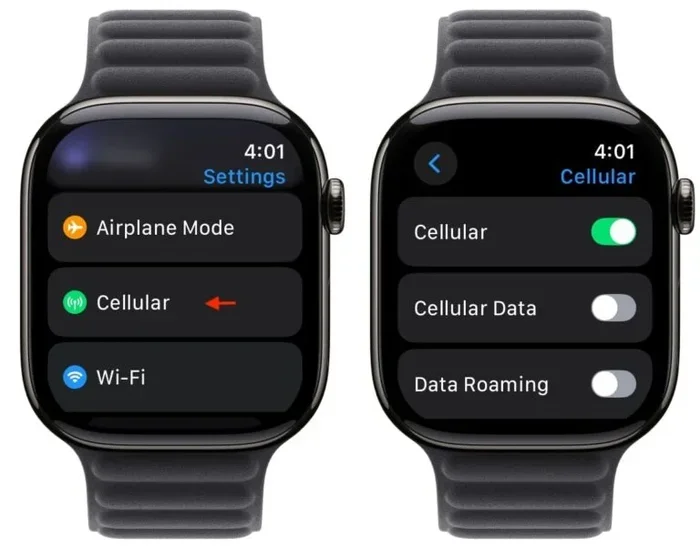
Method 1: Turn Off Cellular Directly From Your Watch
The fastest way to disable cellular is right from your watch face. This method works on watchOS and does not require your iPhone at all. Here is how to do it:
- Press the digital crown to open your app list.
- Tap the Settings app on your Apple Watch.
- Scroll down and tap Cellular.
- Toggle the Cellular Data switch to off.
That is it. Your watch will immediately disconnect from the LTE network. You will see a small icon change on your watch face to show that cellular is now off. Your watch will still work perfectly for telling time, tracking workouts with GPS, and receiving notifications through Bluetooth when your phone is nearby.
Method 2: Use the iPhone Watch App
If your iPhone is close by, you can also turn off cellular through the Watch app. This method is helpful if you want to make changes quickly from your phone. Here is what to do:
- Open the Watch app on your iPhone.
- Go to the My Watch tab at the bottom.
- Tap on Cellular or Mobile Data.
- Toggle off Cellular Data for your Apple Watch.
This method gives you the same result. Your watch disconnects from the cellular network, and you save battery right away. Some users prefer this method because the iPhone interface is larger and easier to navigate.
Method 3: Use Airplane Mode
Another quick option is to turn on Airplane Mode on your Apple Watch. This disables all wireless connections, including cellular, Bluetooth, and Wi-Fi. It is the fastest way to stop all network activity at once.
To use Airplane Mode, swipe up from the bottom of your watch face to open Control Center. Tap the airplane icon. All wireless connections will turn off immediately. If you still want Bluetooth or Wi-Fi, you can turn those back on individually after enabling Airplane Mode.
Does Turning Off Cellular Actually Save Battery
This is the question most people care about, and the answer is a definite yes. Turning off cellular on your Apple Watch does save battery. But how much battery you save depends on a few factors.
How Much Battery Can You Expect to Save
The LTE chip in your Apple Watch uses power any time it is searching for a cell signal. If you are in an area with strong coverage, the chip does not work as hard. But if you are in a spot with weak signal, your watch drains battery much faster because the radio pushes harder to stay connected.
Here are some real-world estimates of what turning off cellular can do for your battery:
- Light use: You might gain 1 to 2 extra hours of battery life.
- Moderate use: Expect around 3 to 4 additional hours.
- Heavy use with GPS and music: You could gain 5 or more hours.
These numbers vary based on your watch model, your watchOS version, and your usage habits. But the general rule is simple. The more you rely on cellular, the more you benefit from turning it off.
Factors That Affect Cellular Battery Drain
Not all battery drain is the same. Several factors influence how much power your cellular connection uses. Understanding these factors helps you make smarter decisions about when to keep cellular on and when to turn it off.
Here are the main factors that affect cellular battery drain on your Apple Watch:
- Signal strength: Weak signals cause the radio to work harder and drain more battery.
- Data usage: Streaming music or using apps that need data uses more power.
- Location services: GPS combined with cellular uses extra power.
- Number of notifications: More notifications mean more network activity.
- WatchOS version: Newer updates sometimes include battery optimization fixes.
- Background app refresh: Apps checking for updates in the background use cellular data.
By turning off cellular, you remove the biggest variable in this list. Your watch will rely on Bluetooth and Wi-Fi instead, both of which use significantly less power.
What Happens When You Turn Off Cellular
Turning off cellular is not the same as turning your watch into a basic device. You still get a lot of functionality. But there are some clear limitations you should know about before you flip the switch.
What Still Works Without Cellular
Your Apple Watch remains fully functional in many ways even after you disable cellular. Here is what continues to work normally:
- Timekeeping: Your watch still tells the time perfectly.
- GPS tracking: Workouts, runs, and walks still track your location.
- Bluetooth notifications: You still receive alerts when your iPhone is nearby.
- Heart rate monitoring: Health and fitness tracking continues as normal.
- Wi-Fi connectivity: Your watch can connect to known Wi-Fi networks.
- Apple Pay: You can still make payments using your watch.
- Alarm and timers: All built-in tools keep working.
What Stops Working Without Cellular
There are some things you will lose access to when cellular is off. These are the main trade-offs to consider:
- Phone calls: You cannot make or receive calls without your iPhone nearby.
- Text messages: iMessages require either Bluetooth to your phone or a cellular connection.
- Music streaming: You cannot stream Apple Music or podcasts over the mobile network.
- Offline music: You can still play downloaded music, but not stream new content.
- Standalone Siri: Voice assistant features that need the internet will not work.
- Remote notifications: You only get notifications when your phone is within Bluetooth range.
For most people, these trade-offs are worth the battery savings. If you always carry your iPhone with you, you will barely notice the difference. But if you like to leave your phone behind during a run or a walk, you might miss the freedom of standalone connectivity.
How to Remove Your Cellular Plan Completely
Turning off cellular is one thing. But if you want to go further, you can actually remove your cellular plan entirely. This is a good option if you have decided that you do not need the feature at all. Here is how to do it.
Removing the Plan Through Your iPhone
To remove your cellular plan, open the Watch app on your iPhone. Go to the My Watch tab, then tap Cellular. Scroll down and look for an option to remove the plan. You will need to confirm the removal, and your carrier will process the cancellation.
Contacting Your Carrier
Some carriers make it easy to remove an Apple Watch plan directly from your account online. Others might require you to call customer support. Check with your carrier to see what options are available. Keep in mind that removing the plan means you will not be able to add it back without going through the setup process again.
What Happens After Plan Removal
Once the plan is removed, your watch becomes a GPS-only device permanently. You will still get all the features we discussed earlier. The main difference is that you cannot re-enable cellular without setting up a new plan. This is a good choice if you want to save money on your monthly bill and do not need standalone connectivity.
Comparison: Cellular On vs Cellular Off
To help you decide whether turning off cellular is right for you, here is a side-by-side comparison of what to expect in each scenario.
| Feature | Cellular On | Cellular Off |
|---|---|---|
| Battery Life | Average 18 hours | Average 22-26 hours |
| Phone Calls | Yes, anywhere | Only with iPhone nearby |
| Text Messages | Yes, standalone | Only with iPhone nearby |
| Music Streaming | Yes, over LTE | Wi-Fi or downloaded only |
| GPS Tracking | Yes | Yes |
| Notifications | Standalone | Bluetooth only |
| Monthly Cost | Extra carrier fee | No extra fee |
| Independence from iPhone | Full | Limited |
As you can see, the biggest differences come down to battery life, independence, and cost. If you value battery life and do not mind keeping your phone close, turning off cellular makes a lot of sense.
Expert Tips to Maximize Apple Watch Battery Life
Turning off cellular is one of the best ways to save battery, but it is not the only trick. Here are some extra tips that help you get even more out of your watch battery.
Reduce Screen Brightness
Your watch display uses a lot of power, especially at full brightness. Lowering the screen brightness in Settings > Display & Brightness can add meaningful hours to your battery life. Try turning it down to a level that is still comfortable to read.
Limit Background App Refresh
Many apps refresh their content in the background, which uses network data and battery. Go to Settings > General > Background App Refresh on your watch and turn it off for apps you do not need updated constantly.
Turn Off Always-On Display
The Always-On Display feature keeps your watch face visible at all times. While it is convenient, it drains battery faster. You can turn it off in Settings > Display & Brightness > Always-On and set your watch to sleep when not in use.
Manage Notifications Wisely
Every notification your watch receives wakes up the screen and uses a small amount of power. Go through your notification settings and disable alerts for apps that do not need your immediate attention. Fewer notifications mean less screen wake time and better battery life.
Use Power Reserve Mode When Needed
If you are truly low on battery and need your watch to last as long as possible, enable Power Reserve Mode. This turns off almost everything except the time display. You can turn it on from the Control Center by holding the battery icon. Your watch will last for several more hours in this mode.
Common Mistakes People Make With Apple Watch Cellular
There are a few common mistakes that people make with their Apple Watch cellular settings. Avoiding these mistakes helps you get the best experience and the most battery life.
Leaving Cellular On When Not Needed
The most common mistake is simply leaving cellular on all the time. Many people forget they have it enabled and never think about turning it off. If you work in an office or spend most of your day near your iPhone, there is no reason to keep cellular active. Turn it off and save battery.
Not Checking Signal Strength
If you live in an area with poor cell coverage, your watch works overtime trying to find a signal. This drains battery fast. Check your signal strength and consider turning off cellular if you are in a weak coverage zone. Your watch will thank you for it.
Ignoring watchOS Updates
Apple regularly releases updates that improve battery optimization. Keeping your watch on the latest version of watchOS ensures you get the best performance and efficiency. Check for updates regularly in Settings > General > Software Update.
Keeping All Apps Refreshing in the Background
Some apps continue to use data and battery even when you are not actively using them. Review your installed apps and remove or disable any that you do not need. Fewer apps means less background activity and better battery life.
Key Takeaways
- You can absolutely turn off cellular on Apple Watch: Use the Settings app on your watch, the Watch app on your iPhone, or Airplane Mode to disable it quickly.
- Battery savings are significant: Disabling cellular can add several hours to your daily battery life, especially in areas with weak signal.
- GPS and core features still work: Your watch tracks workouts, tells time, and monitors health even without cellular.
- Trade-offs are manageable: You lose standalone calls and streaming, but Bluetooth notifications still work when your phone is nearby.
- You can remove the plan entirely: If you decide you do not need cellular at all, you can cancel the plan through your carrier or the Watch app.
- Combine with other battery tips: Lower brightness, limit background refresh, and use Power Reserve Mode for maximum battery life.
Frequently Asked Questions
Can I turn off cellular on Apple Watch without an iPhone?
Yes, you can turn off cellular directly from your Apple Watch without needing your iPhone nearby. Simply open the Settings app on your watch, tap Cellular, and toggle the switch off. Your watch will immediately disconnect from the LTE network and start saving battery.
Will I still get notifications if I turn off cellular?
Yes, you will still receive notifications as long as your Apple Watch is connected to your iPhone via Bluetooth. When cellular is off, your watch relies on the Bluetooth connection to your phone for all notification delivery. If your phone is within range, you will not miss anything.
Can I turn cellular back on after turning it off?
Absolutely. You can re-enable cellular at any time by going back to the same settings where you turned it off. Simply toggle Cellular Data back on in the Settings app or the Watch app on your iPhone, and your watch will reconnect to the LTE network.
Does turning off cellular affect GPS tracking on my Apple Watch?
No, turning off cellular does not affect GPS tracking at all. The GPS chip in your Apple Watch works independently of the cellular radio. You can still track runs, walks, and workouts with full location accuracy even with cellular turned off.
Is it worth removing my cellular plan if I never use it?
If you rarely use standalone features like calls or streaming, removing your cellular plan can save you money each month. Check your usage habits and decide whether the extra cost is worth the convenience. Many users find that they rarely need cellular and prefer to save the monthly fee.
How do I know if my Apple Watch has cellular capability?
Check the back of your watch or the model number in Settings. If the model name includes the word “Cellular” or “LTE,” your watch supports cellular connectivity. You can also look for the cellular icon in your watch face, which indicates whether the feature is active.
=== CONCLUSION ===
Can you turn off cellular on Apple Watch and save battery? Yes, and it is one of the simplest and most effective things you can do to extend your watch battery life. Whether you use the Settings app on your watch, the Watch app on your iPhone, or Airplane Mode for a quick fix, the process takes just seconds. The battery savings are real, and for most users, the trade-offs are easy to manage.
Your Apple Watch is a powerful tool, and knowing how to get the most out of it makes a big difference. Turning off cellular when you do not need it, combining that with other battery optimization tips, and understanding your usage habits all add up to a better experience. You get more hours of use, less charging hassle, and a watch that works exactly the way you need it to.
Try turning off cellular today and see the difference for yourself. Your battery will thank you, and you might just discover that you do not need the cellular connection as much as you thought. It is a small change that makes a big impact, and it is one of the easiest ways to get more from your Apple Watch every single day.