Can I Connect My Phone To Tv With Hdmi Cable Today
Yes, you can connect your phone to TV with HDMI cable using the right adapter or cable. Whether you have an iPhone or Android device, this simple setup lets you mirror your screen, stream videos, and enjoy content on a larger display. Read on to discover the exact steps, compatible accessories, and quick fixes for common issues.
Have you ever wanted to watch something on a bigger screen but did not know where to start? Can I connect my phone to TV with HDMI cable? The short answer is yes. You absolutely can. Connecting your phone to your television with an HDMI cable is one of the easiest ways to share photos, watch videos, or even play games on a much larger display. It works for most modern phones, and you do not need to be a tech expert to make it happen.
This guide walks you through everything you need to know. From choosing the right adapter to fixing common problems, you will find clear, step-by-step instructions. We also share expert tips that make the process even smoother. By the end, you will feel confident setting up your own phone to TV connection in minutes.
Key Takeaways
- HDMI connection is possible: You can link your phone to TV with HDMI using an adapter or a direct cable, depending on your device.
- Adapter type matters: Different phones need different adapters, such as USB-C to HDMI or Lightning to HDMI.
- Setup is simple: The process takes just a few minutes and requires minimal technical knowledge.
- Troubleshooting is straightforward: Most connection issues can be fixed with basic steps like checking cable connections and restarting devices.
- Wireless alternatives exist: If HDMI does not work for your setup, screen mirroring and casting offer viable options.
📑 Table of Contents
What Is HDMI and Why Connect Your Phone to TV?
HDMI stands for High-Definition Multimedia Interface. It is a standard cable connection that carries both video and audio through a single cable. This makes it incredibly convenient. Instead of juggling multiple cords for sound and picture, HDMI handles everything at once.
Connecting your phone to TV with HDMI opens up a world of possibilities. You can watch streaming shows on the big screen. You can share vacation photos with family on the couch. You can even use your phone as a remote control for presentations or slideshows. The mobile connectivity options are vast and practical.
Why HDMI Beats Other Connection Methods
There are several ways to get your phone content onto a TV. Wireless methods like screen mirroring work well. But they sometimes lag or drop in quality. HDMI provides a stable, high-definition viewing experience with no delay. The picture and sound stay perfectly in sync. For people who want reliable quality, a wired HDMI connection is hard to beat.
Here is a quick comparison of common connection methods:
- HDMI Cable: Best quality, stable connection, requires an adapter.
- Wireless Mirroring: Convenient, no cables, but can experience lag.
- Chromecast or Roku: Great for streaming apps, but limited to supported apps.
- USB-C to TV: Works for some phones directly, but not universal.
As you can see, HDMI offers the best balance of quality and reliability. If you want a digital display experience that just works, this is the way to go.
How to Connect Your Phone to TV with HDMI Cable
The process is simpler than most people think. You need three things: your phone, an HDMI adapter, and an HDMI cable. Once you have those, you can start streaming in just a few minutes.
Step-by-Step Guide for Android Phones
Most Android phones today use USB-C ports. Here is how to set up your connection:
- Check your phone’s port type. Most newer Androids use USB-C.
- Buy a USB-C to HDMI adapter. Make sure it supports your phone model.
- Plug the adapter into your phone.
- Connect one end of the HDMI cable to the adapter.
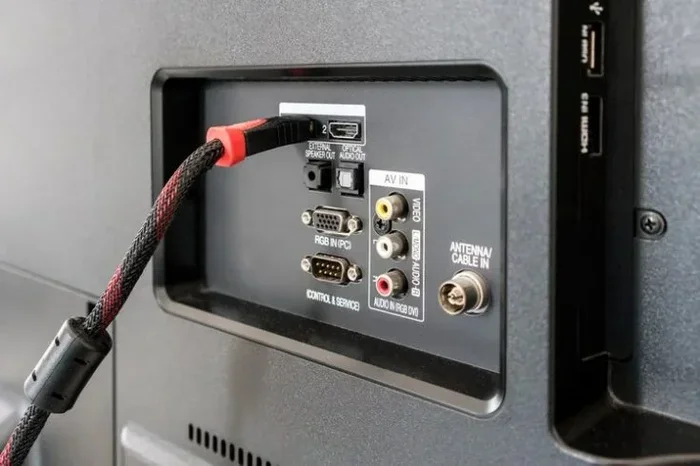
- Plug the other end of the HDMI cable into your TV.
- Switch your TV to the correct HDMI input.
- Your phone screen should now appear on the TV.
That is it. Your phone screen on TV is ready to go. You can now browse, stream, or share anything you want on the big screen.
Step-by-Step Guide for iPhones
iPhones use Lightning ports, so you need a different adapter. Here is what to do:
- Get a Lightning to HDMI adapter. Apple sells its own version, and many third-party options work too.
- Plug the adapter into your iPhone’s charging port.
- Connect the HDMI cable from the adapter to your TV.
- Switch your TV to the matching HDMI input.
- Your iPhone display will appear on the TV screen.
If you have an iPhone 15 or newer with a USB-C port, you can use a USB-C to HDMI adapter instead. This makes things even simpler. The adapter compatibility depends on your phone model, so always double-check before buying.
Quick Tips for a Smooth Setup
A few small tips can save you a lot of frustration. Use a high-quality HDMI cable for the best picture. Make sure your adapter is fully plugged in on both ends. If your TV does not show the signal right away, try unplugging the cable and plugging it back in. Sometimes simply switching the TV input again does the trick.
Also, check that your phone is updated to the latest software. Updates often improve device pairing and cable recognition. A quick restart of both your phone and TV before setup can also help everything run smoothly.
Types of HDMI Adapters You Need
Not all adapters are the same. Choosing the right one depends on your phone model and your TV. Here is a closer look at the most common types.
USB-C to HDMI Adapters
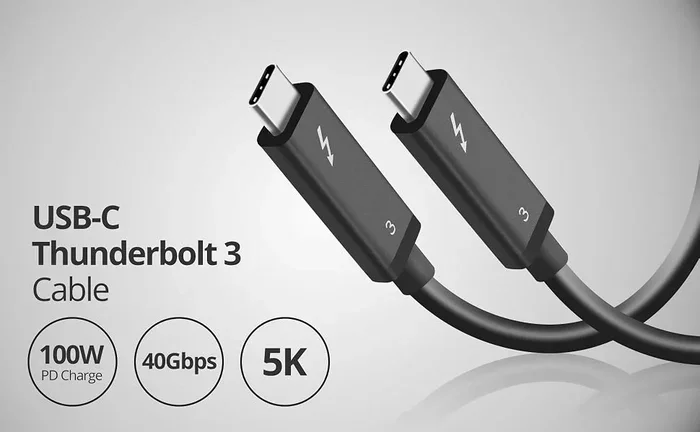
These are the most popular adapters today. Most Android phones, Samsung Galaxy devices, Google Pixel phones, and newer iPhones use USB-C. A USB-C to HDMI adapter plugs directly into your phone and accepts an HDMI cable on the other end. They are affordable and widely available.
When shopping, look for adapters that support high-definition viewing at 1080p or 4K. Some adapters also carry audio, while others need a separate audio connection. Check the product description to confirm what your adapter supports.
Lightning to HDMI Adapters
If you have an older iPhone with a Lightning port, you need a Lightning to HDMI adapter. Apple makes an official version that works reliably. Many third-party brands offer cheaper alternatives that work just as well. The key is to make sure the adapter supports your specific iPhone model.
USB-C Hubs with HDMI Ports
Some people prefer USB-C hubs over single-purpose adapters. A hub gives you multiple ports in one device. You can connect HDMI for your TV, USB for charging, and even SD card readers. This is a great option if you want a versatile smartphone accessory that does more than just connect to your TV.
If you love finding gadgets that make everyday life simpler, you might also enjoy our article on 10 Gadgets To Make Moms Life Easier. It covers helpful tech tools that simplify daily routines.
Wireless HDMI Alternatives
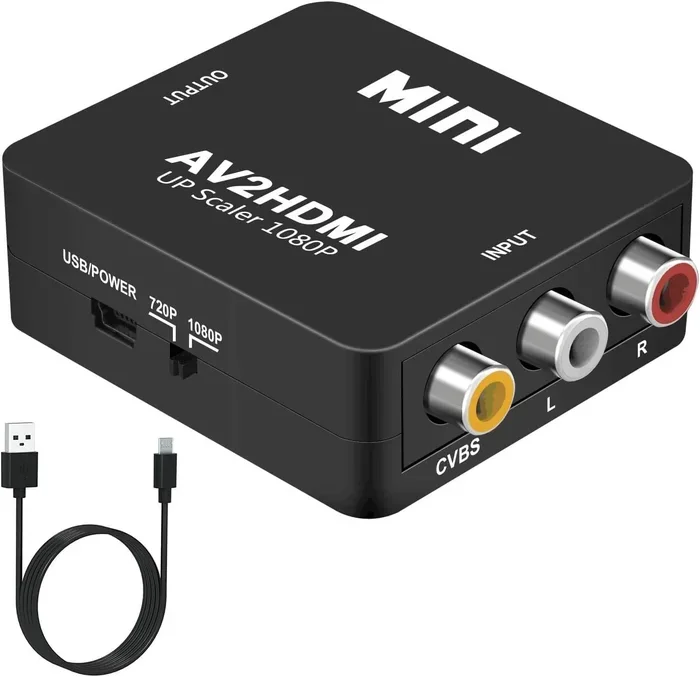
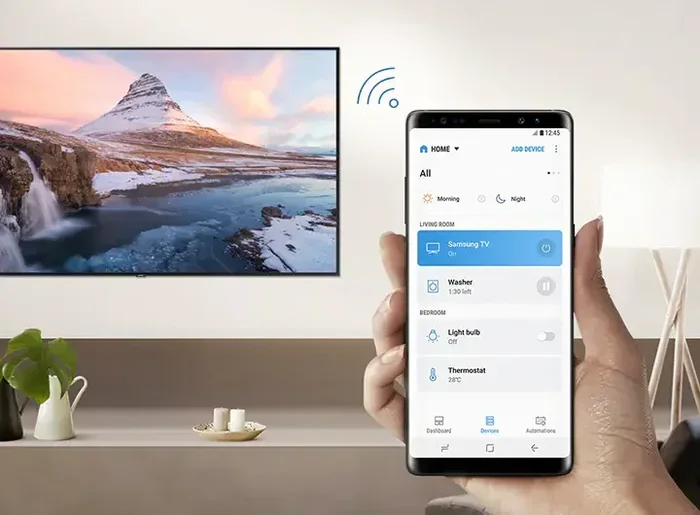
Not everyone wants to deal with cables. Wireless HDMI transmitters send your phone screen to your TV without a physical connection. These devices use Wi-Fi or proprietary signals to stream content. They work well for casual viewing but may not match the quality of a wired HDMI connection. If you value convenience over perfect picture quality, a wireless option is worth considering.
Troubleshooting Common Connection Issues
Sometimes things do not go as planned. Your TV might not show a signal, or the picture might look fuzzy. Here are the most common problems and how to fix them.
No Signal on the TV
This is the most common issue. Start by checking that the HDMI cable is firmly connected on both ends. Make sure your TV is set to the correct input source. Try a different HDMI port on your TV if the first one does not work. If you still see nothing, unplug the adapter, wait a few seconds, and plug it back in.
Poor Picture Quality
If the image looks blurry or pixelated, your cable or adapter might not support high resolution. Try a shorter HDMI cable, as longer cables can lose signal strength. Also, check your phone display settings. Some phones have a screen resolution setting that affects output quality. Adjusting this can improve your high-definition viewing experience.
No Sound Through the TV
Sometimes the video shows but there is no audio. This usually happens when the audio output is still set to your phone instead of the TV. Go to your phone settings and look for audio output options. Switch the output to HDMI or external display. Most adapters carry audio automatically, but your phone settings need to route the sound correctly.
Adapter Not Recognized by Phone
If your phone does not detect the adapter, try restarting your device. Make sure the adapter is compatible with your phone model. Some cheap adapters do not work with certain devices. Investing in a reputable brand can save you a lot of headaches. Also, check for any software updates on your phone, as these often fix adapter compatibility issues.
Screen Flickering or Disconnecting
A flickering screen usually means a loose connection. Make sure all cables are snug. Try a different HDMI cable if the problem continues. Overheating can also cause disconnections. If your phone gets warm during use, give it a break and try again once it cools down.
For iPhone users managing contact settings, you might also want to learn about adding prefixes to numbers on iPhone. It is a helpful skill for organizing your contacts after you set up your device connections.
Benefits of Connecting Your Phone to TV with HDMI
Beyond just watching videos, connecting your phone to your TV offers many practical benefits. Here are some of the best reasons to set this up.
Better Viewing Experience
The biggest advantage is obvious. Your TV screen is much larger than your phone screen. Movies, shows, and photos look sharper and more vibrant on a big display. You get a true multimedia experience that makes content more enjoyable.
Easy Sharing with Others
Want to show your family vacation photos? Share a funny video with friends? Connecting your phone to TV makes group viewing effortless. Everyone in the room can see and enjoy the content together. This is great for parties, family gatherings, or simple weekend relaxation.
Gaming on a Bigger Screen
Mobile games are fun, but playing them on a TV is a whole different experience. Many games look better and feel more immersive on a large screen. You can even connect a Bluetooth controller for a console-like setup. This turns your phone into a powerful portable gaming device.
Work and Productivity
HDMI connections are not just for entertainment. You can use your phone for presentations at work or school. Displaying slideshows, documents, or spreadsheets on a TV screen makes sharing information easier. It is a simple way to boost your mobile connectivity for professional settings too.
Cost Savings
Streaming services like Netflix, Disney Plus, and YouTube are often cheaper on a phone plan than on a cable subscription. By connecting your phone to your TV, you can cut the cord and still enjoy your favorite content on the big screen. This is a smart way to save money while getting more from your subscriptions.
Expert Tips for the Best Viewing Experience
A few extra steps can take your setup from good to great. Here are some professional tips that make a real difference.
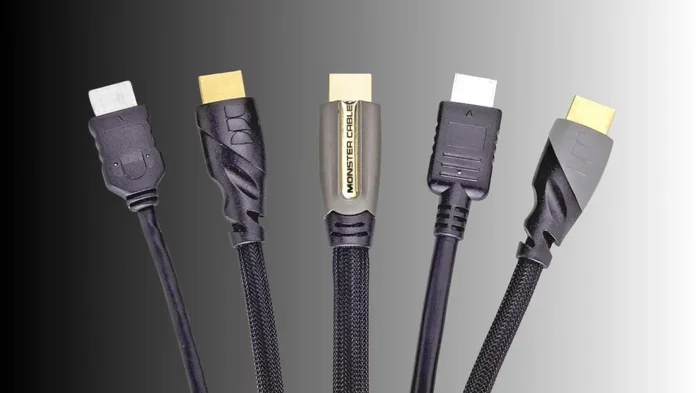
Use a High-Speed HDMI Cable
Not all HDMI cables are created equal. A high-speed cable supports better resolution and smoother playback. Look for cables labeled “High Speed HDMI” or “Premium High Speed.” These handle 4K content and deliver the best picture quality for your digital display setup.
Keep Your Phone Cool
Streaming video uses a lot of processing power. Your phone can heat up during long viewing sessions. Heat can cause lag or even shut down your connection. Consider removing your phone case during use. You can also place your phone near a fan or in a cool area to maintain a stable connection.
Adjust Your Phone Display Settings
Before you start streaming, check your phone display settings. Turn off auto-brightness if it causes flickering. Set your screen timeout to never during long viewing sessions. Some phones also have a “cast to TV” option in their display settings that simplifies the connection process.
Invest in a Good Adapter
The adapter is the most important piece of hardware in your setup. A cheap adapter may cause dropped signals or poor quality. Spending a little more on a reputable brand pays off in reliability and performance. Look for adapters with good reviews and solid build quality.
Explore Wireless Options Too
While HDMI is the gold standard, do not ignore wireless alternatives. AirPlay works well for Apple users. Google Cast works great for Android. These methods are convenient for quick sharing, even if they do not match the quality of a wired connection. Having both options gives you flexibility for every situation.
Connecting your phone to TV with HDMI cable is one of the most useful tech skills you can learn today. It transforms how you watch, share, and interact with content. The setup is fast, the quality is excellent, and the benefits are immediate. Whether you are streaming a movie, sharing photos, or giving a presentation, this connection makes everything better.
Start with the right adapter for your phone. Follow the steps in this guide. Troubleshoot any issues with the tips provided. You will be enjoying your favorite content on the big screen in no time. The phone to TV connection experience is simpler than you think, and once you set it up, you will wonder how you ever lived without it.
Take a few minutes today to gather your cables and adapter. Test the setup with your own devices. Once you see your phone screen displayed on your TV, you will understand why so many people are making this simple switch. It is one of the best upgrades you can make to your home entertainment setup.
Frequently Asked Questions
Can any phone connect to a TV with HDMI?
Most modern phones can connect to a TV with HDMI using the right adapter. Android phones with USB-C ports need a USB-C to HDMI adapter. Older iPhones need a Lightning to HDMI adapter. Newer iPhones with USB-C use a USB-C to HDMI adapter. Check your phone’s port type before purchasing an adapter.
Do I need a special HDMI cable for phone connections?
A standard HDMI cable works fine for most phone connections. However, using a high-speed HDMI cable ensures the best picture quality. Premium cables support 4K resolution and deliver smoother playback. Any standard HDMI cable will get you started, but a high-speed option is worth the small investment.
Why does my TV show no signal when I connect my phone?
No signal usually means the TV is on the wrong input or the cable is not seated properly. Switch your TV to the correct HDMI input. Check that all connections are firm. Try restarting both your phone and TV. If the problem continues, test with a different HDMI cable or adapter.
Can I charge my phone while connected via HDMI?
This depends on your adapter. Some USB-C to HDMI adapters pass through charging power. Others do not. If you need to charge while streaming, look for an adapter that supports power delivery. Alternatively, you can charge your phone wirelessly while the HDMI adapter is connected.
Is HDMI better than wireless screen mirroring?
HDMI generally provides a more stable and higher-quality connection than wireless mirroring. There is no lag, and the picture and audio stay perfectly synced. Wireless methods are more convenient but can experience delays or quality drops. For the best viewing experience, HDMI is the preferred choice.
What should I do if there is no sound through my TV?
First, check your phone audio settings and make sure the output is set to HDMI. Restart both devices and try again. Make sure your HDMI cable is fully inserted. If sound still does not work, try a different adapter or cable. Most issues are resolved by checking the audio output settings on your phone.
=== CONCLUSION ===
Can I connect my phone to TV with HDMI cable? Absolutely yes. This simple setup opens up a world of entertainment and convenience. With the right adapter and cable, you can mirror your phone screen, stream your favorite shows, and share content with friends and family on a big display. The process is quick, the quality is excellent, and the results are satisfying from day one.
Remember to choose the correct adapter for your phone model. Follow the setup steps carefully. Use the troubleshooting tips whenever you run into issues. And explore the benefits of a phone to TV connection for work, play, and everyday sharing. Once you make this connection, you will never go back to watching on a small screen again.