Can I Connect Usb To Thunderbolt And Get Faster Speeds
Yes, you can connect USB devices to Thunderbolt ports and enjoy faster data transfer speeds thanks to Thunderbolt’s backward compatibility with USB protocols. Thunderbolt 3 and Thunderbolt 4 fully support USB-C devices, giving you the best of both worlds in one versatile port. This guide walks you through everything you need to know about connecting USB to Thunderbolt and getting the most out of your setup.
Have you ever plugged a USB device into a Thunderbolt port and wondered if you were getting the full speed potential? Maybe you have an external hard drive, a flash drive, or a docking station, and you want to know if your connection is as fast as it can be. The good news is that connecting USB to Thunderbolt is not only possible but also one of the easiest ways to boost your data transfer speeds.
Thunderbolt technology has changed the way we connect devices. It combines speed, versatility, and simplicity into one tiny port. But understanding how it works with USB devices can feel confusing at first. That is exactly why we put together this guide. By the end, you will know exactly how to get the fastest speeds when you plug your USB devices into a Thunderbolt port.
Whether you are a creative professional moving large video files or a everyday user who just wants faster backups, this article has you covered. We will walk through compatibility, speed differences, common mistakes, and expert tips. So let us dive right in and explore everything you need to know about connecting USB to Thunderbolt for faster performance.
Key Takeaways
- Thunderbolt ports accept USB devices: Thunderbolt 3 and Thunderbolt 4 are fully backward compatible with USB-C and USB devices.
- You can get faster speeds: Thunderbolt offers up to 40 Gbps, while USB 3.2 maxes out at 20 Gbps, so using a Thunderbolt port can boost performance.
- Cable quality matters: Using the right cable ensures you get the full speed benefits of your connection.
- Not all Thunderbolt ports are equal: Thunderbolt 3, Thunderbolt 4, and USB4 have different capabilities and speed tiers.
- Common mistakes slow you down: Using cheap cables or mismatched adapters can limit your speeds significantly.
- Docking stations help: A good docking station lets you connect multiple USB and Thunderbolt devices seamlessly.
📑 Table of Contents
- What Is Thunderbolt and How Does It Work?
- Can You Connect USB Devices to a Thunderbolt Port?
- USB vs Thunderbolt: Speed and Compatibility Compared
- How to Get Faster Speeds When Connecting USB to Thunderbolt
- Common Mistakes to Avoid When Connecting USB to Thunderbolt
- Expert Tips for Maximizing Your Connection Speed
- Conclusion
What Is Thunderbolt and How Does It Work?
Thunderbolt is a high-speed connection standard developed by Intel in partnership with Apple. It was first introduced in 2011 and has evolved significantly over the years. The latest versions, Thunderbolt 3 and Thunderbolt 4, use the USB-C connector, which has made things much simpler for users.
Here is what makes Thunderbolt special. It combines two protocols into a single cable. The first protocol is PCI Express, which handles data transfer. The second is DisplayPort, which handles video output. This means one Thunderbolt cable can charge your device, transfer data at incredible speeds, and connect to an external display all at the same time.
Thunderbolt 3 vs Thunderbolt 4
Thunderbolt 3 was a game changer when it launched. It offered 40 Gbps of bandwidth, which is double the speed of USB 3.1. Thunderbolt 4 came next and maintained that 40 Gbps speed while adding stricter requirements for performance and compatibility.
Here are the key differences between the two:
- Thunderbolt 3: Offers 40 Gbps bandwidth, supports one 4K display or two 1440p displays, and charges devices up to 100W.
- Thunderbolt 4: Also offers 40 Gbps bandwidth but guarantees support for two 4K displays or one 8K display. It also has better security features and wake-from-sleep capabilities.
Both versions are fully backward compatible with USB devices. So if you have a USB-C flash drive or a USB-C external drive, you can plug it right into a Thunderbolt port and it will work.
Can You Connect USB Devices to a Thunderbolt Port?
The short answer is yes. Thunderbolt 3 and Thunderbolt 4 ports accept USB-C devices without any issues. This is because Thunderbolt uses the USB-C connector and supports the USB protocol. When you plug a USB device into a Thunderbolt port, the port automatically detects the device and adjusts accordingly.
But here is where things get interesting. Just because a USB device works in a Thunderbolt port does not mean it will run at Thunderbolt speeds. The speed depends on the device and the cable you use. Let us break this down further.
USB Devices That Work with Thunderbolt Ports
Most USB-C devices are compatible with Thunderbolt ports. Here is a list of common devices that work seamlessly:
- External hard drives and SSDs: Great for fast backups and extra storage.
- Flash drives and thumb drives: Convenient for quick file transfers.
- Docking stations: Let you connect multiple peripherals through one port.
- Monitors and displays: Thunderbolt ports can drive high-resolution screens.
- Charging cables and power adapters: Thunderbolt supports USB Power Delivery up to 100W.
- Webcams and microphones: Perfect for video calls and streaming.
If you are looking for gadgets that make your tech life easier, check out our 10 Gadgets To Make Moms Life Easier guide for some great accessory ideas that work well with Thunderbolt setups.
Backward Compatibility Explained
Backward compatibility is one of the best features of Thunderbolt. It means older USB devices can still work with newer Thunderbolt ports. This is possible because Thunderbolt was designed from the ground up to support USB protocols.
When you plug a USB 3.0 device into a Thunderbolt 4 port, the port recognizes it as a USB device and communicates at USB speeds. You will not get Thunderbolt speeds, but the device will still function perfectly. This seamless integration is what makes Thunderbolt so versatile and user-friendly.
USB vs Thunderbolt: Speed and Compatibility Compared
Understanding the difference between USB and Thunderbolt speeds is essential if you want to get the most out of your connections. While both use the USB-C connector, their performance capabilities are quite different.
Speed Comparison Table
| Connection Type | Max Speed | Connector | Best For |
|---|---|---|---|
| USB 3.0 | 5 Gbps | USB-A or USB-C | Basic file transfers |
| USB 3.1 Gen 2 | 10 Gbps | USB-C | Fast external drives |
| USB 3.2 Gen 2×2 | 20 Gbps | USB-C | Large file transfers |
| Thunderbolt 3 | 40 Gbps | USB-C | Professional workflows |
| Thunderbolt 4 | 40 Gbps | USB-C | Premium docking and display |
| USB4 | 40 Gbps | USB-C | Future-proof connectivity |
As you can see from the table, Thunderbolt 3 and Thunderbolt 4 offer double the speed of the fastest USB 3.2 connection. This makes a huge difference when you are transferring large files like 4K video footage or massive photo libraries.
When Does USB Speed Limit You?
There is a common misconception that plugging any USB device into a Thunderbolt port will automatically give you Thunderbolt speeds. That is not how it works. The speed is determined by the slowest device in the chain.
For example, if you plug a USB 3.0 external drive into a Thunderbolt 4 port, the transfer speed will cap at 5 Gbps. The Thunderbolt port is capable of much more, but the USB device cannot keep up. To get the full benefit, you need a Thunderbolt-compatible device or a Thunderbolt-certified cable.
How to Get Faster Speeds When Connecting USB to Thunderbolt
If your goal is to maximize speed when connecting USB devices to Thunderbolt ports, there are a few things you can do. These practical tips will help you squeeze every bit of performance out of your setup.
Use Thunderbolt-Certified Cables
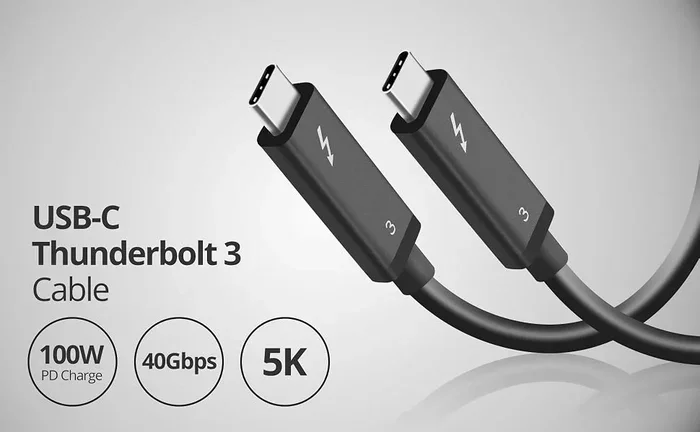
The cable you use matters more than most people realize. A cheap or low-quality cable can bottleneck your connection and limit your speeds dramatically. Thunderbolt-certified cables are designed to handle the full 40 Gbps bandwidth of Thunderbolt 3 and Thunderbolt 4.
When shopping for cables, look for the Thunderbolt logo on the packaging. This logo guarantees the cable meets Intel’s strict performance standards. Avoid cables that only mention USB compatibility, as they may not support Thunderbolt speeds.
Check Your Device Compatibility
Not all USB devices are created equal when it comes to speed. An external SSD with a Thunderbolt controller will perform much faster than a standard USB 3.0 hard drive. If you are serious about speed, invest in Thunderbolt-compatible peripherals.
Here are some devices that take full advantage of Thunderbolt speeds:
- Thunderbolt external SSDs: Brands like Samsung T7 and SanDisk Extreme offer Thunderbolt versions.
- Thunderbolt docking stations: These hubs let you connect multiple devices at full speed.
- Thunderbolt displays: Monitors that connect via Thunderbolt offer the fastest data and video performance.
Update Your Drivers and Firmware
One thing many people overlook is keeping their drivers and firmware up to date. Intel regularly releases Thunderbolt firmware updates that improve compatibility and performance. Similarly, updating your operating system ensures your computer can communicate properly with Thunderbolt devices.
On macOS, you can check for updates through System Settings. On Windows, use Windows Update. Keeping everything current is a simple but effective way to maintain optimal speeds.
Reduce Cable Length
Longer cables can introduce signal loss and reduce speeds. If you need the fastest possible connection, keep your Thunderbolt cables as short as practical. A cable under 0.5 meters (about 1.5 feet) will give you the best performance for most setups.
If you must use a longer cable, make sure it is a high-quality Thunderbolt-certified cable rated for the full 40 Gbps bandwidth. Passive cables longer than 0.5 meters may not sustain top speeds, so active cables with built-in signal boosting are a better choice for longer runs.
Common Mistakes to Avoid When Connecting USB to Thunderbolt
Even with the best equipment, mistakes can slow down your connection. Here are the most common pitfalls and how to avoid them.
Using Non-Thunderbolt Cables
This is the number one mistake people make. A USB-C cable is not always a Thunderbolt cable. USB-C is just a connector shape, while Thunderbolt is a technology standard. Using a regular USB-C cable in a Thunderbolt port will limit your speeds to USB levels, not Thunderbolt levels.
Always look for the Thunderbolt lightning bolt icon on your cable and devices. If you do not see it, the cable may not support Thunderbolt speeds.
Assuming All Thunderbolt Ports Are the Same
Not all Thunderbolt ports deliver the same performance. Thunderbolt 1 and Thunderbolt 2 used the Mini DisplayPort connector and offered much lower speeds. Thunderbolt 3 and Thunderbolt 4 use USB-C and offer 40 Gbps.
Before you buy any Thunderbolt equipment, check which version your device supports. You can usually find this information in your device specifications or on the manufacturer’s website.
Ignoring Thermal Throttling
Thunderbolt devices can generate heat, especially during long transfers. When a device gets too hot, it may slow down to protect itself. This is called thermal throttling, and it can significantly impact your transfer speeds.
To avoid this, make sure your Thunderbolt devices have proper ventilation. Do not stack them on top of each other, and avoid using them in enclosed spaces without airflow. A simple cooling pad or stand can make a big difference.
Overlooking Adapter Quality
If you need to use adapters to connect your devices, the quality of the adapter matters a lot. A cheap adapter can introduce latency, reduce speeds, and even cause connection drops. Always buy adapters from reputable brands and look for Thunderbolt certification.
For example, if you need to connect a USB-A device to a Thunderbolt port, use a high-quality USB-C to USB-C adapter or a Thunderbolt-compatible USB-C hub. Avoid the cheapest options you find online, as they often lack the necessary bandwidth support.
Expert Tips for Maximizing Your Connection Speed
Here are some pro tips from industry experts to help you get the absolute best performance out of your USB-to-Thunderbolt setup.
Use Direct Connections When Possible
Every adapter or hub you add to the chain introduces a potential bottleneck. For the fastest speeds, connect your Thunderbolt devices directly to your computer’s Thunderbolt port. If you must use a hub or dock, choose one that is Thunderbolt-certified and supports 40 Gbps bandwidth.
Close Unnecessary Applications During Transfers
Your computer’s processor and memory play a role in data transfer speeds. If you have many applications running during a large file transfer, your system resources are divided. Closing unnecessary apps frees up resources and can help maintain peak transfer speeds.
Format Your Drives for Your Operating System
If you are using an external drive with both Mac and Windows, make sure it is formatted correctly. APFS or Mac OS Extended for Mac, and NTFS for Windows. Using the wrong file format can cause compatibility issues and slow down transfers.
Consider USB4 for Future-Proofing
USB4 is the newest USB standard and shares many similarities with Thunderbolt 3 and Thunderbolt 4. It offers 40 Gbps speeds and uses the USB-C connector. If you are buying new devices or cables, USB4 is a great choice for future-proofing your setup.
USB4 is not exactly the same as Thunderbolt, but it is compatible with Thunderbolt devices and offers comparable speeds. This makes it an excellent option if you want the flexibility of USB with the performance of Thunderbolt.
Keep Your Setup Clean and Organized
It sounds simple, but a clean setup leads to better performance. Make sure your Thunderbolt ports are free from dust and debris. Use cable management solutions to avoid putting stress on your connections. A well-organized setup not only looks better but also lasts longer.
If you are interested in learning more about optimizing your iPhone’s connectivity settings, you might find our guide on Adding Prefixes To Numbers On Iphone helpful for managing how your devices communicate and organize contacts.
Conclusion
So, can you connect USB to Thunderbolt and get faster speeds? Absolutely. Thunderbolt’s backward compatibility with USB devices means you can plug in almost any USB-C device and enjoy improved performance. The key is to use the right cables, compatible devices, and a little bit of knowledge about how the connection works.
By following the tips in this guide, you can make the most of your Thunderbolt ports and get the fastest speeds possible. Use Thunderbolt-certified cables, invest in compatible peripherals, and avoid common mistakes like using cheap adapters or ignoring thermal management.
Whether you are a professional who needs to move huge files quickly or a casual user who wants a faster, more versatile setup, connecting USB to Thunderbolt is one of the smartest moves you can make. The technology is there, the devices are available, and the speed difference is real. Start optimizing your setup today and experience the difference for yourself.
Frequently Asked Questions
Can I plug a USB 3.0 device into a Thunderbolt port?
Yes, you can. Thunderbolt 3 and Thunderbolt 4 ports are fully backward compatible with USB devices. Your USB 3.0 device will work, but it will operate at USB 3.0 speeds, not Thunderbolt speeds.
Do I need a special cable to connect USB to Thunderbolt?
Not necessarily. A standard USB-C cable will work for basic connectivity. However, if you want to achieve Thunderbolt speeds, you should use a Thunderbolt-certified cable that supports 40 Gbps bandwidth.
Will connecting a USB device to Thunderbolt damage my device?
No, it will not. Thunderbolt ports are designed to be safe with USB devices. The port automatically detects the device type and adjusts power and data protocols accordingly.
What is the difference between USB-C and Thunderbolt 3?
USB-C is a connector shape, while Thunderbolt 3 is a technology standard that uses the USB-C connector. Thunderbolt 3 supports 40 Gbps speeds, while a standard USB-C connection may only support USB speeds, which are slower.
Can I use a Thunderbolt dock with USB devices?
Yes, Thunderbolt docks work with USB devices. The dock will recognize USB peripherals and allow them to function normally. For the best performance, choose a dock that is Thunderbolt-certified and supports high-speed data transfer.
How do I know if my cable is Thunderbolt-certified?
Look for the Thunderbolt lightning bolt icon on the cable and its packaging. Certified cables will also list Thunderbolt 3 or Thunderbolt 4 specifications. If there is no Thunderbolt logo, the cable is likely a standard USB-C cable and may not support Thunderbolt speeds.