Can I Connect Wi Fi Printer To Iphone Without Hassle
Yes, you can connect a WiFi printer to iPhone without any hassle. With Apple’s built-in AirPrint technology and a few simple steps, you can print photos, documents, and more directly from your iPhone. This guide walks you through every method, tip, and fix you need for wireless printing success.
Have you ever been sitting on your couch, staring at something you need to print, and thought, “Can I connect WiFi printer to iPhone without all the technical hassle?” You are not alone. Many iPhone users want the freedom to print from anywhere in their home without dealing with cables, computers, or complicated setups. The good news is that connecting a WiFi printer to your iPhone is simpler than most people think.
Whether you need to print a school assignment, a photo, a boarding pass, or a work document, your iPhone can handle it. Apple has built a feature called AirPrint that makes wireless printing almost effortless. And even if your printer does not support AirPrint, there are easy workarounds. In this guide, we will walk you through every method, tip, and trick to get your printer talking to your iPhone in no time.
By the end of this article, you will know exactly how to set up mobile printing, fix common problems, and choose the right printer for your iPhone setup. No jargon. No fluff. Just clear, practical advice you can use right away. Let us get started.
Key Takeaways
- AirPrint makes it easy: Most modern WiFi printers work with iPhone right out of the box using Apple’s AirPrint feature.
- Same WiFi network is key: Your iPhone and printer must be on the same wireless network for seamless mobile printing.
- Third-party apps help: Not all printers support AirPrint, but free apps from manufacturers solve this problem quickly.
- Troubleshooting is simple: Restarting devices, checking network settings, and updating software fixes most connection issues.
- Setup takes minutes: You don’t need a computer or cables to get your wireless printer working with your iPhone.
- Check compatibility first: Always verify your printer model supports wireless connectivity and iOS printing before buying.
📑 Table of Contents
- What You Need Before You Start
- How to Connect WiFi Printer to iPhone Step by Step
- Understanding AirPrint and Compatible Printers
- Using Third-Party Apps for Non-AirPrint Printers
- Troubleshooting Common Connection Problems
- Quick Tips for Better Wireless Printing on iPhone
- Expert Insights on iPhone Wireless Printing
- Comparison Table: AirPrint vs Third-Party Apps
- Common Mistakes to Avoid When Connecting a WiFi Printer to iPhone
- Final Thoughts
What You Need Before You Start
Before you try to connect anything, let us make sure you have what you need. The setup process is simple, but a few basics will save you time and frustration.
Your iPhone and Its Settings
You need an iPhone running a reasonably recent version of iOS. Most iPhones running iOS 12 or later support AirPrint without any extra software. Go to your Settings app and make sure Wi-Fi is turned on. Your iPhone needs an active internet connection to find printers on your network.
A WiFi-Enabled Printer
Your printer must support wireless connectivity. Most modern printers come with built-in WiFi, but older models might not. Check the box or the manufacturer’s website to confirm. If you are shopping for a new printer, look for terms like “wireless printing,” “WiFi enabled,” or “AirPrint compatible.”
A Shared WiFi Network
This is the most important part. Both your iPhone and your printer must be connected to the same WiFi network. If your printer is on a guest network and your iPhone is on the main network, they cannot see each other. Make sure both devices are on the same wireless router and the same network name (SSID).
How to Connect WiFi Printer to iPhone Step by Step
Now for the fun part. Here is the actual process of setting up wireless printing on your iPhone. Follow these steps and you will be printing in just a few minutes.
Step 1: Turn on Your Printer
Make sure your printer is powered on and ready. Most WiFi printers have a small WiFi indicator light on the front or top panel. If it is solid or blinking, the printer is connected to your network. If not, you may need to set up the printer’s WiFi connection first using its control panel or a setup app.
Step 2: Check Your iPhone’s WiFi Connection
Open the Settings app on your iPhone. Tap on Wi-Fi and make sure it is turned on. Look at the network name your iPhone is connected to. Now check your printer’s WiFi light or display. It should show the same network name. If they are different, that is your first problem to fix.
Step 3: Open the App or Document You Want to Print
Find the photo, document, email, or webpage you want to print. Tap the Share button, which looks like a square with an arrow pointing up. Scroll through the options and look for “Print.” Tap it.
Step 4: Select Your Printer
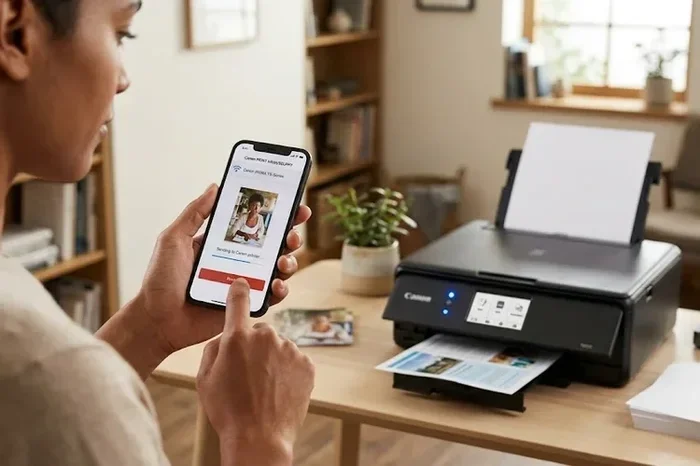
After tapping Print, you will see a print preview screen. At the top, there is a section called “Printer.” Tap on it. Your iPhone will search for available printers on the network. Your WiFi printer should appear in the list. Tap on it to select it.
Step 5: Adjust Settings and Print
You can now choose the number of copies, color or black-and-white, and which pages to print. Once you are happy with the settings, tap the big “Print” button in the top right corner. Your document will start printing within seconds.
That is it. Five simple steps and you are printing directly from your iPhone. No computer needed. No cables needed. No hassle at all.
Understanding AirPrint and Compatible Printers
Apple’s AirPrint is the built-in technology that allows your iPhone to find and talk to compatible printers over WiFi. It was introduced in 2010 and has become the standard for iOS printing. Understanding how AirPrint works helps you avoid problems and choose the right equipment.
What AirPrint Supports
AirPrint works with most printing tasks you will do on your iPhone. You can print photos, PDFs, web pages, emails, and documents from apps like Pages, Word, and Google Docs. AirPrint does not require any driver downloads or extra software. It just works, which is why millions of people rely on it for mobile printing.
Printers That Support AirPrint
Most major printer brands support AirPrint. Here are some popular ones:
- HP: Many HP Envy, OfficeJet, and DeskJet models
- Canon: PIXMA and MAXIFY series
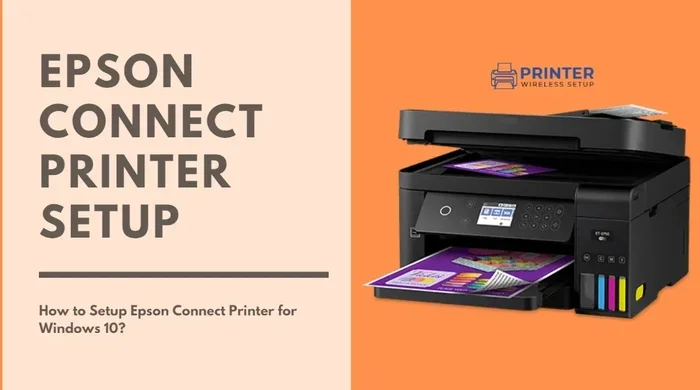
- Epson: Expression and EcoTank lines
- Brother: Several MFC and J series models
- Samsung: Galaxy and Xpress printers
If you are unsure whether your printer supports AirPrint, visit the manufacturer’s website and search for your model number. You can also check the list of AirPrint-compatible printers on Apple’s support page. If your printer does not support AirPrint, do not worry. We will cover alternatives in the next section.
How to Add Prefixes or Custom Settings for Printer Numbers
Sometimes you might need to adjust how your iPhone connects to a network printer, especially in office environments where numbers or codes are needed. For example, if you need to add prefixes to numbers when dialing or printing through a specific network setup, you can explore our guide on adding prefixes to numbers on iPhone for helpful tips. While this is not directly about printing, understanding network number formatting can help with certain printer configuration scenarios.
Using Third-Party Apps for Non-AirPrint Printers
Not every printer supports AirPrint, especially older models or budget options. But that does not mean you are stuck. Several free apps let you connect almost any WiFi printer to your iPhone.
Manufacturer Apps
Most printer brands offer their own free apps. These apps connect your iPhone to the printer using WiFi or Bluetooth. Here are the most popular ones:
- HP Smart: Works with most HP printers and offers scanning and ink management.
- Canon PRINT: Supports Canon printers and gives access to advanced settings.
- Epson iPrint: Connects to Epson printers and handles printing and scanning.
- Brother iPrint&Scan: Works with Brother devices for printing, scanning, and faxing.
Universal Printing Apps
If you want one app that works with many printer brands, try these:
- Printer Pro by Readdle: A powerful app that supports dozens of printer brands and even allows printing from cloud storage.
- PrintCentral Pro: Another versatile option that handles WiFi, USB, and network printers.
These apps are easy to set up. Download one from the App Store, make sure your iPhone and printer are on the same WiFi network, and follow the in-app instructions. You will be printing in minutes even without AirPrint support.
Troubleshooting Common Connection Problems
Even with the simplest setup, things can go wrong sometimes. Here are the most common issues people face when trying to connect a WiFi printer to iPhone and how to fix them.
Printer Not Showing Up on iPhone
This is the number one complaint. If your iPhone cannot find the printer, try these fixes:
- Make sure both devices are on the same WiFi network.
- Turn the printer off and back on.
- Restart your iPhone by holding the power button and sliding to power off.
- Turn off your iPhone’s WiFi and turn it back on.
- Move the printer closer to your wireless router.
Print Jobs Stuck or Not Printing
Sometimes the print job starts but never finishes. Check the printer’s screen or display for any error messages. Often, the paper tray is empty, the ink is low, or there is a paper jam. Clear any issues, and try printing again. You can also cancel the stuck job by going to the print queue on your iPhone and swiping to delete it.
Slow Printing Over WiFi
Wireless printing speed depends on your WiFi signal strength. If your printer is far from the router, the connection may be slow. Try moving the printer closer to the router or consider adding a WiFi extender to boost the signal. Also, printing in black and white or using a lower quality setting can speed things up.
iPhone and Printer Keep Disconnecting
If the connection drops frequently, your WiFi network might be overloaded. Try turning off devices you are not using. You can also try assigning a static IP address to your printer through your router settings. This keeps the printer at the same address and prevents connection drops.
For more tech tips on getting the most out of your iPhone accessories, check out our guide on 10 gadgets to make mom’s life easier for helpful ideas on streamlining your tech setup at home.
Quick Tips for Better Wireless Printing on iPhone
Once you have your printer connected, these tips will make your mobile printing experience even better:
- Keep your iPhone and printer close: The closer they are to the WiFi router, the stronger the connection and the faster the printing.
- Update your printer firmware: Manufacturers release updates that fix bugs and improve compatibility. Check the printer’s app or website for updates.
- Use the right paper: For photos, use glossy photo paper. For documents, standard copy paper works great.
- Save ink with draft mode: If you are printing something you do not need to look fancy, use draft quality to save ink and speed up printing.
- Print from cloud services: Apps like Google Drive, Dropbox, and iCloud let you print files stored in the cloud without downloading them first.
- Set up a printer alias: Some routers let you name your printer something easy to recognize, making it simpler to find in the iPhone print menu.
Expert Insights on iPhone Wireless Printing
Wireless printing has come a long way over the past decade. What used to require a computer, a USB cable, and patience now works with just a few taps on your iPhone. Apple’s commitment to making iOS printing simple has pushed the entire industry forward. Even budget printers now offer reliable WiFi connectivity and AirPrint support.
One thing to keep in mind is that your wireless network matters more than you might think. A strong, stable WiFi connection is the foundation of good wireless printing. If your home network is weak in certain areas, consider upgrading your router or adding a mesh WiFi system. This small investment can make a big difference in print quality and speed.
Another expert tip is to always keep your iPhone updated. Apple regularly improves AirPrint compatibility and fixes bugs with each iOS update. Running the latest version of iOS ensures the best printer connectivity experience.
Comparison Table: AirPrint vs Third-Party Apps
| Feature | AirPrint (Built-in) | Third-Party Apps |
|---|---|---|
| Setup Difficulty | Very Easy | Easy |
| Extra Software Needed | No | Yes (free app) |
| Printer Compatibility | AirPrint-enabled printers only | Most WiFi printers |
| Advanced Settings | Limited | More options available |
| Cost | Free | Free (some premium features) |
| Works Without WiFi | No | Some apps support Bluetooth |
Common Mistakes to Avoid When Connecting a WiFi Printer to iPhone
Avoid these mistakes to save yourself frustration:
- Assuming all printers work with AirPrint: Always check compatibility before you buy or try to print.
- Ignoring the WiFi network: If your iPhone and printer are on different networks, they cannot communicate.
- Skipping firmware updates: Outdated printer firmware can cause connection problems and missing features.
- Not restarting devices: A simple restart fixes more connection issues than any other troubleshooting step.
- Using outdated apps: If you rely on a third-party app, keep it updated for the best performance.
Final Thoughts
So, can you connect a WiFi printer to iPhone? Absolutely. With AirPrint or a free third-party app, you can print from your iPhone in just a few minutes. The process is straightforward, the setup is simple, and the convenience is unbeatable. Whether you are at home, in the office, or anywhere with WiFi, your iPhone becomes a powerful printing tool.
Remember the key steps: make sure both devices are on the same WiFi network, use the Print option in the Share menu, and select your printer from the list. If something goes wrong, the troubleshooting tips in this guide will help you fix most issues quickly. Wireless printing is not just a luxury anymore. It is a daily necessity for many people, and setting it up with your iPhone does not have to be a hassle.
Take a few minutes today to set up your printer with your iPhone. Once it is working, you will wonder how you ever lived without it. Happy printing!
Frequently Asked Questions
Can I connect any WiFi printer to my iPhone?
Most WiFi printers work with iPhone, but the easiest experience comes from printers that support AirPrint. If your printer does not support AirPrint, you can still connect it using free apps from the manufacturer or universal printing apps available in the App Store.
Do I need a computer to set up a WiFi printer with my iPhone?
No, you do not need a computer at all. As long as your printer is WiFi-enabled and both your iPhone and printer are on the same wireless network, you can set up and print directly from your iPhone using AirPrint or a compatible app.
Why is my iPhone not finding my WiFi printer?
The most common reason is that the two devices are not on the same WiFi network. Check that both your iPhone and printer are connected to the same network name. Also try restarting both devices, as this resolves most discovery issues quickly.
Can I print photos directly from my iPhone to a WiFi printer?
Yes, you can. Open the Photos app, find the image you want to print, tap the Share button, and select Print. Choose your WiFi printer from the list and tap Print. Your photo will print wirelessly without needing a computer or cables.
Is AirPrint free to use on iPhone?
AirPrint is completely free and built into iOS. There are no extra apps to download, no subscriptions, and no hidden fees. As long as your printer supports AirPrint, you can use it at no additional cost.
What should I do if my printer keeps disconnecting from my iPhone?
First, make sure both devices are on the same WiFi network and that the signal is strong. Try restarting your router, printer, and iPhone. If the problem continues, check for firmware updates on your printer and make sure your iPhone is running the latest version of iOS.