Does Microsoft Print To PDF Actually Print Correctly
Does Microsoft Print to PDF actually print? Yes, it does — and it works surprisingly well for most everyday tasks. This built-in PDF printer in Windows lets you create PDF files from any app without extra software. However, users sometimes run into formatting issues, missing images, or layout problems. In this guide, we walk through exactly how it works, where it falls short, and how to fix common PDF printing problems fast.
Key Takeaways
- Microsoft Print to PDF works reliably for everyday document conversion tasks on Windows.
- It is a built-in virtual printer that requires no third-party software or downloads.
- Common issues include formatting shifts, missing images, and font substitution problems.
- Simple fixes like updating drivers and checking print settings can resolve most problems.
- It is not a replacement for dedicated PDF tools when you need advanced features like editing or signing.
- Print quality depends on source document formatting and the app you are printing from.
- It works best with standard documents like reports, letters, and web pages.
📑 Table of Contents
- Does Microsoft Print to PDF Actually Print Correctly?
- How Microsoft Print to PDF Actually Works
- When Microsoft Print to PDF Works Great
- Common Problems and Why They Happen
- How to Fix Common Microsoft Print to PDF Issues
- Is Microsoft Print to PDF Good Enough for Your Needs?
- Quick Tips for Better PDF Output
- Expert Insights
- Key Takeaways
- Conclusion
Does Microsoft Print to PDF Actually Print Correctly?
If you have ever clicked “Print” and chosen Microsoft Print to PDF, you might have wondered if it really works. The short answer is yes. It does print. But the longer answer is that it works well for some things and not so well for others.
Microsoft Print to PDF is a built-in feature in Windows. It acts like a virtual printer. When you send a document to it, Windows creates a PDF file instead of printing on paper. This feature has been around for a while. And millions of people use it every day. But does it always get things right?
Let us dive deep into how this tool works. We will look at what it does well. We will also cover where it struggles. And we will share real fixes for the problems you might face. By the end, you will know exactly what to expect.
What Is Microsoft Print to PDF?
Microsoft Print to PDF is a PDF printer driver built into Windows 10 and Windows 11. It shows up in your list of printers when you open the print dialog. You do not need to install anything extra. It is already there, ready to go.
When you choose it, Windows takes your document and converts it into a PDF file. The file saves to your computer. You can then share it, store it, or open it in any PDF reader.
Think of it like a photocopier. But instead of making a paper copy, it makes a digital one. The output is a PDF document that keeps your original layout. At least that is the idea.
How It Compares to Other PDF Tools
There are many ways to create a PDF. Here is how Microsoft Print to PDF stacks up against some popular options.
Save As PDF — Some apps like Word have a built-in “Save As PDF” option. This method works directly inside the app. It often gives better results than the print method. The formatting stays truer to the original.
Adobe Acrobat — This is a premium tool. It offers full PDF editing, signing, and conversion features. Microsoft Print to PDF cannot do any of that. It is a one-way conversion tool only.
Online Converters — Sites like SmallPDF or iLovePDF let you convert files online. They work well but raise privacy concerns. Your document goes through their servers. Microsoft Print to PDF keeps everything local. That is a big plus for privacy.
Microsoft Edge Print to PDF — The Edge browser also has a built-in PDF save option. It works great for web pages. But it does not help you convert desktop app documents.
So where does Microsoft Print to PDF shine? It is best for quick, no-fuss conversions. You need something fast. You do not want to install extra software. This tool gets the job done.
How Microsoft Print to PDF Actually Works
Understanding how this tool works helps you use it better. The process is simple but there are some behind-the-scenes details worth knowing.
The Printing Process Step by Step
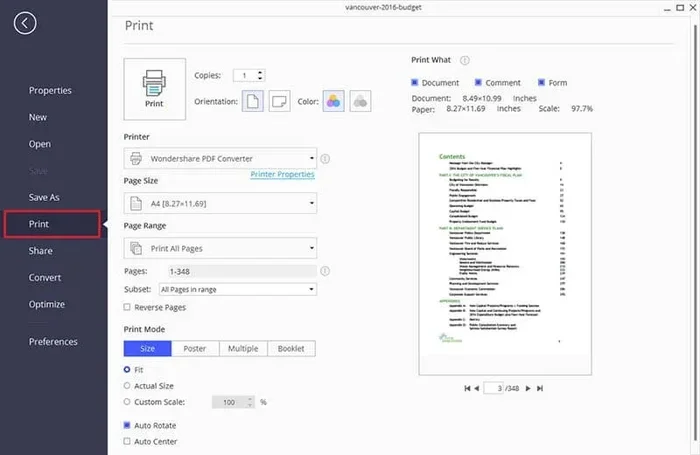
Here is what happens when you use Microsoft Print to PDF:
- You open your document in any app.
- You click File and then Print. Or you press Ctrl + P.
- You select Microsoft Print to PDF from the printer list.
- You click Print.
- A save dialog pops up. You choose where to save the file.
- Windows creates the PDF file and saves it to your chosen location.
That is it. It is fast. It is easy. And for most simple documents, the output looks great.
What Happens Behind the Scenes
When Windows creates the PDF, it renders your document page by page. It takes each screen of content and turns it into a PDF page. The print driver handles this conversion.
The quality of the output depends on several things:
- Source document formatting — How well the original file is designed matters a lot.
- Font availability — If a font is missing, Windows substitutes another one.
- Image resolution — Low-res images stay low-res in the PDF.
- Page layout settings — Margins, orientation, and scaling affect the final result.
- App compatibility — Some apps handle the print command better than others.
This is why you sometimes get a perfect PDF and other times a messy one. It is not always the PDF printer that is at fault.
When Microsoft Print to PDF Works Great
Microsoft Print to PDF is not all bad. In fact, it works really well in many situations. Here are the times you can count on it.
Simple Text Documents
If you are printing a plain text document or a basic report, this tool does a fine job. The text comes through clearly. The layout stays intact. You get a clean PDF file that looks just like the original.
For example, if you write a letter in Notepad and print it to PDF, the result is clean and simple. No surprises. No headaches.
Web Pages
Printing web pages to PDF works well with Microsoft Print to PDF. You can save articles, recipes, or reference pages for later reading. The content stays readable. The formatting may shift a bit, but it is still usable.
Tip: Use Microsoft Edge for the best web-to-PDF results. Edge has its own built-in PDF save feature that works even better for web content.
Quick Sharing and Archiving
Need to send a document as a PDF but do not have Adobe Acrobat? Microsoft Print to PDF is your best friend. It creates a shareable file in seconds. You can email it, upload it to the cloud, or save it for your records.
It is perfect for document conversion tasks that do not need perfection. Just quick and reliable PDF creation.
Common Problems and Why They Happen
Now let us talk about the stuff that goes wrong. Because it does go wrong sometimes. And knowing why helps you fix it.
Formatting Shifts and Layout Issues
This is the number one complaint. People print a document to PDF and the layout looks different. Text wraps in weird places. Images move. Margins change.
Why does this happen? Different apps handle the print command differently. A PDF printer interprets your document in its own way. The result may not match what you see on screen.
For example, a complex Excel spreadsheet might not print perfectly. The columns might shift. The formatting might break. This is a known PDF formatting issue with the Microsoft tool.
Missing Images or Broken Graphics
Sometimes images do not show up in the PDF. Or they come out blurry. Or they appear in the wrong place.
This usually happens when the source file has linked images. If the image is not embedded in the original document, the PDF printer may skip it. Or it may render it at a lower quality.
Another cause is high-resolution images. The print driver might compress them. This leads to blurry or pixelated output in the final PDF.
Font Substitution Problems
Not all fonts are available to the PDF printer. When a font is missing, Windows picks a substitute. This can change how your text looks.
Custom or decorative fonts are the biggest culprits. Your fancy heading font might turn into a plain Arial in the PDF. The spacing and layout can shift because of this.
The Printer Not Showing Up
Sometimes Microsoft Print to PDF does not appear in the printer list. This can be frustrating. The good news is it is usually an easy fix.
Common causes include:
- The print driver got disabled by a Windows update.
- A third-party PDF tool overrode the default settings.
- The printer spooler service needs a restart.
- Windows features were turned off during system changes.
How to Fix Common Microsoft Print to PDF Issues
Most problems with Microsoft Print to PDF have simple fixes. Here is what you can do.
Fix 1: Re-Enable the PDF Printer
If the printer is missing, you can turn it back on. Go to Settings > Apps > Optional Features. Look for Microsoft Print to PDF in the list. If it is turned off, toggle it on. If it is not listed, click Add a Feature and find it there.
Fix 2: Restart the Print Spooler
The print spooler manages all print jobs. Sometimes it gets stuck. Restarting it often fixes the issue.
Here is how:
- Press Win + R to open the Run dialog.
- Type services.msc and press Enter.
- Find Print Spooler in the list.
- Right-click and select Restart.
After this, try printing to PDF again. It often works like a charm.
Fix 3: Check Your Print Settings
Before you print, double-check your settings. Make sure the paper size matches your document. Check the orientation. Look at the scaling options. A small setting change can fix big layout problems.
Also, try printing to a PDF printer other than Microsoft’s. If that works, the issue is with the PDF printer driver itself. You can then update or reinstall it.
Fix 4: Update Windows
Microsoft regularly releases updates that fix bugs. A Windows update might resolve your PDF printing problem. Go to Settings > Update & Security and check for updates. Install any pending updates and restart your PC.
Fix 5: Use an Alternative When Needed
If Microsoft Print to PDF keeps giving you trouble, try a different tool. The built-in “Save As PDF” option in Word works better for Word documents. For web pages, use Edge’s PDF save feature. And for advanced needs, consider a dedicated PDF editor.
Is Microsoft Print to PDF Good Enough for Your Needs?
The honest answer is: it depends. Let us break it down.
Use Microsoft Print to PDF if:
- You need a quick PDF from a simple document.
- You do not want to install extra software.
- You are working on a Windows PC and need a fast solution.
- The document does not have complex formatting or images.
Look for alternatives if:
- You need precise formatting and layout control.
- Your documents have complex graphics or tables.
- You need to edit, sign, or fill out PDF forms.
- You work with PDFs regularly and need advanced features.
Microsoft Print to PDF is a great tool for basic tasks. It is free. It is built in. And it works well enough for most people most of the time. But it is not a professional-grade PDF solution. Know its limits and use it for what it is good at.
Quick Tips for Better PDF Output
Want better results when you print to PDF? Try these tips:
- Use standard fonts — Avoid custom or decorative fonts to prevent substitution issues.
- Embed images in your source file — This ensures all graphics appear in the PDF.
- Check page size settings — Match the paper size between your document and printer settings.
- Print a test page first — Check the output before you need the final version.
- Save often — If the conversion fails, you do not want to lose your work.
- Keep Windows updated — Updates often include fixes for the PDF printer driver.
Expert Insights
Many users assume that all PDF printers work the same way. They do not. The Microsoft Print to PDF driver uses a basic rendering engine. It does not have the advanced processing power of tools like Adobe Acrobat.
Tech experts often recommend using Microsoft Print to PDF for simple tasks. For anything complex, they suggest dedicated PDF software. The key is matching the tool to the job.
One thing that surprises many people is how much the source app matters. Printing from Word gives different results than printing from a browser. Even printing from different versions of the same app can change the output. The print dialog settings also play a big role in the final PDF output quality.
Key Takeaways
- Microsoft Print to PDF works reliably for everyday document conversion tasks on Windows.
- It is a built-in virtual printer that requires no third-party software or downloads.
- Common issues include formatting shifts, missing images, and font substitution problems.
- Simple fixes like updating drivers and checking print settings can resolve most problems.
- It is not a replacement for dedicated PDF tools when you need advanced features like editing or signing.
- Print quality depends on source document formatting and the app you are printing from.
- It works best with standard documents like reports, letters, and web pages.
Conclusion
So, does Microsoft Print to PDF actually print? Yes, it absolutely does. It is a handy built-in tool that creates PDF files quickly and easily. For simple documents, web pages, and quick conversions, it gets the job done well.
But it is not perfect. Formatting issues, missing images, and font problems can pop up. These are usually fixable with a few simple steps. And knowing when to use an alternative makes all the difference.
The next time you need a PDF, give Microsoft Print to PDF a try. Just keep its strengths and limitations in mind. With the right expectations and a few tips, it can be a reliable part of your workflow.
PDF printing does not have to be complicated. And with this tool built right into Windows, you do not need to make it complicated. Use it wisely, and it will serve you well.
Frequently Asked Questions
Is Microsoft Print to PDF safe to use?
Yes, it is completely safe. It is a built-in Windows feature developed by Microsoft. Your files stay on your computer and are not uploaded to any server. It is one of the most private ways to create a PDF.
Why does Microsoft Print to PDF not show up in my printer list?
This usually happens after a Windows update or when a third-party PDF tool takes over. You can re-enable it by going to Settings > Apps > Optional Features and toggling it on. Restarting the Print Spooler service can also help.
Can Microsoft Print to PDF handle images and graphics well?
It handles simple images and graphics fine. But complex graphics, high-resolution images, or detailed charts may not come out perfectly. Images can shift, compress, or go missing in some cases. For graphic-heavy documents, a dedicated PDF tool is a better choice.
How is Microsoft Print to PDF different from Save As PDF in Word?
Save As PDF works inside the app and keeps formatting truer to the original. Microsoft Print to PDF uses a virtual printer driver and may alter layout slightly. For Word documents, Save As PDF usually gives better results.
Can I use Microsoft Print to PDF on Windows 11?
Yes, it is available on both Windows 10 and Windows 11. It comes built into the operating system and works the same way on both versions.
What should I do if the PDF output looks blurry or low quality?
Check your print settings first. Make sure scaling is set to 100%. Also check if your source document has low-resolution images. If the problem persists, try the “Save As PDF” option in the app you are using, or consider using a dedicated PDF converter tool.