Can I Use My Iphone As A Nanny Cam For Home Security
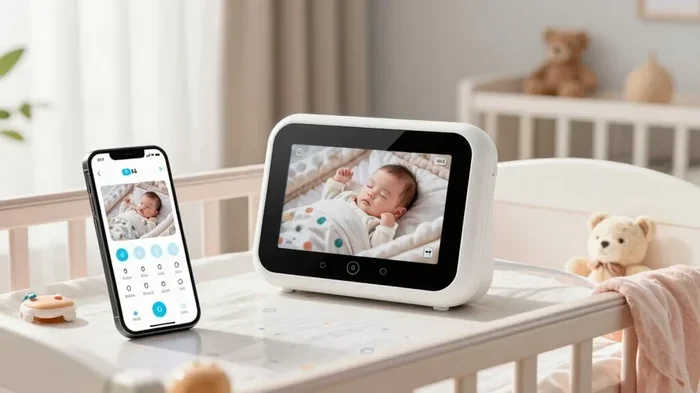
Yes, you can absolutely use your iPhone as a nanny cam for home security. With the right apps and settings, your old or spare iPhone becomes a powerful baby monitoring and childcare monitoring device. This guide covers everything you need to know about iPhone surveillance, from app recommendations to privacy tips.
Can I use my iPhone as a nanny cam? The short answer is a confident yes. You do not need to buy an expensive dedicated camera to keep an eye on your home or your little one. Your iPhone already has a high-quality camera, Wi-Fi connectivity, and powerful processing capabilities. All you need is the right app and a few simple steps.
Thousands of parents and homeowners are already turning their old iPhones into nanny cams and home security cameras. It is a smart, budget-friendly solution that gives you peace of mind. Whether you want to watch your baby, check on a caregiver, or monitor your property, your iPhone can do the job surprisingly well.
In this guide, we will walk you through everything. You will learn which apps work best, how to set up your device, what features to look for, and how to stay safe and legal. By the end, you will know exactly how to turn any iPhone into a reliable baby monitoring tool or childcare monitoring device.
Key Takeaways
- An old iPhone works great as a nanny cam: You can repurpose any iPhone with a camera for live streaming and video recording.
- Top apps make setup easy: Apps like Alfred, Presence, and Cloud Baby Monitor turn your iPhone into a reliable home security camera.
- Remote monitoring is a game-changer: Check on your home or baby from anywhere using your current phone or computer.
- Privacy matters a lot: Always inform caregivers and follow local laws when using iPhone surveillance.
- Free and paid options exist: Many apps offer solid free tiers, while premium features add motion detection and cloud storage.
- Night vision and two-way audio are key features: These make your DIY nanny cam far more effective for baby monitoring and home safety.
📑 Table of Contents
- Why Use Your iPhone As A Nanny Cam?
- Best Apps To Turn Your iPhone Into A Nanny Cam
- How To Set Up Your iPhone As A Nanny Cam
- Essential Features To Look For
- Privacy And Legal Considerations
- Common Mistakes To Avoid
- How To Maximize The Effectiveness Of Your iPhone Nanny Cam
- Final Thoughts On Using Your iPhone As A Nanny Cam
Why Use Your iPhone As A Nanny Cam?
Using your iPhone as a nanny cam makes a lot of sense. Most people already own one or more iPhones sitting around the house. Instead of letting an old device collect dust, you can put it to work as a home security camera.
Cost Savings
Dedicated nanny cams can cost anywhere from $50 to $200 or more. A high-quality iPhone surveillance setup costs you nothing if you already have the device. Even if you need to buy a wall mount or a power adapter, the total cost stays very low.
High-Quality Video
Newer iPhones shoot excellent video. Even older models produce clear footage that is more than enough for baby monitoring. You get features like night vision (through the rear camera), HD resolution, and smooth frame rates that rival many store-bought cameras.
Convenience And Flexibility
You can move your iPhone nanny cam from room to room easily. Need to check on the nursery? Move the device there. Want to monitor the living room while the babysitter is present? Relocate it in seconds. This flexibility is hard to beat with fixed cameras.
Smart Features Built In
iPhones come with built-in motion detection capabilities, powerful microphones for two-way audio, and seamless cloud integration. These features make your old phone a surprisingly capable wireless camera for home security and childcare.
Best Apps To Turn Your iPhone Into A Nanny Cam
Choosing the right app is the most important step. The app determines how you view the live feed, record video, and receive alerts. Let us look at the best options available for iPhone surveillance and baby monitoring.
Alfred Camera
Alfred Camera is one of the most popular free apps for turning an old iPhone into a security camera. It works by installing the app on two devices. One device acts as the camera, and the other acts as the viewer.
Key features of Alfred include:
- Live streaming with motion detection alerts
- Two-way audio so you can talk through the camera
- Night vision mode for low-light monitoring
- Cloud storage for recorded clips (premium feature)
- Easy setup with no technical skills needed
Alfred is perfect for parents who want a simple, reliable nanny cam without spending money. The free version covers most basic needs, and the premium tier adds extra storage and features.
Presence
Presence turns your old iPhone into a full-featured home security camera. It offers motion detection, sound alerts, and live video streaming. Presence also lets you set custom zones so you only get notified when motion happens in specific areas.
Why people love Presence:
- Clean, intuitive interface
- Remote monitoring from any device
- Cloud recording and local storage options
- Works well for both baby monitoring and home security
- Supports multiple cameras on one account
Cloud Baby Monitor
If your main goal is baby monitoring, Cloud Baby Monitor is a fantastic choice. It was designed specifically for parents and includes features like lullaby playback, temperature monitoring, and two-way audio.
This app uses your Wi-Fi network to stream video, so there is no need for an internet connection beyond your home network. It also works over cellular data, which means you can check on your baby from anywhere.
Other Notable Options
Here are a few more apps worth considering for iPhone surveillance:
- Manything: Great free tier with solid motion detection
- AtHome Camera: Simple setup with good live streaming quality
- Baby Monitor 3G: Works over Wi-Fi and cellular, ideal for remote monitoring
- Vigilante: Turns your iPhone into a dashcam-style recorder with continuous loop recording
How To Set Up Your iPhone As A Nanny Cam
Setting up your old iPhone as a nanny cam is easier than you might think. Follow these steps to get your baby monitoring system running in under 30 minutes.
Step 1: Clean And Prepare Your iPhone
Start with a clean device. Wipe the camera lens with a soft cloth. Make sure the screen is free of cracks or damage. Delete any personal data from the device since it will now serve as a dedicated home security camera.
Step 2: Update The Software
Go to Settings and check for any available iOS updates. Running the latest software ensures the best performance and security for your iPhone surveillance setup. Some apps may not work properly on outdated operating systems.
Step 3: Download And Install The App
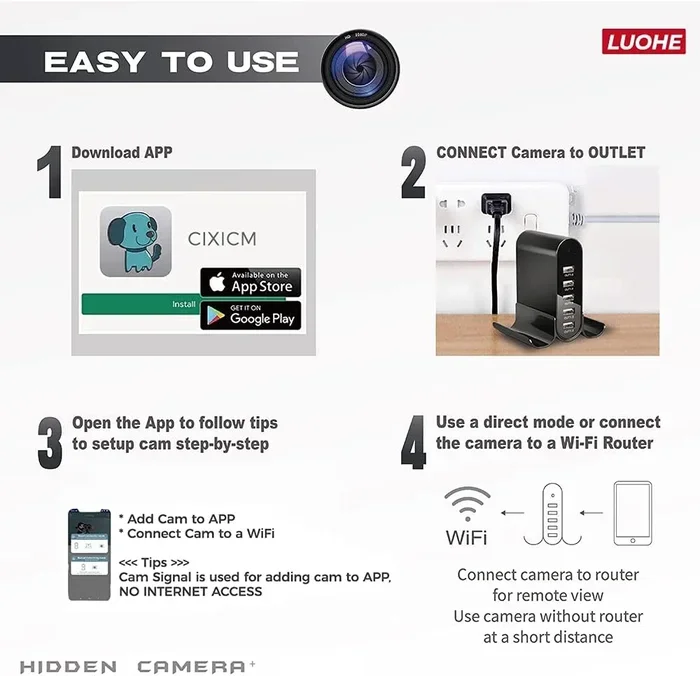
Choose one of the apps from the list above. Download it on both the camera iPhone and your viewing device. Follow the on-screen instructions to pair the two devices. Most apps guide you through this process step by step.
Step 4: Position The iPhone
Place the iPhone where you need it most. For baby monitoring, position it in the nursery facing the crib. Make sure the camera has a clear view and is out of reach of little hands. Use a wall mount or a stand to keep the device steady.
Step 5: Connect To Power
Keep your iPhone plugged into a charger at all times. A nanny cam needs to run continuously, and battery life will not last long with the camera app running in the background. A long charging cable gives you flexibility in placement.
Step 6: Test Everything
Before you leave the room, test the setup thoroughly. Check the live feed on your viewing device. Test the two-way audio to make sure you can hear and speak clearly. Trigger the motion detection to confirm alerts are working. A few minutes of testing saves a lot of frustration later.
Essential Features To Look For
Not all nanny cam apps are created equal. When choosing an app for iPhone surveillance, look for these essential features that make a real difference in baby monitoring and home security.
Live Streaming Quality
The live feed should be smooth and clear. Look for apps that support at least 720p resolution. Higher resolution gives you a sharper image, which matters when you are trying to see fine details like a baby’s face or a caregiver’s actions.
Motion Detection And Alerts
Motion detection is one of the most valuable features for any home security camera. The app should send instant notifications to your phone when it detects movement. This lets you respond quickly if something unusual happens in the nursery or around your home.
Two-Way Audio
Two-way audio lets you listen in and speak through the camera. This is incredibly useful for baby monitoring. You can soothe your child from another room or give instructions to a caregiver without walking into the space.
Night Vision
Your nanny cam needs to work in the dark too. Many apps offer a night vision mode that uses the iPhone’s infrared capabilities. This ensures you can see clearly even when the nursery lights are off.
Cloud Storage And Recording
Cloud storage lets you save video clips securely online. This means you can review footage even if someone removes or damages the iPhone. Free tiers usually offer limited storage, while paid plans give you more space and longer retention periods.
Remote Access
Remote monitoring means you can view the live feed from anywhere with an internet connection. Whether you are at work, running errands, or traveling, you can check on your home and your baby in real time.
| Feature | Why It Matters | Best App For |
|---|---|---|
| Live Streaming | Real-time view of your home or baby | All apps listed above |
| Motion Detection | Instant alerts when something moves | Alfred Camera, Presence |
| Two-Way Audio | Listen and speak through the camera | Cloud Baby Monitor, Alfred |
| Night Vision | Clear video in dark conditions | Alfred Camera, Presence |
| Cloud Storage | Secure backup of recorded footage | Presence, Manything |
| Remote Access | View feed from anywhere | All apps listed above |
Privacy And Legal Considerations
Using your iPhone as a nanny cam comes with serious responsibilities. Privacy concerns are real, and the laws around hidden cameras vary by location. Before you set up any iPhone surveillance, you need to understand the rules and do the right thing.
Know Your Local Laws
In most states and countries, recording video in your own home is legal. However, there are important exceptions. You generally cannot record in areas where people have a reasonable expectation of privacy, such as bathrooms or bedrooms of adults who are not your children. Laws also differ on whether you need to inform people that they are being recorded.
Always Inform Caregivers
Even if it is legal to record without telling anyone, the ethical choice is to be upfront. Let your babysitter, nanny, or caregiver know that a nanny cam is in use. This builds trust and avoids uncomfortable situations. Most professional caregivers are comfortable with transparent monitoring.
Secure Your Network
Your iPhone surveillance system is only as secure as your Wi-Fi network. Use a strong password for your home network. Change default passwords on your apps. Enable two-factor authentication wherever possible. These steps protect your baby monitoring footage from unauthorized access.
Delete Footage When No Longer Needed
Do not hold onto recordings longer than necessary. Regularly review and delete old footage. This reduces the risk of a data breach and keeps your childcare monitoring system focused and manageable.
Common Mistakes To Avoid
Even with the best intentions, people make mistakes when setting up a DIY nanny cam. Avoid these common pitfalls to get the most out of your iPhone surveillance system.
Forgetting To Charge The Device
This is the number one mistake people make. An iPhone running a camera app drains the battery quickly. If the device dies, you lose your live feed and remote monitoring capability. Always keep the iPhone plugged in and consider using a smart plug to maintain power during outages.
Using A Weak Wi-Fi Connection
A weak Wi-Fi signal leads to choppy video and dropped connections. Place your iPhone nanny cam close to your router, or consider adding a Wi-Fi extender to boost the signal in the nursery or monitoring area.
Ignoring Storage Limits
Video files take up a lot of space. If your iPhone runs out of storage, it will stop recording. Regularly offload footage to cloud storage or delete old clips to keep the system running smoothly.
Neglecting App Updates
App developers release updates to fix bugs and improve security. Running outdated software can leave your baby monitoring system vulnerable. Enable automatic updates for all your nanny cam apps.
Pointing The Camera At The Wrong Angle
A poorly positioned camera gives you useless footage. Test different angles before committing to a permanent setup. Make sure the camera captures the entire area you want to monitor without any blind spots.
How To Maximize The Effectiveness Of Your iPhone Nanny Cam
Once your nanny cam is set up, you can take a few extra steps to make it even more effective for home security and baby monitoring.
Set Up Multiple Cameras
If you have more than one old iPhone, use them all. Place one in the nursery, another in the living room, and a third near the front door. Multi-camera setups give you complete coverage of your home and provide a comprehensive view for childcare monitoring.
Use Motion-Activated Recording
Continuous recording fills up storage fast. Instead, set your app to record only when motion detection triggers. This saves storage space and makes it easier to review footage since you only have clips where something actually happened.
Create A Monitoring Schedule
Not every moment needs constant surveillance. Set up your iPhone surveillance to be most active during times when your baby is sleeping or when the caregiver is present. This keeps your system focused and reduces unnecessary alerts.
Share Access With Trusted Family Members
Most nanny cam apps allow you to share access with family members. Give your partner or a trusted grandparent access to the live feed. This way, multiple people can stay informed and involved in baby monitoring without needing the physical device.
Combine With Other Security Measures
Your iPhone nanny cam works best as part of a broader home security strategy. Pair it with smart door locks, window sensors, and outdoor lighting. Together, these tools create a layered security system that protects your family around the clock.
Final Thoughts On Using Your iPhone As A Nanny Cam
So, can I use my iPhone as a nanny cam? Absolutely. With the right app, a little patience, and smart placement, your old iPhone transforms into a powerful home security camera and baby monitoring tool. The cost savings alone make it worth trying, and the results often exceed what you get from budget dedicated cameras.
Remember to choose a reliable app, set up motion detection and two-way audio, keep your device charged and connected, and always respect privacy and legal boundaries. Your iPhone surveillance system can give you the confidence and peace of mind you need as a parent and a homeowner.
Take action today. Dig out that old iPhone, download a trusted app, and start monitoring your home the smart way. A few minutes of setup now can save you worry for months to come.
Frequently Asked Questions
Can I use my iPhone as a nanny cam without an internet connection?
Most nanny cam apps require Wi-Fi for live streaming and remote access. However, some apps like Baby Monitor 3G can work over a local network without internet. You will not be able to check the feed from outside your home without a connection, but baby monitoring within your house is still possible.
Is it legal to record a babysitter with my iPhone?
In most places, recording video in your own home is legal, even without the caregiver’s consent. However, laws vary by state and country. Some locations require two-party consent for audio recording. Always inform your caregiver and research your local laws before using any iPhone surveillance equipment.
How long can I leave my iPhone running as a nanny cam?
You can leave it running all day or all night as long as it stays plugged in. Use a wall charger and a long cable for flexibility. Avoid relying on battery power since the camera app drains it quickly. Keeping the device connected to power ensures uninterrupted childcare monitoring.
What is the best free app for iPhone nanny cam?
Alfred Camera is widely regarded as the best free option for turning an iPhone into a home security camera. It offers live streaming, motion detection, two-way audio, and night vision at no cost. The premium version adds cloud storage and extra features if you need them.
Can I use my iPhone as a nanny cam at night?
Yes. Most nanny cam apps include a night vision mode that uses your iPhone’s camera capabilities to see in the dark. For the best results, make sure the room has some ambient light or use a small infrared illuminator. Night vision is essential for effective baby monitoring during sleep hours.
Will using my iPhone as a nanny cam drain its battery quickly?
Yes, running a camera app continuously uses a lot of power. That is why you should always keep the device plugged into a power source. A dead battery means no live feed and no remote monitoring. Consider using a smart plug to keep the charger running reliably.
=== CONCLUSION ===
Can I use my iPhone as a nanny cam for home security? The answer is a resounding yes. Your iPhone is a powerful tool that can serve as a reliable nanny cam, baby monitor, and home security camera all in one. With the right app, proper setup, and attention to privacy, you get professional-grade surveillance without the professional price tag.
Take advantage of the apps and tips shared in this guide. Set up your iPhone surveillance system today and enjoy the peace of mind that comes from knowing you can always keep an eye on what matters most. Your old iPhone has more life in it than you think, and it is ready to protect your home and your family.