Can I Use Any USB In My Tesla And What You Need To Know
Not all USB drives work in a Tesla. You need the right file system, format, and sometimes the right cable to get your Tesla USB working properly. This guide covers everything from Tesla USB compatibility to formatting tips and troubleshooting common issues so you can enjoy your media without frustration.
You just bought a shiny new USB drive or plugged in a cable from your old laptop, and your Tesla screen says “No Media Found.” Frustrating, right? You are not alone. Many Tesla owners assume that any USB will work in their Tesla, but that is not always true. The truth is, Tesla vehicles have specific requirements for USB drives, cables, and file formats. Understanding these requirements saves you time, money, and a lot of headaches.
Whether you drive a Tesla Model 3, Model Y, Model S, or Model X, this guide walks you through everything you need to know about USB compatibility in Tesla. From choosing the right drive to formatting it correctly, we cover it all. By the end, you will know exactly what works, what does not, and how to fix common problems.
Let us get into it. Your next road trip playlist depends on it.
Key Takeaways
- Tesla has specific USB requirements: FAT32 or exFAT formats work best, and not all drives are compatible.
- USB-C vs USB-A matters: Newer Tesla models support USB-C, but older models need USB-A connections.
- File format and structure are critical: Your drive must be formatted correctly and organized properly for the Tesla media player to recognize it.
- Speed and capacity affect performance: Larger drives and faster USB standards deliver better results.
- Common issues have simple fixes: Most Tesla USB problems can be solved with reformatting or cable swaps.
📑 Table of Contents
- Understanding Tesla USB Compatibility
- Best USB Drives for Tesla
- How to Format a USB Drive for Tesla
- Tesla USB Port Types and Speeds
- Common Tesla USB Problems and How to Fix Them
- Tips for Organizing Media on Your Tesla USB
- Expert Insights on Tesla USB Usage
- Can I Use Any USB In My Tesla Final Thoughts
Understanding Tesla USB Compatibility
The first thing you need to know is that Tesla does not support every USB device out there. The Tesla infotainment system has specific hardware and software requirements. When you plug in a USB drive, the system checks for a few things before it will recognize your media.
What Tesla Looks For in a USB Drive
Your Tesla expects a USB drive to meet certain standards. Here is what matters most:
- File system: Tesla supports FAT32 and exFAT formats. NTFS and APFS will not work.
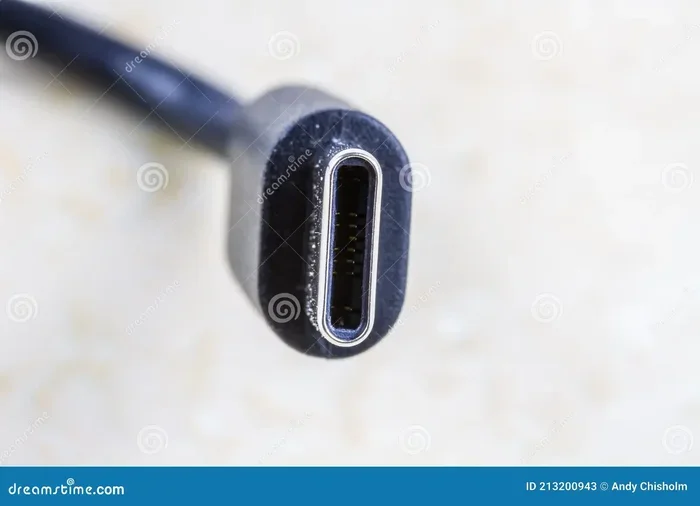
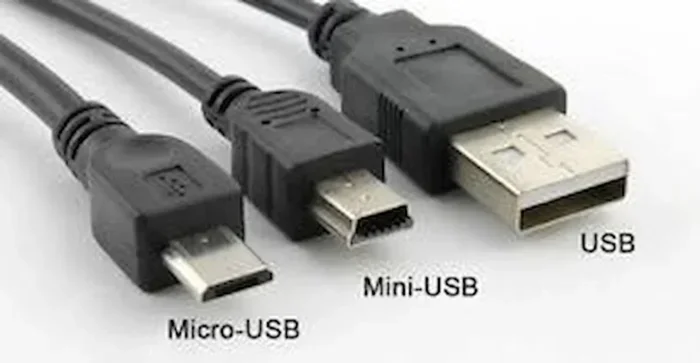
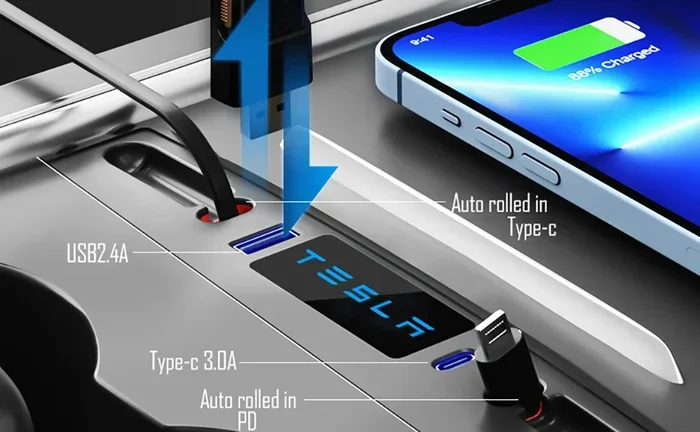
- Connection type: Tesla Model 3 and Model Y from 2021+ support USB-C. Older models and Model S and Model X use USB-A ports.
- Storage capacity: Most drives up to 256 GB work well. Some larger drives may have issues.
- Power output: The USB port in your Tesla provides limited power. Some drives need an external power source.
If your drive does not meet these basic requirements, your Tesla simply will not see it. This is the most common reason people ask, “Can I use any USB in my Tesla?” The short answer is no. But the good news is that making it work is straightforward.
Tesla Model Differences
Different Tesla models have different USB setups. Here is a quick breakdown of what to expect:
- Tesla Model 3 (2017-2020): Uses USB-A ports. Supports USB 2.0 speeds. Works well with most standard flash drives.
- Tesla Model 3 (2021+): Updated with USB-C ports. Faster data transfer and better compatibility with modern drives.
- Tesla Model Y: Similar to the Model 3. USB-A on older versions, USB-C on newer ones.
- Tesla Model S and Model X: Use USB-A ports. These older models may have slightly different media player behavior.
Knowing your model and its port type is the first step to solving any Tesla USB not working issue. If you are having trouble with cables or connections in general, you might find this guide on troubleshooting connection issues in digital devices helpful for understanding how cable and port problems can affect data transfer across different systems.
Best USB Drives for Tesla
Not all USB drives are created equal when it comes to Tesla compatibility. Some work perfectly, while others cause nothing but frustration. Let us look at what makes a USB drive great for Tesla use.
Key Features to Look For
When shopping for a USB drive for Tesla, keep these features in mind:
- Format compatibility: Choose drives that are pre-formatted as FAT32 or exFAT.
- No extra software needed: Avoid drives that come with proprietary software or encryption.
- Solid-state design: SSD-style USB drives offer faster read speeds and better reliability.
- Compact size: Smaller drives fit better in tight USB ports, especially in older Tesla models.
- Brand reliability: Stick with trusted brands like SanDisk, Samsung, Kingston, or Lexar.
Recommended USB Drives
Here are some popular choices that work well in Tesla vehicles:
- SanDisk Ultra Fit: Small, reliable, and affordable. Works great in both USB-A and USB-C Tesla models.
- Samsung BAR Plus: Fast speeds and durable build. Great for high-quality audio files.
- Kingston DataTraveler: A solid all-around option with good compatibility across Tesla models.
- Crucial BX500 SSD (with USB adapter): For users who want maximum speed and large storage capacity.
Avoid cheap, no-name USB drives. They often have inconsistent formatting and slower speeds that can cause your Tesla media player to skip or fail to load files.
How to Format a USB Drive for Tesla
Formatting is the single most important step when setting up a USB drive for your Tesla. If your drive is not formatted correctly, your Tesla will not recognize it. The good news is that formatting is quick and easy.
Step-by-Step Formatting Guide
Follow these steps to format your USB drive for Tesla use:
- Back up your data: Formatting erases everything on the drive. Save any files you want to keep first.
- Connect the drive to your computer: Use a USB port on your PC or Mac.
- Open Disk Utility (Mac) or File Explorer (Windows): Find your USB drive in the list of devices.
- Select the drive and choose Format: Pick FAT32 for drives under 32 GB, or exFAT for larger drives.
- Start the format: Wait for the process to complete. This usually takes just a few minutes.
- Eject and reconnect in your Tesla: Plug the drive back in and check if it is recognized.
That is it. A properly formatted drive should show up in your Tesla media player within seconds. If it does not, try a different cable or port before assuming the drive is defective.
Quick Tips for Formatting Success
- Always use FAT32 for drives 32 GB or smaller.
- Use exFAT for drives larger than 32 GB.
- Do not use NTFS. Tesla does not support it.
- If your Mac only offers APFS or Mac OS Extended, you will need to reformat to FAT32 or exFAT.
- Some drives come pre-formatted as exFAT and are ready to use right out of the box.
Proper USB formatting for Tesla is the foundation of a smooth experience. Skip this step, and you will likely run into problems later.
Tesla USB Port Types and Speeds
Tesla vehicles use different types of USB ports depending on the model and year. Understanding these differences helps you choose the right cable and drive for the best performance.
USB-A vs USB-C in Tesla
Here is how the two port types compare in Tesla vehicles:
| Feature | USB-A | USB-C |
|---|---|---|
| Used in | Older Model S, Model X, early Model 3 and Y | Newer Model 3 and Y (2021+), some Model S and X |
| Speed | USB 2.0 (up to 480 Mbps) | USB 3.0 or higher (up to 5 Gbps or more) |
| Power Delivery | Standard 5V, 0.5-1A | Supports higher power and faster charging |
| Cable Reversibility | No, must plug in one way | Yes, reversible connector |
| Media Playback | Works well for audio and video | Faster loading, better for large video files |
If you have an older Tesla with USB-A ports, a USB-C to USB-A adapter can help you use newer USB-C drives. However, the speed will still be limited by the USB-A port. For the best Tesla USB speed, use a drive that matches your port type directly.
Why Speed Matters
Faster USB speeds mean quicker file loading and smoother media playback. If you have a large music library or want to watch movies on the go, a USB 3.0 connection makes a noticeable difference. Older USB 2.0 ports work fine for music, but they can struggle with large video files.
If you are experiencing slow performance or files not loading, try a different drive or cable. Sometimes the issue is not the drive itself but the connection speed. For more on fixing slow or unresponsive connections, you might also want to check out this resource on resolving data transfer and connection issues for additional troubleshooting tips that apply across different digital platforms.
Common Tesla USB Problems and How to Fix Them
Even with the right drive and format, you may run into issues. Here are the most common Tesla USB problems and their solutions.
Drive Not Recognized
This is the most frequent complaint. If your Tesla does not detect your USB drive, try these steps:
- Check that the drive is properly plugged in. USB ports can be tight, especially in older models.
- Try a different USB port in your Tesla.
- Reformat the drive to FAT32 or exFAT.
- Test the drive on another computer to confirm it is working.
- Use a different USB cable if you are using an adapter.
Music or Media Files Not Playing
If the drive is recognized but files will not play, the issue is usually with file format or structure:
- Make sure your audio files are in a supported format like MP3, AAC, or FLAC.
- Check that video files are in MP4 or another Tesla-supported format.
- Avoid folders with special characters or very long file names.
- Keep your file structure simple. Flat folders work better than deeply nested ones.
Slow Performance or Freezing
A slow or freezing media player often points to a low-quality drive or insufficient power:
- Replace cheap or generic USB drives with a reputable brand.
- Use a drive with its own power source if needed.
- Reduce the number of files on the drive. Too many files can slow down the system.
- Try a different drive to isolate the issue.
USB Port Not Working at All
If none of your USB drives work in a specific port, the port itself may be the problem:
- Check for debris or damage in the port.
- Restart your Tesla by holding down both scroll wheels on the steering wheel.
- Update your Tesla software to the latest version.
- If the issue persists, contact Tesla service for a potential hardware fix.
Most Tesla USB issues are easy to fix. Start with the simplest solutions before moving on to more complex troubleshooting.
Tips for Organizing Media on Your Tesla USB
Once your USB drive is working, you want to make sure your media experience is as smooth as possible. How you organize your files matters more than you might think.
Best Practices for File Organization
- Use simple folder names: “Music” and “Podcasts” work better than “My_Favorite_2024_Tracks_Final_v2.”
- Limit folder depth: Keep files no more than two or three folders deep from the root directory.
- Avoid too many files in one folder: Split large libraries into smaller folders by artist, album, or genre.
- Use consistent naming: Avoid special characters, spaces at the start of file names, or very long titles.
- Remove hidden files: Some drives carry hidden system files that can confuse the Tesla media player.
File Format Support in Tesla
Tesla supports a range of media formats. Here is a quick reference:
- Audio: MP3, AAC, WAV, FLAC, OGG
- Video: MP4, MKV (some limitations), AVI
- Image: JPEG, PNG, BMP
- Subtitle files: SRT for video content
Keeping your files in these supported formats ensures smooth playback every time. If a file will not play, it is usually because the format is not supported or the file is corrupted.
Expert Insights on Tesla USB Usage
After working with Tesla owners and troubleshooting USB issues for years, a few patterns stand out. Most problems come down to three things: incorrect formatting, incompatible file types, and low-quality cables or drives.
Always format new drives before using them in your Tesla. Even if the drive works on your computer, it may not be in a format your Tesla recognizes. This one step prevents the majority of issues.
Invest in a good cable. A cheap USB cable can cause connection drops, slow speeds, and frustration. A quality cable with solid connectors makes a real difference in reliability.
Keep your Tesla software updated. Tesla regularly improves media player performance and adds support for new file formats. A simple software update can sometimes fix USB problems you have been struggling with for months.
Do not overload your drive. While a 1 TB drive might seem like a great idea, stuffing thousands of files onto it can slow down the Tesla media player. A 64 GB or 128 GB drive with a well-organized library performs much better.
Test before you travel. Always check your USB drive in your Tesla before a long trip. Do not wait until you are on the highway to discover that your drive is not working.
These simple habits go a long way toward ensuring a seamless Tesla media experience every time you get behind the wheel.
Can I Use Any USB In My Tesla Final Thoughts
The answer to “Can I use any USB in my Tesla?” is both yes and no. Yes, most standard USB drives will work if they are formatted correctly and meet the basic requirements. No, not every drive will work perfectly, and some will cause nothing but trouble.
The key is understanding what your Tesla needs. Choose the right format, use a compatible drive, organize your files properly, and keep your software updated. Follow these steps, and your Tesla USB experience will be smooth and enjoyable every time.
Remember, a little preparation goes a long way. Take ten minutes to format and organize your drive before you need it, and you will save yourself hours of frustration down the road. Happy driving, and enjoy the music.
Frequently Asked Questions
Can I use a USB-C drive in an older Tesla with USB-A ports?
Yes, but you will need a USB-C to USB-A adapter. The speed will be limited by the USB-A port, but the drive should work for music and media playback.
What file format does Tesla support for USB drives?
Tesla supports FAT32 and exFAT file systems. NTFS and APFS are not compatible with the Tesla infotainment system.
Why is my Tesla not reading my USB drive?
The most common reasons are incorrect formatting, a faulty cable, or an unsupported file system. Try reformatting the drive to FAT32 and using a different cable first.
Can I use an external hard drive with my Tesla?
Yes, external hard drives can work if they are formatted correctly and powered adequately. However, very large drives or drives that require external power may not work reliably.
Does Tesla support FLAC audio files on USB?
Yes, Tesla supports FLAC files. You can play lossless audio files from a properly formatted USB drive in your Tesla.
How do I restart my Tesla to fix USB issues?
Hold down both scroll wheels on the steering wheel until the screen goes black and the Tesla logo appears. This performs a full system restart and often resolves USB detection issues.
=== CONCLUSION ===
Using a USB drive in your Tesla is one of the simplest ways to enjoy your favorite music, podcasts, and videos on the road. But as we have covered, not just any USB will work. You need the right format, the right drive, and a little bit of preparation.
Start by choosing a reliable USB drive and formatting it to FAT32 or exFAT. Organize your files simply and avoid unsupported formats. If you run into issues, the troubleshooting steps in this guide will help you get back on track quickly.
Take a few minutes today to set up your USB drive properly. Your future self, sitting in traffic on a long road trip, will thank you. Enjoy your Tesla, and let the music play.