Can Hdmi Cable Connect To Dp Port And Everything You Need
Yes, you can connect an HDMI cable to a DisplayPort, but you need the right adapter or active converter. This guide covers everything you need to know about HDMI to DisplayPort connectivity, including compatibility, signal quality, and the best setup options for gaming, work, and home entertainment.
Have you ever looked at the back of your computer or monitor and wondered whether an HDMI cable can plug into a DisplayPort? It is a question that comes up more often than you might think. The short answer is no, they do not plug directly into each other. But with the right adapter, you can absolutely make it work. In this guide, we will walk you through everything you need to know about connecting HDMI cables to DisplayPort ports.
Whether you are setting up a new gaming monitor, connecting a laptop to a TV, or just trying to get your desktop display working, understanding the difference between these two connection types is essential. DisplayPort and HDMI are both digital display standards, but they handle signals differently. Let us break it all down in simple terms so you can get your setup running without any headaches.
Key Takeaways
- Direct Connection Is Not Possible: HDMI and DisplayPort use different signaling protocols, so a direct plug-and-play connection won’t work without an adapter.
- Active Adapters Are Essential: For most setups, you need an active DisplayPort to HDMI adapter or converter to get a reliable signal.
- Resolution and Refresh Rate Matter: Your adapter must support the resolution and refresh rate you need, especially for gaming or 4K content.
- Check Your Device Ports First: Always verify which ports your devices have before buying any adapter or cable.
- Signal Quality Can Vary: Cheap adapters may degrade your signal, so investing in a quality adapter pays off in the long run.
- Audio Follows Video: Most adapters also pass through audio, but you should confirm this before purchasing.
📑 Table of Contents
- What Is DisplayPort and What Is HDMI?
- Can You Plug an HDMI Cable Directly Into a DisplayPort?
- How to Connect HDMI to DisplayPort Using Adapters
- Signal Quality and Performance Considerations
- Common Setup Scenarios and Solutions
- How to Choose the Right Adapter for Your Needs
- Quick Tips for the Best HDMI to DisplayPort Experience
- Common Mistakes to Avoid
- Expert Insights on Display Connectivity
- Frequently Asked Questions
- Final Thoughts
What Is DisplayPort and What Is HDMI?
Before we dive into compatibility, it helps to understand what each port does. DisplayPort and HDMI are both digital interfaces used to send video and audio from a source device to a display. They serve the same basic purpose but were designed with different goals in mind.
Understanding DisplayPort
DisplayPort was developed by the Video Electronics Standards Association, or VESA. It is most commonly found on computer monitors and graphics cards. DisplayPort was designed with PC users in mind. It supports high resolutions and refresh rates, making it a favorite among gamers and professionals. The latest versions, like DisplayPort 2.1, can handle incredible bandwidth for 8K and even higher resolutions.
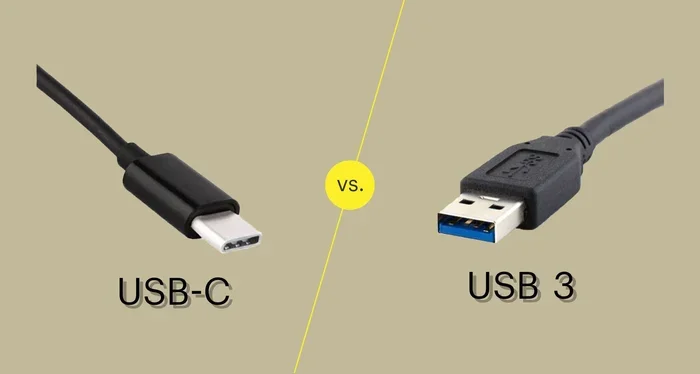
DisplayPort connectors come in a few shapes. The standard DisplayPort connector looks similar to USB but is slightly larger. There is also Mini DisplayPort, which you may recognize from older Mac computers. The newest version, USB-C with DisplayPort Alt Mode, has made things even more versatile.
Understanding HDMI
HDMI stands for High-Definition Multimedia Interface. It was designed primarily for consumer electronics like TVs, Blu-ray players, and game consoles. HDMI cables carry both video and audio through a single cable, which is one reason they are so popular. Most people have at least one HDMI cable lying around the house.
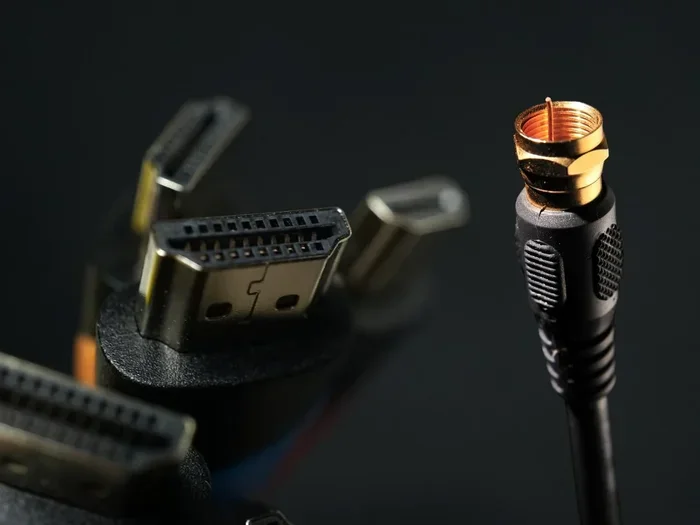
There are several types of HDMI ports. The standard HDMI Type A is the one you see on most TVs and monitors. There is also Mini HDMI and Micro HDMI, which are used on smaller devices like cameras and tablets. Each type carries the same signal but in a different physical shape.
Can You Plug an HDMI Cable Directly Into a DisplayPort?
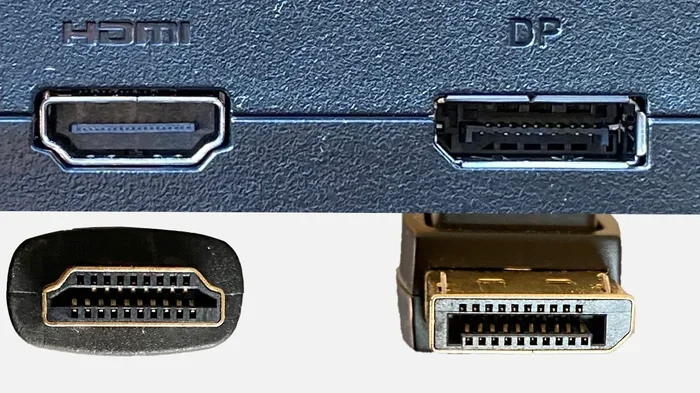
The direct answer is no. You cannot plug an HDMI cable directly into a DisplayPort. The two connectors have different shapes, pin configurations, and signaling protocols. An HDMI plug simply will not fit into a DisplayPort socket, and vice versa. They were never designed to be interchangeable.
This is where many people get confused. Both ports carry digital video and audio, so it seems like they should be compatible. But the way the data is transmitted is different. DisplayPort uses a packet-based protocol, while HDMI uses a different signaling method. This means the two standards speak different digital languages, even though they deliver the same type of content.
If you try to force an HDMI cable into a DisplayPort, you will not get a connection. You could damage the port or the cable. Never attempt this. Instead, use a proper adapter or converter to bridge the gap between the two standards.
How to Connect HDMI to DisplayPort Using Adapters
The good news is that connecting HDMI to DisplayPort is very doable with the right accessory. You just need an adapter or an active converter. Let us look at the options available.
DisplayPort to HDMI Adapters
The most common solution is a DisplayPort to HDMI adapter. You plug the adapter into your DisplayPort output, and then you connect your HDMI cable to the adapter. This works well for most situations. You can find these adapters in many shapes and sizes, from small dongles to more robust external converters.
There are two main types of adapters you should know about:
- Passive Adapters: These are simple and affordable. They work when your DisplayPort output supports dual-mode, which is often labeled as DP++. Not all DisplayPort outputs support this, so check your device specifications first.
- Active Adapters: These have their own chip to convert the signal. They work with any DisplayPort output, regardless of whether it supports dual-mode. Active adapters are more reliable but usually cost a bit more.
HDMI to DisplayPort Converters
Sometimes you need to go the other way, from HDMI output to DisplayPort input. For this, you need an HDMI to DisplayPort converter. These are less common than the reverse, but they do exist. Active converters are almost always required for this direction because HDMI and DisplayPort use different signal protocols.
When shopping for a converter, look for one that supports your desired resolution and refresh rate. If you want 4K at 60Hz, make sure the converter explicitly supports that. Cheap converters that claim to support high resolutions but do not list the specs are often unreliable.
USB-C and Thunderbolt Options
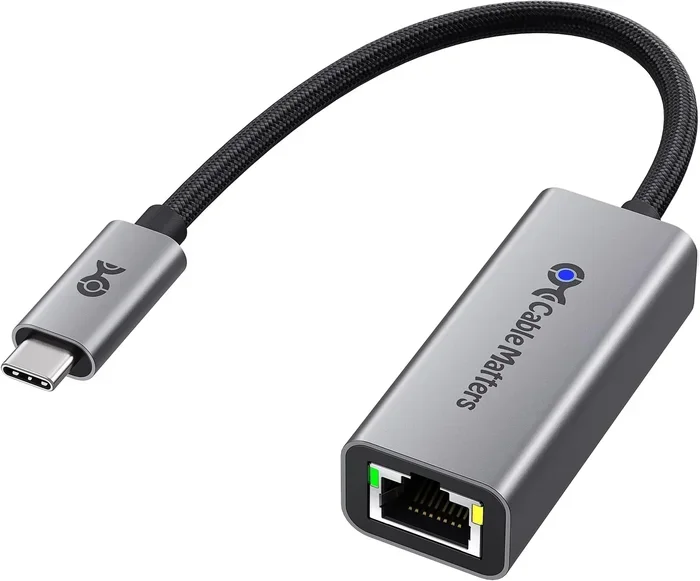
Many modern laptops and devices use USB-C or Thunderbolt ports that support DisplayPort Alt Mode. This means you can use a USB-C to HDMI adapter or a USB-C to DisplayPort adapter. These are very versatile and can simplify your setup. If your device has Thunderbolt 3 or Thunderbolt 4, you get even more flexibility because Thunderbolt supports both DisplayPort and HDMI protocols through adapters.
Signal Quality and Performance Considerations
When you use an adapter or converter, there are some important factors to keep in mind. The quality of your connection depends on several things, and not all adapters are created equal.
Resolution and Refresh Rate Support
The adapter you choose must support the resolution and refresh rate you need. For everyday office work, 1080p at 60Hz is usually fine. But if you are gaming or editing video, you may need 4K at 120Hz or higher. Check the adapter specifications carefully before buying.
Here is a quick comparison of what different adapter types typically support:
- Basic 1080p Adapters: These handle Full HD at 60Hz. They are affordable and work well for general use.
- 4K Adapters: These support 4K resolution at 30Hz or 60Hz, depending on the version and quality.
- High-Performance Converters: These can handle 4K at 120Hz or even 8K, but they cost significantly more.
Audio Pass-Through
One thing people often overlook is audio. Both HDMI and DisplayPort carry audio signals. Most quality adapters will pass audio through along with the video. However, some cheap or older adapters may not support audio. If you need sound to come through your display or speakers, make sure the adapter you buy supports audio pass-through.
Cable Length and Quality
The length of your cables and adapters can affect signal quality. Longer cables are more prone to signal loss, especially at higher resolutions. If you need a long run, consider using a high-quality cable or an active signal booster. A good rule of thumb is to keep your cable runs under 6 feet for the best results without any signal degradation.
Common Setup Scenarios and Solutions
Let us look at some real-world scenarios where you might need to connect HDMI to DisplayPort or vice versa. Each situation has a straightforward solution.
Connecting a PC to a TV with HDMI
If your PC has a DisplayPort output and your TV only has HDMI inputs, a DisplayPort to HDMI adapter is all you need. Just plug the adapter into your PC, connect an HDMI cable from the adapter to your TV, and you are good to go. Most adapters handle both video and audio, so you should get sound through your TV as well.
Using a DisplayPort Monitor with an HDMI Source
This is a common setup in offices and home theaters. If your media player or game console has HDMI output and your monitor has DisplayPort input, you need an HDMI to DisplayPort active converter. Make sure the converter supports the resolution your source device outputs.
Docking Stations and Multi-Monitor Setups
If you use a docking station with your laptop, many docks come with both HDMI and DisplayPort outputs. This eliminates the need for separate adapters in most cases. For multi-monitor setups, a dock with multiple display outputs is often the cleanest and most reliable solution.
Gaming Setups
Gamers need the best possible signal quality and the highest refresh rates. For gaming, always use an active adapter that supports the resolution and refresh rate of your monitor. A passive adapter might work for casual gaming at 1080p, but for 4K gaming or high refresh rates, an active converter is the way to go. You can also explore options like helpful gadgets that enhance your overall setup experience.
How to Choose the Right Adapter for Your Needs
Not all adapters are the same, and choosing the wrong one can lead to frustration. Here are some tips to help you pick the right adapter for your setup.
Check Your Device Ports
Before buying anything, check what ports your devices have. Look at your computer, monitor, and TV. Note the type and version of each port. This will tell you what kind of adapter you need and what performance level to look for.
Read the Specifications Carefully
When you are shopping, read the product specifications carefully. Look for details about supported resolutions, refresh rates, and audio capabilities. A product description that is vague or makes unrealistic claims is a red flag.
Buy from Reputable Brands
Cheap adapters from unknown brands can cause all sorts of problems, from no signal at all to intermittent flickering. Brands like Cable Matters, StarTech, and UGREEN are known for making reliable adapters. Spending a little more on a quality adapter saves you from headaches later.
Consider Your Future Needs
Think about whether you might need higher resolutions or refresh rates in the future. Buying an adapter that supports 4K at 60Hz or higher gives you more room to grow. It is a small investment that can extend the life of your setup.
You might also find it helpful to learn more about organizing your device settings to keep your tech setup running smoothly.
Quick Tips for the Best HDMI to DisplayPort Experience
- Always use an active adapter when connecting HDMI to DisplayPort for the most reliable signal.
- Check that your adapter supports the resolution and refresh rate you need.
- Make sure your adapter supports audio pass-through if you need sound.
- Keep your cables as short as possible to minimize signal loss.
- Update your graphics card drivers before setting up a new display connection.
- Test your setup with a known working cable before troubleshooting other issues.
- Buy from reputable brands to avoid compatibility problems.
Common Mistakes to Avoid
There are a few mistakes that people make frequently when setting up HDMI to DisplayPort connections. Avoiding these can save you a lot of time and frustration.
- Using a passive adapter when you need an active one: Passive adapters only work with dual-mode DisplayPort outputs. If your port does not support DP++, a passive adapter will not work.
- Ignoring resolution and refresh rate specs: Buying an adapter that does not support your desired resolution means you will not get the picture quality you expect.
- Forcing cables into ports: HDMI and DisplayPort connectors are different shapes. Never force a cable. If it does not fit, you need the right adapter.
- Buying the cheapest option available: A $5 adapter from an unknown brand is unlikely to deliver reliable performance. Invest in a quality product.
- Not checking audio support: If you need sound through your display, verify that the adapter passes audio before you buy.
Expert Insights on Display Connectivity
Display connectivity has evolved a lot over the years. Both HDMI and DisplayPort continue to improve with each new version. DisplayPort 2.1, for example, offers massive bandwidth increases that support even the highest resolution displays. HDMI 2.1 brings similar improvements for consumer electronics.
Experts recommend always checking your device specifications before purchasing any adapter. The version of the port on your device determines what the adapter can deliver. A DisplayPort 1.2 output will not give you the same performance as a DisplayPort 2.1 output, even with the same adapter.
Another expert tip is to keep your firmware and drivers up to date. Graphics card manufacturers regularly release updates that improve display compatibility and performance. A simple driver update can sometimes fix connection issues that seem otherwise mysterious.
Frequently Asked Questions
Can I connect an HDMI cable directly to a DisplayPort without an adapter?
No, you cannot connect an HDMI cable directly to a DisplayPort. The two connectors have different shapes and use different signaling protocols. You need an adapter or active converter to bridge the gap between HDMI and DisplayPort. Attempting a direct connection will not work and could potentially damage your equipment.
What is the difference between a passive and active DisplayPort to HDMI adapter?
A passive adapter works only if your DisplayPort output supports dual-mode, often labeled as DP++. It does not need external power. An active adapter has its own chip to convert the signal and works with any DisplayPort output. Active adapters are more reliable and versatile but usually cost more than passive ones.
Does an HDMI to DisplayPort adapter support audio?
Most quality adapters support audio pass-through along with video. However, some cheaper adapters may not include audio support. Always check the product specifications to confirm that the adapter you are buying handles both video and audio signals.
Can I get 4K resolution through an HDMI to DisplayPort adapter?
Yes, you can get 4K resolution, but only if your adapter supports it. Not all adapters handle 4K. Look for an adapter that explicitly lists 4K support and check whether it supports 4K at 30Hz or 60Hz. For the best experience, choose an adapter that supports 4K at 60Hz or higher.
Why does my display flicker when using an HDMI to DisplayPort adapter?
Flickering is often caused by a low-quality adapter, an unsupported resolution or refresh rate, or a loose connection. Try using a different adapter from a reputable brand. Also, make sure all cables are firmly seated and that your adapter supports the resolution and refresh rate of your display.
Are USB-C to HDMI or USB-C to DisplayPort adapters a good alternative?
Yes, USB-C adapters are a great alternative if your device supports them. Many modern laptops and devices use USB-C or Thunderbolt ports that can output both HDMI and DisplayPort signals. USB-C adapters offer a lot of flexibility and can simplify your setup, especially if you work with multiple devices.
Final Thoughts
Connecting an HDMI cable to a DisplayPort is absolutely possible, but it requires the right adapter or converter. The two standards are not directly compatible, but with a quality active adapter, you can bridge the gap and enjoy high-quality video and audio on any display. Whether you are a gamer, a professional, or just someone who wants to get the most out of your devices, understanding these connections puts you in control of your setup.
The key is to choose the right adapter for your needs, check the specifications carefully, and buy from a reputable brand. Avoid the temptation of the cheapest option, because a reliable adapter saves you time, frustration, and potentially expensive display issues. With the right setup, your HDMI devices and DisplayPort monitors will work together seamlessly.
Take a few minutes to review your current setup and identify what adapter or converter you might need. The right connection makes all the difference in picture quality, performance, and overall user experience. You will wonder why you did not sort it out sooner.