Can I Go From USB A to USB C A Simple Guide for Beginners
Yes, you can go from USB A to USB C using the right adapter or cable. USB-A and USB-C are different connector types, but they work together with simple adapters. This guide breaks down everything you need to know about connecting older USB-A devices to modern USB-C ports, including speed, power delivery, and which adapters to buy.
Key Takeaways
- USB-A and USB-C are different connectors but can work together using adapters or hybrid cables.
- USB-C offers faster speeds and better power delivery compared to USB-A.
- You need the right adapter to connect USB-A devices to USB-C ports reliably.
- Not all adapters are equal — look for quality brands and proper specifications.
- USB-C is reversible, making it more convenient than USB-A for daily use.
- Most modern laptops and phones now use USB-C, but older devices still use USB-A.
- Check your device specs before buying an adapter to ensure compatibility.
📑 Table of Contents
- Can I Go From USB A to USB C? Here Is Everything You Need to Know
- Understanding USB-A and USB-C: What Are the Differences?
- Can You Connect USB-A to USB-C Directly?
- What You Need: Adapters and Cables Explained
- Speed and Power Delivery: What to Expect
- Common Devices and Their Ports
- Common Mistakes and How to Avoid Them
- Expert Tips for Getting the Most Out of Your USB-A to USB-C Setup
- Is USB-C the Future? What You Should Know
- Conclusion
Can I Go From USB A to USB C? Here Is Everything You Need to Know
Have you ever looked at your old USB drive or printer and wondered how to plug it into your new laptop? Can I go from USB A to USB C is one of the most common tech questions people ask today. The short answer is yes. You can absolutely connect a USB-A device to a USB-C port. But there is a little more to it than just plugging things in.
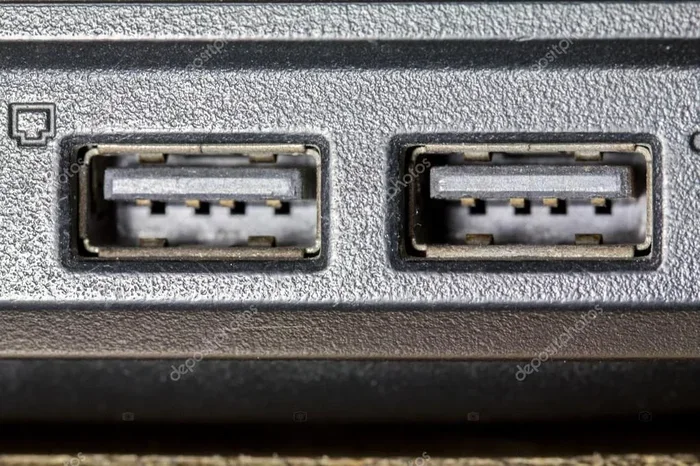
The world of USB connectors has changed a lot in recent years. USB-A has been around for decades. It is the classic rectangular plug you have probably used hundreds of times. USB-C is the newer, smaller, oval-shaped connector that is taking over. Many modern laptops, tablets, and phones now only have USB-C ports. So if you have older devices with USB-A connectors, you need a way to bridge the gap.
This guide will walk you through every detail. You will learn what the differences are, what adapters you need, and how to make sure your devices work together smoothly. Whether you are a tech beginner or just someone who wants a quick answer, this article has you covered.
Think of it this way. USB-A and USB-C are like two different types of outlets in your house. You cannot plug a two-prong plug into a three-prong socket without an adapter. The same idea applies here. USB A to USB C connections need a simple bridge to work properly.
Understanding USB-A and USB-C: What Are the Differences?
Before you buy any adapter, it helps to understand what makes these two connectors different. They look different, work differently, and serve different purposes. Let us break it down.
What Is USB-A?
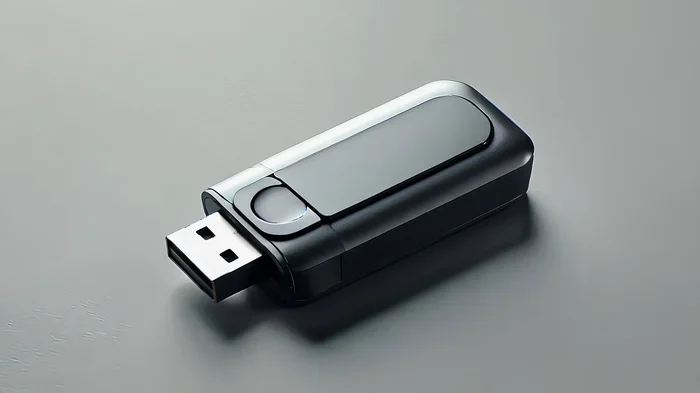
USB-A is the original standard connector. It has been around since the late 1990s. You probably recognize it as the flat, rectangular plug found on computers, chargers, and USB sticks. It is not reversible, which means you have to flip it the right way before inserting it. We have all experienced that frustrating moment of trying the wrong side first!
USB-A comes in several versions. USB 2.0 is the most common and offers slower speeds. USB 3.0 and USB 3.1 are faster and usually have a blue interior or a “SS” logo. USB-A ports are still found on desktop computers, TVs, gaming consoles, and many peripherals like keyboards and mice.
What Is USB-C?
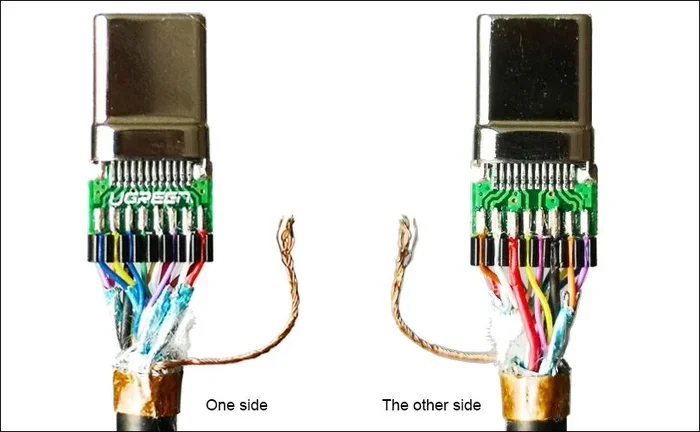
USB-C is the modern connector standard. It is smaller, oval-shaped, and fully reversible. You can plug it in either way, which is a huge quality-of-life improvement. USB-C supports faster data transfer speeds and higher power delivery than USB-A ever could.
USB-C is not just one thing. It is a connector shape that can support different USB standards. You can have USB 3.1, USB 3.2, or USB4 over a USB-C connector. Some USB-C ports also support Thunderbolt 3 or Thunderbolt 4, which are even faster. This versatility is why USB-C has become the go-to port on modern devices.
Key Differences at a Glance
Here is a simple comparison to help you understand the main differences:
- Shape: USB-A is rectangular. USB-C is oval and compact.
- Reversibility: USB-A is not reversible. USB-C plugs in either direction.
- Speed: USB-A maxes out around USB 3.2 Gen 1 (5 Gbps). USB-C can reach up to 40 Gbps with USB4.
- Power Delivery: USB-A typically delivers up to 15 watts. USB-C can deliver up to 240 watts with USB Power Delivery.
- Availability: USB-A is still everywhere on older devices. USB-C is standard on most new devices.
Can You Connect USB-A to USB-C Directly?
Now for the big question. Can I go from USB A to USB C without buying anything extra? The honest answer is no, not directly. The physical shapes of the connectors are different. A USB-A plug will not fit into a USB-C port, and a USB-C plug will not fit into a USB-A port. They are not interchangeable by design.
However, connecting them is very easy with the right accessory. You have two main options:
- USB-A to USB-C Adapter: A small dongle or adapter that has a USB-A port on one side and a USB-C port on the other. You plug your USB-A device into the adapter, and then plug the adapter into your USB-C port.
- USB-A to USB-C Cable: A cable with a USB-A plug on one end and a USB-C plug on the other. This works just like the adapter but in cable form.
Both options work great for most everyday tasks. Whether you want to transfer files, charge a device, or connect a peripheral, these simple accessories solve the problem instantly.
Think about it like this. If you have ever used a phone charger with a different connector than your wall socket, you used an adapter. This is the same concept. The USB-A to USB-C connection just needs a bridge between the two different shapes.
What You Need: Adapters and Cables Explained
Not all adapters and cables are created equal. There are many options on the market, and some are better than others. Here is what you need to know to make the right choice.
Types of USB-A to USB-C Adapters
Adapters come in different shapes and sizes. Some are tiny and portable. Others are bulkier but offer more ports. Here are the most common types:
- Simple USB-A to USB-C Adapter: A small dongle with one USB-A female port and one USB-C male plug. Perfect for occasional use.
- USB-C Hub with USB-A Ports: A hub that expands your USB-C port into multiple ports, including USB-A, HDMI, SD card slots, and more.
- USB-A to USB-C Dongle: Similar to a simple adapter but often includes additional features like Ethernet or card readers.
Choosing the Right Cable
If you prefer a cable over an adapter, make sure you buy a quality one. Look for cables that are rated for the speed you need. A basic USB 2.0 cable will work for charging but will be slow for file transfers. If you need fast data transfer, look for a cable rated for USB 3.0 or higher. These cables usually have a blue insert inside the USB-A connector.
One important tip. Cheap cables can be dangerous. They may not handle the power delivery properly, which can damage your devices. Stick to reputable brands and avoid suspiciously cheap options from unknown sellers.
Quick Tips for Buying Adapters and Cables
- Check the USB standard rating on the product.
- Buy from trusted brands like Anker, Belkin, or Cable Matters.
- Make sure the adapter supports the speed you need.
- Read reviews before purchasing.
- Consider a hub if you need multiple port types.
Speed and Power Delivery: What to Expect
One of the biggest concerns people have when using adapters is speed loss. Does going from USB-A to USB-C slow things down? The answer depends on several factors.
Data Transfer Speeds
The speed of your connection depends on the slowest device or port in the chain. If your USB-A device only supports USB 2.0, your transfer speed will be limited to 480 Mbps, no matter what USB-C port you plug it into. However, if your USB-A device supports USB 3.0 or higher and your adapter supports the same speed, you can get full performance.
Here is a simple breakdown of USB speeds:
- USB 2.0: Up to 480 Mbps. Fine for charging and basic peripherals.
- USB 3.0 (USB 3.2 Gen 1): Up to 5 Gbps. Great for file transfers.
- USB 3.1 (USB 3.2 Gen 2): Up to 10 Gbps. Very fast for large files.
- USB 3.2 Gen 2×2: Up to 20 Gbps. Found on premium USB-C devices.
- USB4: Up to 40 Gbps. The fastest USB standard available today.
Power Delivery
When it comes to charging, USB-C supports USB Power Delivery, which can provide much more power than USB-A. If you use a USB-A to USB-C adapter or cable, your device will only charge at the speed that the USB-A port can provide. Most USB-A ports deliver 5 watts to 15 watts. If your device needs fast charging, a direct USB-C connection is better.
For most everyday uses like charging a phone or using a USB stick, the speed difference is barely noticeable. But if you are transferring large video files or charging a power-hungry laptop, you will want to use a direct USB-C connection whenever possible.
Common Devices and Their Ports
Understanding which devices use which ports can help you figure out what adapters you need. Here is a quick look at common devices and their port types.
Devices That Still Use USB-A
- Desktop computers and towers
- Older printers and scanners
- USB flash drives and external hard drives
- Keyboards and mice
- Game controllers
- Older smartphones and tablets
- Car stereos and GPS devices
Devices That Use USB-C
- Modern laptops (MacBook, Dell XPS, HP Spectre)
- Most Android phones
- Tablets like iPad Pro and Samsung Galaxy Tab
- Chromebooks
- Newer gaming consoles (Nintendo Switch)
- Wireless earbuds and charging cases
- Modern cameras and e-readers
As you can see, there is a big overlap. Many people own a mix of old and new devices. Having a few USB-A to USB-C adapters on hand is a smart move. It keeps you prepared for any situation. If you have a collection of gadgets, you might also enjoy checking out 10 Gadgets to Make Moms Life Easier for some helpful tech ideas.
Common Mistakes and How to Avoid Them
Even with a simple setup like USB-A to USB-C, there are a few mistakes that trip people up. Here are the most common ones and how to avoid them.
Buying the Wrong Adapter Type
Not all adapters are the same. Some are USB-A female to USB-C male. Others are USB-A male to USB-C female. Make sure you check which end plugs into which device. If you buy the wrong type, it will not work. Take a moment to look at your ports before purchasing.
Using a Low-Quality Cable
Cheap cables are tempting but risky. They may not support the data speeds or power levels you need. Worse, poor-quality cables can overheat or damage your devices. Always buy from reputable brands and check for certifications like USB-IF.
Assuming All USB-C Ports Are the Same
Not every USB-C port supports the same features. Some only support basic charging. Others support fast data transfer and video output. Before buying an adapter, check what your USB-C port can do. Look at your device manual or search online for your specific model.
Forgetting About Firmware and Drivers
Sometimes a connection issue is not about the hardware at all. Older devices may need firmware updates to work properly with USB-C adapters. Keep your device software up to date to avoid unnecessary headaches.
If you run into issues with your devices, sometimes it helps to check other tech guides too. For instance, if you are dealing with cable management or tech setup challenges, you might find adding prefixes to numbers on iPhone helpful for organizing your files better.
Expert Tips for Getting the Most Out of Your USB-A to USB-C Setup
Here are some insider tips from tech experts to help you get the best performance and longest lifespan from your adapters and cables.
Label Your Adapters
If you have multiple adapters, label them. It is easy to forget which adapter goes with which device. A small piece of tape or a tag can save you a lot of confusion later.
Keep Adapters in a Dedicated Spot
Small adapters are easy to lose. Keep them in a designated drawer or pouch. This way, you always know where to find them when you need them.
Invest in a Good USB-C Hub
If you use a laptop with only USB-C ports, a quality hub is a game-changer. Look for one that includes USB-A ports, HDMI output, and an SD card reader. This gives you the flexibility to connect all your older devices without carrying multiple adapters.
Check for USB-IF Certification
The USB Implementers Forum (USB-IF) certifies USB products for quality and compatibility. Look for the USB-IF logo on adapters and cables. This ensures the product meets official standards and will work reliably with your devices.
For those managing multiple devices and cables, keeping things organized is key. If you ever need to troubleshoot cable or device issues, remember that even simple fixes like checking a stubborn line in a spreadsheet can teach you patience — just like dealing with a stubborn line in Microsoft Excel teaches problem-solving skills.
Is USB-C the Future? What You Should Know
The tech world is clearly moving toward USB-C. Governments in several countries have even mandated USB-C as the standard charging port for electronics. The European Union, for example, requires USB-C on all smartphones, tablets, and laptops sold in the region.
This shift means USB-A will slowly become less common. But it is not disappearing overnight. Many devices still rely on USB-A, and millions of USB-A peripherals are still in use. For now, USB-A to USB-C adapters remain essential tools for bridging the gap between old and new technology.
If you are buying new devices, look for ones with USB-C ports. It future-proofs your setup and reduces cable clutter. If you have older devices, invest in a few good adapters. This way, you can keep using your favorite peripherals without any hassle.
Having the right tech accessories makes life so much easier. Whether you are setting up a home office, organizing your workspace, or just keeping your gadgets running smoothly, the right tools make all the difference.
Conclusion
So, can I go from USB A to USB C? Absolutely yes. With the right adapter or cable, you can connect any USB-A device to a USB-C port without any problems. The process is simple, affordable, and works for most everyday tasks.
Remember to choose quality adapters and cables. Check your device specifications before buying. And keep a spare adapter on hand for those moments when you need it most. The transition from USB-A to USB-C is already well underway, and having the right tools makes the shift seamless.
Whether you are a student, a professional, or just someone who wants to keep their devices connected, understanding USB-A to USB-C compatibility is a valuable skill. It saves time, money, and frustration. So go ahead, grab the right adapter, and connect your devices with confidence.
The world of connectivity is always evolving, but the basics remain the same. A simple adapter bridges the gap between old and new. Keep this guide handy for reference, and you will never have to worry about connecting your USB-A devices to USB-C ports again.
Frequently Asked Questions
Can I use a USB-A to USB-C adapter for charging?
Yes, you can use a USB-A to USB-C adapter for charging most devices. However, the charging speed depends on the USB-A port’s power output. Most standard USB-A ports deliver 5 to 15 watts, which is fine for phones and small devices. For faster charging, a direct USB-C connection with a USB-C power adapter is better.
Will a USB-A to USB-C adapter slow down my data transfer?
It depends on the adapter quality and the USB standard it supports. A good USB 3.0 or higher adapter will not slow down your data transfer. But if your USB-A device only supports USB 2.0, the speed will be limited regardless of the adapter. Always check the speed rating of both your device and your adapter.
Is USB-C better than USB-A?
USB-C is generally better than USB-A in most ways. It is smaller, reversible, faster, and supports higher power delivery. USB-A is still reliable and widely available, but USB-C is the modern standard and is becoming the default on most new devices.
Do all USB-C adapters support USB 3.0 speeds?
No, not all USB-C adapters support USB 3.0 speeds. Some budget adapters only support USB 2.0, which is much slower. Always check the product specifications before buying. Look for adapters that explicitly state USB 3.0 or higher support for fast data transfer.
Can I connect a USB-A printer to a USB-C laptop?
Yes, you can connect a USB-A printer to a USB-C laptop using a USB-A to USB-C adapter or cable. Most printers work without any additional drivers. Just plug in the adapter, connect the printer, and your laptop should recognize it automatically. If not, you may need to install the printer driver from the manufacturer’s website.
How do I know if my USB-C port supports USB-C adapters?
Most modern USB-C ports support adapters and cables. However, some very thin or budget devices may have USB-C ports that only support charging. Check your device manual or search online for your specific model to confirm full USB-C functionality. Look for terms like USB 3.1, USB 3.2, or Thunderbolt support to confirm compatibility.