Are USB Ports Input or Output Devices Explained Here
USB ports are both input and output devices. They send data out to peripherals and receive data in from devices like keyboards and flash drives. Understanding this dual role helps you troubleshoot connections and choose the right accessories.
You use USB ports every single day. You plug in your phone, connect a keyboard, or transfer photos from a camera. But have you ever stopped to think about what a USB port actually does? Is it an input device? An output device? Both? The answer might surprise you.
Here is the simple truth. A USB port is both an input and an output device. It sends data out and receives data in. This makes it one of the most versatile connections in modern computing. In this article, we will break down exactly how this works. We will look at different USB types, explain data transfer directions, and clear up common misconceptions.
Whether you are a casual user or a tech enthusiast, understanding USB port functionality matters. It helps you troubleshoot slow connections. It guides you when buying adapters. And it gives you a solid foundation for understanding how your devices communicate. Let us dive right in.
Key Takeaways
- USB ports handle both input and output: They transfer data in two directions simultaneously.
- USB Type-A, Type-B, and Type-C: Each connector type serves different devices and purposes.
- USB 2.0 vs USB 3.0: Newer versions offer faster data transfer speeds and better power delivery.
- Bidirectional communication: USB ports can send and receive signals at the same time.
- Peripheral devices matter: The role of a USB port depends on what is connected to it.
- Common confusion cleared up: Many people assume USB ports are only output, but they are versatile.
📑 Table of Contents
- What Is a USB Port?
- USB Ports as Input Devices
- USB Ports as Output Devices
- Bidirectional Communication: Both Input and Output
- Different USB Connector Types and Their Roles
- USB Versions and Their Impact on Input/Output Performance
- Common Misconceptions About USB Ports
- Practical Tips for Getting the Most From Your USB Ports
- Frequently Asked Questions
- Conclusion
What Is a USB Port?
A USB port is a standard connection interface found on computers, laptops, tablets, and many other devices. USB stands for Universal Serial Bus. It was designed to simplify how devices connect to each other. Before USB, you needed different cables for different devices. Printers had their own ports. Keyboards had their own. Mice were separate too. USB changed all of that.
Today, USB ports handle many tasks at once. They transfer files between devices. They charge batteries. They connect peripherals like webcams and external hard drives. Some USB ports even transmit video signals. This wide range of functions is why so many people wonder about their input and output capabilities.
Why USB Ports Are So Common
USB ports became the standard because they are universal. Almost every device made today supports USB in some form. Here are a few reasons for their popularity:
- Universal compatibility: One cable type works across many devices.
- Hot swapping: You can plug and unplug devices without restarting your computer.
- Power delivery: USB ports can charge devices while transferring data.
- Speed improvements: Each new USB version brings faster data transfer rates.
- Compact design: Modern USB connectors like Type-C are tiny and reversible.
The simplicity of USB is what made it so successful. You do not need to be a tech expert to plug something in. It just works. But behind that simplicity lies a sophisticated system of data communication.
USB Ports as Input Devices
When we talk about input, we mean data flowing into a host device. A computer receives information through its USB ports from connected devices. This is input functionality. The computer takes in signals and processes them.
Examples of USB Input Devices
Many everyday devices use USB ports to send data to your computer. Here are some common examples:
- Keyboards: Every keystroke you press sends input data through the USB port to your computer.
- Mice: Movement clicks and scrolls are all input signals traveling via USB.
- Webcams: Video feeds come into your computer through a USB connection.
- Microphones: Audio input travels from the mic through USB to your system.
- Flash drives: When you copy files from a flash drive, that is input to your computer.
- Scanners: Document images are fed into your computer as input data.
In each case, the USB port acts as a pathway for data to enter your computer. The port receives signals from the peripheral device and passes them to the operating system. Without this input capability, your computer would be isolated from the physical world.
How USB Input Data Transfer Works
USB uses a host-controlled communication model. Your computer acts as the host. The connected device acts as the peripheral. When you plug in a keyboard, the host controller on your computer polls the device. It asks for data at regular intervals. The keyboard responds with keystroke information. This entire exchange happens in milliseconds.
The upstream direction refers to data flowing from the peripheral to the host. This is the input direction. Your computer receives and interprets this data. It then acts on it. For example, when you press a key, the computer receives that input and displays the character on screen.
USB Ports as Output Devices
Now let us look at the other side. Output means data flowing from your computer to an external device. USB ports can absolutely do this. They send signals, power, and data outward to connected peripherals.
Examples of USB Output Devices
Here are common devices that receive output through a USB port:
- Printers: Your computer sends print jobs to a printer via USB output.
- External monitors: Some display connections use USB for video output signals.
- Speakers and headphones: Audio output can travel through USB to external sound devices.
- External hard drives: When you save files to an external drive, that is output from your computer.
- Smartphones: Charging your phone through USB is a form of power output.
- USB hubs: These expand your connection options by distributing output to multiple ports.
In each scenario, your computer is the source. It sends data, power, or signals out through the USB port to the connected device. The downstream direction describes this flow from host to peripheral.
Power Delivery as Output
One of the most important output functions of a USB port is power delivery. USB ports can supply electrical current to charge devices. USB 2.0 typically delivers up to 2.5 watts. USB 3.0 increased this to 4.5 watts. Modern USB Power Delivery standards can push up to 100 watts or more. This makes USB ports a primary charging solution for laptops, tablets, and phones.
Many people use their devices while charging through USB. This is especially common for smartphones and portable battery packs. Some people even use apps that help manage pet care routines while their phones charge via USB. The output capability of USB ports keeps our devices running throughout the day.
Bidirectional Communication: Both Input and Output
Here is where things get really interesting. USB ports do not just do input OR output. They do both at the same time. This bidirectional capability is one of the defining features of USB technology.
How Bidirectional Transfer Works
USB supports full-duplex communication on certain versions. This means data can flow in both directions simultaneously. When you are charging your phone while transferring files, input and output are happening at the same time. Your computer sends file data out (output) while receiving charging status information back (input).
This dual functionality is managed by the USB host controller. It coordinates all data traffic. It ensures input and output do not interfere with each other. The controller uses separate channels or time-division methods to handle both directions efficiently.
USB Transfer Types
USB defines several transfer types that handle different communication needs:
- Control transfers: Used for device management and commands sent in both directions.
- Bulk transfers: Large data packets like file transfers use this method.
- Interrupt transfers: Used for input devices like keyboards and mice that need quick responses.
- Isochronous transfers: Used for real-time data like audio and video streams.
Each transfer type supports either input, output, or both directions. This flexibility is what makes USB so powerful and widely adopted across the tech industry.
Different USB Connector Types and Their Roles
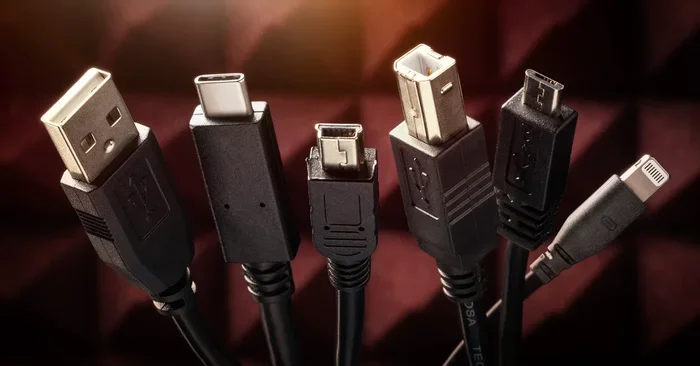
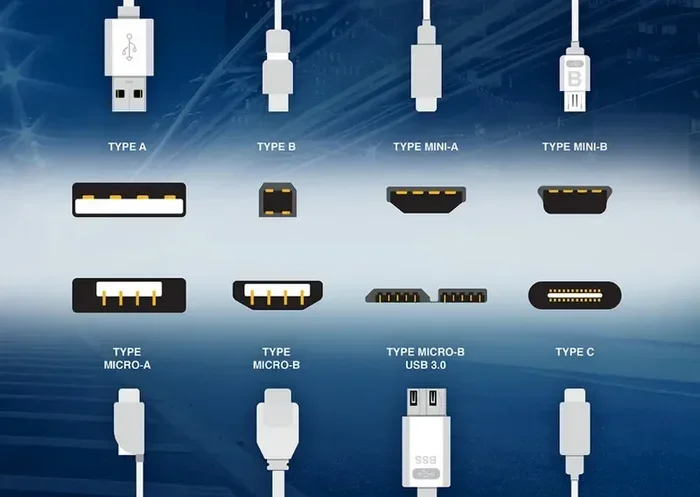
USB connectors come in several shapes and sizes. Each type has specific use cases and capabilities. Understanding these differences helps you choose the right cable and port for your needs.
| Connector Type | Shape | Common Use | Input/Output Role |
|---|---|---|---|
| USB Type-A | Rectangular | Computers, laptops, chargers | Both input and output |
| USB Type-B | Square | Printers, scanners | Both input and output |
| USB Type-C | Oval, reversible | Modern laptops, phones, tablets | Both input and output |
| USB Mini-B | Small rectangular | Older cameras, MP3 players | Both input and output |
| USB Micro-B | Small tapered | Older phones, portable devices | Both input and output |
Notice something important in the table above. Every USB connector type supports both input and output. The shape and size do not change the fundamental bidirectional nature of USB. What changes is the speed, power delivery, and compatibility of the connection.
USB Type-A: The Classic Port
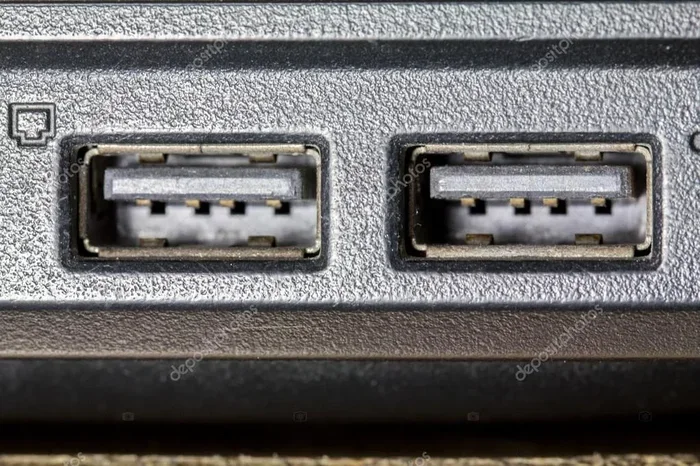
USB Type-A is the most recognizable port. It is the flat, rectangular connector you find on computers and wall chargers. It has been around since the USB standard was introduced. Type-A ports are always host-side ports. They provide power and data to connected devices. They handle both input from peripherals and output to devices like printers and storage drives.
USB Type-C: The Modern Standard
USB Type-C is the newest and most versatile connector. It is small, reversible, and supports the fastest data speeds. Type-C can handle USB 3.1, USB 3.2, and USB4 standards. It supports video output, power delivery up to 100 watts, and data transfer speeds up to 40 Gbps. This makes Type-C a true input and output powerhouse.
Many modern laptops now use only Type-C ports. This means a single port can charge your laptop, connect an external monitor, transfer files, and link peripherals. The bidirectional capability of Type-C makes this all possible in one tiny connector.
USB Versions and Their Impact on Input/Output Performance
USB technology has evolved significantly over the years. Each new version brought faster speeds, better power delivery, and improved efficiency. These improvements directly affect how well USB ports handle both input and output tasks.
USB 2.0
USB 2.0 was introduced in 2000. It supports data transfer speeds up to 480 Mbps. It provides up to 2.5 watts of power. For basic input devices like keyboards and mice, USB 2.0 is still perfectly adequate. It handles output tasks like printing and file transfers as well, though at slower speeds than newer versions.
USB 3.0
USB 3.0 arrived in 2008 and brought a major speed boost. It supports speeds up to 5 Gbps. Power delivery increased to 4.5 watts. The blue insert inside the port helps you identify USB 3.0 ports. For external hard drives and video capture devices, USB 3.0 makes a noticeable difference in both input and output performance.
USB 3.1 and USB 3.2
These versions pushed speeds even further. USB 3.1 supports 10 Gbps. USB 3.2 supports 20 Gbps. These speeds are essential for professional workflows. Video editors, photographers, and designers rely on fast bidirectional USB connections for their daily work.
USB4
USB4 is the latest standard. It supports speeds up to 40 Gbps. It uses the USB Type-C connector. USB4 supports Thunderbolt 3 and Thunderbolt 4 protocols. This means USB4 ports can handle incredibly demanding input and output tasks simultaneously. Multiple 4K displays, fast storage, and charging can all happen at once through a single USB4 port.
Common Misconceptions About USB Ports
There are several myths floating around about USB ports and their input/output capabilities. Let us clear up the most common ones.
Myth: USB Ports Are Only Output
Some people believe USB ports only send data out. This is not true. USB ports receive data just as often as they send it. Every time you type on a USB keyboard, you are using the port for input. Every time you plug in a flash drive to read files, that is input too.
Myth: Charging Ports Are Different from Data Ports
Many people think the charging port on their phone is separate from the data port. In most modern devices, it is the same USB port. It handles both power output and data input/output simultaneously. The device negotiates what role the port plays based on what is connected.
Myth: All USB Ports Are the Same
Not all USB ports are created equal. A USB 2.0 port handles data differently than a USB 3.0 port. A Type-A port has different capabilities than a Type-C port. The version and connector type determine the speed, power, and functionality of the port.
Practical Tips for Getting the Most From Your USB Ports
Now that you understand how USB ports work as both input and output devices, here are some practical tips to help you get the best performance.
1. Check Your USB Version
Before buying a new peripheral, check what USB version your port supports. Plugging a USB 3.0 device into a USB 2.0 port will limit speeds. Look for the blue insert or check your device specifications to confirm.
2. Use Quality Cables
Cheap cables can cause input and output issues. They may not support the full speed or power of your USB port. Invest in certified cables from reputable brands. This ensures reliable data transfer and consistent power delivery.
3. Avoid Daisy-Chaining Too Many Devices
USB hubs are great for expanding your ports. But connecting too many devices to one hub can cause bandwidth issues. This affects both input and output performance. If you notice slow transfers, try reducing the number of connected devices.
4. Keep Your Drivers Updated
USB host controller drivers affect how well your ports handle bidirectional communication. Outdated drivers can cause input lag, output errors, or connection drops. Check for driver updates regularly, especially after system updates.
5. Use the Right Port for the Right Device
Connect input devices like keyboards directly to your computer when possible. Use output-heavy ports for devices like external drives and printers. This reduces conflicts and keeps everything running smoothly.
Frequently Asked Questions
Can a USB port be only input or only output?
No, USB ports are inherently bidirectional. They can function as both input and output simultaneously. The role they play depends on the connected device and the data flow direction at any given moment.
Does USB Type-C support faster input and output than Type-A?
Yes, USB Type-C supports the latest USB standards including USB4 and Thunderbolt. This means faster data transfer speeds for both input and output compared to older Type-A ports. Type-C also delivers more power and can carry video signals.
Is USB charging considered output?
Yes, USB charging is an output function. The port sends electrical power from your computer or charger to the connected device. This power delivery is a key output capability of USB ports.
Can I use a USB port to connect two computers?
Direct USB connections between two computers are possible but not standard. USB is designed for host-to-peripheral communication. For computer-to-computer transfers, you would typically use Ethernet, Wi-Fi, or specialized software that simulates a network connection over USB.
Do all USB ports support the same data transfer speeds?
No, USB ports vary by version. USB 2.0 maxes out at 480 Mbps. USB 3.0 reaches 5 Gbps. USB 3.1 and 3.2 go up to 10 and 20 Gbps respectively. USB4 supports up to 40 Gbps. Always check your port version for the best performance.
What happens if I plug an input device into an output-only port?
True output-only USB ports are rare in consumer devices. Most USB ports handle both input and output. However, some specialized hardware may have port limitations. In general, modern USB ports are versatile enough to handle any connected peripheral regardless of its input or output role.
Conclusion
USB ports are far more versatile than most people realize. They are not just input devices or just output devices. They are both. Every time you plug something in, your USB port is managing a complex dance of bidirectional data flow. It sends power outward and receives signals inward. It handles file transfers, device commands, and charging protocols all at once.
Understanding this dual nature helps you make better decisions about your accessories and peripherals. It helps you troubleshoot connection issues. It also gives you a deeper appreciation for the technology that powers our daily digital lives. From the classic USB Type-A port to the cutting-edge USB4 Type-C connector, these ports remain essential to how we connect and communicate with our devices.
Next time you plug something into a USB port, remember what is really happening. Data is flowing both ways. Power is being delivered. Commands are being exchanged. It is a remarkable piece of engineering that continues to evolve and improve with each new USB standard. Embrace the versatility of your USB ports and use them to their full potential.