Are Hdmi And Displayport The Same Or Very Different
HDMI and DisplayPort are not the same — they are two distinct digital display interfaces built for different purposes. While both carry high-definition video and audio, they differ in bandwidth, connector design, and ideal use cases. This guide explains everything you need to know to pick the right one.
Key Takeaways
- HDMI and DisplayPort serve different purposes: HDMI is more common in consumer devices, while DisplayPort is favored for PC and professional setups.
- Bandwidth and resolution support vary: DisplayPort generally offers higher bandwidth, making it better for ultrawide and multi-monitor setups.
- Connector designs are not interchangeable: You cannot plug an HDMI cable into a DisplayPort port without an adapter.
- Audio and video transmission differ: Both carry audio, but DisplayPort supports more audio channels and advanced features.
- Version matters: Newer versions of both standards offer significantly better performance than older ones.
- Your use case determines the best choice: Gaming, professional work, and casual viewing all have different ideal ports.
📑 Table of Contents
Are HDMI and DisplayPort the Same Or Very Different?
If you have ever looked behind your computer or TV and seen two different ports, you have probably wondered — are HDMI and DisplayPort the same? The short answer is no. They are very different connectors that serve the same basic purpose: sending video and audio from a source to a display. But how they do it, what they can handle, and where they work best are completely different stories.
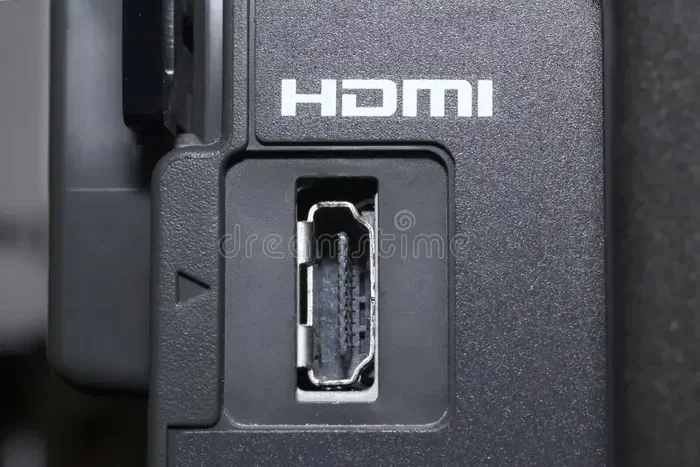
HDMI stands for High-Definition Multimedia Interface. It is the most common port you will find on TVs, gaming consoles, Blu-ray players, and streaming devices. DisplayPort, on the other hand, is a digital display interface developed by VESA. It is most often found on computer monitors and graphics cards. Both are digital, both carry high-definition signals, and both support audio. But that is where the similarities end.
Understanding the difference between these two display connectivity options matters. Whether you are setting up a home theater, building a gaming rig, or connecting a professional workstation, choosing the right cable and port can make a huge difference in your experience. Let us break it all down.
What Is HDMI?
HDMI is the universal standard for connecting consumer devices to displays. It was first introduced in 2003 and has gone through several major revisions. The most current version is HDMI 2.1, which supports incredible bandwidth and features like 4K at 120Hz and even 8K resolution.
Here are some key things to know about HDMI:
- HDMI cables carry both video and audio in a single cable, which makes them super convenient.
- The connector has a locking mechanism that keeps it securely in place, though it is not as robust as DisplayPort’s latch.
- HDMI is found on almost every TV and most streaming devices, game consoles, and set-top boxes.
- It supports Consumer Electronics Control (CEC), which lets you control multiple devices with one remote.
- HDMI comes in several sizes: standard, mini, and micro, depending on the device.
One of the biggest strengths of HDMI is its widespread adoption. If you plug in a Blu-ray player, a soundbar, or a game console, HDMI is almost always the go-to option. The high-definition media experience you get from HDMI is polished and user-friendly, which is why it dominates the living room.
What Is DisplayPort?
DisplayPort is a digital interface designed primarily for computers and professional displays. It was developed by the Video Electronics Standards Association and first appeared in 2006. DisplayPort is built for performance, and it shows in its capabilities.
Here is what makes DisplayPort stand out:
- DisplayPort offers higher bandwidth than most HDMI versions, which means it can handle more data at once.
- It supports multi-stream transport, which lets you daisy chain multiple monitors from a single port.
- The connector has a locking clip that prevents accidental disconnections, which is great for desktop setups.
- DisplayPort supports higher refresh rates at 4K and even 8K, making it a favorite among gaming monitor enthusiasts.
- It can carry more audio channels than HDMI, which matters for surround sound setups.
If you are building a PC or connecting a professional workstation, DisplayPort is often the better choice. It was designed with computer users in mind, and that focus shows in every version. Many people who work with video editing, 3D rendering, or competitive gaming prefer DisplayPort for its signal quality and flexibility.
Are HDMI and DisplayPort the Same? Key Differences Explained
Now that you know what each port does, let us get to the heart of the question. Are HDMI and DisplayPort the same? Not even close. They share the same goal — delivering video and audio — but they go about it in very different ways.
HDMI was designed for the consumer electronics world. It is simple, universal, and works with almost any TV or home entertainment device. DisplayPort was designed for the computing world. It prioritizes performance, flexibility, and advanced features that power users need.
Here are the main areas where they differ:
- Bandwidth: DisplayPort 2.1 offers up to 80 Gbps, while HDMI 2.1 maxes out at 48 Gbps. Higher bandwidth means support for higher resolutions and refresh rates.
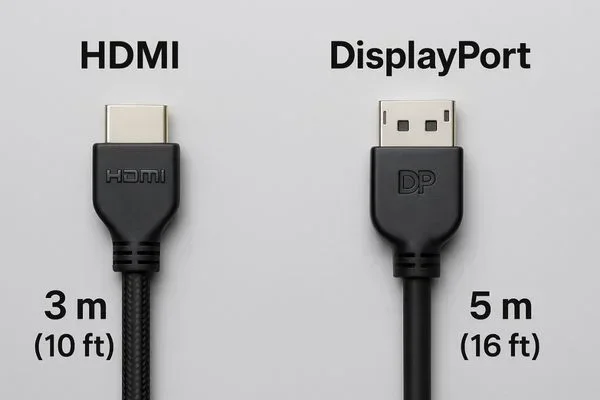
- Connector design: HDMI uses a slim, flat connector. DisplayPort is larger and has a locking clip.
- Multi-monitor support: DisplayPort can daisy chain monitors. HDMI cannot do this natively.
- Adoption: HDMI is everywhere in living rooms. DisplayPort is everywhere on desks.
- Adaptability: Both can be adapted to the other, but you will need a separate adapter or cable.
So when you ask, “are HDMI and DisplayPort the same,” the answer is clear. They are cousins in the digital display family, but they have very different personalities and strengths.
HDMI vs DisplayPort: Head-to-Head Comparison
Let us put this in perspective with a quick comparison. This table breaks down the key specs of the latest versions of each standard.
- Maximum Bandwidth: HDMI 2.1 at 48 Gbps vs DisplayPort 2.1 at 80 Gbps.
- Max Resolution: Both support 8K, but DisplayPort handles it more easily at higher refresh rates.
- Refresh Rate at 4K: HDMI 2.1 supports 4K at 120Hz. DisplayPort 2.1 supports 4K at 240Hz or higher.
- Daisy Chaining: DisplayPort supports it. HDMI does not.
- Audio Channels: HDMI supports up to 32 channels. DisplayPort supports up to 128 channels.
- Common Use: HDMI for TVs and consoles. DisplayPort for PC monitors and workstations.
- Connector Lock: HDMI has a friction fit. DisplayPort has a secure locking clip.
As you can see, the video signal capabilities of DisplayPort give it an edge in professional and gaming scenarios. HDMI remains king for consumer entertainment setups.
Which One Should You Choose?
Choosing between HDMI and DisplayPort depends entirely on what you are connecting and what you want to achieve. There is no single “best” option — only the best option for your specific situation.
For Gaming
If you are a PC gamer, DisplayPort is usually the better choice. It offers higher refresh rates, better bandwidth, and features like Adaptive Sync that reduce screen tearing. Most high-end gaming monitor models come with DisplayPort as the primary connection. If you are connecting a console like a PlayStation or Xbox, HDMI is the way to go since those devices only have HDMI outputs.
For Professional Work
Video editors, graphic designers, and 3D artists will benefit from DisplayPort’s higher bandwidth and multi-monitor support. The ability to daisy chain monitors from a single port is a game-changer for productivity. If you are using multiple displays at your desk, DisplayPort saves you from cluttering your setup with extra cables and adapters.
For Casual Use and Home Entertainment
If you are just watching movies, streaming shows, or playing casual games on a couch, HDMI is your friend. It is simple, universally supported, and works flawlessly with TVs and streaming sticks. You do not need the advanced features of DisplayPort for everyday viewing.
For Business and Security Setups
In professional environments, HDMI is commonly used for digital signage and security displays. Many access control systems rely on HDMI connections to feed video feeds to monitoring stations. The widespread availability of HDMI makes it easy to integrate into existing infrastructure. However, if the setup requires multiple monitors or higher performance, DisplayPort may be a better fit.
Common Mistakes People Make When Choosing Between HDMI and DisplayPort
Even tech-savvy people sometimes make mistakes when picking between these two ports. Here are the most common ones to avoid.
- Assuming all HDMI cables are the same: An older HDMI cable may not support the features of HDMI 2.1. Always check the version.
- Buying DisplayPort without checking monitor compatibility: Not all monitors support every DisplayPort version. Make sure your monitor and source device match.
- Forgetting about adapters: You cannot plug an HDMI cable into a DisplayPort port directly. You need a proper adapter, and cheap ones can cause signal loss.
- Ignoring bandwidth needs: If you want 4K at 120Hz, make sure your cable and port can handle that bandwidth. Older versions may not.
- Overlooking audio support: Both ports carry audio, but some setups may require specific audio formats. Check compatibility if you are using external speakers or sound systems.
One mistake that catches people off guard is buying a cable based on looks alone. A thicker cable does not always mean better performance. Look at the version number and bandwidth rating on the packaging. And if you are setting up a complex display system, consider consulting with a professional to ensure your display output setup is optimized.
Expert Tips for Getting the Best Performance
Want to squeeze every bit of performance from your display connectivity setup? Here are some tips from the pros.
- Always use certified cables: Look for cables that are certified by HDMI or VESA. Certified cables meet strict performance standards and reduce the risk of signal issues.
- Keep cables short when possible: Longer cables can degrade signal quality, especially at higher resolutions. Try to keep HDMI and DisplayPort cables under 6 feet for best results.
- Check your graphics card outputs: Not all GPUs have the same number or type of ports. Make sure your card supports the version you need before buying a cable or monitor.
- Update your display drivers: Sometimes the issue is not the cable but outdated software. Keep your GPU drivers up to date for the best signal quality.
- Use the right adapter: If you need to convert between HDMI and DisplayPort, buy an active adapter rather than a passive one. Active adapters have built-in chips that ensure proper signal conversion.
These small steps can make a big difference in how your displays perform. A good cable paired with the right port and up-to-date drivers will give you the clearest picture and smoothest experience.
If you are curious about how technology continues to evolve in the accessories space, you might also enjoy learning about apps that help you find the right gear and services. Check out some of the best apps that are like Uber for finding dog walkers to see how tech is changing everyday services.
Final Thoughts
So, are HDMI and DisplayPort the same? They are definitely not the same, even though they both deliver high-quality video and audio. HDMI is the go-to for consumer devices, home theaters, and simple setups. DisplayPort is the powerhouse for PC gaming, professional work, and multi-monitor configurations.
The right choice depends on your devices, your needs, and your budget. Now that you understand the differences, you can make a confident decision the next time you set up a display. Whether you are hooking up a TV for movie night or building a triple-monitor workstation, knowing your ports is half the battle.
Take a moment to check what ports your devices have. Match them to the right cable, and you will be rewarded with a crisp, clear, and reliable display experience every single time.
Frequently Asked Questions
Can I use an HDMI cable with a DisplayPort monitor?
You cannot plug an HDMI cable directly into a DisplayPort port. You will need an active adapter or a DisplayPort-to-HDMI converter cable. Passive adapters may not work in all cases because the signal protocols are different.
Is DisplayPort better than HDMI for 4K gaming?
Generally, yes. DisplayPort offers higher bandwidth, which means it can handle 4K at higher refresh rates more easily. If you are a serious gamer, DisplayPort is usually the better choice for your monitor.
Does HDMI carry audio as well as video?
Yes, HDMI carries both audio and video signals in a single cable. This is one of the main reasons it is so popular for home entertainment setups where you want to connect a TV, soundbar, and streaming device with minimal cables.
Can I daisy chain monitors with HDMI?
No, HDMI does not support daisy chaining monitors natively. DisplayPort supports multi-stream transport, which allows you to connect multiple monitors in a chain from a single port on your computer.
What is the latest version of HDMI?
The latest version is HDMI 2.1, which supports up to 48 Gbps of bandwidth. It enables features like 4K at 120Hz, 8K resolution, and Enhanced Audio Return Channel for improved sound quality.
Do all TVs have HDMI ports?
Almost all modern TVs have at least one HDMI port, and most have multiple. HDMI is the standard connection for TVs, streaming devices, game consoles, and Blu-ray players. It is rare to find a new TV without HDMI ports today.
=== CONCLUSION ===
Understanding the difference between HDMI and DisplayPort is essential for anyone setting up a display system. These two digital interface standards serve different needs, and choosing the right one can transform your viewing or gaming experience. HDMI offers simplicity and universal compatibility for consumer devices, while DisplayPort delivers the performance and flexibility that power users demand.
Now you know exactly what each port brings to the table. Use that knowledge to make smart choices for your setup. Whether you are connecting a TV in the living room or a triple-monitor array at your desk, the right port and cable make all the difference. Share this guide with a friend who is confused about their display connections, and help them make the right choice too.