Can A Usb Cable Be Used For Audio And Why It Matters
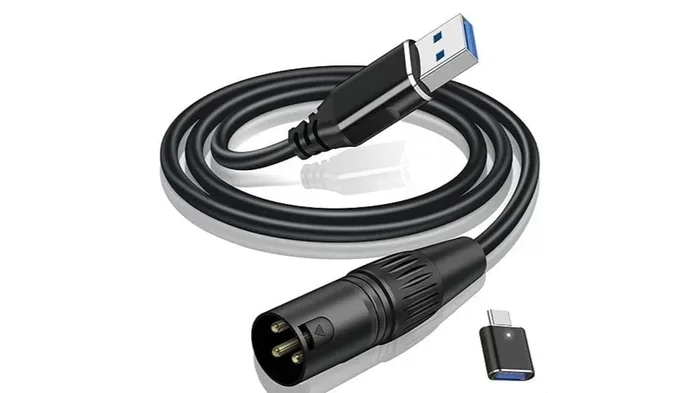
Can a USB cable be used for audio? Yes, it can carry both digital and analog signals, making it a versatile tool for microphones, headphones, and external sound cards. USB audio offers plug-and-play simplicity, reduced noise, and high-quality sound for podcasts, gaming, and music production.
Can a USB cable be used for audio? The short answer is yes, and it opens up a world of possibilities. You can connect microphones, headphones, and even external sound cards directly to your computer using a simple USB cable. This guide explains exactly how USB audio works, why it matters, and what you need to know to get great sound. Whether you are a podcaster, gamer, or music lover, understanding USB audio connections will level up your setup.
Many people wonder if a standard USB cable can carry audio. The truth is, USB was designed to handle more than just data. It can transmit digital audio signals with ease. In the past, you needed a separate sound card or a 3.5mm jack. Today, a single USB cable can deliver high-quality audio to and from your devices. Can a USB cable be used for audio? Absolutely. Let us explore how.
Key Takeaways
- USB cables can transmit audio: They carry digital audio signals directly to computers and audio interfaces.
- USB-C and USB-A both work: Modern devices use USB-C for audio, while older gear relies on USB-A.
- Plug and play is standard: Most USB audio devices need no extra drivers.
- Better quality than 3.5mm jacks: USB reduces electrical interference and delivers cleaner sound.
- Latency can be an issue: Choose the right USB audio class and buffer settings for real-time monitoring.
- Not all USB cables are equal: Use quality cables to avoid dropouts and signal loss.
📑 Table of Contents
- Can a USB Cable Be Used For Audio? Understanding the Basics
- Types of USB Cables for Audio
- Devices That Use USB for Audio
- Benefits of Using USB for Audio Connections
- Troubleshooting USB Audio Issues
- Expert Tips for the Best USB Audio Setup
- How to Choose the Right USB Cable for Your Audio Needs
- Future of USB Audio: What’s Next?
Can a USB Cable Be Used For Audio? Understanding the Basics
A USB cable carries both power and data. When it comes to audio, it sends digital sound signals from a device to your computer. Your computer then processes those signals and can send them back out through speakers or headphones. This process is called digital audio transmission.
Unlike traditional analog connections, USB audio stays in the digital domain longer. This reduces the chance of interference. The result is often cleaner, more accurate sound. Many people notice a big improvement in audio quality when they switch from a 3.5mm jack to a USB connection.
Digital vs. Analog Audio Signals
Analog audio is the continuous wave you hear from a vinyl record or a 3.5mm headphone plug. It can pick up noise and distortion over distance. Digital audio, on the other hand, is a series of ones and zeros. A USB cable carries this digital signal. Your device converts it back to analog right before it reaches your speakers or ears.
Think of it like sending a letter. Analog is like telling a story face to face. Any background noise can change your message. Digital is like writing the story down. The words stay exactly the same until they are read aloud. This is why USB audio often sounds better and more reliable.
What Happens Inside a USB Cable
A USB cable has several tiny wires inside. Two of them carry power. Two others carry data. For audio, the data wires are what matter. They send digital sound packets from your microphone or instrument to the computer. The computer uses a USB audio class driver to understand this data. Most modern operating systems recognize these devices instantly.
You do not need special drivers for most USB audio gear. This plug-and-play nature is a huge advantage. Just plug in your USB microphone or DAC, and your computer knows what to do. It is that simple.
Types of USB Cables for Audio
Not all USB cables are the same. Different types serve different needs. Here is a quick look at the most common ones used for audio.
| Cable Type | Best For | Max Audio Quality | Common Devices |
|---|---|---|---|
| USB-A | Desktop computers, sound cards | Up to 24-bit/96kHz | USB microphones, external DACs |
| USB-C | Laptops, smartphones, modern audio gear | Up to 32-bit/384kHz (with capable devices) | USB-C headphones, portable DACs |
| USB-B | Studio equipment, printers with audio | Up to 24-bit/192kHz | Professional audio interfaces |
| Micro-USB | Older portable gear | Up to 16-bit/48kHz | Legacy USB microphones |
USB-A vs. USB-C for Audio
USB-A is the classic rectangular plug. It is found on almost every desktop computer. Most USB audio devices use this connector. It is reliable and widely supported. If you have a desktop setup, a USB-A cable is likely what you need.
USB-C is the smaller, reversible connector. It is becoming the standard on laptops and phones. Many modern USB microphones and portable DACs now use USB-C. The good news is that USB-C can carry higher-resolution audio. If your device supports it, you can get studio-grade quality from a single USB-C cable.
USB 2.0 vs. USB 3.0 Audio Quality
You might wonder if the USB version matters for sound. The answer is yes, but not in the way you think. USB 2.0 can handle high-quality audio up to 24-bit/96kHz. USB 3.0 offers more bandwidth, which helps with multiple audio streams or very high sample rates. For most home users, USB 2.0 is more than enough. If you are a professional musician, USB 3.0 gives you extra headroom.
Devices That Use USB for Audio
USB audio is everywhere. From budget podcasts to professional studios, this connection is the go-to choice. Here are the most common devices that rely on a USB cable for sound.
USB Microphones
A USB microphone is one of the easiest ways to start podcasting or streaming. You plug it directly into your computer. No extra audio interface is needed. The microphone converts your voice into digital data right inside the mic body. Popular models like the Blue Yeti or Audio-Technica AT2020USB use this simple setup.
Using a USB microphone means less clutter. You only need one cable. This is perfect for a clean home studio desk. Just remember that the audio quality depends on the microphone’s built-in components, not just the cable.
USB DACs and Sound Cards
A DAC, or Digital-to-Analog Converter, turns digital audio into analog sound you can hear. Many people use a small USB DAC to improve their listening experience. A USB DAC bypasses your computer’s low-quality built-in sound card. It gives you richer bass, clearer highs, and less background noise.
External sound cards work the same way. They connect via USB and provide better audio inputs and outputs. Musicians use them to plug in guitars or studio monitors. Gamers use them for surround sound headsets. A USB sound card is a simple upgrade that makes a big difference.
USB Headphones and Amplifiers
Some high-end headphones have a USB connection built in. They have a tiny amplifier and DAC inside the cable or earcup. This means they do not rely on your computer’s audio hardware. You get powerful, clean sound right out of the box. Audiophiles love this setup for critical listening.
Benefits of Using USB for Audio Connections
Switching to USB for your audio gear brings several real advantages. Here is why so many people make the change.
Plug and Play Simplicity
With USB, you do not need to fiddle with settings. Your operating system recognizes the device almost instantly. This plug and play experience saves time and frustration. Just plug in, and your computer is ready to record or play sound.
Better Audio Quality and Less Noise
One of the biggest benefits is reduced electrical noise. Traditional 3.5mm jacks can pick up hum from your computer’s power supply. USB connections isolate the audio signal. The result is a cleaner, quieter sound. You hear more detail in your music or recordings.
Long Cable Runs Without Loss
USB signals can travel longer distances without degrading. You can use a high-quality USB extension cable to place your audio device far from your computer. This is great for streamers who want their microphone out of the way. As long as you use a good cable, the signal stays strong.
Troubleshooting USB Audio Issues
Sometimes a USB cable does not work for audio right away. Do not worry. Most problems are easy to fix. Here are common issues and how to solve them.
When a USB Cable Won’t Work for Audio
If your USB audio device is not recognized, try a different port. Some USB hubs do not provide enough power. A direct connection to the computer often solves this. Also, check if the cable is damaged. A frayed cable can cause dropouts or no sound at all.
Troubleshooting a USB audio problem can feel like trying to delete a stubborn line in Excel that won’t go away. Just as that A Line Wont Delete In Microsoft Excel issue frustrates many users, a USB cable that refuses to carry audio can be equally maddening. Stay patient and work through the steps one by one.
Latency and Delay Issues
Latency is a short delay between making a sound and hearing it back. This can be annoying when you are recording vocals or playing an instrument. To reduce latency, lower the buffer size in your audio software. A USB 3.0 connection can also help because it processes data faster.
Finding the right setup is much simpler than sifting through 4 apps that are like Uber for finding dog walkers. With a 4 Apps That Are Like Uber For Finding Dog Walkers approach, you can just plug in and go. Choose a low-latency driver like ASIO if your software supports it.
Driver and Software Problems
Most USB audio devices use standard drivers. But some professional gear needs a specific driver. Visit the manufacturer’s website to download the latest version. If you recently updated your operating system, the driver might need a refresh. Reinstalling the driver often fixes strange audio glitches.
If your USB audio device isn’t recognized, don’t panic. It’s not as complicated as that A Line Wont Delete In Microsoft Excel problem you once faced—usually a simple driver update fixes it.
Expert Tips for the Best USB Audio Setup
Quick Tips
- Use a short, high-quality cable: Longer cables can weaken the signal. Keep it under 3 meters for best results.
- Avoid cheap USB hubs: They often lack the power needed for stable audio. Plug directly into your computer.
- Check your sample rate: Match the sample rate in your audio software to your device’s capability for smooth playback.
- Update your OS: Newer operating systems include better USB audio drivers out of the box.
- Consider a USB-C to USB-C cable: If both your device and computer have USB-C, this ensures the best connection.
Common Mistakes to Avoid
- Using a USB cable meant only for charging: These cables often lack the data wires needed for audio. Always use a data-capable USB cable.
- Ignoring ground loops: If you hear a buzzing hum, a ground loop might be the cause. Use a USB isolator to break the loop.
- Plugging into the wrong port: Some USB ports on a computer share bandwidth. Plug audio devices into a dedicated USB controller for stability.
- Bending the cable sharply: This can damage the internal wires over time. Let the cable lie naturally.
Expert Insights
Audio engineers often say that the cable is the weakest link in a USB audio chain. A cheap cable can introduce jitter, which is tiny timing errors in the digital signal. This might not be audible to everyone, but audiophiles notice it. Investing in a well-shielded, reputable USB cable pays off in the long run.
Another insight is to treat your USB audio setup like a studio. Keep your computer’s power supply clean and away from sensitive audio gear. Use a power strip with surge protection. These small steps keep your audio signal pure and your gear safe.
How to Choose the Right USB Cable for Your Audio Needs
With so many options, picking the right USB cable can feel overwhelming. Start by asking a few simple questions. What devices are you connecting? What audio quality do you need? Do you need a long cable?
For most people, a standard USB-A to USB-C cable is a safe bet. It works with the majority of modern USB microphones and DACs. If you are connecting a professional audio interface, look for a USB-B to USB-A cable. This is the standard for studio gear.
Always check the cable’s specifications. A good USB audio cable will support at least 24-bit/96kHz. Higher numbers like 32-bit/384kHz mean the cable can handle studio-resolution audio, but only if your devices support those rates too. Do not pay extra for specs your gear cannot use.
The Role of Cable Shielding
Shielding protects the audio data from electromagnetic interference. In a busy desk setup with power cables and routers, interference is real. Look for cables with braided shielding or foil wrapping. This keeps your digital audio clean and free from pops or clicks.
USB Cable Length: Shorter Is Often Better
While USB signals can travel up to 5 meters without a repeater, shorter cables maintain a stronger signal. For desktop use, 1 to 2 meters is ideal. If you need more length, consider an active USB extension cable that boosts the signal.
Future of USB Audio: What’s Next?
USB audio technology keeps improving. USB4 and the latest USB-C standards offer even more bandwidth. This means support for higher sample rates and multiple audio channels over a single cable. Wireless audio is growing, but USB remains the gold standard for reliable, high-quality connections.
As more devices adopt USB-C, you will see fewer proprietary audio connectors. The universal nature of USB makes it easy to mix and match gear from different brands. Your future audio setup will likely be simpler and more versatile thanks to these advances.
Can a USB cable be used for audio? The answer is a clear yes. From casual listening to professional recording, USB audio is here to stay. By choosing the right cable and understanding how it works, you get the best possible sound from your gear. Take the time to set up your USB audio connection properly, and you will hear the difference every single day.
Frequently Asked Questions
Can I use any USB cable for audio?
Not all USB cables are created equal. You need a data-capable cable, not just a charging cable. A charging-only cable lacks the internal wires needed to transmit digital audio. Always check that the cable supports data transfer for reliable audio.
Does USB audio sound better than a 3.5mm jack?
In most cases, yes. USB audio bypasses your computer’s low-quality internal sound card. It delivers a cleaner digital signal with less background noise. Many users notice improved clarity and richer sound when they switch to USB.
Do I need special drivers for USB audio devices?
Most USB audio gear uses standard drivers built into Windows, macOS, and Linux. These are called USB audio class drivers. However, some professional audio interfaces require a specific driver from the manufacturer. Always check the product page for driver requirements.
What is USB audio latency and how can I fix it?
Latency is the small delay between making a sound and hearing it back. It can be annoying during recording or gaming. To reduce it, lower the buffer size in your audio software, use a USB 3.0 port, or switch to an ASIO driver if available.
Can I use a USB extension cable for audio?
Yes, you can. Use a high-quality active USB extension cable for runs longer than 3 meters. Passive cables beyond that length may lose signal strength. An active cable boosts the audio data to keep it clear and stable.
Is USB-C better than USB-A for audio?
USB-C can support higher-resolution audio and reversible plugging. It is the future of audio connections. However, USB-A is still perfectly fine for most devices. The best choice depends on your equipment. Use whatever connector your gear supports.
=== CONCLUSION ===
Can a USB cable be used for audio? Absolutely. It is one of the simplest and most effective ways to connect microphones, headphones, and external sound cards to your computer. USB audio offers plug-and-play ease, excellent sound quality, and fewer cables to manage.
By understanding the different cable types, common devices, and troubleshooting steps, you can build a reliable audio setup. Whether you are podcasting, gaming, or just enjoying your favorite music, a good USB cable makes all the difference. Take action today, upgrade your connections, and enjoy the clear, crisp sound that USB audio delivers.