How Do I Connect My Airpods To My Microsoft Laptop
Connecting your AirPods to a Microsoft laptop is a straightforward process that starts with Bluetooth pairing. This guide covers every step from putting your AirPods in pairing mode to fixing common connection problems on Windows 11.
Have you just unboxed a fresh pair of AirPods and want to pair them with your Microsoft laptop? You are in the right place. Getting your wireless headphones connected to a Windows device is easier than most people think. In this guide, we walk you through every single step. You will learn how to pair, troubleshoot, and optimize your Bluetooth connection like a pro.
Whether you use AirPods Pro, the latest AirPods 3rd generation, or the premium AirPods Max, the process stays the same. Microsoft laptops running Windows 10 or Windows 11 all support Bluetooth pairing with Apple headphones. You do not need any extra software or fancy tools. Just a few clicks and your wireless audio will be ready to go.
Many people worry that connecting Apple devices to a Windows PC will be complicated. That is simply not true. Apple designed AirPods to work seamlessly with any Bluetooth-enabled device. This includes Android phones, gaming consoles, and of course, Microsoft laptops. So let us dive right in and get your AirPods connected in no time.
Before we start, make sure your AirPods are charged. A low battery can cause pairing problems. Also, keep your Microsoft laptop within a few feet of your AirPods during the setup process. Bluetooth range is typically about 30 feet, but staying close during pairing ensures a strong initial connection.
Key Takeaways
- Bluetooth pairing is simple: You can connect your AirPods to a Microsoft laptop in just a few minutes using the built-in Windows Bluetooth settings.
- Troubleshooting is easy: Most connection issues can be fixed by resetting your AirPods, updating Bluetooth drivers, or restarting your laptop.
- Multiple AirPods models work: Whether you have AirPods Pro, AirPods Max, or standard AirPods, the connection process is nearly identical.
- Audio settings matter: Setting your AirPods as the default audio output ensures you get the best sound quality from your wireless headphones.
- Quick tips help: Keeping your devices close, checking battery levels, and updating Windows all improve the pairing experience.
📑 Table of Contents
- Step-by-Step Guide To Pairing Your AirPods
- Setting AirPods as Your Default Audio Output
- Troubleshooting Common Connection Issues
- Tips For The Best Audio Experience
- Using AirPods With Different Microsoft Laptop Models
- How AirPods Compare With Other Wireless Headphones for Laptops
- Final Thoughts
- Frequently Asked Questions
Step-by-Step Guide To Pairing Your AirPods
Pairing your AirPods with a Microsoft laptop takes less than two minutes. Follow these simple steps and you will be listening to music in no time. The process works the same way whether you have AirPods Pro, regular AirPods, or the big AirPods Max.
Step 1: Put Your AirPods in Pairing Mode
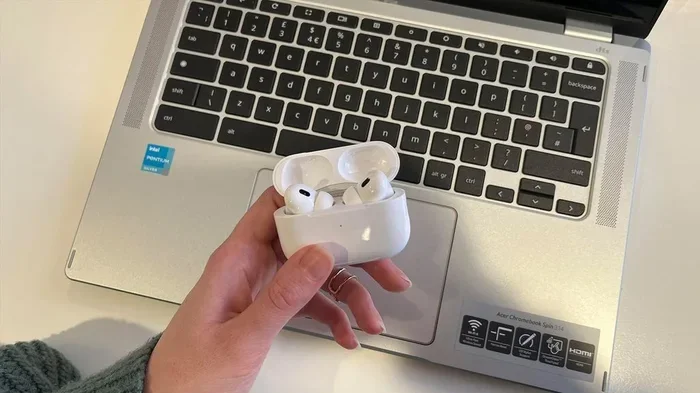
First, you need to activate pairing mode on your AirPods. Place both AirPods inside the charging case. Keep the lid open. Now press and hold the small button on the back of the case. You will see a white flashing light. That light means your AirPods are ready to pair.
If you have AirPods Pro with a wireless case, the process is the same. Hold the setup button until the light flashes white. For AirPods Max, press and hold the noise control button until the status light flashes amber and then white. This tells your laptop Bluetooth that the headphones are looking for a new connection.
Step 2: Open Bluetooth Settings on Your Microsoft Laptop
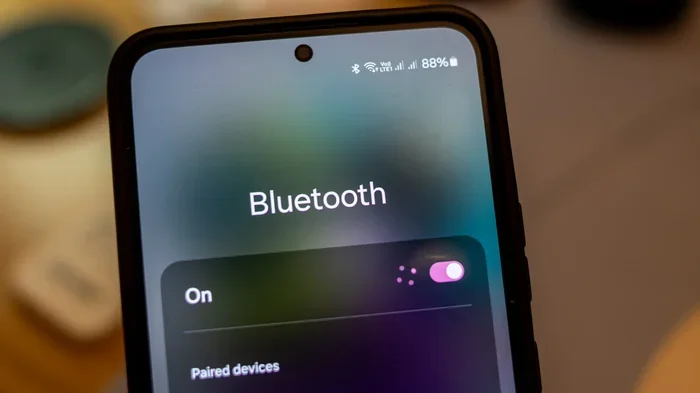
Now switch to your Microsoft laptop. Click the Start menu and go to Settings. Choose Devices, then click on Bluetooth and other devices. Make sure Bluetooth is turned on. You should see a toggle switch at the top. If it is off, flip it on.
Next, click the Add Bluetooth or other device button. A new window will pop up. Select Bluetooth from the list of options. Your laptop will now search for nearby Bluetooth devices. After a few seconds, your AirPods should appear in the list.
Step 3: Connect and Confirm
Click on your AirPods when they appear in the list. Windows will take a moment to establish the Bluetooth connection. You will see a message that says Connected. Your AirPods are now paired to your Microsoft laptop.
Here is a quick tip. Once connected, your AirPods will automatically reconnect whenever you open the case near your laptop. This is one of the best things about wireless headphones. You do not need to repeat the pairing process every time. Just open the case and they connect instantly.
Setting AirPods as Your Default Audio Output
Once your AirPods are connected, you need to make sure they are set as the default audio device. Otherwise, sound might still come out of your laptop speakers. This is a common issue that trips up many people.
Go to Settings, then System, and click on Sound. Under Output, you will see a list of audio devices. Select your AirPods from that list. Now all sound from your Microsoft laptop will route through your wireless headphones. This includes music, videos, video calls, and system sounds.
You can also adjust the audio output volume directly from your AirPods. Use the volume buttons on the side of your AirPods Pro or tap the stem on your standard AirPods. This gives you quick control without touching your laptop.
Troubleshooting Common Connection Issues
Sometimes things do not go as smoothly as we hope. If your AirPods will not connect to your Microsoft laptop, do not panic. Most problems have simple fixes. Let us go through the most common issues and how to solve them.
AirPods Not Showing Up in Bluetooth List
If your AirPods do not appear in the Bluetooth list, try these steps. First, make sure pairing mode is active. The white flashing light should still be on. If it stopped flashing, put the AirPods back in the case and hold the button again.
Next, toggle Bluetooth off and on in your laptop settings. Sometimes a simple refresh fixes the problem. You can also try restarting your Microsoft laptop. A fresh start clears out temporary glitches that might block device connectivity.
Audio Cuts Out or Sounds Scratchy
If your wireless audio keeps cutting out, the problem is usually distance or interference. Stay within 10 to 15 feet of your laptop for the best Bluetooth range. Walls and other electronic devices can weaken the signal.
Another common cause is an outdated Bluetooth driver. Go to Device Manager on your laptop. Find Bluetooth adapters, right-click, and select Update driver. Keeping your Windows Bluetooth drivers up to date ensures smooth wireless headphones performance.
AirPods Connected But No Sound
This usually happens when the audio output is still set to your laptop speakers. Go to the Sound settings we talked about earlier. Make sure your AirPods are selected as the output device. Also check the volume on both your laptop and your AirPods.
Sometimes the audio output switches back to speakers after a Windows update. This is a known quirk with Windows 11. Just go back to Sound settings and switch it back to your AirPods. It only takes a few seconds.
Tips For The Best Audio Experience
Getting your AirPods connected is only half the battle. Making sure you get great sound quality is the other half. Here are some tips to help you enjoy the best possible wireless audio on your Microsoft laptop.
Keep Your Devices Updated
Always keep your Microsoft laptop updated. Windows updates often include improvements to Bluetooth connectivity and audio performance. Check for updates regularly in Settings, then Windows Update. A fully updated system runs smoother and connects more reliably.
Minimize Interference
Bluetooth uses the 2.4 GHz frequency band. Other devices like microwaves, cordless phones, and even USB 3.0 ports can cause interference. If you notice audio problems, move away from these devices. Also, try switching your USB ports if you have a dongle or adapter connected.
For the cleanest wireless connection, keep your laptop in the same room as your AirPods. Avoid placing your laptop near thick walls or metal objects. These can block the Bluetooth signal and reduce audio quality.
Clean Your AirPods Regularly
This might sound simple, but clean AirPods sound better. Wipe the speaker meshes with a soft, dry cloth. Earwax buildup can muffle the sound and reduce audio clarity. This applies to all models, from standard AirPods to AirPods Pro and AirPods Max.
Using AirPods With Different Microsoft Laptop Models
The great thing about AirPods is that they work with virtually any Microsoft laptop that has Bluetooth. Whether you have a Surface Pro, a Dell XPS, an HP Spectre, or a Lenovo ThinkPad, the pairing process is the same.
If you are using a Surface Pro or Surface Laptop, the experience is especially smooth. Microsoft devices tend to have excellent Bluetooth compatibility. The built-in Windows Bluetooth stack works very well with Apple headphones.
For older laptops that do not have built-in Bluetooth, you can use a USB Bluetooth adapter. Just plug it into a USB port and Windows will install the driver automatically. This is a great way to add wireless audio to an older machine. If you are curious about USB connectivity options on different devices, check out Can I Connect My PC To Laptop Screen for more connectivity tips.
One thing to keep in mind. Some older Microsoft laptops may have older Bluetooth versions. Bluetooth 4.0 or earlier might not support the latest AirPods features like spatial audio. Most modern laptops have Bluetooth 5.0 or newer, which works perfectly with all AirPods models.
How AirPods Compare With Other Wireless Headphones for Laptops
When you are choosing wireless headphones for your Microsoft laptop, you have many options. AirPods are popular, but how do they stack up against the competition? Let us take a quick look.
AirPods offer seamless integration with Apple devices. If you also own an iPhone or iPad, the switching between devices is incredibly smooth. The Bluetooth pairing process is fast and reliable. However, they also work well with Windows laptops, even though some features like automatic switching work best within the Apple ecosystem.
Other wireless headphones like Sony WH-1000XM5 or Bose QuietComfort offer strong noise cancellation and long battery life. These are great options if you do not own other Apple devices. But for many users, the convenience of AirPods makes them the top choice. They are lightweight, easy to use, and connect to any Bluetooth-enabled device in seconds.
For more information on connecting different devices to your laptop, you might find Can I Connect USB To Thunderbolt helpful for understanding various connectivity options available on modern laptops.
Final Thoughts
Connecting your AirPods to a Microsoft laptop is a simple process that anyone can do. The Bluetooth pairing takes just a couple of minutes. Once connected, you enjoy high-quality wireless audio for music, movies, video calls, and more.
Remember to keep your devices updated, stay within Bluetooth range, and set your AirPods as the default audio output. These small habits make a big difference in your daily experience. If you ever run into trouble, the troubleshooting steps in this guide will help you get back on track quickly.
Now that you know how to connect your AirPods to your Microsoft laptop, you can enjoy wireless audio wherever you go. Whether you are working from home, watching a movie, or taking a call, your AirPods have you covered. Happy listening.
For readers who also use Apple devices and want to understand more about cross-device connectivity, check out Can I Connect My Iphone To My Tv With Hdmi for helpful tips on connecting your Apple devices to other screens and peripherals.
Frequently Asked Questions
Can I connect AirPods to a Microsoft laptop without Bluetooth?
No, you need a Bluetooth connection to pair AirPods with a Microsoft laptop. If your laptop does not have built-in Bluetooth, you can buy a USB Bluetooth adapter. Simply plug it into a USB port and Windows will install the driver automatically. This turns any laptop into a Bluetooth-enabled device.
Why won’t my AirPods connect to my Microsoft laptop?
The most common reason is that your AirPods are not in pairing mode. Make sure the white flashing light is on. Also check that Bluetooth is turned on in your laptop settings. If the problem persists, try resetting your AirPods by placing them in the case, holding the button for 15 seconds, and trying again.
Do AirPods work with Windows 11?
Yes, AirPods work perfectly with Windows 11. The Bluetooth pairing process is the same as on Windows 10. You might notice that some Apple-specific features like automatic device switching do not work on Windows. But basic audio playback and microphone functions work without any issues.
Can I use my AirPods for video calls on my Microsoft laptop?
Absolutely. Once your AirPods are connected, they work as both an audio output and microphone. Open any video calling app like Zoom or Microsoft Teams. Your AirPods will automatically be selected as the audio device. The built-in microphone picks up your voice clearly for calls.
How do I disconnect my AirPods from my Microsoft laptop?
Go to Settings, then Devices, then Bluetooth and other devices. Find your AirPods in the list and click Remove device. You can also simply turn off Bluetooth on your laptop. Your AirPods will disconnect automatically and stay paired for future use.
Can I connect AirPods to multiple devices at once?
AirPods can only be actively connected to one device at a time for audio output. However, they can be paired with multiple devices. Switching between a Microsoft laptop and an iPhone is easy. Just select the AirPods from the audio output menu on the device you want to use.