Can I Connect My Iphone To My Tv With Hdmi Right Now
Yes, you can connect your iPhone to your TV with HDMI right now. You need the right HDMI adapter and a simple cable setup to mirror your screen or stream content on a TV display. This guide walks you through every step, from picking the right adapter compatibility to troubleshooting common issues.
Have you ever wanted to watch something from your iPhone on a bigger screen? Maybe you want to share vacation photos with the whole family or stream a movie on your TV display. The good news is that connecting your iPhone to TV with HDMI is simpler than you might think.
Whether you have the latest iPhone model or an older one, there is a way to get your iPhone connectivity working with your television. You just need the right cable setup and a little know-how. This guide covers everything you need to know about making this wired connection work perfectly.
In this article, we will walk through every step of the process. You will learn what equipment you need, how to set things up, and what to do when things do not work as expected. By the end, you will feel confident making your own iPhone to TV connection at home.
Key Takeaways
- You need a Lightning to HDMI adapter or a USB-C to HDMI adapter depending on your iPhone model to make the connection work.
- Screen mirroring lets you display everything from your iPhone screen directly onto your TV in high definition.
- Wired HDMI connections offer more stability than wireless options like AirPlay, with less lag and no Wi-Fi dependency.
- Common issues like no sound or black screens are usually easy to fix with simple troubleshooting steps.
- Adapter compatibility matters a lot, so always check your iPhone model before buying any cable or adapter.
- You can stream movies, show photos, and even play games on your TV using this straightforward setup.
📑 Table of Contents
What You Need to Connect iPhone to TV with HDMI
Before you start, you need to know what equipment will work with your specific iPhone model. Different iPhones use different connection types, and picking the right gear makes all the difference.
Types of HDMI Adapters You Will Need
Your iPhone uses either a Lightning port or a USB-C port to connect to accessories. This determines which HDMI adapter you need to buy.
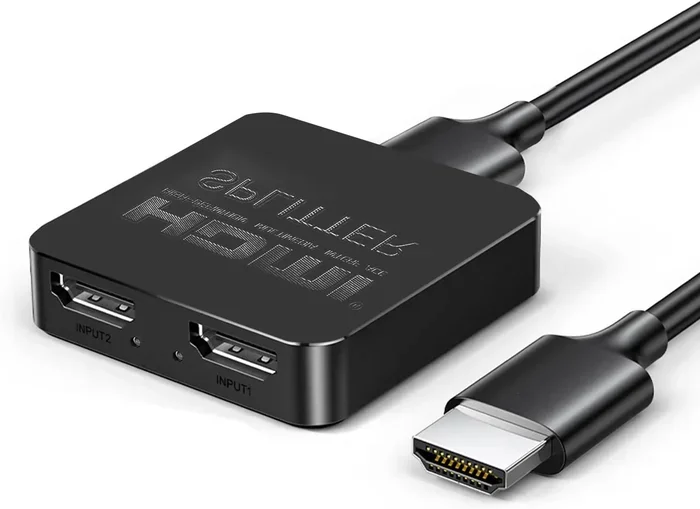
- Lightning to HDMI Adapter – Works with iPhone 14 and older models. This is the most common adapter type for iPhone accessories.
- USB-C to HDMI Adapter – Required for iPhone 15 and newer models that use USB-C charging ports.
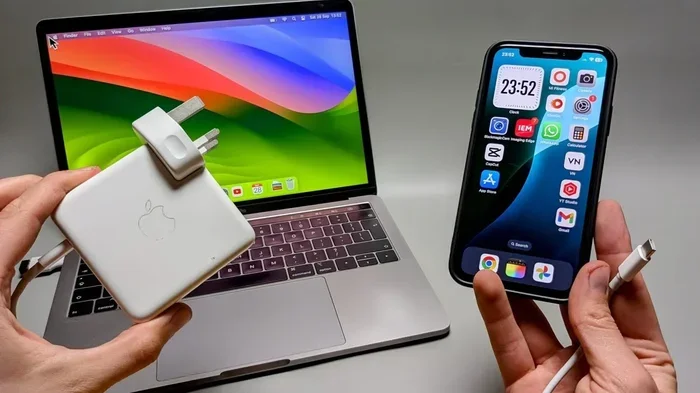
- Digital AV Adapter – Apple’s official adapter that provides reliable high-definition output and supports video mirroring.
Other Items You May Need
Beyond the adapter, a few other items help make your cable connection smooth and hassle-free.
- A standard HDMI cable – Most adapters come with one, but having a spare is always smart.
- A compatible TV with an HDMI input port – Nearly all modern TVs have at least one HDMI port available.
- A power source for your iPhone – Streaming video drains your battery fast, so keep your charger handy.
If you are looking for more iPhone accessories that simplify your daily life, check out 10 Gadgets to Make Moms Life Easier for some great ideas.
Step-by-Step Guide to Connecting iPhone to TV via HDMI
Now that you have your gear ready, let us walk through the actual setup process. Follow these steps carefully, and you will be watching your iPhone screen on the big screen in minutes.
Step 1: Plug in the HDMI Adapter
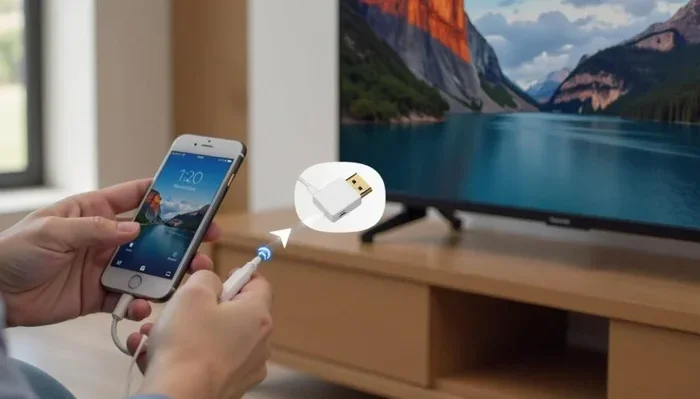
Start by connecting your Lightning to HDMI adapter or USB-C to HDMI adapter to the charging port on your iPhone. Make sure it clicks in firmly. A loose connection is one of the most common reasons for setup problems.
Step 2: Connect the HDMI Cable
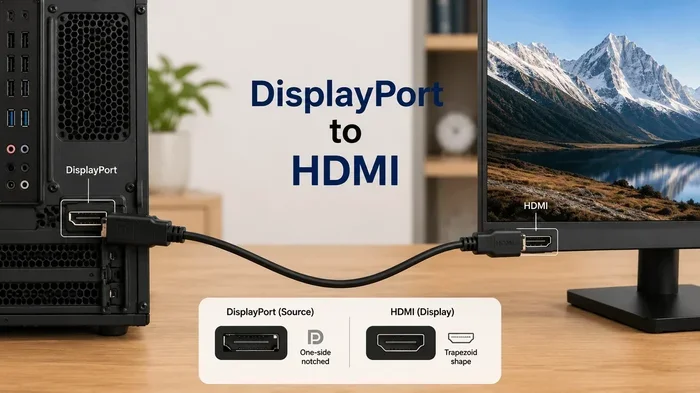
Take your HDMI cable and plug one end into the adapter. Plug the other end into an available HDMI input port on your TV. Most TVs label their HDMI ports as HDMI 1, HDMI 2, and so on. Make a note of which port you use.
Step 3: Switch Your TV to the Correct Input
Use your TV remote to change the input source to the HDMI port you plugged into. Press the “Input” or “Source” button and select the matching HDMI number. Your TV display should now show your iPhone screen.
Step 4: Test the Connection
Open any app on your iPhone – a photo gallery or a video works great. You should see it appear on your TV screen right away. If the image looks blurry, check that your adapter supports high-definition output.
Need help with other iPhone settings like organizing your contacts? Learn more about adding prefixes to numbers on iPhone for useful customization tips.
Quick Tips for a Smooth Setup
- Always use a certified adapter to avoid adapter compatibility issues.
- Keep your iPhone software updated for the best iOS device connection performance.
- Use a short HDMI cable to reduce signal loss and keep things tidy.
- Restart both your iPhone and TV if the connection does not work on the first try.
Common Problems and How to Fix Them
Even with the right equipment, you might run into some hiccups. Do not worry – most iPhone to TV connection issues have simple fixes. Here are the problems you are most likely to face and how to solve them.
No Sound from the TV
This is the most common complaint. Your video might play fine but there is no audio coming through your TV speakers. The fix is usually quick.
First, check that your TV volume is turned up. Then go to your iPhone settings and make sure the volume is not muted. If you still have no sound, try disconnecting and reconnecting the HDMI cable. Sometimes the cable setup needs a fresh start to sync audio properly.
Black Screen on the TV
If your TV display shows nothing but a black screen, the video output is not reaching your TV. Try these steps:
- Unplug the HDMI cable from both the adapter and the TV.
- Wait 10 seconds, then plug it back in firmly.
- Switch your TV to the correct HDMI input again.
- Unlock your iPhone screen – some models blank the output when locked.
Adapter Not Recognized by iPhone
If your iPhone does not recognize the HDMI adapter, the adapter might be incompatible with your model. Check the adapter packaging to confirm it supports your specific iPhone model. Also, try cleaning the charging port on your iPhone – dust and lint can block the connection.
Flickering or Distorted Video
A flickering TV display usually means the HDMI cable is damaged or too long. Try a shorter, higher-quality cable. Also, make sure your adapter is not overheating – give it a break if it feels warm to the touch.
Expert Insights: According to tech experts, always buy adapters from trusted brands or directly from Apple. Cheap, unverified adapters often cause adapter compatibility problems and can even damage your iPhone over time. Spending a little more on quality gear saves you from headaches later.
Wireless vs Wired Connection Methods
When people talk about iPhone to TV connection, they usually think about cables. But there is another way – wireless streaming. Let us compare both methods so you can decide which works best for your situation.
Wired HDMI Connection
A wired connection uses a physical cable and adapter to send high-definition output from your iPhone to your TV display. This method is reliable and consistent.
Pros of Wired HDMI:
- No Wi-Fi dependency – works even if your internet is down.
- Stable screen mirroring with no lag or buffering.
- Supports the full resolution of your iPhone display.
- Works with any TV that has an HDMI port.
Cons of Wired HDMI:
- You need to buy an adapter and cable.
- Your iPhone is tethered to the TV during use.
- Cable management can be messy.
Wireless Connection (AirPlay)
AirPlay is Apple’s wireless screen mirroring technology. It lets you cast your iPhone screen to a compatible TV or Apple TV box without any cables.
Pros of AirPlay:
- No cables needed – set up in seconds.
- Great for mobile casting around the house.
- Works with Apple TV and many smart TVs.
Cons of AirPlay:
- Requires a strong Wi-Fi connection.
- Can experience lag or buffering during heavy use.
- May not support the same resolution as a wired HDMI connection.
Comparison Table
| Feature | Wired HDMI | Wireless AirPlay |
|---|---|---|
| Connection Type | Cable and Adapter | Wi-Fi Wireless |
| Stability | Very Stable | Depends on Wi-Fi |
| Lag or Delay | Minimal | Sometimes Noticeable |
| Setup Difficulty | Easy | Very Easy |
| Resolution Quality | Full HD or 4K | Up to 1080p |
| Cost | Adapter + Cable | Free (if you have Apple TV) |
| Best For | Reliable Streaming | Casual Sharing |
For the most reliable iPhone to TV connection, a wired HDMI setup is hard to beat. But if you value convenience and do not mind occasional lag, AirPlay is a great option for quick sharing.
Expert Tips for the Best Viewing Experience
Once your iPhone to TV connection is working, you can make it even better with a few smart adjustments. These tips help you get the most out of your TV streaming setup.
Optimize Your iPhone Settings
Go to your iPhone settings and turn on “Auto-Lock” with a longer timer so your screen does not go dark during a movie. You should also disable “Do Not Disturb” mode to keep notifications from interrupting your viewing.
Use the Right Cable Length
A cable setup that is too long can weaken your video output signal. Keep your HDMI cable as short as practical – under 6 feet is ideal for most setups. If you need a longer run, use a high-quality active HDMI cable with a built-in signal booster.
Keep Your iPhone Cool
Streaming video on your TV display for long periods can cause your iPhone to heat up. Heat can reduce performance and even trigger a shutdown. Consider removing your phone case during long viewing sessions and keeping your iPhone in a well-ventilated area.
Update Your Software Regularly
Apple regularly releases updates that improve iOS device connection stability and adapter compatibility. Make sure your iPhone and your TV firmware are both up to date before troubleshooting any issues.
Organize Your Cables
A messy cable connection area can lead to accidental disconnections. Use cable ties or a cable organizer to keep your HDMI cable and iPhone charger neat. This small step goes a long way toward a reliable setup.
Quick Tip: If you frequently switch between using your iPhone for calls and streaming to your TV, consider getting a longer HDMI cable so you can keep your phone at a comfortable distance while still connected.
Final Thoughts on Connecting iPhone to TV with HDMI
Connecting your iPhone to TV with HDMI is one of the simplest and most satisfying upgrades you can make to your home entertainment setup. Whether you are watching a movie, sharing family photos, or presenting a slideshow, the big screen experience is always better.
The key is having the right HDMI adapter for your iPhone model, using a quality cable setup, and knowing how to troubleshoot when something goes wrong. With the steps and tips in this guide, you are fully equipped to make your iPhone to TV connection work perfectly.
Remember, a wired HDMI connection gives you the most stable and highest-quality high-definition output. But if you prefer the freedom of going wireless, AirPlay is a solid alternative for everyday use. Choose the method that fits your lifestyle and enjoy your content on the TV display of your dreams.
Start today – grab your adapter, plug in the cable, and enjoy your iPhone content on the big screen. Once you try it, you will wonder how you ever watched without it.
Frequently Asked Questions
Can I connect any iPhone to any TV using HDMI?
Most iPhones can connect to TVs with HDMI using the right adapter. iPhones with a Lightning port need a Lightning to HDMI adapter, while iPhone 15 and newer models need a USB-C to HDMI adapter. Your TV just needs an available HDMI input port, which nearly all modern TVs have.
Do I need an Apple adapter or will any HDMI adapter work?
Apple’s official Digital AV Adapter works reliably, but many third-party adapters also work well. The key is to check adapter compatibility with your specific iPhone model. Cheap, unverified adapters may cause connection problems or poor video output quality.
Why is there no sound when I connect my iPhone to TV via HDMI?
No sound usually happens because the TV input is not set correctly or the HDMI cable is loose. Try disconnecting and reconnecting the cable, check your TV volume, and make sure your iPhone is not muted. Restarting both devices often fixes the issue quickly.
Can I charge my iPhone while streaming to my TV via HDMI?
Yes, most HDMI adapters have a pass-through charging port. You can plug your iPhone charger into the adapter while the HDMI cable is connected. This keeps your phone powered during long streaming sessions and prevents battery drain.
Is screen mirroring the same as connecting iPhone to TV with HDMI?
Yes, when you use an HDMI adapter, you are essentially mirroring your iPhone screen to your TV display in real time. Everything you see on your iPhone – apps, photos, videos – appears on the TV. This is different from AirPlay, which is a wireless method of screen mirroring.
What is the best HDMI cable to use with an iPhone?
Any standard High-Speed HDMI cable works well for connecting your iPhone to a TV. For the best high-definition output, look for cables that are certified by HDMI Licensing. Keep the cable under 6 feet for optimal signal quality, and avoid cheap cables that may cause flickering or connection drops.