Can We Share Wi Fi Through Laptop And Why It Matters
Can we share Wi-Fi through laptop? Yes, you absolutely can. Your laptop can transform into a portable hotspot and share its internet connection with phones, tablets, and other devices. This guide shows you exactly how to set it up on both Windows and Mac with simple, easy-to-follow steps.
Can we share Wi-Fi through laptop? The answer is a clear and simple yes. Your laptop has the built-in ability to share its internet connection with other devices around you. Whether you are using a Windows laptop or a Mac laptop, you can turn your computer into a wireless hotspot in just a few minutes.
Sharing Wi-Fi through laptop is incredibly useful in many situations. You might need it when your home router stops working. Or maybe you are traveling and there is no available wireless network. Perhaps you are at a coffee shop and your friend needs internet access. Whatever the reason, knowing how to share your connection can save you a lot of frustration and time.
This guide walks you through every step in plain, simple language. We will cover how it works on both Windows and Mac computers. You will learn the exact steps for each system. We will also look at common problems and how to fix them. By the end, you will feel confident sharing your laptop’s internet connection with phones, tablets, and other devices.
The process is much simpler than most people think. You do not need to be a tech expert. A few clicks or a simple command is all it takes. Let us dive right in and explore how you can share Wi-Fi through laptop starting today.
Key Takeaways
- Share Wi-Fi easily: Any laptop can become a wireless hotspot to share its internet connection with other devices.
- Works on Windows and Mac: Both operating systems have built-in tools for sharing your connection without extra software.
- Quick setup: You can set up a laptop wireless hotspot in just a few minutes with just a few clicks.
- Useful in many situations: Great for travel, emergencies, working remotely, or when your router is far away.
- Watch for limits: Sharing may slow down your connection and drain your battery faster than normal use.
- Security matters: Always use a strong Wi-Fi password when sharing your connection through your laptop.
📑 Table of Contents
How Sharing Wi-Fi Through Your Laptop Works
What Is Wi-Fi Sharing?
Wi-Fi sharing means using your laptop to broadcast a wireless network that other devices can connect to. Your laptop receives an internet connection from one source, such as an Ethernet cable or a mobile hotspot, and then sends that connection out through its own Wi-Fi adapter.
Think of your laptop as a bridge. It takes an internet connection from one place and shares it wirelessly with other devices. This process is also called Wi-Fi tethering or creating a mobile hotspot from your computer.
When you share your internet connection this way, other devices can browse the web, stream videos, and use apps just like they would with a regular router. The difference is that your laptop is doing the work of the router.
How Your Laptop Creates a Hotspot
Every modern laptop has a Wi-Fi adapter. This is the small chip that lets your laptop connect to wireless networks. But here is the cool part: most Wi-Fi adapters can do two things at once. They can connect to a network and also create one.
When you enable internet sharing settings on your laptop, it switches the Wi-Fi adapter into hotspot mode. This means your laptop starts broadcasting its own wireless network. Other devices can then see this network and connect to it.
The shared network uses your laptop’s internet connection as its source. So if your laptop is connected to the internet through Ethernet, the devices connecting to your laptop’s hotspot also get internet access. It is a simple and effective way to stay connected.
Can We Share Wi-Fi Through Laptop on Windows
Yes, you can share Wi-Fi through laptop on Windows. Both Windows 10 and Windows 11 have built-in tools for this. You do not need to download any extra software. The process is straightforward and works on most laptops.
Step-by-Step Setup for Windows 10 and Windows 11
Follow these steps to create a wireless hotspot on your Windows laptop:
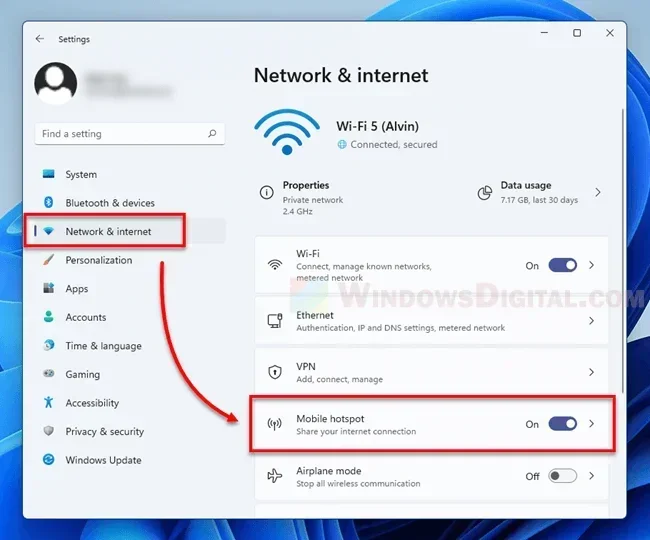
- Click the Start menu and open Settings.
- Go to Network and Internet.
- Look for Mobile Hotspot on the left side.
- Turn on the Share my Internet connection with other devices option.
- Choose your connection source from the dropdown menu.
- Set a Wi-Fi password for your hotspot.
- Give your network a name if you want.
- Click Save and turn on the Mobile Hotspot.
That is it. Your Windows laptop is now broadcasting a wireless network. Other devices can find it and connect using the password you set.
Using Command Prompt for Advanced Sharing
If the settings method does not work for you, you can use the command prompt. This method gives you more control over your network settings. Open the Command Prompt as an administrator and type the following commands:
- First, type
netsh wlan set hostednetwork mode=allow ssid=YourNetworkName key=YourPassword - Then type
netsh wlan start hostednetwork
This creates a portable hotspot using your laptop’s Wi-Fi adapter. You can then go to your network settings and enable internet connection sharing for your main connection. This method works well when the standard settings menu does not give you the options you need.
Quick Tips for Windows Users
- Make sure your Wi-Fi adapter supports hosted network mode. Most modern adapters do.
- Keep your laptop plugged in when sharing. Bandwidth sharing drains battery faster.
- Restart your Wi-Fi adapter if the hotspot does not appear for other devices.
- Update your network drivers if you experience connection issues.
Common Mistakes on Windows
- Forgetting to set a Wi-Fi password. This leaves your wireless network open to anyone.
- Choosing the wrong connection source in the hotspot settings.
- Not enabling internet connection sharing, which means devices connect but get no internet.
- Ignoring driver updates that can fix hotspot problems.
How to Share Wi-Fi Through Laptop on Mac
Mac users can also share Wi-Fi through laptop easily. macOS has a built-in feature called Internet Sharing that lets you turn your MacBook into a wireless hotspot. The process is slightly different from Windows but just as simple.
Setting Up Internet Sharing on macOS
Here is how to share your internet connection on a Mac:
- Open System Settings or System Preferences.
- Click on General and then select Sharing.
- Find Internet Sharing in the list on the left.
- Click the information icon to see the details.
- Choose your source connection from the Share your connection from dropdown.
- Check the box next to Wi-Fi in the To computers using section.
- Click Wi-Fi Options to set your network name and Wi-Fi password.
- Turn on the Internet Sharing switch.
Your Mac is now a portable hotspot. Other devices can find your network and connect using the password you created.
Creating a Portable Hotspot on Your Mac
Your Mac can share internet from different sources. You can share from an Ethernet connection, a Wi-Fi connection, or even a Bluetooth connection. The most common setup is sharing from Ethernet through Wi-Fi.
When you enable internet sharing settings on macOS, your Mac creates a new wireless network. This network uses your Mac’s internet source. Devices connecting to this network get full internet access through your Mac.
One nice thing about Mac sharing is that it handles network security well by default. You can choose WPA2 or WPA3 encryption for your hotspot. This keeps your shared network safe from unauthorized users.
Quick Tips for Mac Users
- Always use WPA2 or WPA3 encryption for your shared wireless network.
- Keep your Mac plugged in. Sharing drains the battery quickly.
- Check your signal strength if other devices have trouble connecting.
- Restart your Wi-Fi adapter by turning Internet Sharing off and back on.
Common Mistakes on Mac
- Not selecting the correct source connection in the sharing settings.
- Using a weak Wi-Fi password that others can easily guess.
- Forgetting to enable the firewall, which can cause network security issues.
- Ignoring macOS updates that may fix sharing bugs.
Windows vs Mac: Quick Comparison
| Feature | Windows | Mac |
|---|---|---|
| Setup Method | Settings menu or Command Prompt | System Settings Sharing panel |
| Hotspot Name | Customizable | Customizable |
| Password Setting | Built into Mobile Hotspot | Wi-Fi Options dialog |
| Encryption Options | WPA2 by default | WPA2 and WPA3 |
| Command Line Option | Yes, via netsh command | Yes, via terminal |
| Battery Impact | High when sharing | High when sharing |
Benefits of Sharing Wi-Fi Through Your Laptop
Stay Connected Anywhere
One of the biggest benefits of Wi-Fi sharing through laptop is staying connected anywhere. You are not stuck waiting for a wireless network to be available. Your laptop becomes your own wireless hotspot wherever you go.
This is especially helpful when you are traveling. Hotels, airports, and cafes sometimes have limited or no wireless network access. With your laptop sharing its connection, you can keep all your devices online.
It is also great for remote work. If your office router is not working, you can share your laptop’s connection with your team. Everyone stays productive without waiting for IT support.
Save Money and Reduce Data Usage
Sharing your internet connection through your laptop can save you money. Instead of buying separate data plans for every device, you share one connection. This is especially useful when you have limited data on your phone’s mobile hotspot.
Your laptop often has a stronger Wi-Fi adapter than your phone. This means better signal strength and more stable connections for devices that need it. You get more value from your existing internet connection.
Expert Insights: Real-World Use Cases
Many professionals use Wi-Fi tethering through their laptops every day. Freelancers working from co-working spaces often share their connection with clients. Students in dorm rooms use their laptops to create a shared wireless network for roommates. Event organizers set up temporary portable hotspots using laptops at conferences and meetups.
The network bridge feature is another powerful tool. It lets you connect multiple network connections together. For example, you can bridge an Ethernet connection with a Wi-Fi connection to extend coverage. This is useful in large spaces where a single wireless network does not reach everywhere.
Common Problems When You Share Wi-Fi Through Laptop
Slow Speeds and Bandwidth Issues
One of the most common issues is slow speeds. When you share your internet connection, the bandwidth gets split among all connected devices. If five devices are streaming video through your laptop’s hotspot, everyone will experience slower speeds.
Bandwidth sharing is the main reason for this. Your laptop’s Wi-Fi adapter has a speed limit. When multiple devices use it at the same time, each device gets a smaller share. To fix this, limit the number of connected devices. Turn off the hotspot when you are not using it.
You can also check your signal strength. A weak signal means slower speeds for all devices. Moving closer to your laptop can help improve the connection quality.
Connection Drops and How to Fix Them
Another common problem is devices dropping from the shared wireless network. This can happen for several reasons. Your laptop might be going to sleep, which turns off the hotspot. Your Wi-Fi adapter drivers might be outdated. Or there might be interference from other wireless devices.
To fix connection drops, start by keeping your laptop awake. Go to your power settings and disable sleep mode when the hotspot is active. Update your network drivers regularly. And try changing the Wi-Fi channel on your hotspot to reduce interference.
If the problem persists, restart your laptop and re-enable the hotspot. This refreshes the network settings and often fixes temporary glitches.
Expert Tips for Troubleshooting
- Always restart your Wi-Fi adapter before troubleshooting other issues.
- Check that your internet connection source is working first.
- Update your network drivers through Device Manager on Windows or Software Update on Mac.
- Use a wired Ethernet connection as your source for more stable sharing.
- Monitor how many devices are connected to avoid overloading your wireless network.
Expert Tips for Better Wi-Fi Sharing
Boost Your Signal Strength
Your signal strength determines how far your shared wireless network reaches. A strong signal means better speeds and more reliable connections for all devices.
Place your laptop in a central location. Avoid putting it near walls or metal objects. Keep it elevated on a table rather than on the floor. These simple changes can significantly improve your Wi-Fi adapter’s performance.
If you need coverage in a larger area, consider using a network bridge. This connects your laptop’s connection to a separate router. The router then broadcasts the signal further. This setup gives you the best of both worlds.
Keep Your Network Secure
Network security is essential when sharing your internet connection. An open or poorly secured hotspot can be accessed by anyone nearby. This slows down your connection and puts your data at risk.
Always use a strong Wi-Fi password. Make it at least 12 characters long with a mix of letters, numbers, and symbols. Use WPA2 or WPA3 encryption if your system supports it. Change your password regularly and do not share it with strangers.
You should also monitor connected devices. If you see devices you do not recognize, change your password immediately. Most systems let you view a list of connected devices in your network settings.
Key Takeaways
- Place your laptop centrally for the best signal strength.
- Use WPA2 or WPA3 encryption to protect your shared network.
- Keep your Wi-Fi password strong and private.
- Monitor connected devices and remove unknown ones.
- Restart your hotspot regularly for the best performance.
- Use an Ethernet connection as your source for stability.
Conclusion
Can we share Wi-Fi through laptop? Absolutely. Your laptop is a powerful tool that can do much more than just browse the web. It can become a wireless hotspot, a portable hotspot, and a bridge to keep all your devices connected.
Whether you use Windows or Mac, sharing your internet connection is simple and built right into your system. You do not need expensive equipment or technical skills. Just follow the steps in this guide and you will be sharing in no time.
Remember to keep your network security strong. Use a good Wi-Fi password and monitor who connects to your wireless network Be mindful of bandwidth sharing and keep your laptop plugged in when possible.
Now that you know how to share Wi-Fi through laptop, you are ready for any situation. Travel with confidence. Work from anywhere. Help friends and family stay connected. Your laptop is your gateway to a wireless network wherever you go.
Frequently Asked Questions
Can any laptop share Wi-Fi as a hotspot?
Most modern laptops can share Wi-Fi as a hotspot. Both Windows and Mac computers have built-in tools for this. You need a Wi-Fi adapter that supports hosted network mode. Nearly all laptops made in the last five years have this capability.
Does sharing Wi-Fi through laptop slow down the connection?
Yes, sharing your connection can slow things down. When multiple devices use your bandwidth sharing hotspot, each device gets a smaller share of the speed. The more devices connected, the slower it gets. Using a wired Ethernet connection as your source helps maintain better speeds.
Is it safe to share Wi-Fi through my laptop?
It is safe as long as you take the right precautions. Always use a strong Wi-Fi password and enable WPA2 or WPA3 encryption. Monitor connected devices regularly. Avoid sharing your network with people you do not know or trust.
How many devices can connect to a laptop hotspot?
Most laptops can handle 5 to 8 connected devices at once. The exact number depends on your Wi-Fi adapter and your internet connection speed. Connecting too many devices will slow down the network for everyone.
Can I share Wi-Fi through laptop without an internet connection?
No, you need an active internet connection source to share. Your laptop can share the connection it receives from Ethernet, a mobile hotspot, or another Wi-Fi network. Without a source connection, the hotspot will have no internet to share.
Will sharing Wi-Fi drain my laptop battery?
Yes, sharing your internet connection uses extra power. Your Wi-Fi adapter works harder when broadcasting a hotspot. Keep your laptop plugged in when sharing for long periods. You can also reduce the number of connected devices to save battery.