Can Hdmi Connect To Displayport Here Is The Answer
Yes, you can connect HDMI to DisplayPort using the right adapter or cable. Whether you are setting up a gaming monitor, home theater, or dual-display workstation, understanding how these two digital display interfaces work together is essential. This guide covers active vs passive adapters, compatibility tips, and common mistakes to avoid.
Have you ever looked at your monitor and your laptop and thought, “Why do these ports look so different?” You are not alone. Many people run into this exact problem when they want to connect an HDMI source to a DisplayPort monitor or vice versa. The good news is that it is absolutely possible. But it is not as simple as plugging one cable into the other. You need the right tool for the job.
This article breaks down everything you need to know about HDMI to DisplayPort connections. We will cover adapters, cables, compatibility, and the common pitfalls that trip people up. By the end, you will feel confident making the right choice for your setup.
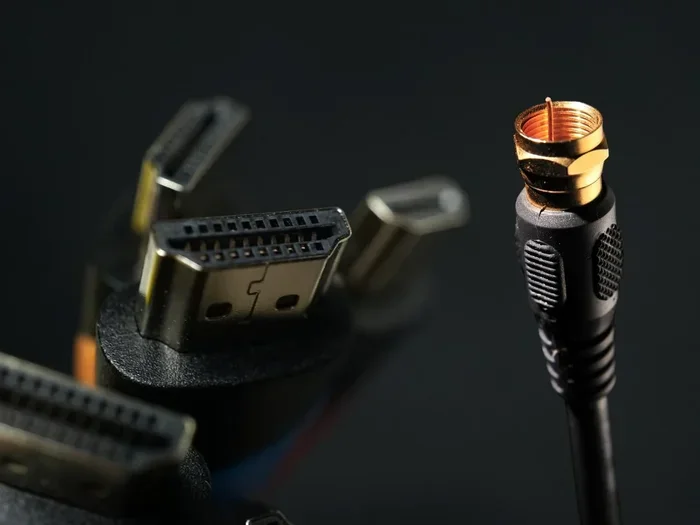
Let us start with the basics. HDMI and DisplayPort are two different digital display interfaces. They both carry high-quality video and audio signals. But they use different protocols and connector designs. That means they cannot talk to each other without some help. Think of it like trying to plug a US electrical plug into a European outlet. You need a converter. The same idea applies here.
Key Takeaways
- HDMI and DisplayPort are not directly compatible: You need an adapter or active converter to bridge the two connections.
- Active adapters are usually required: Passive cables alone will not work in most cases because the signals are different.
- Resolution and refresh rate matter: Your adapter must support the resolution and refresh rate of your display.
- Audio follows the signal: HDMI carries both audio and video, but DisplayPort audio behavior depends on your adapter choice.
- Check your devices first: Always verify the port versions and capabilities before buying an adapter.
- Common mistakes cause failures: Using the wrong adapter type or ignoring firmware updates can lead to no signal issues.
📑 Table of Contents
- What Is HDMI and What Is DisplayPort?
- Can HDMI Connect to DisplayPort Directly?
- How to Choose the Right Adapter
- Setting Up Your HDMI to DisplayPort Connection
- Common Problems and How to Fix Them
- HDMI vs DisplayPort: Which Is Better for You?
- Expert Tips for the Best Experience
- Quick Tips for a Smooth Connection
- Common Mistakes to Avoid
- Final Thoughts
What Is HDMI and What Is DisplayPort?
Before we dive into connections, let us understand what each port actually is. Both HDMI and DisplayPort are digital display interfaces. They send video and audio from a source device to a display. But they were designed with different goals in mind.
Understanding HDMI
HDMI stands for High-Definition Multimedia Interface. It has been around since the early 2000s. You will find HDMI ports on almost every TV, laptop, gaming console, and streaming device. HDMI carries both audio and video over a single cable. This is one of its biggest advantages. You do not need separate cables for sound and picture.
HDMI has gone through several versions over the years. Each version brought better bandwidth and support for higher resolutions. HDMI 1.4 supports 4K at 30Hz. HDMI 2.0 handles 4K at 60Hz. And HDMI 2.1 can push 8K at high refresh rates. The version you have matters a lot when choosing an adapter.
Understanding DisplayPort
DisplayPort was developed by VESA, a group of display industry companies. It is most commonly found on computer monitors and graphics cards. DisplayPort was designed with PC users in mind. It excels at high refresh rates and multi-monitor setups. DisplayPort 1.2 supports 4K at 60Hz. DisplayPort 1.4 adds support for HDR and higher color depths. DisplayPort 2.0 pushes the envelope even further with massive bandwidth.
One key difference is that DisplayPort uses a packet-based signaling method. HDMI uses a different approach. This difference is exactly why you cannot just run a simple cable between them.
Can HDMI Connect to DisplayPort Directly?
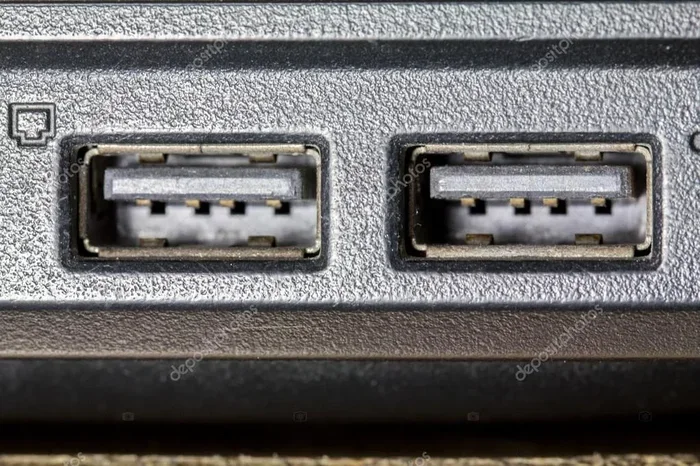
The short answer is no. You cannot plug an HDMI cable directly into a DisplayPort monitor and expect it to work. The signals are not the same. HDMI and DisplayPort use different signal protocols. They also have different pin configurations. A direct cable connection will not bridge this gap.
So what do you need instead? You need an adapter or an active converter. This is where things get interesting. There are two main options on the market. Let us look at both.
Active Adapters
An active HDMI to DisplayPort adapter has built-in electronics. It converts the HDMI signal into a DisplayPort signal in real time. This is the most reliable way to make this connection work. Active adapters require power, usually through a USB port. They handle the signal conversion internally. This means they can support a wide range of resolutions and refresh rates.
Active adapters are the go-to choice for most people. They work with laptops, desktop computers, gaming consoles, and media players. If you want a guaranteed connection, go with an active adapter. Brands like Cable Matters, UGREEN, and Club3D make reliable options.
Passive Adapters and Cables
A passive adapter or cable does not have conversion electronics. It simply changes the physical connector shape. In the case of HDMI to DisplayPort, a passive solution usually will not work. The signal cannot translate itself. Some people sell passive HDMI-to-DisplayPort cables, but they are misleading. They do not perform signal conversion. Avoid them unless you know exactly what you are doing.
There is one exception. Some DisplayPort output sources support dual-mode DisplayPort, known as DP++. In DP++ mode, a passive adapter can convert DisplayPort to HDMI. But going the other way, from HDMI to DisplayPort, almost always requires an active adapter.
How to Choose the Right Adapter
Not all adapters are created equal. Choosing the wrong one can lead to frustration. Here is what you need to consider before making a purchase.
Check Your Source Device
First, identify what device you are connecting from. Is it a laptop with an HDMI output? A desktop graphics card? A gaming console? A streaming stick? Each device may have different HDMI versions. The version determines the maximum resolution and refresh rate you can achieve.
For example, if your laptop has HDMI 2.0, you can output 4K at 60Hz. But if your adapter only supports HDMI 1.4, you will be limited to 4K at 30Hz or 1080p at 60Hz. Check your device specs carefully.
Check Your Display
Next, look at your monitor or display. What DisplayPort version does it support? A DisplayPort 1.2 monitor can handle 4K at 60Hz. A DisplayPort 1.4 monitor adds HDR support. Your adapter must be able to pass through the signal without limiting the display’s capabilities.
Resolution and Refresh Rate Requirements
What resolution do you need? 1080p, 1440p, 4K, or even 8K? What refresh rate are you targeting? 60Hz, 120Hz, 144Hz, or higher? Your adapter must support these specs. Look for adapters that explicitly state their supported resolution and refresh rate on the product page.
Audio Support
Do you need audio to travel through the connection? HDMI carries audio natively. DisplayPort also supports audio. But when you use an adapter, audio behavior can change. Some active adapters pass audio through just fine. Others may not. Check the product specifications for audio support if this matters to you.
Build Quality and Brand Reputation
Cheap adapters often cause problems. They may overheat, drop signals, or fail to support higher resolutions. Stick with reputable brands. Read user reviews before buying. A $15 adapter from a known brand is almost always better than a $5 no-name adapter from an unknown seller.
Setting Up Your HDMI to DisplayPort Connection
Once you have the right adapter, setting things up is straightforward. Follow these steps for a smooth installation.
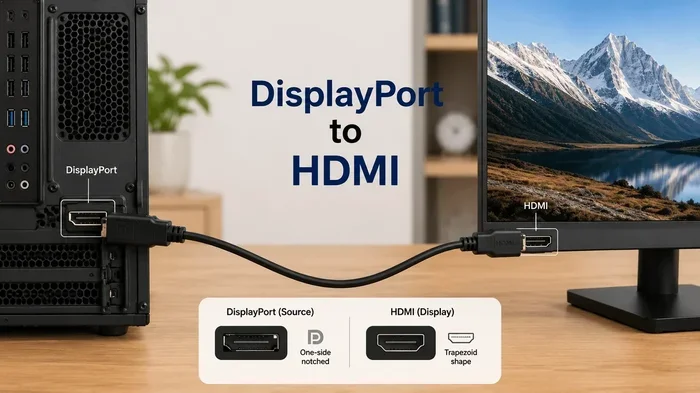
First, plug the HDMI cable into your source device. This could be your laptop, PC, or gaming console. Second, connect the HDMI end of the adapter to the cable. Third, plug the DisplayPort cable into the adapter. Fourth, connect the other end of the DisplayPort cable to your monitor. Fifth, if your adapter has a USB power cable, plug it into a USB port for power. Finally, turn on your monitor and select the correct DisplayPort input source.
Your computer should automatically detect the display. If it does not, try unplugging the adapter and plugging it back in. You can also check your display settings in your operating system. On Windows, go to Settings > System > Display. On macOS, go to System Settings > Displays.
Sometimes you may need to update your graphics card drivers. Updated drivers can fix detection issues and improve display output performance. Visit your GPU manufacturer’s website to download the latest drivers.
For those looking to organize their tech setup more efficiently, you might also enjoy our guide on 10 Gadgets To Make Moms Life Easier, which includes helpful tech organization tips.
Common Problems and How to Fix Them
Even with the right adapter, you might run into issues. Here are the most common problems and their solutions.
No Signal on the Monitor
This is the most common complaint. If your monitor shows no signal, try these steps. First, check that all cables are firmly connected. A loose cable is often the culprit. Second, make sure the adapter is powered if it requires USB power. Third, try a different USB port for power. Fourth, restart your computer. Fifth, check that the correct input source is selected on your monitor.
If none of that works, the adapter itself might be faulty. Try a different adapter if you have one available.
Low Resolution or Refresh Rate
If your display looks blurry or choppy, the adapter might be limiting the signal. Check the adapter specifications. Make sure it supports your desired resolution and refresh rate. Also check your display settings. Right-click on your desktop and select Display Settings on Windows. Make sure the resolution is set to the native resolution of your monitor.
Updating your graphics drivers can also help. Sometimes older drivers do not properly communicate with active adapters.
No Audio Through DisplayPort
HDMI carries audio, but when you convert to DisplayPort, audio might not come through automatically. To fix this, go to your sound settings. On Windows, right-click the speaker icon in your taskbar and select Sound Settings. Make sure your DisplayPort monitor is set as the default audio output device. On macOS, go to System Settings > Sound and select the monitor under Output.
Flickering or Intermittent Signal
Flickering usually points to a power issue. Make sure the adapter is getting enough power from the USB port. Try a different USB port, preferably one directly on your computer rather than through a hub. Also check that your HDMI and DisplayPort cables are not damaged. A faulty cable can cause all sorts of weird display behavior.
For tips on keeping your devices organized and properly labeled, you can check out our article on adding prefixes to numbers on iPhone for helpful device management ideas.
HDMI vs DisplayPort: Which Is Better for You?
Now that you know how to connect them, you might wonder which interface is actually better. The answer depends on what you are doing.
| Feature | HDMI | DisplayPort |
|---|---|---|
| Best For | TVs, home theater, consoles | PC monitors, gaming, multi-display |
| Audio Support | Yes, built-in | Yes, built-in |
| Max Resolution (current gen) | 8K at 60Hz (HDMI 2.1) | 8K at 60Hz (DP 1.4), 16K (DP 2.1) |
| Refresh Rate at 4K | 60Hz (HDMI 2.0), 120Hz+ (HDMI 2.1) | 60Hz (DP 1.2), 120Hz+ (DP 1.4+) |
| Daisy Chaining | No | Yes (Multi-Stream Transport) |
| Connector Lock | No (plug-in) | Yes (locking latch) |
| Availability | Very common on all devices | Mostly on PCs and monitors |
As you can see, both interfaces have strengths. HDMI is the universal choice for entertainment devices. DisplayPort shines in professional and gaming environments. When you need to bridge the two, a good adapter makes it all possible.
Expert Tips for the Best Experience
Here are some tips from people who work with these connections every day.
- Always buy an active adapter for HDMI to DisplayPort. Passive solutions will not work in this direction.
- Check the adapter’s bandwidth rating. Higher bandwidth supports higher resolutions and refresh rates.
- Keep your adapter firmware updated. Some adapters receive firmware updates that improve compatibility.
- Use high-quality cables. Cheap cables can limit your signal quality even with a great adapter.
- Do not daisy-chain adapters. Connecting one adapter to another almost always causes problems.
- Test with a known working setup first. If you have issues, test with a different source or display to isolate the problem.
- Consider your future needs. Buy an adapter that supports the resolutions you plan to use, not just what you use today.
Quick Tips for a Smooth Connection
- Label your cables so you always know which is HDMI and which is DisplayPort.
- Keep a spare active adapter in your tech bag for emergencies.
- Restart your devices after connecting a new adapter.
- Check for driver updates before troubleshooting display problems.
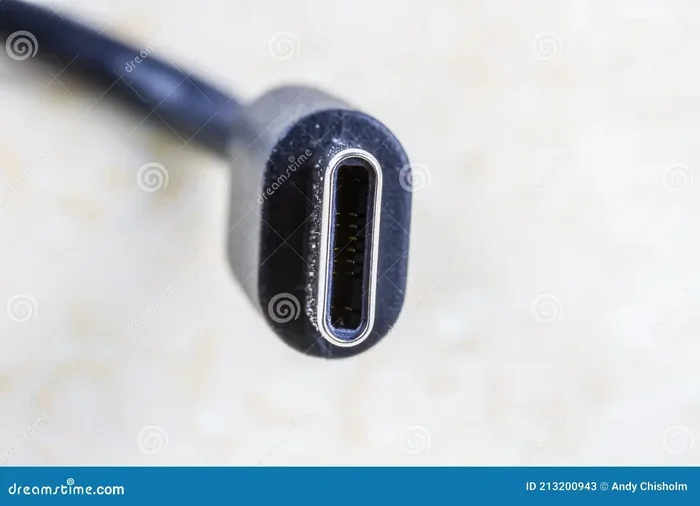
- Use a USB-C power source for adapters that require external power.
Common Mistakes to Avoid
People make the same mistakes over and over when connecting HDMI to DisplayPort. Here are the ones to watch out for.
- Buying a passive adapter for HDMI to DisplayPort. This almost never works. Always choose active.
- Ignoring version compatibility. An HDMI 1.4 source cannot output 4K at 60Hz, no matter what adapter you use.
- Forgetting to power the adapter. Many active adapters need USB power. Without it, they will not function.
- Using a damaged cable. Frayed or bent cables cause signal loss and display issues.
- Assuming audio will work automatically. Always check your sound output settings after connecting.
- Not checking the monitor input source. Make sure your monitor is set to the DisplayPort input, not HDMI.
Final Thoughts
So, can HDMI connect to DisplayPort? Absolutely. But it requires the right approach. An active HDMI to DisplayPort adapter is your best friend in this scenario. It handles the signal conversion that passive cables simply cannot do. By understanding the differences between these two interfaces and choosing the right adapter, you can enjoy a seamless connection between your devices.
Remember to check your device specs, verify resolution and refresh rate support, and invest in quality adapters and cables. Avoid the common mistakes outlined above, and your setup will work smoothly. Whether you are building a gaming station, setting up a home office, or connecting your laptop to a monitor for work, the right adapter makes all the difference.
Do not let mismatched ports hold you back. With the knowledge you now have, you can confidently connect any HDMI source to any DisplayPort display. Happy connecting.
Frequently Asked Questions
Can I use a simple HDMI to DisplayPort cable without an adapter?
No. HDMI and DisplayPort use different signal protocols. A simple cable cannot convert the signal. You need an active adapter that includes built-in electronics to translate the HDMI signal into DisplayPort.
Why does my HDMI to DisplayPort adapter need USB power?
Active adapters have internal chips that convert the signal. These chips need power to work. The USB connection provides this power. Without it, the adapter cannot perform the signal conversion.
Can I go from DisplayPort to HDMI instead?
Yes. Going from DisplayPort to HDMI is often easier. Many DisplayPort sources support dual-mode DisplayPort (DP++), which can passively convert to HDMI. However, an active adapter still works well for this direction too.
What resolution can I expect with an HDMI to DisplayPort adapter?
This depends on your adapter and your devices. Most quality active adapters support 4K at 60Hz. Some premium adapters support 4K at 120Hz or even 8K. Always check the adapter specifications before purchasing.
Will audio work when I connect HDMI to DisplayPort?
It depends on the adapter. Most modern active adapters pass audio through to the DisplayPort display. However, you may need to configure your sound settings to select the DisplayPort monitor as the audio output device.
Can I use an HDMI to DisplayPort adapter for gaming?
Yes, but you need to choose carefully. Make sure your adapter supports the resolution and refresh rate you need for gaming. For competitive gaming at 144Hz or higher, look for adapters that explicitly support those refresh rates at your target resolution.
=== CONCLUSION ===
Connecting HDMI to DisplayPort is simpler than it looks once you know the right steps. The key takeaway is to always use an active adapter. Passive cables will not work for this connection direction. Check your device specifications, match your resolution needs, and invest in a quality adapter from a reputable brand.
With the right setup, you can connect any HDMI device to any DisplayPort monitor without headaches. Follow the tips in this guide, avoid the common mistakes, and enjoy a reliable, high-quality display connection every time.