Causes of Jerky Movements LCD TV and How to Fix Them
Jerky movements on an LCD TV can ruin your movie nights and gaming sessions. Common causes include low refresh rates, loose HDMI connections, incorrect picture settings, and outdated TV firmware. The good news is that most of these issues are simple to fix at home without calling a technician. This guide walks you through every possible cause and provides clear, actionable solutions to get your TV running smoothly again.
There is nothing more frustrating than settling in for a movie night only to watch everything move in a choppy, stuttery mess. Jerky movements on an LCD TV are a surprisingly common problem. They can turn a relaxing evening into a headache. But here is the good news. Most of the time, the fix is simpler than you think.
Whether you are watching sports, playing video games, or streaming your favorite show, smooth motion matters. A jerky picture pulls you out of the experience. It makes everything feel cheap and low quality. In this article, we will explore every major cause of jerky movements on LCD TVs. We will also give you clear, step-by-step fixes for each one.
LCD TV technology has come a long way. But motion handling remains one of the trickiest parts of display design. Many factors can contribute to stuttering, lagging, or choppy visuals. Understanding what is behind the problem is the first step toward solving it. Let us dive in.
Key Takeaways
- Refresh Rate Issues: A low refresh rate is one of the most common reasons for jerky motion on LCD TVs.
- Loose or Damaged Cables: Poor HDMI connections can disrupt the video signal and cause stuttering.
- Wrong Picture Settings: Motion smoothing and frame interpolation settings can sometimes make things worse.
- Outdated Firmware: An old TV software version can lead to display and processing problems.
- Video Source Quality: Low-quality input content can appear jerky regardless of your TV settings.
- Simple Fixes Work: Most jerky movement problems can be solved with cable checks, settings adjustments, and firmware updates.
📑 Table of Contents
What Causes Jerky Movements on LCD TVs
Before you start troubleshooting, it helps to understand what is actually happening. Jerky movements happen when your TV cannot display frames fast enough or smoothly enough. This creates a choppy, uneven visual experience. Several different issues can trigger this problem.
Think of it like a flipbook. If the pages turn too slowly, the animation looks jumpy. The same idea applies to your TV. When frames do not transition smoothly, you see stuttering and uneven motion. The key is figuring out which part of the chain is causing the delay or disruption.
Some causes are hardware-related. Others are software or settings-related. And some come down to the content you are watching. Let us break each one down so you can pinpoint what is going on with your set.
Low Refresh Rate
The refresh rate measures how many times per second your TV updates the image on screen. It is measured in Hertz (Hz). A standard LCD TV often runs at 60Hz. This means it refreshes the image 60 times per second. For most regular content, that works fine. But for fast-moving scenes, it can fall short.
When you watch sports or action movies, a 60Hz TV may struggle to keep up. The motion can look uneven or stuttery. Higher refresh rate TVs, like 120Hz models, handle fast motion much better. If your TV only supports 60Hz, you may notice jerky movements more often during high-action content.
Quick Tip: Check your TV settings to see what refresh rate it is running at. Some TVs have a motion settings menu where you can adjust this. If your TV supports 120Hz, make sure it is set to use that mode.
HDMI Connection Problems
A loose or damaged HDMI cable is one of the most overlooked causes of jerky TV motion. The HDMI cable carries the video signal from your source device to your TV. If the connection is weak or intermittent, the signal can drop or stutter. This shows up as choppy, uneven movement on screen.
HDMI cables can become loose over time. They can also get damaged by bending, pulling, or wear and tear. Even a slightly loose connection can cause major problems. The good part is that this is one of the easiest issues to fix.
When you connect devices like a phone or gaming console to your TV, the cable quality and connection matter a lot. A poor connection between your source device and the TV can make even high-quality content look terrible. If you have ever connected your phone to TV with an HDMI cable and noticed stuttering, a loose connection is likely the culprit.
Quick Tip: Unplug and replug all HDMI cables firmly. Check for any visible damage on the cable ends. Try a different HDMI port on your TV if available. If the problem goes away, you have found your cause.
Incorrect Motion Settings
Modern LCD TVs come packed with motion-enhancing features. These include motion smoothing, frame interpolation, and tru-motion settings. While these features are designed to improve picture quality, they can sometimes have the opposite effect.
Motion smoothing works by inserting extra frames between the original frames. This can make motion look smoother on some content. But on other content, it creates an unnatural, soap-opera look. In some cases, it can even introduce stuttering or jerky artifacts.
Frame interpolation settings can also cause problems if they are not matched to your content type. For example, using high interpolation on low-frame-rate content can create visual glitches. These glitches often show up as jerky or uneven movement.
Quick Tip: Go into your TV picture settings and turn off motion smoothing and frame interpolation. Watch content for a few minutes. If the jerky movements stop, these settings were the problem. You can then fine-tune them to find a balance that works for you.
Common Culprits Behind Jerky LCD TV Motion
Now that we have covered the main technical causes, let us look at some other common culprits. These are issues that many people deal with every day without realizing they are the source of the problem.
Video Source Quality
Not all content is created equal. The quality of the video source plays a huge role in how smooth motion looks on your TV. If you are streaming a low-bitrate video, it may look jerky no matter how good your TV is. The content itself simply does not have enough data to display smooth motion.
This is especially common with free streaming services or older content. These sources often compress video heavily to save bandwidth. The result is blocky, stuttering footage that looks far worse than it should. A high-quality Blu-ray or a 4K stream from a premium service will look much smoother by comparison.
Even older devices can be a factor. For instance, if you are still using a VCR with a digital TV setup, the video quality may be limited by the source device. You might want to check whether using a VCR with digital TV is introducing quality limitations that affect motion smoothness.
Quick Tip: Try watching different content sources. If the jerky movement only happens on one app or device, the problem is likely the source, not your TV. Switch to a higher-quality source and see if the motion improves.
TV Firmware and Software Issues
Your TV runs on software, just like a computer. And just like a computer, it needs updates to work properly. Outdated TV firmware can cause all sorts of display problems, including jerky movements and stuttering.
Firmware updates often include fixes for display processing bugs. They can also improve how the TV handles different input signals. If you have not updated your TV software in a while, this could be the missing piece of the puzzle.
Quick Tip: Go to your TV settings and check for software updates. Install any available updates and restart the TV. This simple step can resolve many motion-related issues.
Input Lag and Processing Delays
Input lag is the delay between when a signal enters your TV and when it appears on screen. High input lag can make motion look delayed and jerky. This is especially noticeable when gaming or watching live sports.
LCD TVs process video signals before displaying them. This processing takes time. On some TVs, the processing delay is significant enough to cause noticeable stuttering. Gaming mode settings can help reduce this lag by bypassing some of the processing steps.
Quick Tip: Turn on Game Mode or PC Mode if your TV has one. These modes reduce processing and can significantly lower input lag. The result is smoother, more responsive motion.
Display Panel Response Time
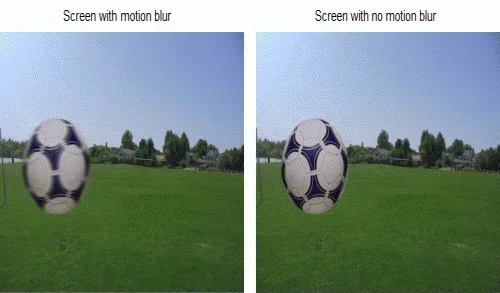
Every LCD panel has a response time. This is how quickly individual pixels can change from one color to another. Slow response times can cause motion blur and stuttering, especially during fast-moving scenes.
Older LCD TVs tend to have slower response times than newer models. This is because panel technology has improved over the years. If your TV is several years old, the panel response time might simply be too slow for modern content.
Quick Tip: Check if your TV has a black frame insertion or motion clarity feature. These can help reduce the perception of slow response times. They work by flashing a black frame between content frames, which reduces blur.
How to Fix Jerky Movements on Your LCD TV
Now that we have covered the causes, let us get to the fixes. Here is a step-by-step guide to troubleshooting and resolving jerky movements on your LCD TV.
Step 1: Check and Secure All Cable Connections
Start with the basics. Unplug every cable connected to your TV. Check for damage, dust, or bent pins. Plug everything back in firmly. Make sure the HDMI cables are fully inserted into the correct ports.
If you have multiple HDMI devices, try each one individually. This helps you isolate whether the problem is with a specific device or cable. Sometimes simply replugging a cable solves the issue entirely.
Consider upgrading to a high-speed HDMI cable if you are using an older one. Newer cables support higher bandwidth and can handle 4K and high-refresh-rate content better. A quality cable can make a surprising difference in motion smoothness.
Step 2: Adjust Your TV Picture Settings
Navigate to your TV picture settings menu. Look for motion-related options. Turn off motion smoothing, frame interpolation, and any similar features. Set the refresh rate to the highest option available.
Also check the picture mode. Some picture modes prioritize brightness or color over motion handling. Switching to a movie or sports mode can improve motion clarity. These modes are often optimized for smooth playback.
Do not be afraid to experiment. Try different combinations of settings and watch the same content. You will quickly find the sweet spot that looks smoothest to your eyes.
Step 3: Update Your TV Firmware
Go to your TV settings menu and look for a software or firmware update option. If an update is available, install it. Restart your TV after the update is complete.
Firmware updates are free and usually take just a few minutes. They can fix bugs that cause motion issues and improve overall TV performance. Make it a habit to check for updates every few months.
Step 4: Test Different Content Sources
Try watching content from a different source. If you have been streaming, try a Blu-ray or a different app. If the jerky movement stops, the original source was the problem.
This step is important because it helps you determine whether the issue is with your TV or with the content. If all sources look smooth, your TV is fine and the problem was the content quality.
Step 5: Factory Reset Your TV
If none of the above steps work, try a factory reset. This restores your TV to its original settings. It can clear out any software glitches that might be causing motion problems.
Before you reset, write down any custom settings you want to keep. A factory reset erases all your personalized settings. After the reset, set up your TV again and adjust the motion and picture settings carefully.
Step 6: Check for Hardware Problems
If the jerky movements persist after all these steps, there may be a hardware issue. The LCD panel itself could be failing. The TV’s internal processing board might be damaged. In these cases, professional diagnosis is the best next step.
Contact the manufacturer or a qualified TV repair technician. Describe the symptoms in detail. They can help determine whether the TV is repairable or needs replacement.
When to Seek Professional Help
Most jerky movement issues can be fixed at home. But there are times when professional help is the right call. If you have tried all the steps above and the problem persists, do not keep guessing.
Signs that you need professional help include flickering that does not go away, visible damage to the panel, and strange lines or artifacts on screen. These could indicate a deeper hardware problem that only a technician can fix.
Also consider professional help if your TV is still under warranty. Opening the TV yourself could void the warranty. A technician can diagnose and repair the issue without risking your coverage.
Preventing Jerky Movements on Your LCD TV
Prevention is always better than cure. Here are some simple habits that can keep your LCD TV running smoothly for years to come.
- Use high-quality HDMI cables: Cheap cables can cause signal issues. Invest in certified high-speed HDMI cables for the best results.
- Keep your firmware updated: Regular updates keep your TV running at its best. Check for updates at least once a month.
- Avoid overheating: Keep your TV in a well-ventilated area. Overheating can affect the panel and processing performance.
- Match settings to content type: Use different picture and motion settings for movies, sports, and gaming. This gives each type of content the best chance to look smooth.
- Clean your connections regularly: Dust can build up on cable ports and cause intermittent connection issues. Unplug and clean them gently every few months.
Taking care of your TV with these simple habits can prevent many common motion problems. Your LCD TV will stay smooth and responsive for a long time.
Final Thoughts
Jerky movements on an LCD TV are annoying, but they are almost always fixable. The cause is usually one of a handful of common issues. Low refresh rates, loose cables, wrong settings, outdated firmware, or poor source quality are the usual suspects.
By working through the steps in this guide, you can identify and fix the problem yourself. Most solutions take just a few minutes and cost nothing. You do not need to be a tech expert to get your TV running smoothly again.
Remember to check your connections first. Then adjust your settings. Update your firmware. Test different sources. And if all else fails, seek professional help. With a little patience, you will be back to enjoying smooth, beautiful motion on your screen in no time.
LCD TV technology continues to improve. But even the best TVs need a little care and attention. Keep this guide handy for the next time your screen starts acting up. You will know exactly what to do.
Frequently Asked Questions
Why does my LCD TV have jerky movements when watching fast-action scenes?
This is usually caused by a low refresh rate or incorrect motion settings. Your TV may be running at 60Hz, which struggles with fast motion. Try turning off motion smoothing and check if your TV supports a higher refresh rate mode. Adjusting these settings often fixes choppy action scenes right away.
Can a bad HDMI cable cause jerky movements on a TV?
Yes, absolutely. A loose, damaged, or low-quality HDMI cable can disrupt the video signal. This disruption shows up as stuttering, jerky motion, or intermittent flickering. Try replugging the cable firmly or swapping it with a high-quality certified HDMI cable to see if the problem goes away.
Is motion smoothing good or bad for LCD TV picture quality?
It depends on the content and your preference. Motion smoothing can make some content look smoother, but it can also create an unnatural look or introduce artifacts. For many people, turning it off completely provides the most natural and smooth motion. Experiment with the setting to find what works best for you.
How often should I update my TV firmware?
You should check for firmware updates at least once a month. Manufacturers release updates to fix bugs, improve performance, and add new features. Keeping your TV updated helps prevent issues like jerky movements and ensures the best possible picture quality.
What should I do if none of the fixes work for my jerky LCD TV?
If you have tried all the troubleshooting steps and the problem persists, there may be a hardware issue. Contact a professional TV repair technician or your manufacturer’s support team. They can diagnose internal problems like panel failure or board damage that are not fixable with simple settings changes.
Does the content source affect how smooth motion looks on an LCD TV?
Yes, the content source plays a big role. Low-bitrate streams, older videos, and compressed content can all look jerky on any TV. If the jerky movement only happens with one source, the problem is likely the content quality rather than your TV. Try switching to a higher-quality source to compare.