How Do I Cast My Phone To My Tv Using Bluetooth Wirelessly
Cast phone to TV Bluetooth streaming lets you share your screen, photos, and videos without any cables. You can wirelessly mirror your phone display to a bigger screen using built-in Bluetooth or a simple adapter. This guide walks you through every step, from pairing devices to fixing common issues. Whether you have an Android or iPhone, you will find clear instructions that actually work.
Have you ever wanted to show off photos on your phone to a whole room but hated the tiny screen? Or maybe you want to watch a video from your device on the big TV without fumbling with cables. Cast phone to TV Bluetooth makes this possible in just a few simple steps. You do not need expensive equipment or technical skills. In this guide, I will walk you through everything you need to know about wireless casting from start to finish.
The beauty of Bluetooth streaming is that it works without a WiFi connection. You can share your screen, play music, or mirror videos directly from your phone to your television. This is different from WiFi-based casting because Bluetooth uses its own wireless signal. That means you can cast even when your internet is down or you are in a place with no network at all. Let us dive into how this works and how you can do it today.
Key Takeaways
- Bluetooth casting is simple: Most modern smart TVs and phones support wireless casting without extra hardware.
- You do not need WiFi: Bluetooth can stream audio and mirror your screen independently of a wireless internet connection.
- A Bluetooth transmitter can help: Older TVs without built-in Bluetooth can still receive phone signals with a cheap adapter.
- Keep devices close: Bluetooth range is typically 30 feet, so stay within distance for the best experience.
- Troubleshooting is easy: Most casting issues resolve with a simple restart, firmware update, or re-pairing.
- Alternatives exist: HDMI cables and WiFi-based mirroring offer different benefits depending on your setup.
📑 Table of Contents
- What Does It Mean to Cast Phone to TV Bluetooth?
- How to Prepare Your Phone and TV for Bluetooth Casting
- Step-by-Step Guide to Cast Your Phone to TV via Bluetooth
- Troubleshooting Common Bluetooth Casting Problems
- Bluetooth vs HDMI vs WiFi: Which Casting Method Is Best?
- Quick Tips for the Best Bluetooth Casting Experience
- Can You Use Bluetooth to Cast Without WiFi? The Answer Is Yes
- Frequently Asked Questions
- Final Thoughts
What Does It Mean to Cast Phone to TV Bluetooth?
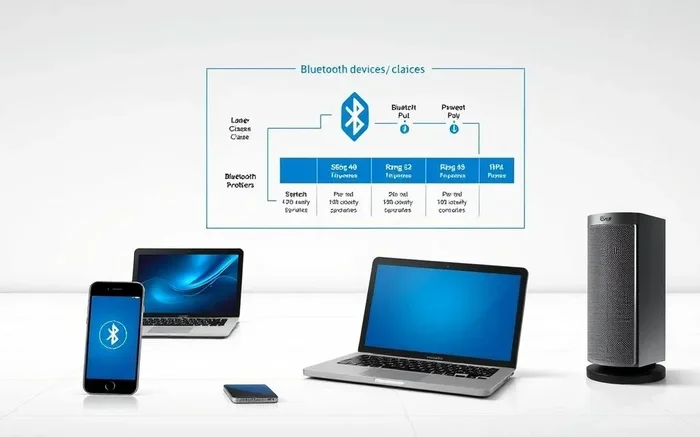
Wireless casting sends your phone screen or audio to a TV through a Bluetooth connection. Instead of plugging in a cable, the two devices communicate through radio waves. Your phone acts as the sender, and your TV (or a Bluetooth receiver) acts as the display.
Not all TVs have the same Bluetooth features. Some smart TVs come with built-in Bluetooth ready to pair with your phone right out of the box. Others need a Bluetooth transmitter added to the mix. Either way, the process is straightforward once you understand the basics. The key is making sure both devices support the right bluetooth profile for screen mirroring or audio streaming.
How Bluetooth Casting Differs from WiFi Casting
Many people confuse Bluetooth casting with WiFi-based screen mirroring. They are different technologies. WiFi casting usually needs a shared network and can offer higher quality video. Bluetooth casting works independently and is great for audio and simple screen sharing. If you want to mirror phone to smart TV without wifi, Bluetooth is your best friend. It creates a direct connection between two devices without needing a router or internet service.
Here is a quick comparison of the two methods:
- Bluetooth: Direct device-to-device connection, no internet needed, range up to 30 feet, ideal for audio and basic mirroring.
- WiFi Mirroring: Requires shared network, higher video quality possible, works best in-home setups with strong signal.
- HDMI Cable: Wired connection, best quality and zero lag, but limits mobility and requires physical cables.
How to Prepare Your Phone and TV for Bluetooth Casting
Before you start casting, you need to make sure everything is ready. This preparation step saves you time and frustration later. Both your phone and TV need to be set up correctly for a smooth bluetooth pairing experience.
Check If Your TV Has Bluetooth
Most modern smart TVs from brands like Samsung, LG, Sony, and TCL include built-in Bluetooth. To check, go to your TV settings and look for a Bluetooth or Connections section. If you see an option to pair devices, you are good to go. If your TV does not have Bluetooth, do not worry. You can add it with a Bluetooth transmitter that plugs into the audio output port on your TV.
Some older TVs might only have optical audio out or a 3.5mm headphone jack. A Bluetooth transmitter works with both of these. It receives the Bluetooth signal from your phone and sends the audio to your TV. This is a cheap and effective solution that costs around $15 to $30 online.
Make Sure Your Phone Is Ready
Almost all smartphones made in the last five years support Bluetooth screen casting. On Android phones, look for a feature called “Smart View,” “Screen Mirroring,” or “Wireless Display.” iPhones use AirPlay, which is Apple’s built-in casting system. However, AirPlay works best with Apple TVs or AirPlay-compatible TVs.
Here is what you should do before casting:
- Turn on Bluetooth on your phone.
- Make sure your TV is powered on and set to the right input.
- Put your TV in pairing or discovery mode.
- Keep both devices within 10 to 15 feet of each other for the best signal.
- Close apps that might interrupt the casting process.
Step-by-Step Guide to Cast Your Phone to TV via Bluetooth
Now that your devices are ready, let us get into the actual casting process. I will break this down into simple steps for both Android and iPhone users.
For Android Users
Android phones make wireless casting very easy because most devices include built-in screen mirroring. Here is how to do it:
- Open your phone Settings and go to Connected Devices or Bluetooth.
- Turn on Bluetooth if it is not already on.
- Tap on your TV name when it appears in the list of available devices.
- If prompted, enter the PIN shown on your TV screen.
- Once paired, pull down your notification shade and tap “Smart View” or “Screen Mirroring.”
- Select your TV from the list of available devices.
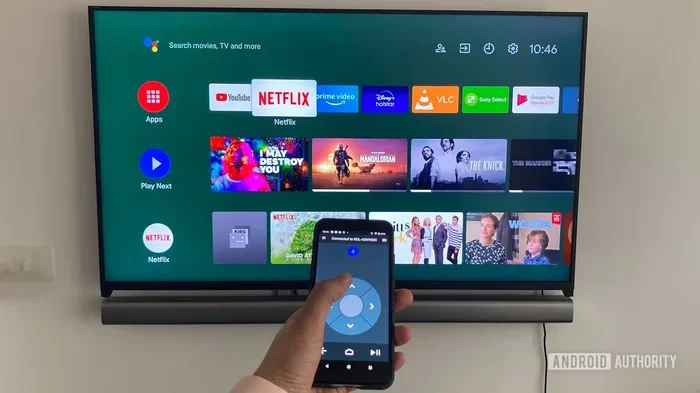
- Your phone screen should now appear on your TV.
Some Android phones also let you cast just audio without mirroring the full screen. This is perfect for streaming music or podcasts to your TV speakers. You can also use third-party apps like BubbleUPnP or AllCast for more casting options.
For iPhone Users
iPhone users have a slightly different path because Apple uses AirPlay as its native casting protocol. Not all TVs support AirPlay directly, but many newer smart TVs do. Here is the process:
- Open Control Center by swiping down from the top right of your screen.
- Tap the Screen Mirroring icon, which looks like two overlapping rectangles.
- Select your TV from the list of available devices.
- Enter the code shown on your TV if prompted.
- Your iPhone screen is now mirrored to your TV wirelessly.
If your TV does not support AirPlay natively, you can use an Apple TV box or a Bluetooth transmitter that supports AirPlay. Some people also use apps like AirScreen to add AirPlay support to their TV. This gives you more flexibility when you want to connect phone to TV without spending a lot of money.
Troubleshooting Common Bluetooth Casting Problems
Bluetooth casting does not always work perfectly the first time. Connection drops, audio lag, and screen flickering are common issues. The good news is most problems have simple fixes. Let me walk you through the most frequent issues and their solutions.
Audio and Video Are Out of Sync
This is the most common complaint with Bluetooth casting. You hear the audio but the video is delayed, or the lips do not match the words. This happens because Bluetooth has a slight latency compared to wired connections. The audio video sync issue is especially noticeable when watching fast-moving videos or gaming.
Here is how to fix it:
- Move closer to your TV to strengthen the Bluetooth signal.
- Reduce interference by turning off other Bluetooth devices nearby.
- Check for firmware updates on both your phone and TV.
- Use a Bluetooth transmitter with low-latency encoding.
- Try adjusting the audio delay settings in your TV menu if available.
Devices Will Not Pair
If your phone and TV refuse to connect, try these steps:
- Turn Bluetooth off and back on on both devices.
- Remove the TV from your phone’s paired devices list and try again.
- Restart both your phone and TV.
- Make sure your TV is in pairing mode and visible to other devices.
- Check that your phone and TV are within Bluetooth range (about 30 feet max).
Screen Flickering or Freezing
Screen flickering during Bluetooth casting usually happens because of signal interference or low bandwidth. Bluetooth has limited data transfer speed compared to WiFi or HDMI. If you experience flickering, try these fixes:
- Move away from other wireless devices like microwaves or cordless phones.
- Lower the screen resolution on your phone before casting.
- Close background apps on your phone to free up processing power.
- Switch to a dedicated 2.4 GHz WiFi band if you are using a hybrid Bluetooth-WiFi transmitter.
Bluetooth vs HDMI vs WiFi: Which Casting Method Is Best?
Choosing the right casting method depends on what you want to do. Each option has strengths and weaknesses. Let me break down the three most common ways to share your phone screen with your TV.
Bluetooth Casting
Bluetooth streaming is the most convenient option for wireless audio and basic screen mirroring. It works without WiFi and does not require cables. The downside is that Bluetooth has lower bandwidth, which means video quality and sync can suffer. It is best for casual use like sharing photos, watching simple videos, or playing music.
HDMI Connection
Using an HDMI cable gives you the best quality and zero lag. You can connect phone to TV with HDMI cable using a USB-C or Lightning-to-HDMI adapter. This method is perfect for gaming, watching high-definition videos, or giving presentations. The tradeoff is that you are tethered to your TV and cannot move around freely.
WiFi Mirroring
WiFi-based casting like Chromecast or AirPlay offers better video quality than Bluetooth. It works well in-home setups where you have a strong WiFi signal. However, it requires a shared network, which means you cannot cast when you are away from your home WiFi. If you want to mirror phone to smart TV without wifi, Bluetooth is the clear winner.
| Feature | Bluetooth | HDMI | WiFi |
|---|---|---|---|
| Wireless | Yes | No | Yes |
| Video Quality | Good | Excellent | Very Good |
| Audio Sync | Fair | Perfect | Good |
| Mobility | High | None | Medium |
| Internet Required | No | No | Yes |
| Setup Difficulty | Easy | Easy | Easy |
| Cost | Free | Low | Free |
Quick Tips for the Best Bluetooth Casting Experience
Getting the most out of your Bluetooth casting setup is easier than you think. A few small adjustments can make a big difference in quality and reliability.
- Keep your devices updated. Firmware and software updates often fix casting bugs and improve performance.
- Use a dedicated Bluetooth transmitter. If your TV does not have built-in Bluetooth, a quality transmitter makes a huge difference.
- Reduce distance. Stay within 10 to 15 feet of your TV for the strongest and most stable connection.
- Turn off unused Bluetooth devices. Other connected devices can interfere with the signal and cause lag.
- Restart regularly. A simple restart of both devices before casting can prevent most connection issues.
- Use the right app. Some streaming apps like Netflix block screen mirroring due to copyright protections. Use the app’s built-in cast feature when available instead.
Expert Insight
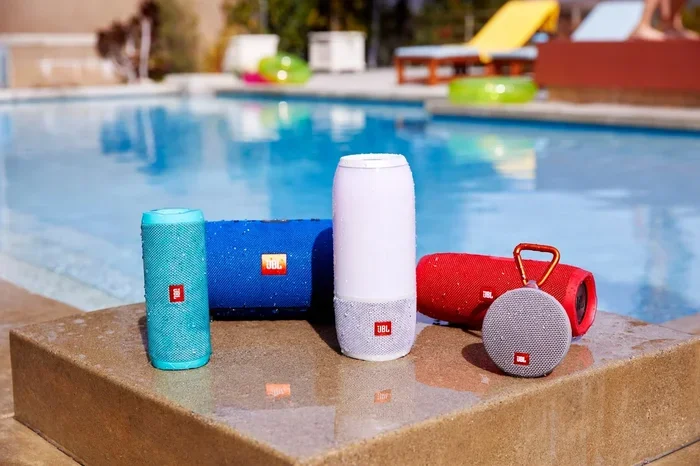
Many people do not realize that you can also use your phone as a Bluetooth speaker for other devices. This is a fun trick that expands what your phone can do beyond just casting to a TV. If you ever need amplified sound for a small gathering, your phone can double as a speaker with the right Bluetooth connection. Just pair a Bluetooth speaker to your phone and then stream audio through your setup.
Can You Use Bluetooth to Cast Without WiFi? The Answer Is Yes
This is one of the biggest advantages of Bluetooth casting. You do not need a WiFi network to send content from your phone to your TV. Bluetooth creates its own direct wireless connection between two devices. This makes it perfect for situations where WiFi is unavailable or unreliable.
For example, if you are at a friend’s house and want to show them a video on your phone, you can cast directly to their TV via Bluetooth without needing their WiFi password. Or if you are camping and want to watch something on a portable TV, Bluetooth casting works just as well as it does at home. The wireless connectivity of Bluetooth means you are not tied to any network at all.
If you have ever wondered whether you can mirror your phone to your smart TV without wifi, the answer is absolutely yes. Bluetooth handles both audio and basic video mirroring independently of any internet connection. This is a game-changer for anyone who has experienced spotty WiFi or wants to cast in locations without internet access.
Frequently Asked Questions
Can I cast my phone to any TV using Bluetooth?
Most smart TVs made after 2018 have built-in Bluetooth and can pair with your phone directly. Older TVs or basic models may need a Bluetooth transmitter added to work. Check your TV settings for a Bluetooth option before trying to cast.
Does Bluetooth casting drain my phone battery quickly?
Bluetooth casting does use more battery than normal phone use. Screen mirroring keeps your phone’s screen active while also sending data wirelessly. To save battery, lower your screen brightness and close unnecessary apps while casting.
Can I use Bluetooth to cast gaming from my phone to TV?
You can cast casual games via Bluetooth, but there will be some input lag. For fast-paced or competitive games, an HDMI wired connection gives you much better performance with zero delay. Bluetooth works best for relaxed gaming and media consumption.
What is the maximum Bluetooth range for casting?
Standard Bluetooth has a range of about 30 feet in open space. Walls, furniture, and other electronics can reduce this range significantly. For the best experience, keep your phone within 10 to 15 feet of your TV during casting.
Do I need any special apps to cast via Bluetooth?
Most modern phones and TVs have built-in casting features that do not require any extra apps. Android phones include Smart View or Screen Mirroring, and iPhones use AirPlay. However, some Bluetooth transmitters come with companion apps that offer additional features like audio delay adjustment.
Can I use Bluetooth headphones while casting my phone to TV?
Yes, you can connect Bluetooth headphones to your TV and listen privately while casting. Some TVs allow you to connect multiple Bluetooth audio devices at once. This is great for late-night watching without disturbing others in the house.
Final Thoughts
Cast phone to TV Bluetooth is one of the easiest and most convenient ways to enjoy your phone content on a bigger screen. Whether you are sharing photos with family, watching a video, or listening to music, Bluetooth streaming gives you the freedom to go wireless. The process is simple, the equipment is affordable, and the experience is surprisingly good for everyday use.
Remember that Bluetooth is not perfect. It has limitations in range, video quality, and audio sync compared to HDMI or WiFi-based methods. But for quick, cable-free casting in most situations, it works wonderfully. Keep your devices close, stay updated, and do not be afraid to troubleshoot when something goes wrong.
If you ever want to explore other ways to connect your phone to your TV, check out how to connect your phone to TV with an HDMI cable for the best picture quality. You can also learn more about using HDMI for video and Bluetooth for audio to get the best of both worlds. And if you are curious about wireless options without WiFi, find out how to mirror your phone to your smart TV without WiFi using different technologies.
Now that you know how to cast wirelessly, grab your phone, find your TV, and start streaming. The big screen is waiting for you.