Can I Connect A Camera To My Phone Without Wi Fi Now
Yes, you can connect a camera to your phone without Wi-Fi. You have several reliable options including Bluetooth pairing, USB cables, and camera-specific apps. This guide covers every method so you can transfer photos and videos fast, even when you are offline or in areas without internet access.
Can I Connect A Camera To My Phone Without Wi Fi Now
You want to share photos right away. Maybe you are on a hike, at a party, or traveling somewhere with spotty internet. The thought of transferring images from your camera to your phone feels impossible without Wi-Fi. But here is the good news. You absolutely can connect a camera to your phone without Wi-Fi.
There are several simple ways to do this. Bluetooth, USB cables, OTG adapters, and dedicated camera apps all work without an internet connection. You do not need to be a tech expert either. Most methods take just a few minutes to set up. Let us walk through every option so you can pick the one that fits your situation best.
Connecting a camera to your phone offline is easier than most people think. Whether you own a DSLR, a mirrorless camera, or a compact point-and-shoot, there is a way to get your photos onto your phone. Keep reading to find out how.
## Why Connect Your Camera to Your Phone Without Wi-Fi?
There are many reasons you might need to transfer files without a wireless connection. Let us look at the most common ones.
### You Are Traveling Somewhere Remote
Hiking trails, national parks, and rural areas often lack reliable internet. You still want to capture stunning landscapes and share them when you return. A direct connection lets you back up your photos immediately. This protects your memories even when you are completely offline.
### You Want Faster Transfer Speeds
Wi-Fi transfers can be slow, especially with large files. A wired USB connection is much faster. You can move hundreds of photos in minutes instead of waiting for a slow wireless transfer.
### You Value Privacy and Security
Sending photos over public Wi-Fi networks can be risky. A direct connection keeps your files private. No data passes through routers or cloud services. Your personal photos stay between you and your devices.
### You Do Not Want to Use Your Data
Streaming and cloud uploads eat through mobile data quickly. Connecting directly avoids this entirely. You save your data plan for when you actually need it.
## Method 1: Bluetooth Connection (Wireless and Simple)
Bluetooth is one of the easiest ways to connect a camera to your phone without Wi-Fi. Most modern cameras come with built-in Bluetooth. Many smartphones support Bluetooth too. The two devices can talk to each other directly.
### How to Pair Your Camera and Phone via Bluetooth
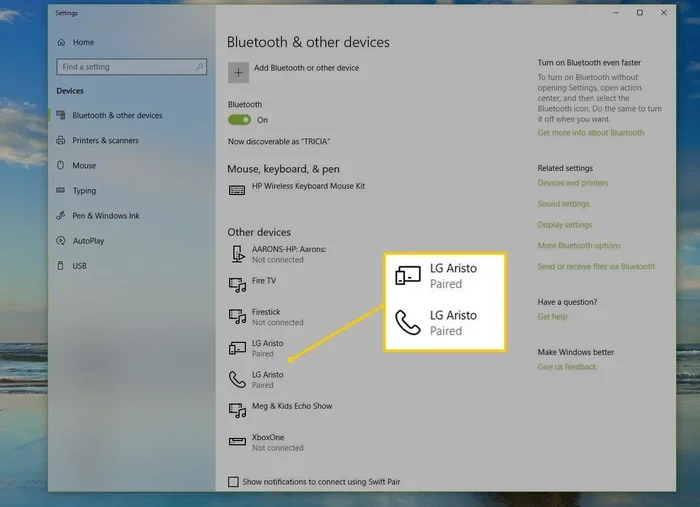
First, turn on Bluetooth on both your camera and your phone. On your camera, look for the Bluetooth setting in the menu. It is usually under “Network” or “Connections.” On your phone, go to Settings and toggle Bluetooth on.
Next, put your camera in pairing mode. The exact steps vary by brand. Generally, you select “Add Device” or “Pair New Device” on your phone. Your camera should appear in the list. Tap on it and follow any prompts.
Once paired, your camera and phone stay connected within a short range. Typically about 30 feet or 10 meters. You can now select photos on your camera and send them to your phone. Some cameras let you transfer files automatically in the background.
### Tips for Bluetooth Transfers
Keep both devices charged. Bluetooth uses battery power on both sides. Stay within range during transfers. Walls and obstacles can weaken the signal. Transfer smaller batches of photos for the best results. Large folders may take longer and could interrupt midway.
Bluetooth camera pairing works well for everyday use. It is not the fastest method, but it is the most convenient. You do not need any cables or extra accessories. Just turn it on and go.
## Method 2: USB Cable Connection (Fast and Reliable)
A USB cable gives you the fastest way to transfer files. This method works almost universally. You plug one end into your camera and the other into your phone. Your phone recognizes the camera as a storage device.
### What You Need
You need a compatible USB cable for your camera. Most cameras use micro-USB or mini-USB cables. Some newer models use USB-C. You also need a way to plug that cable into your phone. Many phones no longer have full-size USB ports.
This is where an OTG adapter comes in handy. We will cover that in Method 3. But for phones with USB-C ports, a USB-C to USB cable might be all you need.
### Step-by-Step USB Connection
First, turn off your camera. Connect the USB cable to your camera. Then plug the other end into your phone or OTG adapter. Turn your camera back on.
Your phone should display a notification. It might say “USB connected” or “File transfer available.” Tap the notification and choose “File Transfer” or “MTP mode.” Your phone will now access your camera’s memory card.
Open your phone’s file manager app. Look for your camera under “Storage” or “Devices.” Navigate to the DCIM folder. This is where your photos and videos are stored. Select the files you want and copy or move them to your phone.
### Best Uses for USB Connections
USB camera connection is ideal when you need to transfer many files quickly. It is also great for large video files. If you just shot a 4K video and need to edit it on your phone, USB is the way to go. The speed difference compared to Bluetooth is significant.
Keep your cable handy. A short, durable cable works best. Avoid cheap cables that might disconnect during transfer. A stable connection prevents corrupted files.
## Method 3: OTG Adapter (For Android Phones)
An OTG adapter stands for On-The-Go. It is a small, inexpensive gadget. It lets your phone connect to USB devices like cameras, flash drives, and keyboards. If you have an Android phone, this is a game-changer.
### How OTG Adapters Work
The adapter plugs into your phone’s charging port. It creates a standard USB port on your phone. You can then plug your camera’s USB cable directly into the adapter.
Most Android phones running Android 6.0 or later support OTG. Check your phone’s specs to be sure. Some older phones do not support this feature. But most modern Android devices do.
### Using an OTG Adapter Step by Step
Plug the OTG adapter into your phone. Connect your camera’s USB cable to the adapter. Plug the other end into your camera. Turn on the camera.
Your phone will recognize the camera. A notification will appear. Tap it and select “File Transfer.” You can now browse your camera’s files just like with a direct USB connection.
OTG adapters cost between $5 and $15. They are available at most electronics stores and online. They are small enough to fit in your camera bag. A great accessory for any photographer on the go.
### Quick Tips for OTG Use
Make sure your OTG adapter supports your phone’s port type. USB-C and micro-USB adapters are different. Do not cheap out on adapters. A good one ensures a stable connection. Always eject the device properly before unplugging. This prevents data loss.
## Method 4: Camera Companion Apps (Brand-Specific)
Many camera brands offer their own apps. These apps connect directly to your camera without Wi-Fi. They use Bluetooth or a proprietary connection method. They make the transfer process simple and seamless.
### Popular Camera Apps That Work Offline
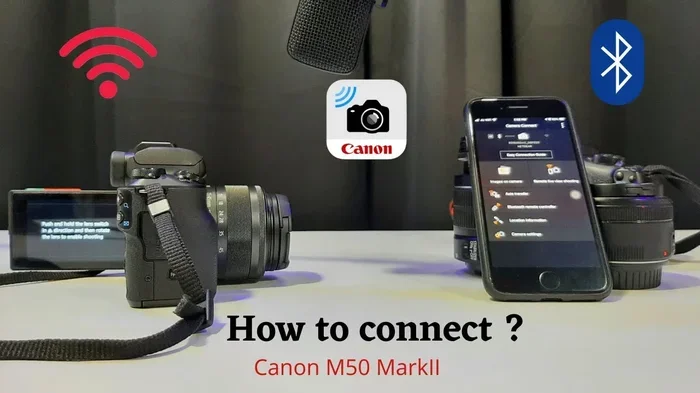
Camera app connection options vary by brand. Canon has Canon Camera Connect. Nikon offers SnapBridge. Sony has Imaging Edge Mobile. Fujifilm provides FUJIFILM Camera Remote. Each app works a little differently but follows a similar process.
Download the app from your phone’s app store. Turn on Bluetooth on both your phone and camera. Open the app and follow the pairing instructions. The app will walk you through everything step by step.
### What These Apps Can Do
Most companion apps let you do more than just transfer files. You can remotely control your camera’s shutter. You can adjust settings like ISO and aperture from your phone. Some apps let you preview shots on your phone screen before you take them.
For file transfers, these apps are reliable. They handle batch transfers well. You can select multiple photos and send them all at once. The apps also organize your files neatly on your phone.
### Limitations to Keep in Mind
Some apps require initial Wi-Fi setup for downloading. But the actual transfer works without internet. Check your specific app’s requirements. Also, some apps only work with certain camera models. Make sure your camera is compatible before relying on this method.
These apps are excellent for wireless photo transfer without Wi-Fi. They add convenience and extra functionality. If your camera brand has an app, it is worth exploring.
## Method 5: SD Card Swap (The Old-School Reliable Method)
Sometimes the simplest method is the best. Removing your camera’s SD card and putting it into your phone is straightforward. No cables, no apps, no pairing. Just swap the card.
### How to Swap an SD Card
First, turn off your camera. Open the SD card slot, usually on the side or bottom of the camera. Gently push the card in until it clicks. Then pull it out.
You need a way to read the SD card on your phone. Most phones do not have built-in SD card slots anymore. You have two options here. Use a phone-compatible SD card reader or get a phone with an SD card slot.
### Using an SD Card Reader
An SD card reader plugs into your phone’s USB-C or Lightning port. These readers are small and inexpensive. You insert the SD card into the reader. Then plug the reader into your phone.
Your phone will recognize the SD card as external storage. Open your file manager app. Browse the DCIM folder on the SD card. Copy or move your files to your phone’s internal storage.
### When SD Card Swapping Makes Sense
This method works best when you have a small number of files to transfer. It is also great for backup purposes. You can remove the card and keep it safe while continuing to shoot on a second card.
Offline camera transfer using an SD card is fast and dependable. No batteries are drained on either device. No wireless signals are needed. It just works, every single time.
## Comparison Table: Which Method Is Best for You?
Here is a quick look at how each method compares.
| Method | Speed | Ease of Use | Cost | Best For |
|—|—|—|—|—|
| Bluetooth | Slow to Medium | Very Easy | Free (built-in) | Casual sharing and small batches |
| USB Cable | Fast | Easy | Free (if you have a cable) | Large files and batch transfers |
| OTG Adapter | Fast | Easy | $5 to $15 | Android phone users without USB-C cables |
| Camera App | Medium | Very Easy | Free (app download) | Remote control and organized transfers |
| SD Card Swap | Fast | Easy | $5 to $10 for reader | Simple backup and small transfers |
Each method has strengths. Your choice depends on what you need at the moment.
## Common Mistakes to Avoid
Even simple connections can go wrong. Here are some common mistakes and how to avoid them.
### Forgetting to Turn On Bluetooth
This sounds obvious, but it happens often. Make sure Bluetooth is on both devices before you start. Check the quick settings panel on your phone. Check the menu on your camera too.
### Using the Wrong Cable
Not all USB cables are the same. Some cables only charge devices. You need a data-transfer cable. Check your cable specifications if transfers fail. A data cable will have markings or labels indicating data support.
### Ignoring File Formats
Some phone apps struggle with certain file formats. RAW files and high-resolution videos can cause issues. Consider converting files before transferring if you run into problems. Most phones handle JPEG files without any trouble.
### Skipping the Eject Process
Always eject your camera or SD card properly before disconnecting. On Android, use the “Safely Remove” option. On iPhone, use the “Eject” button in the Files app. Skipping this step can corrupt your files.
### Overlooking Battery Levels
Transfers drain battery on both devices. Start with fully charged batteries. Carry a portable charger if you plan to transfer many files. A dead battery mid-transfer can cause data loss.
## Expert Insights on Camera-to-Phone Connections
Professional photographers often use multiple methods. They keep a USB cable and an OTG adapter in their gear bag at all times. They also rely on camera companion apps for quick previews and selections.
The key is having options. Different situations call for different methods. A quick Bluetooth transfer works when you want to share a single photo with a friend. A USB cable makes sense when you are editing a wedding shoot on the go. An SD card swap is perfect for a fast backup between shoots.
Camera connectivity options have improved dramatically in recent years. Newer cameras offer faster Bluetooth and better app support. Phone manufacturers continue to improve USB-OTG compatibility. The future of offline transfers looks even more convenient.
## Final Thoughts
You now have five solid methods to connect a camera to your phone without Wi-Fi. Each method is reliable and works without an internet connection. Connecting a camera to your phone offline gives you flexibility and peace of mind.
Start with Bluetooth if you want the simplest wireless option. Use a USB cable when speed matters. Grab an OTG adapter if you are on Android and want versatility. Try your camera’s companion app for a streamlined experience. And do not overlook the classic SD card swap.
Transferring photos from camera to phone should never depend on Wi-Fi. With the right tools and knowledge, you can move your files anywhere, anytime. Pick the method that works best for you. Practice it once or twice. Soon it will become second nature.
Your photos are precious. Keep them safe and accessible no matter where your adventures take you. You are now equipped to handle any situation.
Key Takeaways
- Multiple connection methods exist: Bluetooth, USB, OTG adapters, and camera-specific apps all work without Wi-Fi.
- Bluetooth is the easiest wireless option: Most modern cameras and smartphones support Bluetooth pairing for quick file transfers.
- USB cables offer the fastest transfer speeds: A direct USB connection is ideal for large files or batch transfers.
- OTG adapters unlock USB connections on phones: These small, affordable adapters let you plug a camera into almost any Android phone.
- Camera companion apps work offline: Many brands offer dedicated apps that connect directly to your camera without needing the internet.
- SD card swapping remains a classic method: Removing the SD card and using a phone adapter is simple and reliable.
- Each method has trade-offs: Speed, convenience, and file size limits vary, so choose based on your needs.
Frequently Asked Questions
Can I connect a camera to my phone without Wi-Fi using Bluetooth?
Yes, Bluetooth is one of the easiest ways to connect a camera to your phone without Wi-Fi. Most modern cameras and smartphones support Bluetooth pairing. Simply turn on Bluetooth on both devices, put them in pairing mode, and follow the on-screen prompts.
What is the fastest way to transfer photos from a camera to a phone offline?
A USB cable connection is the fastest method. It provides direct data transfer at high speeds. If your phone supports USB-OTG, you can plug your camera directly in and access files immediately.
Do I need special apps to connect my camera to my phone without Wi-Fi?
It depends on the method. Bluetooth and USB connections usually work without any apps. However, camera companion apps from brands like Canon, Nikon, and Sony make the process smoother and offer extra features like remote control.
Can I use an OTG adapter with an iPhone?
iPhones support Lightning to USB adapters, but compatibility varies. Apple’s Lightning to USB 3 Camera Adapter works well with most cameras. You may need to use the Apple Photos app to access transferred files.
Is it safe to transfer photos without Wi-Fi?
Absolutely. Direct connections like Bluetooth, USB, and SD card swaps are very secure. Your files never leave your devices or pass through the internet. This makes offline transfers one of the safest ways to move your photos.
Why can’t my phone find my camera via Bluetooth?
Make sure Bluetooth is enabled on both devices and that your camera is in pairing mode. Also check that the devices are within 30 feet of each other. Restarting both devices often fixes connection issues.