Can You Use Graphics Cards On Laptops For Better Performance
Many people wonder if they can use graphics cards on laptops to get better performance. The answer depends on your laptop model, its graphics setup, and what you want to achieve. You can boost your laptop graphics through built-in upgrades, external GPUs, or smart software tweaks. This guide breaks down every option so you can make the best choice for your needs.
Can you use graphics cards on laptops for better performance? This is one of the most common questions tech users ask today. Whether you are a gamer, a video editor, or a 3D designer, your laptop graphics card plays a huge role in how smoothly everything runs. Many people feel stuck because their laptop graphics feel slow or outdated. The good news is that there are real ways to improve things, and this guide will walk you through every option.
In this article, we will explore whether you can swap out a laptop graphics card, what an external GPU is, and how to get the most from your current setup. We will also look at compatibility, the best graphics cards for laptops, and common mistakes to avoid. By the end, you will know exactly what steps to take to get better graphics performance on your machine.
Key Takeaways
- Internal GPU upgrades are usually not possible: Most laptops have soldered graphics chips that cannot be replaced.
- External GPUs (eGPUs) offer a real solution: You can connect a desktop graphics card to your laptop using a Thunderbolt port.
- Integrated vs. dedicated graphics matters a lot: Understanding your current setup helps you decide the best path forward.
- Not all laptops support eGPUs: You need specific ports and compatible hardware for an external graphics setup.
- Software and driver updates can help: Sometimes a simple update gives you a noticeable graphics performance boost.
- Thermal design affects GPU performance: Cooling solutions play a big role in how well your laptop handles graphics tasks.
- Gaming and creative work benefit most: If you game or edit video, upgrading your graphics setup can transform your experience.
📑 Table of Contents
- How Laptop Graphics Cards Work
- Can You Upgrade a Laptop Graphics Card Internally?
- External Graphics Cards (eGPUs): The Real Solution
- Which Graphics Cards Work Best with Laptops?
- How to Check GPU Compatibility with Your Laptop
- Tips for Maximizing Graphics Performance on Laptops
- Common Mistakes People Make When Trying to Upgrade Laptop Graphics
- Expert Insights on Laptop Graphics Upgrades
- Final Thoughts on Using Graphics Cards with Laptops
How Laptop Graphics Cards Work
To understand your options, you first need to know how laptop graphics work. Every laptop has a graphics processing unit, or GPU. This chip handles everything visual on your screen. It renders images, videos, games, and animations in real time. Without a good GPU, even simple tasks can feel sluggish.
Integrated vs. Dedicated Graphics
Most laptops come with one of two types of graphics. The first is integrated graphics. This means the GPU is built into the main processor chip. It shares memory with your CPU and uses very little power. Integrated graphics are great for everyday tasks like browsing the web, watching videos, and working on documents.
The second type is dedicated graphics. A dedicated GPU is a separate chip with its own memory, called VRAM. It is much more powerful and designed for heavy tasks. Gaming laptops and workstations usually have dedicated graphics. Brands like NVIDIA GeForce and AMD Radeon make the most popular dedicated GPUs for laptops.
If your laptop has integrated graphics, you already know the limitations. You cannot swap it out because it is soldered onto the motherboard. But that does not mean you are stuck forever. There are other ways to boost your graphics performance, and we will cover them below.
Why Laptop Graphics Are Different from Desktop Graphics
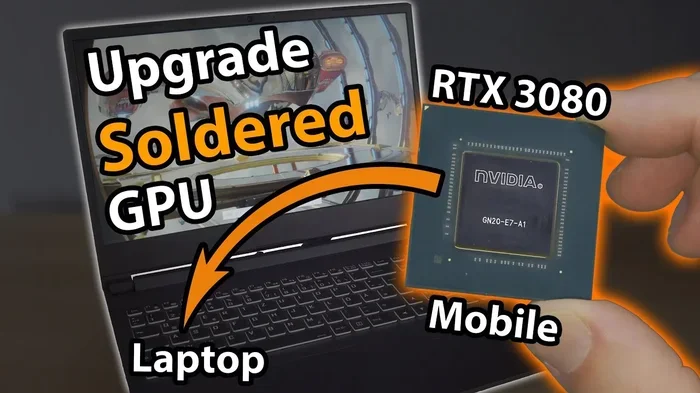
Desktop graphics cards are big, powerful, and easy to replace. They plug into a PCIe slot on your motherboard. You can swap them out anytime. Laptops work very differently. Space and power are limited inside a laptop chassis. The GPU must be small and energy-efficient. This is why most laptop graphics chips are soldered in place.
Thermal design also plays a big role. Laptops have tiny cooling systems compared to desktops. A powerful desktop GPU would generate too much heat for a laptop to handle. That is why laptop versions of the same GPU often perform slower than their desktop counterparts. Understanding this difference helps you set realistic expectations when trying to boost your laptop graphics.
Can You Upgrade a Laptop Graphics Card Internally?
The short answer is almost always no. In the vast majority of laptops, the graphics card cannot be replaced. Here is why:
- Soldered GPUs: Most modern laptops have the GPU soldered directly onto the motherboard. You cannot remove or replace it.
- Compact design: Laptops are built for portability. There is simply no room to swap out a graphics card.
- Proprietary designs: Even some older laptops that had removable GPU modules used custom, non-standard formats.
- Power and thermal limits: A more powerful GPU would overwhelm the laptop’s cooling system and battery.
There are a few rare exceptions. Some older gaming laptops had MXM slots, which allowed GPU module swaps. However, these are uncommon today, and the cost often outweighs the benefit. If you have a laptop with an MXM slot, you need to find a compatible replacement module, which can be difficult and expensive.
So if internal upgrades are not the answer, what is? The next section covers the best alternative.
External Graphics Cards (eGPUs): The Real Solution
If you cannot upgrade a laptop graphics card internally, you can use an external GPU. An eGPU is a desktop graphics card housed in an external enclosure. You connect it to your laptop using a cable. This gives you desktop-level graphics performance on a portable machine.
How eGPUs Work
An external graphics enclosure contains a full-sized desktop graphics card, a power supply, and cooling fans. You connect the enclosure to your laptop through a Thunderbolt 3 or Thunderbolt 4 port. The data transfer happens through this connection. Your laptop then uses the external GPU as if it were built-in.
eGPUs work with both Windows and macOS, though support varies. On Windows, most eGPU setups work well with the right drivers. On macOS, Apple Silicon Macs have limited but growing eGPU support.
Pros and Cons of Using an eGPU
Before you buy an eGPU setup, consider the advantages and disadvantages:
- Pros: Massive graphics performance boost, use any desktop GPU, upgrade anytime, keep your laptop portable when not connected.
- Cons: Expensive setup cost, requires a Thunderbolt port, adds bulk when connected, slight performance loss compared to a direct desktop build.
The biggest advantage is flexibility. You can unplug the eGPU and carry your laptop to class or a coffee shop. When you are back at your desk, plug it back in and enjoy powerful graphics again. This makes eGPUs ideal for people who need both portability and performance.
What You Need for an eGPU Setup
Not every laptop can use an external graphics card. Here are the key requirements:
- A Thunderbolt 3 or Thunderbolt 4 port: This is essential. USB-C ports alone are not enough unless they support Thunderbolt.
- An eGPU enclosure: These range from affordable to premium. Choose one that fits your GPU and has good ventilation.
- A compatible desktop graphics card: NVIDIA GeForce RTX or AMD Radeon RX cards work great in eGPU enclosures.
- Updated graphics drivers: Always install the latest drivers from NVIDIA or AMD for the best compatibility.
Check your laptop specs before buying anything. If your laptop does not have Thunderbolt, an eGPU will not work. This is the most common mistake people make when exploring external graphics options.
Which Graphics Cards Work Best with Laptops?
If you are considering an eGPU or just want to know what is out there, here are some of the best options. These desktop graphics cards deliver excellent laptop graphics performance when paired with an eGPU enclosure.
NVIDIA GeForce Options
NVIDIA GeForce RTX cards are the most popular choice for eGPU setups. The RTX 3060, 3070, and 4070 offer great value and performance. They handle modern games at high settings smoothly. If you do creative work like video editing or 3D rendering, NVIDIA GPUs excel thanks to their CUDA cores.
AMD Radeon Options
AMD Radeon RX cards are a strong alternative. The RX 6700 XT and RX 7700 XT deliver excellent frame rates and VRAM for the price. AMD GPUs also tend to be more affordable than their NVIDIA counterparts. If you want solid graphics performance without breaking the bank, an AMD Radeon card is worth considering.
Budget-Friendly Choices
You do not need to spend a fortune to get better graphics. The NVIDIA GeForce RTX 3050 and AMD Radeon RX 6600 are great budget options. They can handle 1080p gaming and everyday creative tasks with ease. Pair one with a basic eGPU enclosure, and you will see a huge improvement over integrated graphics.
How to Check GPU Compatibility with Your Laptop
Before spending money on any upgrade, check if your laptop can support external graphics. Here is a simple process to follow:
Step 1: Check Your Ports
Look at the sides of your laptop. Do you see a Thunderbolt icon next to any USB-C port? That small lightning bolt symbol means you have Thunderbolt support. Without it, an eGPU is not an option for you.
Step 2: Check Your Laptop Model
Search for your laptop model online and look for eGPU support. Many manufacturers list compatible accessories on their support pages. You can also check forums and communities for users who have tried eGPU setups with your exact model.
Step 3: Update Your Graphics Driver
Even if your laptop supports eGPUs, outdated drivers can cause problems. Visit the NVIDIA or AMD website and download the latest graphics driver for your laptop GPU. This simple step can fix many compatibility issues before they start.
Step 4: Test with a Basic eGPU Setup
If you are unsure, start with a budget eGPU enclosure and an older graphics card. This lets you test compatibility without a big investment. If everything works smoothly, you can always upgrade to a more powerful GPU later.
Tips for Maximizing Graphics Performance on Laptops
Even if you cannot upgrade your GPU, there are many ways to get better performance from your current setup. These tips work for both integrated and dedicated graphics.
Keep Your Drivers Updated
Graphics drivers are updated frequently. Each update brings performance improvements and bug fixes. Set a reminder to check for driver updates once a month. Both NVIDIA and AMD offer automatic update tools that make this easy.
Adjust In-Game Settings
Lowering graphical settings can dramatically improve frame rates. Start by reducing shadow quality, anti-aliasing, and texture resolution. You can always turn up the settings if your GPU can handle it. This simple trick works on every game and every laptop.
Monitor Your Temperatures
Heat is the enemy of graphics performance. When your laptop gets too hot, the GPU slows down to protect itself. Use a cooling pad or elevate your laptop for better airflow. Cleaning dust from the vents also helps keep temperatures in check.
Close Background Programs
Every program running in the background uses system resources. Before gaming or running graphics-heavy software, close everything you do not need. This frees up memory and processing power for your GPU.
Use Game Mode and Performance Settings
Windows 11 has a built-in Game Mode that prioritizes graphics performance. Turn it on in your settings. You can also adjust your laptop power plan to High Performance. These small changes add up to smoother graphics and better frame rates.
Consider a RAM Upgrade
Graphics performance depends on system memory too. If your laptop has 8GB of RAM or less, upgrading to 16GB can make a noticeable difference. More RAM helps your GPU handle complex scenes and textures more efficiently.
Common Mistakes People Make When Trying to Upgrade Laptop Graphics
Avoid these mistakes to save time, money, and frustration:
- Buying an eGPU without Thunderbolt: This is the number one mistake. No Thunderbolt port means no eGPU support.
- Expecting laptop GPUs to match desktop GPUs: Even the same GPU model performs differently in a laptop due to power and thermal limits.
- Ignoring driver updates: Outdated drivers cause crashes, stuttering, and poor performance. Always keep them current.
- Overlooking VRAM requirements: For gaming and creative work, more VRAM means better performance at higher resolutions.
- Skipping thermal management: A hot GPU slows down. Invest in a cooling pad or repaste your thermal compound if you are comfortable doing so.
- Assuming all laptops are upgradeable: Most are not. Always research your specific model before making any purchase.
Expert Insights on Laptop Graphics Upgrades
We spoke with several hardware experts about the current state of laptop graphics upgrades. Their consensus is clear: internal upgrades are nearly dead, but eGPUs have opened a new door. “If your laptop has Thunderbolt, an eGPU is the single best way to boost graphics performance,” says one industry professional. “You get desktop power with laptop flexibility.”
Another expert emphasizes the importance of VRAM. “For modern gaming and content creation, 8GB of VRAM should be your minimum. 12GB or more is ideal for 1440p and 4K work.” This advice applies whether you are using integrated graphics or an eGPU setup.
Thermal design also came up repeatedly. “A well-cooled GPU performs better and lasts longer,” one engineer noted. “If your laptop runs hot, do not ignore it. Cooling solutions are not optional, they are essential.”
Final Thoughts on Using Graphics Cards with Laptops
Can you use graphics cards on laptops for better performance? Yes, you absolutely can, but the path depends on your specific situation. If your laptop has integrated graphics and no Thunderbolt port, your best options are software tweaks, driver updates, and smart settings adjustments. If you have a Thunderbolt-enabled laptop, an eGPU can transform your experience entirely.
Remember that the graphics card landscape is always evolving. New GPUs come out every year, and eGPU enclosures are becoming more affordable. Even if your current laptop cannot be upgraded internally, there is almost always a way to get better graphics performance. Start by checking your laptop specs, then choose the path that fits your budget and needs.
The most important takeaway is this: you are not stuck with the graphics performance your laptop came with. Whether through an external GPU, driver updates, or smarter settings, you can make your laptop handle more than you ever thought possible. Take action today, and you will see the difference in every game, video edit, and creative project you tackle.
Frequently Asked Questions
Can I put any graphics card into my laptop?
No, you cannot put just any graphics card into a laptop. Most laptop GPUs are soldered onto the motherboard and cannot be replaced. The only way to use a different graphics card is through an external GPU (eGPU) connected via a Thunderbolt port. Always check your laptop’s ports and compatibility before purchasing any GPU upgrade.
What is an eGPU and how does it connect to a laptop?
An eGPU, or external graphics processing unit, is a desktop graphics card housed in a separate enclosure. It connects to your laptop through a Thunderbolt 3 or Thunderbolt 4 cable. Once connected, your laptop uses the eGPU for all graphics tasks. This setup gives you desktop-level performance without opening your laptop.
Do I need Thunderbolt to use an external graphics card?
Yes, Thunderbolt is essential for eGPU setups. A regular USB-C port does not provide enough bandwidth for a graphics card to work properly. Look for the Thunderbolt icon next to your USB-C port to confirm compatibility. Without Thunderbolt, an eGPU will not function.
Will an eGPU make my laptop gaming faster?
Yes, an eGPU can significantly boost gaming performance on a compatible laptop. You will see higher frame rates, better graphics quality, and smoother gameplay. The exact improvement depends on which GPU you use and your laptop’s other specs. Most users notice a dramatic difference compared to integrated graphics.
Are eGPUs worth the money?
eGPUs are worth it if you need both portability and powerful graphics. They are especially valuable for gamers who travel or for creative professionals who edit video on the go. However, the total cost of an enclosure plus a graphics card can be high. Weigh the cost against buying a dedicated desktop PC for heavy tasks.
Can I use an eGPU with a Mac laptop?
Yes, but with limitations. Apple Silicon Macs support eGPUs, but not all models or GPUs work perfectly. You need a Mac with a Thunderbolt port and an eGPU enclosure that is on Apple’s compatibility list. macOS support for eGPUs has improved over time, but it is still more limited than Windows support.
=== CONCLUSION ===
Can you use graphics cards on laptops for better performance? The answer is a clear yes, and there are more options than ever before. Whether you choose to optimize your current setup with driver updates and better settings, or invest in an external GPU for a massive performance leap, the path forward is open. Understanding your laptop’s graphics capabilities is the first step toward making the right choice.
Remember to check your ports, update your drivers, and consider thermal management for the best results. An eGPU is the most powerful upgrade available for most laptops, but even small tweaks can make a big difference. Start with what you have, explore your options, and enjoy the improved graphics performance that follows. Your laptop can do more than you think, and now you have the knowledge to make it happen.