Can You Take A Picture Of A QR Code And Scan It With Ease
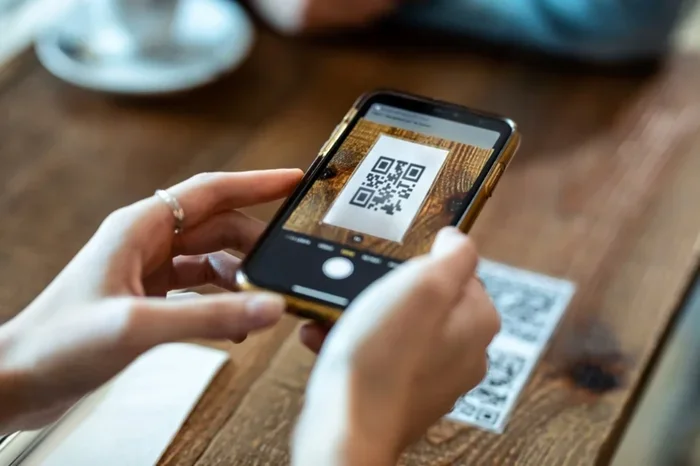
Yes, you absolutely can take a picture of a QR code and scan it with ease. Modern smartphones and QR code reader apps make it simple to decode a QR code image from your camera roll or screenshot. Whether you need to scan QR code from photo, read a digital QR code, or extract data from a printed code, this guide covers everything you need to know.
Have you ever wondered whether you can snap a photo of a QR code and then scan it later? The answer is a resounding yes. Can you take a picture of a QR code and scan it? Absolutely. In today’s world, QR code scanning has become second nature for millions of people. We use QR codes to pay bills, visit websites, share contact details, and even order food at restaurants.
But here is something many people do not realize. You do not always need your phone camera pointed directly at a QR code in real time. You can save a QR code image, pull it from your photo gallery, or grab it from a screenshot. Then you can scan QR code from photo whenever it is convenient. This opens up a world of flexibility that many users overlook entirely.
The process is simpler than most people think. Whether you are using an iPhone or an Android device, the tools are already built into your phone or available as free downloads. Let us walk through exactly how this works, what you need to watch out for, and how to get the best results every single time.
Key Takeaways
- Scanning Works: You can take a picture of a QR code and scan it using built-in phone cameras or dedicated QR code apps.
- Resolution Matters: The quality of your QR code image directly affects scanning success.
- Multiple Methods: Several apps and tools let you scan QR codes from photos on both iOS and Android.
- Common Issues: Blurry images, damaged codes, and poor lighting are the top reasons scanning fails.
- Security Tips: Always verify the source of a QR code before scanning to stay safe online.
- Dynamic QR Codes: These can be updated after creation, making them more versatile than static versions.
- Future Trends: QR code technology continues to evolve with better recognition and faster scanning speeds.
📑 Table of Contents
- What Is a QR Code and How Does It Work?
- Can You Take a Picture of a QR Code and Scan It?
- How to Scan a QR Code from a Photo Step by Step
- Tips for Successful QR Code Photo Scanning
- Common Mistakes That Prevent QR Code Scanning
- Is It Safe to Scan QR Codes from Photos?
- Comparison: Scanning QR Codes in Real Time vs. from Photos
- Expert Insights on QR Code Photo Scanning
- Key Takeaways
- Frequently Asked Questions
- Final Thoughts
What Is a QR Code and How Does It Work?
Before we dive into the scanning process, let us quickly cover what a QR code actually is. A QR code, short for Quick Response code, is a two-dimensional barcode. It stores information in a grid of black and white squares. When a QR code reader or camera scans it, the software decodes the pattern and translates it into useful data.
How QR Code Technology Works
The QR code technology behind these codes is fascinating but straightforward. Each square pattern in the grid represents binary data. The three large squares in the corners help the scanner orient itself. Once aligned, the reader interprets the remaining pattern and converts it into text, a URL, a phone number, or whatever information the code contains.
There are two main types of QR codes you will encounter:
- Static QR codes: These contain fixed information that cannot be changed after creation. They are permanent and simple to generate.
- Dynamic QR codes: These redirect to a URL that can be updated even after the code has been printed. This makes them more flexible and trackable.
Both types work perfectly when you take a picture of a QR code and scan it. The scanner does not care whether the code is live or stored as an image file. It reads the pattern the same way either way.
Can You Take a Picture of a QR Code and Scan It?
Let us get straight to the point. Can you take a picture of a QR code and scan it with your phone? Yes, you can. Both iOS and Android devices support this feature in different ways. You do not need any special equipment or expensive software. A standard smartphone is all you need.
Using Your Built-In Camera
Most modern smartphones have built-in QR code recognition in their default camera app. On iPhone models running iOS 11 or later, you can simply open the camera, point it at a QR code, and tap the notification that appears. But what about scanning from a photo?
On iPhone, you can use the Photos app to scan a saved QR code image. Open the photo, and a notification will appear at the bottom of the screen. Tap it, and your phone will decode the information. On Android, the Google Lens feature works similarly. Open your gallery, tap the Google Lens icon, and point it at the QR code image in your photos.
Using Dedicated QR Code Apps
If your phone does not support built-in scanning from photos, do not worry. Plenty of free QR code apps handle this task beautifully. Apps like Kaspersky QR Scanner, QR Code Reader by Scan, and Google Lens all allow you to scan QR code from photo with just a few taps.
Here is how most apps work:
- Open the app on your phone.
- Select the option to scan from your gallery or photo library.
- Choose the image containing the QR code.
- The app will automatically decode and display the content.
The entire process takes just a few seconds. It is one of the easiest ways to extract data from a digital QR code without needing the original printed version.
How to Scan a QR Code from a Photo Step by Step
Let us walk through the exact steps for both major platforms. This way, you will know exactly what to do the next time you need to scan QR code from screenshot or pull a code from your camera roll.
On iPhone
Apple made scanning QR codes from photos very user-friendly. Here is what you need to do:
- Open the Photos app on your iPhone.
- Select the image that contains the QR code.
- Look for a yellow notification banner at the bottom of the screen.
- Tap the banner to open the decoded content.
If you do not see the notification, try opening the image in full screen and swiping up. The QR code recognition feature should trigger automatically.
On Android
Android devices offer a couple of methods for scanning saved QR code images:
- Google Lens method: Open your gallery, tap the Google Lens icon at the bottom, and point it at the QR code in your photo.
- Default camera method: Some Android phones let you scan from the gallery directly through the camera app. Look for a QR code scanning option in your camera settings.
- Third-party apps: Download any free QR code scanner from the Google Play Store and use its gallery scanning feature.
Each method works well. The Google Lens approach tends to be the most reliable across different Android brands and models.
On Desktop or Laptop
You can also scan QR codes from images on your computer. Websites like QRCodeScannerOnline.com and WebQR.com let you upload an image file and decode it instantly. This is handy when you do not have your phone nearby but need to access the information stored in a QR code image.
Tips for Successful QR Code Photo Scanning
Not every photo scan goes perfectly. Sometimes the code fails to read, and you are left wondering what went wrong. Here are some practical tips to ensure smooth scanning every time.
Check the Image Quality First
The single most important factor in successful QR code photo scanning is image quality. A blurry, pixelated, or low-resolution image will almost always fail to decode. Before you try scanning, zoom in on the image and make sure all the squares are sharp and clearly defined.
If the image is blurry, try finding a higher-resolution version. If you took the photo yourself, retake it with better lighting and a steady hand. The QR code resolution needs to be high enough for the scanner to distinguish each individual square in the pattern.
Ensure Proper Lighting
Lighting plays a bigger role than most people realize. When you take a picture of a QR code, make sure the lighting is even across the entire code. Shadows, glare, and reflections can distort the pattern and confuse the scanner.
Quick tips for better lighting:
- Avoid taking photos of QR codes in direct sunlight where harsh shadows form.
- Turn on your phone’s flashlight if the code is in a dimly lit area.
- Hold your phone steady to avoid motion blur.
- Wait for any glare on glossy printed codes to fade before snapping the photo.
Crop the Image for Better Results
Sometimes the entire photo is not needed. If the QR code takes up only a small portion of a larger image, crop it before scanning. This removes distractions and helps the QR code scanner focus entirely on the code itself. Most photo editing apps, including the built-in tools on iOS and Android, make cropping quick and easy.
Avoid Compression Artifacts
Images that have been heavily compressed or resized often lose detail. This is especially true for QR codes shared through messaging apps like WhatsApp or Messenger, which compress files to save data. If possible, always scan the original, uncompressed version of the QR code image for the best results.
Common Mistakes That Prevent QR Code Scanning
Even with the best intentions, people run into problems when trying to scan QR code from photo. Understanding these common mistakes can save you a lot of frustration.
Scanning a Damaged or Worn Code
Printed QR codes on posters, flyers, and product packaging can fade or get damaged over time. If the code has tears, smudges, or missing squares, the scanner cannot read it properly. Always inspect the code visually before attempting to scan it from a photo.
Using the Wrong Scanning App
Not all scanning apps are created equal. Some older or poorly designed apps struggle with image-based scanning. Stick to well-known, highly rated apps like Google Lens, Kaspersky QR Scanner, or the built-in camera apps on your device. These tools are regularly updated and handle image-based QR scanning with high accuracy.
Ignoring the Code’s Orientation
While modern scanners are forgiving, extremely rotated or tilted images can sometimes cause problems. If your scan fails, try rotating the image slightly in your photo editor and try again. This small fix solves the issue more often than you might expect.
Forgetting to Grant Permissions
Your scanning app needs permission to access your photo library. If you denied this permission during setup, the app cannot pull images from your gallery. Go to your phone settings, find the app, and enable photo access to fix this issue.
Is It Safe to Scan QR Codes from Photos?
Safety is a valid concern when it comes to QR code scanning. QR codes can contain malicious URLs, phishing links, or unwanted downloads. When you scan a code in real time, you can at least see the URL before tapping it. But when you scan from a photo, the process feels more automatic, which can lower your guard.
Here are some safety tips to keep in mind:
- Verify the source: Only scan QR codes from trusted sources. If a friend sent you a photo with a code, you are likely safe. But random codes found online deserve more caution.
- Preview the URL: Many scanning apps show you the decoded URL before opening it. Take a moment to review it.
- Use a reputable scanner: Trusted QR code software often includes built-in security checks that flag suspicious links.
- Do not scan damaged or altered codes: Codes that look tampered with could have been replaced with malicious content.
By following these simple precautions, you can enjoy the convenience of QR code photo scanning without putting your device or personal data at risk.
Comparison: Scanning QR Codes in Real Time vs. from Photos
Both methods have their strengths. Here is a quick comparison to help you understand when each approach makes the most sense.
| Feature | Real-Time Scanning | Photo-Based Scanning |
|---|---|---|
| Speed | Instant | Slight delay |
| Convenience | Requires the physical code | Can scan from anywhere |
| Image Quality Needed | N/A | High resolution preferred |
| Best For | Quick, on-the-go scans | Saving codes for later use |
| Security | You see the URL before opening | Same, if the app supports preview |
| Works Offline | Yes | Yes |
As you can see, both methods serve different purposes. Real-time scanning is great for quick interactions. But scanning QR codes from photos gives you the freedom to collect and revisit codes whenever you need them.
Expert Insights on QR Code Photo Scanning
Industry professionals in the QR code technology space agree that photo-based scanning is the future. As phones get better cameras and smarter software, the line between real-time scanning and image-based scanning continues to blur.
One trend worth noting is the rise of contactless information sharing. QR codes are everywhere now, from restaurant menus to event tickets to business cards. Being able to save these codes as images and scan them later makes the entire process more efficient and user-friendly.
Another expert observation is that QR code printing quality matters enormously. A high-resolution print with sharp contrast makes photo scanning nearly effortless. A faded or low-quality print, on the other hand, can turn a simple task into a frustrating experience. If you are creating QR codes for others to scan, always use high-resolution output formats like PNG or SVG.
Security experts also recommend that users keep their phone operating system and scanning apps up to date. Updates often include improvements to QR code recognition and security patches that protect against newly discovered threats.
Key Takeaways
- Scanning Works: You can take a picture of a QR code and scan it using built-in phone cameras or dedicated QR code apps.
- Resolution Matters: The quality of your QR code image directly affects scanning success.
- Multiple Methods: Several apps and tools let you scan QR codes from photos on both iOS and Android.
- Common Issues: Blurry images, damaged codes, and poor lighting are the top reasons scanning fails.
- Security Tips: Always verify the source of a QR code before scanning to stay safe online.
- Dynamic QR Codes: These can be updated after creation, making them more versatile than static versions.
- Future Trends: QR code technology continues to evolve with better recognition and faster scanning speeds.
Frequently Asked Questions
Can I scan a QR code from a screenshot on my phone?
Yes, you can scan a QR code from a screenshot just as easily as from a regular photo. Both iOS and Android devices support this. Simply open your screenshot in the gallery and use your built-in scanner or a QR code app to decode it. The process works the same way regardless of how the image was created.
Why does my phone fail to scan a QR code from a photo sometimes?
The most common reasons are low image resolution, blurriness, poor lighting in the original photo, or compression artifacts from file sharing. Make sure the QR code squares are sharp and clearly visible. Try cropping the image to focus on the code itself, and ensure you are using a reliable scanning app.
Do I need an internet connection to scan a QR code from a photo?
No, you do not need the internet for basic QR code decoding. The scanning process happens locally on your device. However, if the QR code contains a web URL, you will need an internet connection to open and view the linked content after scanning.
Is it safe to scan QR codes from photos found online?
It can be safe, but you should always exercise caution. Only scan codes from trusted sources. Many scanning apps will preview the decoded URL before opening it, giving you a chance to verify the destination. If anything looks suspicious, do not proceed with opening the link.
Can I scan a QR code from a photo on my computer?
Yes, you can. Several websites allow you to upload a QR code image and decode it right in your browser. Popular options include WebQR.com and QRCodeScannerOnline.com. This is especially useful when you do not have your phone nearby but need to access the information stored in the code.
What is the difference between a static and dynamic QR code when scanning from photos?
A static QR code contains fixed information that never changes. A dynamic QR code redirects to a URL that can be updated by the creator even after the code has been shared. Both types scan the same way from photos. The difference lies in what happens after scanning, with dynamic codes offering more flexibility and tracking capabilities.
Final Thoughts
The answer to can you take a picture of a QR code and scan it is a clear and definitive yes. QR code scanning has evolved into a seamless experience that works whether you point your camera at a live code or pull an image from your photo library. The technology is reliable, accessible, and continues to improve with every software update.
By following the tips in this guide, you can scan any QR code image with confidence. Check the resolution, ensure good lighting, crop when necessary, and use a trusted scanning app. These small steps make a huge difference in your success rate.
Stay safe by verifying sources and previewing URLs before opening them. And remember, the flexibility of being able to scan codes from photos means you never have to miss out on the information a QR code provides. Save it, scan it later, and enjoy the convenience that QR code technology brings to your everyday life.
Next time you see a QR code on a poster, a receipt, or a screen, do not hesitate to snap a photo. You now know exactly how to scan QR code from photo and get the most out of every code you encounter. Happy scanning.