Can You Connect Keychron To Phone And Start Typing
Yes, you can connect a Keychron keyboard to your phone and start typing right away. Keychron keyboards support Bluetooth pairing with both Android and iPhone devices, making them a great portable typing solution. Whether you use a Keychron K series or Q series model, the process is simple and fast. This guide walks you through every step, from initial pairing to solving common connection issues. You will also learn tips to improve your typing experience on a mobile device.
Have you ever wanted to type something long on your phone and wished you had a real keyboard? Maybe you are working on an email, writing a blog post, or just chatting with friends. A tiny phone screen keyboard can slow you down and make typing feel frustrating. This is where a Keychron keyboard comes in handy. You can connect it to your phone and turn your mobile device into a mini workstation.
The good news is that connecting a Keychron keyboard to a phone is simple. Most Keychron models use Bluetooth connection to link with mobile devices. You do not need any cables or special software. Whether you own a Keychron K series or a Keychron Q series model, the pairing process is almost the same. In this article, we will show you exactly how to do it.
We will also cover common problems you might face, tips to make typing smoother, and answers to questions you may have. By the end of this guide, you will know everything about using a wireless keyboard with your phone. Let us get started.
Key Takeaways
- Easy Bluetooth Pairing: Most Keychron keyboards connect to phones via Bluetooth in just a few simple steps.
- Wide Phone Compatibility: Keychron keyboards work with both Android and iPhone devices without extra software.
- Multi-Device Support: Many Keychron models let you pair with up to three devices and switch between them easily.
- Portable and Compact: Keychron offers slim, travel-friendly designs perfect for mobile typing on the go.
- Quick Troubleshooting: Common connection problems like lag or disconnects can be fixed with simple resets and updates.
- Better Typing Experience: Using a mechanical or low-profile Keychron keyboard makes phone typing faster and more comfortable.
📑 Table of Contents
- Why Connect a Keychron Keyboard to Your Phone
- Which Keychron Keyboards Work with Phones
- How to Connect a Keychron Keyboard to Your Phone
- Switching Between Devices with Multi-Device Pairing
- Tips to Improve Your Typing Experience on a Phone
- Common Problems and How to Fix Them
- Keychron Keyboard vs Phone On-Screen Keyboard
- Final Thoughts
Why Connect a Keychron Keyboard to Your Phone
Say Goodbye to Tiny On-Screen Keys
Typing on a phone screen is okay for short messages. But when you need to write a long document or reply to a work email, it becomes a real pain. The on-screen keyboard takes up half your screen, and autocorrect often changes words you did not mean to change. A mechanical keyboard or a low-profile keyboard from Keychron gives you real keys and a much better feel.
When you connect a Keychron keyboard to your phone, you get a physical typing surface that feels familiar. Your fingers land on the right keys every time. You do not have to look down at the screen to find each letter. This makes typing faster and more accurate. Many people who switch to an external keyboard phone setup say they never want to go back.
Work and Play Anywhere
A portable keyboard like the Keychron K3 or K2 weighs very little and fits in a bag easily. You can take it to a coffee shop, a library, or even on a trip. Pair it with your phone and you have a full typing setup without carrying a laptop. This is perfect for people who work remotely or study on the go.
Some Keychron models also support multi-device pairing. This means you can connect the keyboard to your phone, tablet, and laptop at the same time. With the press of a button, you switch between devices. It is a game-changer for people who use multiple gadgets every day.
Which Keychron Keyboards Work with Phones
Most Keychron keyboards support Bluetooth wireless typing with phones. However, not all models are the same. Some are better suited for mobile use because of their size and battery life. Here is a quick look at the popular options.
Keychron K Series
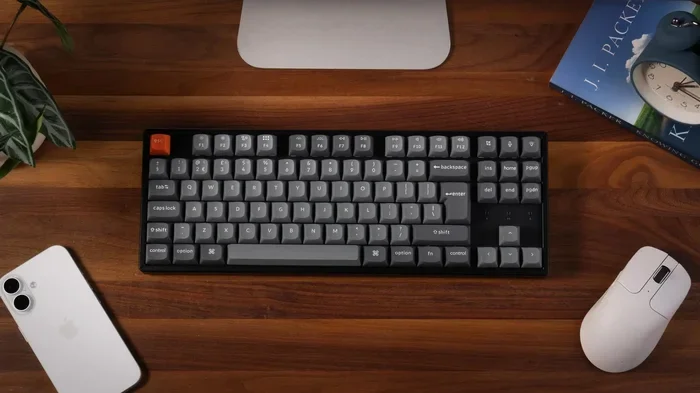
The Keychron K series includes models like the K2, K3, K4, and K6. These are compact wireless keyboards that work great with phones. The K3 is one of the most popular choices for mobile users. It is slim, lightweight, and has a built-in rechargeable battery that lasts for weeks.
The K2 offers a slightly larger layout with dedicated function keys. The K4 has a wrist rest for extra comfort during long typing sessions. All of these models connect to phones through Bluetooth and work with both Android and iPhone.
Keychron Q Series
The Keychron Q series includes the Q1, Q2, Q3, and Q65. These are full-size or tenkeyless keyboards with premium build quality. They use hot-swappable switches, which means you can customize the typing feel. While they are larger, they still connect to phones via Bluetooth.
The Q65 is a great option if you want a compact layout that still works well with a phone. It has a gasket mount design that makes typing smooth and quiet. These keyboards are ideal for people who want a typing experience that feels close to a desktop setup, even on a phone.
How to Connect a Keychron Keyboard to Your Phone
The Bluetooth pairing process is straightforward. You can connect your Keychron keyboard to an Android phone or an iPhone in just a few minutes. Follow the steps below for your device.
Connecting to an Android Phone
Android phones make it very easy to pair with a Keychron keyboard. Here is what you need to do:
- Turn on your Keychron keyboard. Press and hold the power button until the LED light starts blinking.
- Put the keyboard in Bluetooth mode. On most models, you press the Fn key and the Q1 or Q2 key to switch to Bluetooth channel 1 or 2.
- Open Bluetooth settings on your Android phone. Go to Settings, then Connections, then Bluetooth.
- Scan for devices. Your phone will search for nearby Bluetooth devices.
- Find your Keychron keyboard. It should appear as “Keychron K2” or whatever model you own.
- Tap to pair. The connection should establish within a few seconds.
Once paired, you can open any app and start typing. The keyboard works in all apps, from Notes to WhatsApp to Google Docs. You can also check the Keychron software on a computer later to customize key bindings, but this is not required for phone use.
Connecting to an iPhone
iPhone users will also find the pairing process simple. Here are the steps:
- Power on your Keychron keyboard and put it in Bluetooth mode using the Fn + Q1 or Q2 shortcut.
- Open the Settings app on your iPhone.
- Tap Bluetooth and make sure it is turned on.
- Look for your Keychron keyboard in the list of other devices.
- Tap on the keyboard name to pair.
- Enter the pairing code if your phone asks for it. Type the numbers on the Keychron keyboard and press Enter.
After pairing, your iPhone will recognize the Keychron keyboard as an external input device. You can use it in any app, including Messages, Mail, Notes, and third-party apps like Google Docs or Microsoft Word. The keyboard also works with keyboard apps that support external hardware input.
Quick Tips for a Smooth Connection
- Keep your phone close. Bluetooth works best within 3 to 5 feet of the keyboard, especially during initial pairing.
- Charge your keyboard. A low battery can cause connection drops. Make sure your Keychron keyboard has enough charge before pairing.
- Restart Bluetooth. If your phone does not find the keyboard, turn Bluetooth off and on again.
- Forget old pairings. If the keyboard was previously connected to another device, remove it from that device’s Bluetooth memory first.
Switching Between Devices with Multi-Device Pairing
Many Keychron models support multi-device pairing. This feature lets you connect the keyboard to up to three devices at the same time. You can switch between your phone, tablet, and laptop without re-pairing every time.
To use this feature, you assign each device to a different Bluetooth channel. For example:
- Channel 1 (Q1): Your Android phone
- Channel 2 (Q2): Your iPad
- Channel 3 (Fn + Q3): Your Windows laptop
When you want to switch devices, just press Fn and the corresponding Q key. The keyboard disconnects from the current device and connects to the new one. This is incredibly useful if you use your Keychron keyboard for both work and personal tasks on different devices.
The multi-device pairing feature works the same way on both Android and iPhone. The only thing to keep in mind is that each device needs to have Bluetooth turned on and be within range. Once set up, switching takes just one second.
Tips to Improve Your Typing Experience on a Phone
Adjust Your Phone Settings
When you use an external keyboard phone setup, a few small changes can make a big difference. On Android, go to Settings, then System, then Languages and Input. Make sure the physical keyboard is set as the default input method. On iPhone, go to Settings, then General, then Keyboard, and ensure that Hardware Keyboard is enabled.
You can also adjust the typing speed and key repeat rate on some Keychron keyboards using the Keychron software on a computer. This helps if your phone feels like it is lagging when you type fast.
Use a Keyboard Stand or Case
Typing on a flat surface can feel awkward if your phone is lying flat on a table. A small phone stand or a keyboard case can raise your phone to a better angle. This reduces neck strain and makes typing more comfortable. Many Keychron users pair their keyboard with a simple foldable phone stand for the best mobile setup.
Try Different Key Switches
If you want the best typing experience on your phone, consider the type of switches your Keychron keyboard uses. Red switches are linear and quiet, making them great for office use. Brown switches offer a light tactile bump for feedback without being too loud. Blue switches are clicky and loud but give strong feedback. Choose the switch that matches your environment and preference.
Common Problems and How to Fix Them
Keyboard Not Showing Up in Bluetooth List
This is the most common issue people face when trying to connect a Keychron keyboard to a phone. First, make sure the keyboard is in pairing mode. The LED should blink rapidly. If it does not, try turning the keyboard off and on again. Then restart Bluetooth on your phone and scan again.
Also, check if the keyboard is already connected to another device. If it is, disconnect it from that device first. Some Keychron models will not appear in the Bluetooth list if they are already paired with another active device.
Typing Lag or Delay
A slight delay when you type is normal over Bluetooth, especially on older phone models. However, if the lag is noticeable, try moving closer to the keyboard. Interference from Wi-Fi routers or other Bluetooth devices can also cause delays.
You can also try switching to a different Bluetooth channel. On your Keychron keyboard, press Fn and Q1 to switch to channel 1, or Fn and Q2 for channel 2. Sometimes a different channel has less interference and gives a smoother wireless typing experience.
Keyboard Disconnects Randomly
If your Keychron keyboard keeps disconnecting, the battery might be low. Charge it fully and try again. Also, make sure your phone is not going into sleep mode, which can sometimes break the Bluetooth connection.
On some Android phones, battery optimization settings may close background Bluetooth connections. Go to Settings, then Apps, find your keyboard, and disable battery optimization for it. This keeps the Bluetooth connection stable.
Keychron Keyboard vs Phone On-Screen Keyboard
It is helpful to compare a Keychron keyboard with the standard phone keyboard so you can see the real difference. Here is a side-by-side look at what each option offers.
| Feature | Keychron Keyboard | Phone On-Screen Keyboard |
|---|---|---|
| Typing Speed | Fast and accurate | Slower, more errors |
| Comfort | Real keys, less finger strain | Flat glass surface |
| Screen Space | No screen used for typing | Takes up half the screen |
| Portability | Lightweight and compact | Built into phone |
| Multi-Device Use | Yes, on most models | Only on one device |
| Customization | Key remapping, macros | Limited options |
| Battery Required | Yes, rechargeable | No |
As you can see, a Keychron keyboard offers a much better typing experience for anything beyond quick messages. If you type a lot on your phone, investing in a compact wireless keyboard is well worth it.
Final Thoughts
So, can you connect a Keychron keyboard to your phone and start typing? Absolutely yes. The process is simple, fast, and works with almost all Keychron models. Whether you use an Android phone or an iPhone, Bluetooth pairing takes just a minute or two. Once connected, you will wonder how you ever typed on a phone screen for long periods.
A Keychron keyboard transforms your phone into a powerful typing tool. You can write emails, draft documents, chat with friends, or even code from your phone. The compact and portable design makes it easy to carry anywhere. With multi-device pairing, you get the flexibility to switch between your phone, tablet, and laptop seamlessly.
If you have been looking for a way to improve your mobile typing, a Keychron keyboard is one of the best investments you can make. Pick the model that fits your needs, follow the pairing steps in this guide, and you will be typing on your phone in no time. Happy typing!
Frequently Asked Questions
Can all Keychron keyboards connect to phones?
Most Keychron keyboards support Bluetooth and can connect to phones. Models in the K series and Q series all offer wireless phone pairing. Check the product specifications to confirm Bluetooth support before buying.
Do I need to install any app to connect a Keychron keyboard to my phone?
No, you do not need any app. The Bluetooth pairing is handled by your phone’s built-in settings. The Keychron software is optional and only needed for advanced customization on a computer.
Can I connect a Keychron keyboard to both an iPhone and an Android phone?
Yes, Keychron keyboards work with both iPhone and Android devices. The Bluetooth connection process is the same for both platforms. You can even pair the keyboard with both phones and switch between them.
How many devices can a Keychron keyboard pair with at once?
Most modern Keychron models support multi-device pairing with up to three devices. You can assign each device to a different Bluetooth channel and switch between them with a simple key combination.
Why does my Keychron keyboard disconnect from my phone randomly?
Random disconnects are usually caused by a low battery or Bluetooth interference. Charge your keyboard fully and move closer to your phone. Switching to a different Bluetooth channel can also help stabilize the connection.
Can I use a Keychron keyboard with a phone for gaming?
Yes, you can use a Keychron keyboard with phone games that support external controllers or keyboards. However, not all mobile games accept external input. Check the game settings to see if it supports a physical keyboard app or hardware input.
=== CONCLUSION ===
Connecting a Keychron keyboard to your phone opens up a world of typing convenience. You get faster speeds, better accuracy, and a more comfortable experience than any on-screen keyboard can offer. The process is simple, the compatibility is wide, and the results are immediate.
Whether you are a student, a remote worker, or someone who types a lot on their phone, a Keychron keyboard is a smart addition to your setup. Start with the pairing steps in this guide, explore the multi-device pairing options, and enjoy a better way to type on the go. Your phone typing experience will never be the same again.