How Do I Allow Bluetooth To Connect On My Devices
Learning how to allow Bluetooth to connect on your devices is easier than you think. This guide walks you through enabling Bluetooth on Windows, Mac, Android, and iPhone with clear steps. You will also discover quick fixes for common Bluetooth pairing problems and expert tips to keep your wireless connection strong.
Have you ever tried to allow Bluetooth to connect and just nothing happened? You are not alone. Bluetooth connectivity issues frustrate millions of people every day. Whether you are trying to pair headphones, a keyboard, or a speaker, the process should be simple. But sometimes it is not. This guide will show you exactly how to make Bluetooth work on every device you own.
Bluetooth is a short-range wireless technology that lets devices talk to each other without cables. It uses radio waves to send data over short distances, usually within 30 feet. The technology has been around for decades and is built into almost every modern phone, laptop, and tablet. Understanding how to allow Bluetooth to connect properly saves you time and keeps your devices working smoothly.
In this article, we will cover everything you need to know. From turning on Bluetooth on different platforms to fixing common connection problems, you will find practical answers here. We also share expert tips that go beyond the basics. By the end, you will feel confident pairing any Bluetooth device with ease.
Key Takeaways
- Enable Bluetooth in Settings: Every device has a simple toggle to turn on Bluetooth and make it visible for pairing.
- Put Devices in Pairing Mode: Most peripherals need to be in discovery mode before they can connect.
- Troubleshoot Common Issues: Restarting devices, updating drivers, and removing old pairings often solve connection problems.
- Manage Multiple Connections: You can pair and switch between several Bluetooth devices without hassle.
- Security Matters: Always verify the device you are connecting to and keep your Bluetooth off when not in use.
📑 Table of Contents
- What Is Bluetooth and How Does It Work?
- How to Allow Bluetooth to Connect on Windows
- How to Allow Bluetooth to Connect on Mac
- How to Allow Bluetooth to Connect on Android
- How to Allow Bluetooth to Connect on iPhone and iPad
- Troubleshooting Bluetooth Connection Problems
- Security Best Practices for Bluetooth
- Can I Use Bluetooth for More Than Just Audio?
- Quick Tips for Better Bluetooth Performance
- Common Mistakes People Make With Bluetooth
- Final Thoughts
What Is Bluetooth and How Does It Work?
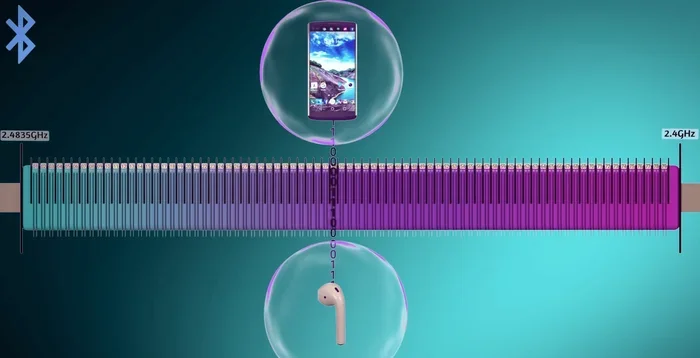
Bluetooth is a wireless communication standard that replaces cables with radio signals. Two devices exchange data using short-range radio waves at 2.4 GHz. This frequency band is shared by many wireless devices, which is why interference can happen.
When you allow Bluetooth to connect, one device acts as the sender and the other as the receiver. The sending device broadcasts a signal. The receiving device picks it up and establishes a secure link. This process is called pairing. Once paired, the devices remember each other and reconnect automatically in the future.
Bluetooth Versions and What They Mean
Bluetooth has evolved a lot over the years. Each new version brings better speed, range, and battery efficiency. Here is a quick look at the versions you will encounter most often.
- Bluetooth 4.0: Introduced Low Energy (BLE) for devices that need to save battery. Common in fitness trackers and sensors.
- Bluetooth 5.0: Doubled the range and speed compared to version 4.0. Found in most modern smartphones.
- Bluetooth 5.3: The latest consumer version with improved connection stability and lower power use.
Knowing your Bluetooth version helps when troubleshooting. Older devices may not connect to newer ones because of compatibility gaps. Always check the Bluetooth version on your device if you face persistent Bluetooth connectivity issues.
How to Allow Bluetooth to Connect on Windows
Windows computers make it easy to manage Bluetooth connections. Whether you are using Windows 10 or Windows 11, the steps are very similar. Let us walk through the process step by step.
Step 1: Turn On Bluetooth
Click the Start menu and open Settings. Go to the Bluetooth & devices section. You will see a toggle switch at the top. Flip it to On. Your PC is now discoverable and ready to pair with other devices.
If you do not see the Bluetooth option, your computer may not have a built-in Bluetooth adapter. In that case, you can buy a USB Bluetooth dongle. Plug it into a USB port and Windows should install the driver automatically.
Step 2: Put Your Device in Pairing Mode
Your Bluetooth device needs to be visible before Windows can find it. Most devices have a dedicated pairing button. Press and hold it until a light starts flashing. This usually means the device is in Bluetooth pairing mode.
For example, if you are trying to pair Bluetooth headphones, hold the power button or a dedicated Bluetooth button on the earcup. The LED will blink blue or red. That blinking light means the headphones are broadcasting their presence. Now Windows can detect them.
Step 3: Add the Device in Windows
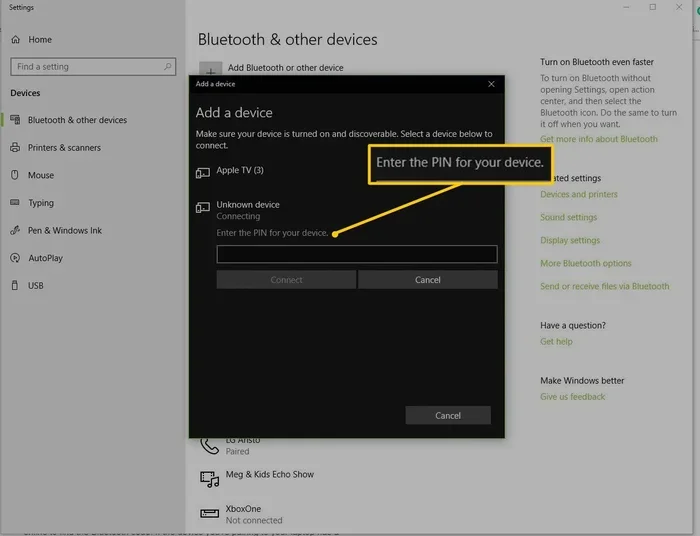
Back in the Settings menu, click Add device. Windows will scan for nearby Bluetooth devices. Select your device from the list and click Connect. You may need to enter a PIN if the device requires one. Once paired, the device will appear under your list of Bluetooth & devices.
Quick Tip: If the device does not show up, try moving it closer to your computer. Bluetooth range is typically about 30 feet. Walls and other electronics can weaken the Bluetooth signal.
How to Allow Bluetooth to Connect on Mac
Mac computers handle Bluetooth in a clean and intuitive way. Apple makes the pairing process straightforward. Here is how to get started.
Enable Bluetooth on Your Mac
Click the Apple menu in the top-left corner. Select System Settings (or System Preferences on older Macs). Click Bluetooth in the sidebar. Turn the switch to On. Your Mac is now broadcasting a Bluetooth signal.
You can also check the Bluetooth icon in the menu bar at the top of your screen. If it is not visible, go to System Settings and enable “Show Bluetooth in menu bar.” This gives you quick access to Bluetooth controls without opening Settings every time.
Pair a New Device
Once Bluetooth is on, your Mac will automatically scan for nearby devices. Find your device in the list and click Connect. Some devices require you to hold a button on the device itself first to make it discoverable.
If you are connecting a Bluetooth speaker or Bluetooth headset, make sure the device is in pairing mode before clicking Connect on your Mac. The two devices need to find each other at the same time.
Common Mistake: Many users forget to check whether their Mac Bluetooth is set to “Show Bluetooth Devices in Menu Bar.” This setting speeds up future pairing sessions significantly.
How to Allow Bluetooth to Connect on Android
Android phones and tablets offer flexible Bluetooth controls. The exact steps may vary slightly depending on your phone brand, but the general process is the same across all Android devices.
Turn On Bluetooth
Swipe down from the top of your screen to open the Quick Settings panel. Look for the Bluetooth icon. Tap it to turn Bluetooth On. You will see a Bluetooth icon appear in your status bar.
For more options, open the Settings app and tap Connections or Network & Internet (the name varies by brand). Tap Bluetooth and toggle it on. Your phone is now searching for nearby devices.
Make Your Phone Discoverable
By default, Android phones are always discoverable when Bluetooth is on. This means other devices can find your phone. However, some Android versions let you turn off discoverability after a few minutes to save battery. If you want to allow Bluetooth to connect reliably, keep discoverability on during the pairing process.
Pair a Device
Tap Pair new device on your Android screen. A list of available devices will appear. Find the device you want to connect to and tap it. Follow any on-screen prompts to complete the pairing. You may need to confirm a passkey or enter a PIN.
Pro Tip: If your phone does not find the device, try toggling Bluetooth off and back on. This simple reset often fixes Bluetooth connectivity issues without any deeper troubleshooting.
How to Allow Bluetooth to Connect on iPhone and iPad
Apple devices handle Bluetooth with the same simplicity as Macs. The process is nearly identical across iPhones and iPads.
Enable Bluetooth on Your iPhone
Open the Settings app and tap Bluetooth. Toggle the switch to On. Your iPhone will immediately start scanning for nearby devices. You will also see a Bluetooth icon in the top-right corner of your screen.
Quick shortcut: Swipe down from the top-right corner of your screen to open Control Center. Tap the Bluetooth icon to turn it on. However, this shortcut does not show you the full list of available devices. For that, you still need to go to Settings.
Pair a New Device
Find your device in the list of Other Devices. Tap its name to begin pairing. Some devices, like Bluetooth speakers or wireless keyboards, may require you to press a pairing button first. Once paired, the device will appear under My Devices.
If you are trying to connect an iPhone to TV with HDMI using an adapter that also supports Bluetooth audio output, make sure the Bluetooth settings are configured correctly on your iPhone first.
Troubleshooting Bluetooth Connection Problems
Even when you follow all the steps, Bluetooth connections can still fail. Do not worry. Most issues have simple solutions. Let us look at the most common problems and how to fix them.
Device Not Showing Up in the List
This is the most common Bluetooth problem. The device you want to connect to simply does not appear on your screen. Here are the most likely reasons and fixes.
- The device is not in pairing mode: Check the device manual. Most devices need you to hold a button for 3 to 5 seconds to enter pairing mode.
- Too far away: Move the device closer to the one you are trying to connect with. Stay within 30 feet for best results.
- Bluetooth is off: Double-check that Bluetooth is enabled on both devices. It sounds obvious, but it happens all the time.
- Old pairing data: Remove any previous pairing records. On your device, forget the old connection and try again.
Connection Keeps Dropping
A stable Bluetooth connection should not keep disconnecting. If it does, try these fixes.
- Reduce interference: Wi-Fi routers, microwaves, and USB 3.0 devices can all interfere with Bluetooth signals. Move away from these sources.
- Update your drivers: On Windows, go to Device Manager and check for Bluetooth driver updates. Outdated drivers cause many connection drops.
- Check battery levels: Low battery on either device can weaken the Bluetooth connection. Charge both devices before trying again.
Audio Quality Is Poor
If your Bluetooth headphones or speaker sound scratchy, the issue is usually signal strength or codec mismatch. Move closer to the source device. Also, make sure both devices support the same audio codec for the best quality. Most modern devices handle this automatically, but older devices may not.
Expert Insight: Many people do not realize that Bluetooth range drops significantly when there are walls or furniture between devices. For the best audio experience, keep the connected devices in the same room with a clear line of sight.
Security Best Practices for Bluetooth
Bluetooth is convenient, but it also introduces security risks if you are not careful. Keeping your devices safe should always be a priority.
Keep Bluetooth Off When Not in Use
Leaving Bluetooth on all the time makes your device visible to nearby Bluetooth devices. It also drains your battery faster. Get into the habit of turning Bluetooth off when you are not actively using it. This simple step reduces your exposure to potential security threats.
Only Pair with Trusted Devices
Do not accept pairing requests from devices you do not recognize. Malicious devices can try to connect to yours in public places like cafes, airports, and hotels. Always verify the device name before accepting a connection.
Keep Your Software Updated
Software updates often include security patches for Bluetooth vulnerabilities. Make sure your phone, tablet, and computer are running the latest operating system versions. This protects you from known exploits that target Bluetooth connections.
Can I Use Bluetooth for More Than Just Audio?
Absolutely. Bluetooth is not just for streaming music. The technology supports a wide range of device connections. Here are some common uses beyond audio.
- Keyboards and Mice: Wireless keyboards and mice connect via Bluetooth, eliminating cable clutter on your desk.
- Game Controllers: Many wireless controllers use Bluetooth to connect to PCs, consoles, and phones.
- Smartwatches and Fitness Trackers: These wearables sync data to your phone using Bluetooth.
- Printers: Some printers support Bluetooth printing directly from your phone or tablet.
- File Transfer: Bluetooth can be used to transfer files between devices, though it is slower than Wi-Fi sharing methods.
The versatility of Bluetooth is one reason it has become so popular. Nearly every wireless peripheral relies on this technology. Understanding how to allow Bluetooth to connect opens up a world of wireless convenience across all your devices.
Quick Tips for Better Bluetooth Performance
Follow these simple tips to get the most out of your Bluetooth connections every day.
- Restart both devices before attempting a new pairing. This clears temporary glitches that can block connections.
- Keep devices close together during the initial pairing process. Once paired, you can move further apart.
- Remove old pairings regularly. A crowded Bluetooth memory can slow down the discovery process.
- Update firmware on your Bluetooth devices. Manufacturers often release updates that improve connection stability.
- Avoid placing Bluetooth devices near Wi-Fi routers. Both operate on the 2.4 GHz band and can interfere with each other.
- Use Bluetooth 5.0 devices when possible. They offer better range, speed, and battery life than older versions.
These tips work across all platforms. Whether you are using Windows, Mac, Android, or iOS, following these practices will keep your Bluetooth connections strong and reliable.
Common Mistakes People Make With Bluetooth
Learning what not to do is just as important as learning the right steps. Here are the most common mistakes that prevent successful Bluetooth connections.
- Skipping pairing mode: Many users try to connect a device without putting it in pairing mode first. The device will not show up in the list.
- Ignoring software updates: Outdated operating systems can have bugs that break Bluetooth functionality. Always keep your devices updated.
- Not forgetting old devices: If your device remembers too many old pairings, it can struggle to find new ones. Clear the list regularly.
- Assuming all Bluetooth is the same: Bluetooth versions matter. An older device may not support the features of a newer one.
- Connecting in crowded areas: Busy places with many wireless devices can cause interference. Pair your devices in a quiet environment first.
Avoiding these mistakes will save you frustration and help you allow Bluetooth to connect smoothly every single time.
Final Thoughts
Knowing how to allow Bluetooth to connect on your devices is an essential skill in today’s wireless world. Whether you are using Windows, Mac, Android, or iPhone, the process is straightforward once you understand the basics. Turn on Bluetooth, put your device in pairing mode, and follow the on-screen prompts. When problems arise, the troubleshooting steps in this guide will help you resolve them quickly.
Remember to keep your Bluetooth secure by turning it off when not in use and only pairing with trusted devices. Follow the quick tips for better performance and avoid the common mistakes that trip up so many users. With a little practice, connecting Bluetooth devices will become second nature.
Bluetooth technology continues to improve with each new version. Faster speeds, longer range, and better battery efficiency make wireless connections more reliable every year. Embrace the convenience and enjoy the freedom of going cable-free. Your devices are ready to connect, and now you know exactly how to make it happen.
Frequently Asked Questions
Why Won’t My Bluetooth Device Show Up When I Search?
The most common reason is that the device is not in pairing mode. Check the device manual and look for a pairing button or a specific button combination. Also make sure Bluetooth is turned on and the device is within 30 feet of your host device.
Can I Connect Multiple Bluetooth Devices at the Same Time?
Yes, most modern devices support multiple Bluetooth connections simultaneously. Your phone or computer can stay paired with several devices like headphones, a keyboard, and a mouse all at once. However, bandwidth is shared, so connecting too many audio devices may reduce quality.
How Do I Forget a Bluetooth Device I No Longer Use?
Go to your Bluetooth settings, find the device in the list, and select Remove or Forget Device. This clears the pairing memory and frees up space for new connections. It also helps keep your Bluetooth list clean and responsive.
Does Bluetooth Use a Lot of Battery?
Bluetooth uses very little battery, especially with modern Low Energy (BLE) versions. Leaving Bluetooth on all day typically drains less than 5% of your battery. Turning it off when not in use is still a good habit for maximizing battery life.
What Is the Difference Between Bluetooth and Wi-Fi?
Bluetooth is designed for short-range, low-power connections between devices. Wi-Fi is designed for high-speed internet access over longer distances. They serve different purposes, but both use the 2.4 GHz frequency band, which can sometimes cause interference between them.
Can I Use Bluetooth Without an Internet Connection?
Yes, Bluetooth works completely independently of the internet. You can pair headphones, speakers, and keyboards to your device without any Wi-Fi or cellular data. Bluetooth uses its own radio signal to create a direct wireless connection between devices.