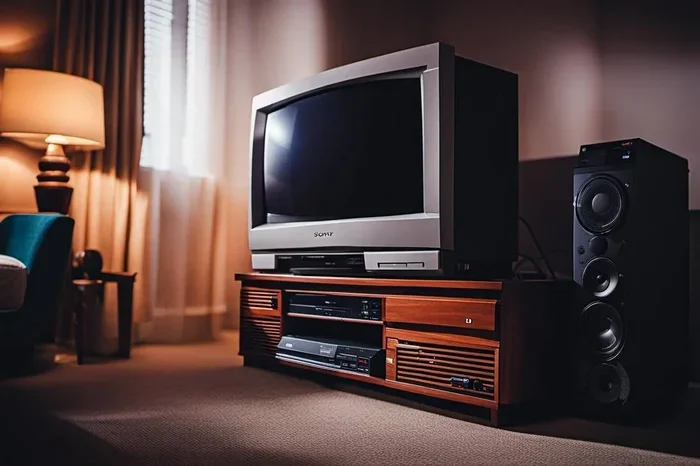
How Do I Auto Program Old TV Channels Without Remote
You can auto program channels on an old TVVCR TV without a remote by using the built in buttons on the set. Most older TVs have a menu system accessible through the power or channel buttons. This guide walks you through the entire process of auto programming channels on your vintage TV with no remote needed.
There is something special about an old TVVCR combo set sitting in your living room. These sets bring back memories and still work surprisingly well. But when the remote goes missing, things can feel stuck. The good news is that you can auto program old TV channels without remote in just a few minutes. This guide shows you exactly how to do it, step by step.
Many people think they need a fancy remote or a smart TV to get channels. That is simply not true. Older TVs were built to work with basic buttons and simple menus. Whether you have a tube TV or a flat screen from the early 2000s, the process is straightforward. You just need to know where to look and what buttons to press. Let us get your channels set up the right way.
Key Takeaways
- Button Navigation: You can access your TV menu using physical buttons on the set to auto program channels.
- Channel Scan Types: Your TV offers auto scan, manual scan, and channel store options for finding available channels.
- Connection Matters: The type of antenna or cable you use directly affects how many channels you can auto program.
- No Remote Is No Problem: Almost all old TVs were designed to be set up without a remote control.
- Digital Converter Boxes Help: These devices make it easier to auto program channels on older TV sets.
- Save Your Channels: Once scanned, your TV stores channels so you can access them quickly later.
📑 Table of Contents
- Understanding Your Old TVVCR TV Setup
- Getting Ready to Auto Program Channels
- How to Auto Program Channels Using TV Buttons
- Troubleshooting Common Channel Programming Problems
- Using a Digital Converter Box With Your Old TV
- Alternative Ways to Watch TV Without a Remote
- Maintaining Your Old TVVCR Setup
- Why Auto Programming Is Still the Best Method
- Final Thoughts on Programming Your Old TV
Understanding Your Old TVVCR TV Setup
Before you start programming channels, it helps to understand what you are working with. An old TVVCR combo unit has a built in VCR and a television tuner. The tuner is the part that picks up TV signals and turns them into picture and sound. The VCR part plays tapes but does not affect channel scanning directly.
Most of these sets use a coaxial cable connection for antenna or cable input. Some models also have RCA inputs for external devices. The tuner inside your TV handles all the work of finding channels. You do not need any extra equipment to auto program channels. Just make sure your TV is plugged in and turned on.
One thing to keep in mind is that older TVs use either analog or digital tuners. If your set was made before 2005, it likely has an analog tuner. After the digital transition in 2009, most TVs switched to digital tuners. You can check your model number online to confirm what type of tuner your TV has. This matters because it affects how you auto program old TV channels without remote.
What Kind of TV Do You Have?
Take a look at the back of your TV. You will usually find a model number printed on a label. Write it down. Then search for that model number online. The manufacturer website or a manual PDF will tell you what kind of tuner your TV uses. This small step saves a lot of frustration later on.
If your TV has a digital tuner, you can scan for over the air channels just like a modern TV. If it has an analog tuner, you will need a digital converter box to receive digital channels. Either way, you can still auto program channels using the buttons on the TV itself. The process is very similar for both types.
Getting Ready to Auto Program Channels
Preparation is the key to a smooth channel programming session. You do not want to start the scan and then realize you are missing something. A few minutes of setup makes the whole process much easier. Follow these simple steps before you begin.
Step One: Connect Your Antenna or Cable
First, make sure your antenna or cable is properly connected. The coaxial cable should go from your wall outlet or antenna directly into the TV input. On most old TVVCR units, the input is labeled “ANT IN” or “CABLE IN.” Push the connector on firmly until it clicks.
If you are using an indoor antenna, place it near a window for the best signal. Outdoor antennas give you the strongest reception. You can also try a signal amplifier if you live far from broadcast towers. A stronger signal means more channels will show up during your scan.
For those who still use cable TV, a simple coaxial cable from the wall to the TV works great. You do not need a special cable box to run a basic channel scan. Just plug it in and you are ready.
Step Two: Plug Everything In and Power On
Now plug your TV into a working outlet. Press the power button on the set to turn it on. The screen should light up. If you see no picture, check your connections and try a different outlet.
Once the TV is on, set it to the correct input source. On older sets, this is usually the “Antenna” or “Cable” setting. You can use the channel up and down buttons to cycle through input options if needed. Make sure you are on the right source before starting the scan.
Step Three: Gather Your Manual
Find the user manual for your TV model. If you do not have the paper copy, search online for a PDF version. Most manufacturers keep old manuals available for free download. The manual will tell you exactly which buttons to press for channel programming on your specific model.
Knowing your model gives you a huge advantage. Some TVs use a “Menu” button while others use a “Setup” or “Channel” button. The manual removes all guesswork. You can focus on the task at hand, which is auto programming channels without needing that missing remote.
How to Auto Program Channels Using TV Buttons
This is the core of the whole process. Every old TV has a built in channel programming feature. You access it through the on screen menu. The exact steps vary slightly by brand and model, but the general process is the same across most sets.
Finding the Channel Menu
Look for a button on the front or side of your TV labeled “Menu,” “Setup,” or “Channel.” Press it once. A menu should appear on screen. Use the channel up and down buttons or the volume buttons to navigate through the menu options.
On many sets, the “Channel” or “Setup” button brings you directly to the channel menu. On others, you may need to press “Menu” first and then use the arrow buttons to select “Channel Setup” or “Auto Program.” Look for words like “Auto Scan,” “Channel Search,” or “Auto Tuning.”
Once you find the right menu option, press the “Enter” or “Select” button to confirm your choice. The TV will start scanning for available channels automatically. This process usually takes between 5 and 15 minutes depending on your TV model.
Letting the TV Do the Work
During the auto scan, do not press any buttons. Just let the TV do its thing. The screen may show a progress bar or a message saying “Scanning Channels.” Some TVs will beep or show a number counting up as it finds each channel.
When the scan is complete, the TV will display a message like “Scan Complete” or “Total Channels Found.” This number tells you how many channels your TV detected. Write this number down so you can compare it later.
Now press “Exit” or “Menu” to leave the setup screen. Use the channel up and down buttons to browse through your newly programmed channels. You should see all the local stations and any other channels in your area. If you see a good mix of channels, you are all set.
Troubleshooting Common Channel Programming Problems
Sometimes things do not go as planned. Maybe your TV finds no channels or only a few. Do not worry. This is a common issue with older sets and it is usually easy to fix. Here are the most common problems and how to solve them.
No Channels Found During Scan
If your TV finds zero channels, the most likely cause is a bad connection. Check your coaxial cable at both ends. Make sure it is tight and secure. A loose connection will prevent your TV from picking up any signal at all.
Next, try moving your antenna to a different location. Even a few inches can make a big difference. If you are using cable, make sure the cable is not damaged or frayed. Sometimes simply unplugging and replugging the cable resets the connection.
Another possibility is that your TV is set to the wrong input. Double check that you are on the antenna or cable input, not on a video input like AV or HDMI. If your TVVCR combo has multiple input options, the wrong one will give you no channels.
Only a Few Channels Appear
Finding only a few channels usually means your signal is weak. Try repositioning your antenna or adding a signal amplifier. You can also try rescanning with the antenna in a different spot, like near a window or outside.
Weather can also affect your signal. Rain, storms, and even heavy clouds can weaken over the air broadcasts. Try running the scan again on a clear day. You may be surprised at how many more channels you pick up.
If you are in a rural area, you may be too far from broadcast towers. A larger outdoor antenna or a directional antenna pointed at the nearest tower can help a lot. These simple upgrades often double or triple the number of channels you receive.
Channels Are Choppy or Have No Sound
Choppy picture or no sound usually points to a signal strength issue. Try adjusting your antenna position again. You can also try rescanning the channels. Sometimes a channel that was weak during the first scan comes through clearly on a second attempt.
Check your cable connections one more time. A loose coaxial connector can cause both picture and sound problems. If you are using an extension cable, try removing it and connecting the antenna directly to the TV. Shorter cable runs mean stronger signals.
Using a Digital Converter Box With Your Old TV
If your TV has an analog tuner only, you will need a digital converter box to receive over the air channels. These boxes are affordable and widely available. They convert digital signals into analog signals your old TV can understand.
Setting up a converter box is simple. Connect the antenna to the converter box, then connect the converter box to your TV using a coaxial cable. The converter box acts as a bridge between the digital broadcast world and your old analog TV.
Most converter boxes have their own channel programming feature. You can use the buttons on the box to run an auto scan. The box finds and stores channels, then sends them to your TV. Your TV just displays whatever the box sends. This setup lets you auto program channels even on very old TV sets.
Some people also use their old VCR with a digital TV setup to record shows while watching live TV. This is a great way to get the most out of your old equipment.
Alternative Ways to Watch TV Without a Remote
If auto programming channels does not give you the results you want, there are other ways to watch TV on your old set. These alternatives can expand your viewing options significantly.
Connecting a Streaming Device
You can connect modern streaming devices to your old TV using HDMI or RCA cables. Devices like a Roku or Chromecast give you access to hundreds of channels and streaming apps. The setup is simple and does not require a remote for the TV itself.
For older TVs without HDMI, you can use an RCA composite cable. These have the red, white, and yellow plugs. Simply connect them from the streaming device to the corresponding inputs on your TV. Switch your TV to the right input and you are good to go.
Some people also use a phone to TV HDMI connection to mirror their phone screen on the old TV. This works great for watching online content on a bigger screen.
Using a Universal Remote
If you really want a remote, you can buy a universal remote for a few dollars. These remotes work with almost any TV brand and model. You just enter your TV brand and model code, and the remote is programmed automatically.
Universal remotes are a great backup solution. They give you the convenience of a remote without needing the original one. You can find them at most dollar stores, electronics shops, or online retailers.
Maintaining Your Old TVVCR Setup
Once you have your channels programmed, you want to keep everything running smoothly. Old TVs and VCRs need a little care to stay in good shape. Here are some simple maintenance tips.
- Dust your TV regularly: Use a soft dry cloth to wipe the screen and vents. Dust buildup can cause overheating.
- Check cables often: Loose or corroded cables cause signal problems. Inspect them every few months.
- Keep the VCR clean: If you still use the VCR part, clean the heads with a head cleaning tape once in a while.
- Store the TV properly: Keep it in a dry, cool place. Moisture and heat damage old electronics quickly.
- Run a channel rescan yearly: Broadcast towers sometimes change frequencies. A yearly rescan keeps your channel list up to date.
Taking care of your old TVVCR setup means it will keep working for years. These simple habits go a long way toward protecting your investment.
Why Auto Programming Is Still the Best Method
You might wonder why you should bother with auto programming when you can search for channels manually. The answer is simple: auto programming is faster, more thorough, and more reliable.
When you run an auto scan, your TV checks every available frequency in your area. It finds every channel automatically and stores them in order. Manual searching takes much longer and you might miss channels that are between your expected range.
Auto programming also updates your channel list when frequencies change. Broadcasters sometimes move to new channels or change their signal strength. A quick rescan catches all these changes. You always have the most complete and accurate channel list available.
For anyone who wants to watch free over the air channels, auto programming is the way to go. It is fast, easy, and gives you the best results with the least effort. You can do it all without a remote and without any special equipment.
Final Thoughts on Programming Your Old TV
Auto programming channels on an old TVVCR TV without a remote is easier than most people think. You just need the right knowledge and a little patience. Follow the steps in this guide and you will have your channels set up in no time.
Remember to check your connections, use a good antenna, and let the TV do the scanning work. If you run into problems, the troubleshooting tips above should help you solve them quickly. And if your TV has an analog tuner only, a digital converter box will get you back in the game.
There is something rewarding about getting your old TV working again. You save money, reduce electronic waste, and enjoy a reliable set that still delivers great picture quality. So go ahead and give it a try. Your favorite channels are waiting for you.
With the steps outlined above, you now know how to auto program old TV channels without remote. You can set up your TVVCR combo, run a channel scan, and start watching your favorite shows. No remote control needed. Just the buttons on your TV and a little confidence. You have got this.
Frequently Asked Questions
Can I auto program channels on any old TV without a remote?
Yes, almost all old TVs have a built in channel programming feature accessible through the buttons on the set. You use the menu or setup button on the TV itself to start an auto scan. The exact steps vary by model, but the process works on nearly every TV made before 2010.
What do I do if my TV finds no channels during the scan?
No channels usually means a connection problem. Check that your antenna or cable is plugged in tightly and connected to the right input. Try moving your antenna to a different spot or using a longer cable. You can also try rescanning with the TV in a different location to get a stronger signal.
Do I need a digital converter box for my old TV?
You need a converter box only if your TV has an analog tuner and you want to watch digital over the air channels. Most TVs made after 2005 have digital tuners built in. Check your model number online to confirm what type of tuner your TV uses before buying a converter box.
How long does an auto channel scan take?
A full auto scan usually takes between 5 and 15 minutes. The exact time depends on your TV model and the number of channels in your area. Do not press any buttons during the scan. Let the TV finish completely before checking the results.
Can I use my VCR to help auto program channels?
The VCR part of your TVVCR combo does not help with channel programming. The TV tuner handles all channel scanning. However, you can still use the VCR to record shows once your channels are programmed. Just make sure your TV is set to the right input to display the channels properly.
What is the difference between auto scan and manual scan for channel programming?
An auto scan checks every available frequency and finds all channels automatically. A manual scan lets you search one frequency at a time. For most people, the auto scan is faster and more complete. Manual scanning is only useful if you know the exact frequency of a specific channel you are trying to find.