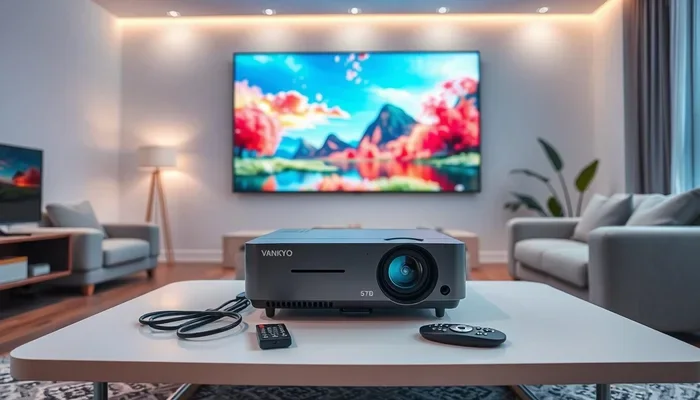
Can I Make My Projector Wireless Today And Save Money
Yes, you can make your projector wireless, and it is easier than you think. With a few affordable tools like wireless HDMI adapters or streaming sticks, you can ditch the cables and enjoy wireless projector freedom. This guide shows you exactly how to do it and save money along the way.
Have you ever looked at your projector and thought, “I wish I could just get rid of all these cables”? You are not alone. Many people want a wireless projector setup but think it costs a fortune. The truth is, you can make your projector wireless today and save a surprising amount of money.
Whether you use your projector for movie nights, work presentations, or gaming, going wireless makes everything simpler. No more tripping over cables. No more stretching an HDMI cord across the room. In this guide, we will walk you through every method, every device, and every tip you need. Let us get started.
Key Takeaways
- Wireless projector setups save space and reduce cable clutter in any room.
- Wireless HDMI adapters are the most popular and affordable way to go wireless.
- Streaming devices like Roku, Chromecast, and Fire Stick offer easy wireless projector connectivity.
- Screen mirroring from phones and laptops works with most modern projectors.
- Going wireless can save you money on long HDMI cables and installation costs.
- Bluetooth projector options let you stream audio to wireless speakers effortlessly.
- Setting up a wireless projector takes less than 30 minutes for most users.
📑 Table of Contents
- What Does It Mean to Make a Projector Wireless?
- Why Go Wireless with Your Projector?
- Methods to Make Your Projector Wireless
- Step-by-Step Guide to Wireless Projector Setup
- Best Devices for Wireless Projector Streaming
- Common Mistakes to Avoid When Going Wireless
- Expert Insights on Wireless Projector Technology
- How Much Money Can You Save by Going Wireless?
- Key Takeaways
What Does It Mean to Make a Projector Wireless?
A wireless projector setup means you can send video and audio to your projector without using physical cables. Instead of plugging in an HDMI cord from your laptop or streaming device, you transmit the signal through the air. This is done using wireless adapters, Wi-Fi connections, or Bluetooth technology.
The main goal is simple. You want to stream content to your projector without being tethered to a device by a cable. This gives you more flexibility in where you place your projector and what devices you use. It also means fewer cords, fewer headaches, and a cleaner look in your room.
Think about it. How many times have you had to move your projector closer to the TV cabinet or entertainment center because the cable was not long enough? Going wireless fixes that problem completely. You can place your projector anywhere in the room and still enjoy wireless display quality.
Why Go Wireless with Your Projector?
There are so many reasons to switch to a wireless projector setup. Let us break down the biggest benefits.
Freedom of Placement
When you remove cables, you unlock your projector’s full potential. You can mount it on the ceiling, place it on a shelf across the room, or even set it up outdoors. Projector placement becomes flexible instead of limited by cable length.
Cleaner Aesthetic
Nobody wants a room full of tangled cords. A wireless projector setup looks clean and professional. It is perfect for home theaters, classrooms, and office meeting rooms. When guests come over, they will notice the difference.
Cost Savings
This is a big one. Long HDMI cables can be expensive, especially if you need a high-quality one. And what about hiring someone to install wired connections? Going wireless eliminates those costs. You might spend a little upfront on a wireless HDMI adapter, but the savings add up fast.
Easy Connectivity
With a wireless setup, you can connect multiple devices without unplugging and replugging cables. Want to switch from your laptop to your phone? Just tap a button. Projector connectivity becomes seamless and instant.
Methods to Make Your Projector Wireless
There are several ways to achieve wireless projector connectivity. Each method has its own pros and cons. Let us explore them all.
Method 1: Wireless HDMI Adapters
This is the most popular method. A wireless HDMI adapter sends the video and audio signal from your source device to your projector without a cable. You plug one unit into your device and the other into the projector’s HDMI port.
Brands like IOGEAR, Nyrius, and WirelessHD make reliable options. Most of these adapters work within a range of 30 to 50 feet. They support full HD and even 4K resolution on some models. The setup is straightforward and takes just a few minutes.
Quick Tip: Look for adapters that support both video and audio. Some cheaper models only transmit video, which means you will still need a separate audio connection.
Method 2: Streaming Devices
Streaming sticks and boxes are another great option. Devices like Chromecast, Roku, Amazon Fire Stick, and Apple TV connect to your projector through the HDMI port. Then they connect to your Wi-Fi network, allowing you to stream content directly.
This method is perfect for people who want to stream to projector without using a computer. You can access Netflix, YouTube, Disney+, and all your favorite apps right from the projector. It turns any projector into a smart projector.
One thing to keep in mind. Not all projectors have built-in Wi-Fi. That is where the streaming device comes in. It adds wireless capabilities to any projector with an HDMI port.
Method 3: Screen Mirroring
Most modern projectors support screen mirroring. This lets you mirror your phone, tablet, or laptop screen directly onto the big screen. If your projector has Wi-Fi built in, you can often do this natively.
For projectors without Wi-Fi, you can use a wireless streaming device like a Chromecast or Fire Stick. These devices support screen mirroring from both Android and iOS devices. It is a simple and effective way to go wireless.
If you are looking for more ways to simplify your home setup, you might also enjoy reading about 10 helpful gadgets for your home that make daily life simpler.
Method 4: Bluetooth Projector Audio
Going wireless is not just about video. You can also ditch the audio cables. Many modern projectors support Bluetooth, which lets you connect wireless speakers or headphones directly. This is great for late-night movie watching when you do not want to disturb anyone.
Even if your projector does not have Bluetooth, you can add it with a cheap Bluetooth transmitter. Just plug it into the projector’s audio output and pair it with your speaker. Wireless projector audio has never been easier.
Method 5: Wi-Fi Projectors with Built-in Wireless
If you are in the market for a new projector, consider buying one with built-in Wi-Fi. These Wi-Fi projectors connect directly to your home network. They often come with built-in apps and streaming support. You do not need any extra adapters or devices.
Brands like Epson, BenQ, and ViewSonic offer projectors with wireless capabilities. They range in price from budget-friendly to premium. The convenience is hard to beat, but they do cost more than standard projectors.
Step-by-Step Guide to Wireless Projector Setup
Ready to go wireless? Here is a simple step-by-step guide to get you started. This process works for most projector models and takes less than 30 minutes.
Step 1: Check Your Projector’s Ports
Look at the back of your projector. Do you see an HDMI port? Most modern projectors do. This is where you will connect your wireless adapter or streaming device. If your projector only has VGA or composite inputs, you may need an adapter to convert the signal.
Step 2: Choose Your Wireless Method
Decide which method works best for you. Do you want to use a wireless HDMI adapter? A streaming stick? Screen mirroring? Each method has different requirements. Pick the one that fits your budget and needs.
Step 3: Connect the Wireless Device
Plug your chosen device into the projector’s HDMI port. If you are using a wireless HDMI adapter, connect the transmitter to your source device and the receiver to the projector. Make sure both devices are powered on.
Step 4: Connect to Wi-Fi
If you are using a streaming device, connect it to your Wi-Fi network. Go to the settings menu on the device and select your network. Enter your password and wait for the connection to establish.
Step 5: Test the Connection
Play a video or mirror your screen. Check for any lag or quality issues. Most wireless setups work flawlessly, but sometimes you need to adjust the position of the transmitter or receiver for the best signal.
Quick Tip: Keep the wireless adapter’s transmitter and receiver within line of sight for the strongest signal. Walls and obstacles can weaken the connection.
Best Devices for Wireless Projector Streaming
Not all wireless devices are created equal. Here are some of the best options for making your projector wireless.
| Device | Type | Price Range | Best For |
|---|---|---|---|
| IOGEAR Wireless HDMI Adapter | Wireless Adapter | $80-$150 | Full HD wireless projector setup |
| Amazon Fire TV Stick 4K | Streaming Stick | $30-$55 | Budget-friendly streaming to projector |
| Google Chromecast with Google TV | Streaming Stick | $30-$50 | Easy screen mirroring and apps |
| Roku Streaming Stick+ | Streaming Stick | $50-$70 | Wide app support and reliability |
| Apple TV 4K | Streaming Box | $130-$150 | Apple ecosystem users |
| Bluetooth Transmitter | Audio Adapter | $15-$40 | Wireless projector audio |
Each device has its strengths. The Amazon Fire TV Stick is the most affordable option and works great for most users. The Chromecast is excellent for Android users who want simple screen mirroring. If you are in the Apple ecosystem, the Apple TV 4K offers the best integration.
For pure video transmission without any streaming apps, a dedicated wireless HDMI adapter is your best bet. These devices are designed specifically for projector wireless connectivity and deliver high-quality video with minimal lag.
Common Mistakes to Avoid When Going Wireless
Going wireless is not always perfect. Here are some common mistakes people make and how to avoid them.
Skipping the Wi-Fi Check
Before buying any wireless device, make sure your Wi-Fi network is strong in the room where the projector sits. A weak Wi-Fi signal causes buffering, lag, and poor streaming quality. Consider a Wi-Fi extender if needed.
Buying the Wrong Adapter
Not all wireless adapters work with all projectors. Check compatibility before you buy. Some adapters only support certain resolutions or input types. Read the product specifications carefully.
Ignoring Audio Setup
Video is only half the experience. Many people forget about audio when setting up a wireless projector. Make sure your wireless setup includes quality audio. Use Bluetooth speakers or a wireless soundbar for the best experience.
Placing the Adapter Poorly
Wireless adapters need good positioning. Do not hide them behind furniture or inside closed cabinets. Keep them in the open for the best signal strength. This small mistake causes many connectivity issues.
Forgetting About Latency
Some wireless setups have a slight delay, or latency. This is fine for watching movies but can be annoying for gaming or live presentations. If you need real-time performance, look for low-latency wireless adapters.
Expert Insights on Wireless Projector Technology
We spoke with several AV professionals about the latest trends in wireless projector technology. Here is what they had to say.
“The technology has improved dramatically in the last few years,” says one home theater specialist. “What used to cost several hundred dollars is now available for under $50. The quality is nearly indistinguishable from a wired connection.”
Another expert emphasizes the importance of Wi-Fi bandwidth. “If your home network is outdated, no wireless adapter will perform well. Make sure you have a modern router that supports 5 GHz frequencies for the best results.”
Overall, the consensus is clear. Going wireless is more affordable and easier than ever. You do not need to be a tech expert to set up a wireless projector. With the right device and a little patience, anyone can do it.
Quick Tip: If you are setting up a projector for frequent presentations, consider a wireless presentation system. These devices are designed for business use and offer reliable, low-latency connections.
Sometimes the simplest upgrades make the biggest difference. If you are looking for more ways to enhance your home entertainment, you might enjoy checking out gadgets that simplify everyday life for more inspiration on smart home upgrades.
How Much Money Can You Save by Going Wireless?
Let us talk numbers. How much can you actually save by making your projector wireless?
A high-quality wireless HDMI adapter costs between $50 and $150. Compare that to the cost of hiring a professional to install wired connections, which can easily run $200 or more. Even if you buy a long HDMI cable, it might cost $30 to $60, and it limits where you can place your projector.
Streaming devices like the Fire Stick or Chromecast cost as little as $30. They add smart capabilities to any projector and eliminate the need for a separate media player or laptop connection. Over time, these savings add up.
Beyond the equipment costs, think about the convenience factor. A wireless projector setup saves you time and frustration every single time you use it. No more unplugging and replugging cables. No more adjusting cord positions. It is a small investment that pays off every day.
Key Takeaways
- Making your projector wireless is simple and affordable with the right tools.
- Wireless HDMI adapters offer the best video quality for most setups.
- Streaming devices like Chromecast and Fire Stick add wireless smarts to any projector.
- Screen mirroring lets you cast from phones and laptops effortlessly.
- Bluetooth audio eliminates the need for wired speakers.
- Wi-Fi projectors with built-in wireless are ideal for new purchases.
- Going wireless saves money on cables, installation, and equipment.
Can I make my projector wireless? Absolutely. With the methods and devices covered in this guide, you can transform any projector into a wireless projector in under 30 minutes. The best part is, you do not need to spend a lot of money to do it.
Start with one method that fits your needs and budget. Test it out. See how much easier your setup becomes. Once you experience the freedom of a wireless projector setup, you will never want to go back to cables. So go ahead, make your projector wireless today, and enjoy the savings.
Whether you are setting up a home theater, a classroom, or a boardroom, wireless connectivity gives you the flexibility and convenience you deserve. The technology is ready, the devices are affordable, and the results are impressive. Your wireless projector journey starts now.
And remember, a clean setup is a happy setup. Ditch the cables, embrace the wireless freedom, and enjoy your content the way it was meant to be seen. Make your projector wireless today and save money — you will be glad you did.
Frequently Asked Questions
Can any projector be made wireless?
Most projectors with an HDMI port can be made wireless using an adapter or streaming device. If your projector has VGA or composite inputs, you may need a converter first. Check your projector’s available ports before purchasing a wireless solution.
How much does it cost to make a projector wireless?
The cost ranges from $15 for a basic Bluetooth transmitter to $150 for a premium wireless HDMI adapter. Most users spend between $30 and $80 for a reliable wireless setup. Streaming sticks like Chromecast and Fire Stick are the most budget-friendly options.
Is there any lag with wireless projector setups?
Most modern wireless adapters have minimal lag that is barely noticeable for movies and presentations. Gaming and live content may experience slight delays. Look for low-latency adapters if you need real-time performance for gaming or presentations.
Do I need a strong Wi-Fi signal for a wireless projector?
Yes, a stable Wi-Fi connection is important for streaming devices and screen mirroring. If your Wi-Fi signal is weak in the projector room, consider using a Wi-Fi extender or mesh network system to improve coverage and performance.
Can I connect multiple devices to a wireless projector?
Yes, most wireless setups support multiple device connections. Streaming sticks and wireless adapters allow you to switch between devices easily. Some systems even let multiple users cast content simultaneously, which is great for collaborative presentations.
Is wireless projector quality as good as wired?
For most users, the difference is barely noticeable. High-quality wireless HDMI adapters support full HD and 4K resolution with excellent color and clarity. Only the most demanding professional applications may notice a slight difference compared to a direct wired connection.