How Come I Cant Connect To My Wi Fi And Why It Happens
Wondering how come I can’t connect to my Wi-Fi? This guide walks you through the most common reasons your wireless network won’t work and gives you clear, step-by-step fixes you can try right now. From router glitches to device settings, we cover everything you need to get back online quickly.
There are few things more frustrating than staring at a “Cannot Connect to This Network” message when you need the internet the most. Whether you are trying to work from home, stream your favorite show, or just check your email, a failed Wi-Fi connection can derail your entire day. The good news is that most wireless network problems have simple solutions you can try yourself.
In this guide, we will walk through exactly why your Wi-Fi won’t connect and what you can do about it. We break everything down into plain language so you do not need to be a tech expert. By the end, you will have a clear plan to get your internet connection back up and running.
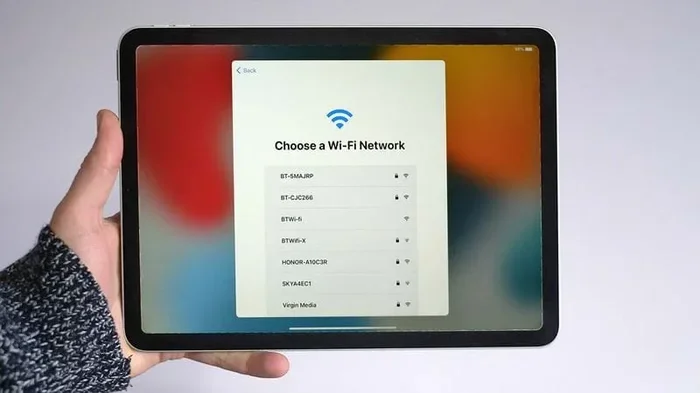
Before we dive into fixes, let’s talk about what is actually happening behind the scenes. When your device tries to join a wireless network, it goes through a series of steps. It searches for available networks, finds yours, sends a password, and waits for the router to approve the connection. If even one step fails, you get that dreaded “Cannot Connect” error. Understanding this process helps you pinpoint where things went wrong.
Key Takeaways
- Restart your router and device first: This simple step solves the majority of Wi-Fi connection issues.
- Check your Wi-Fi password and network name: A small typo can prevent your device from connecting entirely.
- Update your wireless adapter drivers: Outdated drivers are a hidden but common cause of connection failures.
- Reset network settings when nothing else works: A full network reset clears deep configuration conflicts.
- Know when to call your ISP: Sometimes the problem is on their end and not your device at all.
- Prevent future issues with regular maintenance: Simple habits keep your wireless connection stable over time.
📑 Table of Contents
Why Can’t I Connect to My Wi-Fi?
The answer to “how come I can’t connect to my Wi-Fi” usually falls into one of a few categories. Let’s look at each one so you can quickly figure out what is going on with your wireless connection.
Your Router Might Be Having a Glitch
Routers are small computers that run 24/7. Over time, they can freeze, slow down, or lose their connection to your internet provider. A simple router glitch is the number one reason people cannot connect to Wi-Fi. When the router’s software gets stuck, it stops responding to connection requests from your phone, laptop, or tablet.
Think of it like a traffic light that gets stuck on red. Cars (or data) cannot move forward until someone resets the light. Restarting your router clears the jam and lets your device connect again.
Your Device’s Wi-Fi Settings Could Be Off
Sometimes the problem is not your router at all. Your device might have its wireless settings turned off or misconfigured. Maybe Airplane Mode got switched on by accident. Perhaps your device forgot the network after a software update. These small changes can block your Wi-Fi connection without any obvious warning.
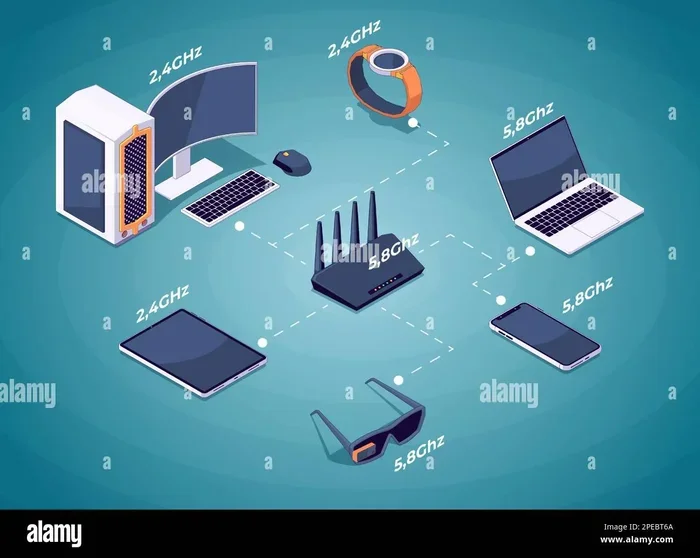
Another common issue is that your device is trying to connect to a 5 GHz band while your router is set to 2.4 GHz, or vice versa. This mismatch means your device cannot find the right network, even though the router is working perfectly fine.
The Password or Network Name Changed
If someone changed your Wi-Fi password or network name recently, your saved settings become outdated. Your device will keep trying to use the old password and fail every time. This happens more often than you might think, especially in households with multiple people managing the network.
If you are wondering can I connect to a Wi-Fi without a password, the answer is yes in some cases through WPS or open networks. But most home networks require a correct password, and even one wrong character will block you from connecting.
Common Reasons Your Wi-Fi Won’t Connect
Let’s get specific about the most common culprits behind a failed Wi-Fi connection. These are the issues we see over and over again, and they are usually easy to fix.
IP Address Conflicts
Every device on your network needs a unique IP address. When two devices end up with the same address, neither can connect properly. This is called an IP address conflict, and it causes mysterious connection failures. Your device might show a strong signal but still refuse to connect.
The fix is usually simple. You can release and renew your IP address through your device’s network settings. Most modern routers also handle this automatically, but sometimes they need a restart to do so.
DNS Server Problems
The DNS server is like the phonebook of the internet. It translates website names into IP addresses your device can understand. When your DNS settings are wrong or the server is down, you might see a connected signal but still cannot load any websites. This is different from a full connection failure but just as annoying.
Switching to a public DNS server like Google DNS or Cloudflare DNS can solve this problem quickly. It only takes a few minutes to change and often fixes browsing issues that seem impossible to explain.
Outdated Network Adapter Drivers
Your device uses a network adapter to communicate with your router. Like all software, the adapter needs updates to work properly. When the driver becomes outdated, it might not support newer security protocols or might have bugs that prevent connections.
If your device can connect to Wi-Fi without a WiFi adapter (meaning it has a built-in one), you still need to keep that adapter’s driver updated. Check your device manufacturer’s website or use Windows Update to find the latest version.
Too Many Devices on the Network
Every router has a limit on how many devices it can handle at once. If you have smart home gadgets, phones, laptops, tablets, and streaming boxes all connected, you might be hitting that limit. When the router gets overloaded, new devices cannot join the network.
Try disconnecting a few devices you are not using and see if your wireless connection comes back. You can also check your router’s admin panel to see how many devices are currently connected.
How to Fix Wi-Fi Connection Problems
Now that you know the common causes, let’s walk through the fixes. Try these steps in order, starting with the simplest solutions first.
Step 1: Restart Your Router and Device
This is the golden rule of Wi-Fi troubleshooting. Turn off your router, wait 30 seconds, and turn it back on. Then restart your phone, laptop, or tablet. This clears temporary glitches and forces both devices to re-negotiate the connection.
About 60% of all Wi-Fi connection problems get solved by a simple restart. Do not skip this step, even if it seems too easy.
Step 2: Check Your Wi-Fi Password
Make sure you are typing the correct Wi-Fi password. Passwords are case-sensitive, so check for capital letters and special characters. If you are unsure, log into your router’s admin page to verify the network name and password.
You can also find the password printed on the bottom or back of most routers. Look for a sticker that says “Password” or “Key.”
Step 3: Forget the Network and Reconnect
Sometimes your device saves bad data for a network. Forgetting the network clears that saved data and forces your device to start fresh. On most devices, you can find this option in your Wi-Fi settings under Saved Networks or Known Networks.
After forgetting the network, search for it again and enter your password carefully. This simple step resolves many stubborn connection issues.
Step 4: Update Your Wireless Adapter
Go to your device’s settings and check for updates to your wireless adapter or network driver. On Windows, you can do this through Device Manager. On a Mac, Software Update handles most driver updates automatically.
If your device does not have built-in wireless capability, you might need to add Wi-Fi to your PC using a USB adapter or internal card. Make sure the adapter you choose is compatible with your device and operating system.
Step 5: Reset Network Settings
If none of the above steps work, you can reset your network settings to factory defaults. This clears all saved networks, VPN settings, and custom configurations. On most devices, you will find this option in the Network or Connections settings menu.
Be aware that this will erase all saved Wi-Fi networks, so you will need to reconnect to each one and enter passwords again. It is a more drastic step, but it works when nothing else does.
Step 6: Contact Your Internet Service Provider
If you have tried everything and still cannot connect, the problem might be on your ISP’s end. They may be performing maintenance, experiencing an outage, or have a problem with your account. Call their support line and ask if there are any known issues in your area.
You can also check your ISP’s website or social media pages for outage updates. Many providers now post real-time service status information online.
When Your Router Is the Problem
Sometimes the wireless router itself is the source of your connection problems. Routers have a limited lifespan, and older models may not support newer devices or security standards.
Signs Your Router Needs Replacement
- Your router is more than five years old.
- You experience frequent disconnections even after troubleshooting.
- Your internet speed is much slower than what your plan promises.
- The router overheats or makes unusual noises.
- Newer devices connect but older ones cannot.
If you notice these signs, it might be time for a new router. Modern routers support faster speeds, better range, and more devices. Look for one that supports the latest Wi-Fi standard for the best performance.
Router Placement Matters
Where you put your router affects your Wi-Fi signal strength and reliability. Keep your router in a central location, away from walls and metal objects. Avoid placing it inside cabinets or behind large furniture. Elevating the router on a shelf also improves coverage throughout your home.
Water and microwaves can also interfere with your wireless signal. Keep your router away from fish tanks and kitchen appliances for the best results.
Device-Specific Wi-Fi Connection Issues
Different devices have different quirks when it comes to Wi-Fi connectivity. Here are some device-specific tips that can help.
Connecting a PC Without Built-In Wi-Fi
If your computer does not have wireless capability built into the motherboard, you will need external hardware to connect. You can use a USB Wi-Fi adapter, a PCIe wireless card, or connect via Ethernet cable. Each option has its pros and depends on your specific needs and setup.
If you are wondering can I get a Wi-Fi stick for a PC that doesn’t have Wi-Fi in the motherboard, the answer is absolutely yes. USB Wi-Fi adapters are affordable and easy to set up. They plug right into a USB port and give your PC wireless access in minutes.
Mobile Device Connection Problems
Phones and tablets can have their own set of Wi-Fi connection issues. Clearing the cache of your Wi-Fi settings app, toggling Airplane Mode on and off, or resetting network settings often fixes mobile-specific problems.
Also check if your phone’s operating system is up to date. Software updates frequently include fixes for connectivity bugs that affect specific device models.
Gaming Consoles and Smart TVs
Streaming devices and gaming consoles sometimes struggle with Wi-Fi connectivity because they use older wireless standards. If your console keeps dropping connection, try switching it to the 2.4 GHz band instead of 5 GHz. The 2.4 GHz band has a longer range and better wall penetration, even though it is slower.
For the best gaming experience, a wired Ethernet connection is always ideal. But if that is not possible, a Wi-Fi adapter designed for gaming can make a big difference in stability.
How to Prevent Future Wi-Fi Connection Problems
The best way to deal with Wi-Fi issues is to prevent them from happening in the first place. Here are some simple habits that keep your wireless network running smoothly.
- Restart your router regularly: Once a week is a good habit. This clears memory and refreshes connections.
- Keep your router firmware updated: Check for updates in your router’s admin panel every few months.
- Use a strong, unique password: This keeps unauthorized users off your network and prevents speed slowdowns.
- Monitor connected devices: Regularly check which devices are using your network and remove anything you do not recognize.
- Place your router wisely: Central location, elevated position, away from interference sources.
- Replace old equipment: If your router is more than five years old, consider upgrading to a newer model.
Taking these small steps saves you from the frustration of dealing with connection problems later. A little prevention goes a long way toward keeping your internet connection stable and fast.
Final Thoughts
So how come you can’t connect to your Wi-Fi? Most of the time, it is something simple like a router glitch, a wrong password, or outdated drivers. By working through the steps in this guide, you can identify the cause and apply the right fix.
Remember that wireless network troubleshooting does not have to be complicated. Start with the basics, work your way up, and do not be afraid to call your ISP if the problem persists. With a little patience, you will be back online in no time.
Keep this guide bookmarked for the next time your Wi-Fi connection acts up. And share it with anyone in your household who might need a quick fix. A little knowledge saves a lot of frustration when your internet stops working.
Frequently Asked Questions
Why does my Wi-Fi connect but I have no internet?
This usually means your device connected to the router, but the router cannot reach the internet. Restart your router first, as this solves most cases. If the problem continues, contact your internet service provider to check for outages in your area.
How do I know if my Wi-Fi adapter is the problem?
Check if other devices can connect to the same network. If they can, the issue is likely with your adapter or device settings. You can also check Device Manager on Windows to see if there are any error messages with your network adapter.
Can a VPN cause Wi-Fi connection problems?
Yes, a VPN can sometimes interfere with your Wi-Fi connection by changing DNS settings or blocking network traffic. Try disconnecting your VPN and see if your connection improves. If it does, adjust your VPN settings or choose a different server.
How often should I restart my router?
Restarting your router once a week is a good practice to keep your wireless network running smoothly. If you notice frequent disconnections, try restarting more often. Many modern routers also have a scheduled restart feature you can enable.
What is the difference between 2.4 GHz and 5 GHz Wi-Fi?
The 2.4 GHz band has a longer range and better wall penetration but slower speeds. The 5 GHz band offers faster speeds but has a shorter range and struggles more with obstacles. Choose 2.4 GHz for distant devices and 5 GHz for devices close to the router.
When should I replace my router?
Consider replacing your router if it is more than five years old, you experience frequent disconnections, or newer devices struggle to connect. A new router also gives you better security features and faster speeds that match modern internet plans.