How Do I Add Bluetooth To My Device In Simple Steps
Adding Bluetooth to your device is easier than you think. Whether your device has built-in support or needs a USB adapter, you can get wireless audio working in minutes. This guide walks you through every step clearly and simply.
Want to add Bluetooth to your device and start streaming music wirelessly? You are not alone. Millions of people look for simple ways to make their older gadgets Bluetooth-enabled every single day. The good news is that it is almost always a quick and affordable fix.
Whether you want to connect a speaker, headphones, or even your car stereo, the process is simpler than most people think. This guide shows you exactly how do I add Bluetooth to my device in plain, easy steps. No tech degree required. Just follow along and you will be streaming in no time.
We will cover everything from checking if your device already has Bluetooth to buying the right adapter. You will also learn how to pair devices and fix common connection issues. By the end, you will feel confident using wireless audio with any gadget you own.
Key Takeaways
- Check compatibility first: Most modern devices already have Bluetooth built in. You just need to turn it on.
- Use a Bluetooth adapter: Older devices without Bluetooth can get wireless support through a simple USB dongle.
- Pairing is straightforward: Put both devices in pairing mode and select one from the other. It takes under a minute.
- Troubleshoot common issues: Distance, interference, and outdated drivers cause most Bluetooth problems.
- Optimize for best performance: Keep devices close, avoid crowded wireless bands, and update firmware regularly.
- Bluetooth works across many devices: Speakers, headphones, car stereos, and keyboards all use the same simple pairing process.
📑 Table of Contents
- What Is Bluetooth And Why Should You Care
- How To Check If Your Device Already Has Bluetooth
- Ways To Add Bluetooth To Your Device
- How To Pair Your Bluetooth Device
- Troubleshooting Common Bluetooth Problems
- Tips For Getting The Best Bluetooth Performance
- Bluetooth Across Different Device Types
- Final Thoughts
What Is Bluetooth And Why Should You Care
Bluetooth is a wireless technology that lets devices talk to each other without cables. It uses short-range radio waves to send data like music, voice, and files between gadgets. Think of it as a invisible string connecting your phone to your speaker or headphones.
The technology has been around since the late 1990s. Over the years, it has gotten faster, more reliable, and uses less battery. Today, Bluetooth is built into almost every smartphone, laptop, and tablet. But older devices like desktop computers, TVs, and stereos often lack this handy feature.
Adding Bluetooth opens up a world of convenience. You can stream music from any app without wires. You can take calls through a headset. You can even use your phone as a turn your phone into a Bluetooth speaker for a quick party setup. The possibilities are really endless once you have wireless connectivity set up.
How To Check If Your Device Already Has Bluetooth
Before buying anything, it is smart to check whether your device already supports Bluetooth. Many people buy adapters they do not need because they skip this step. Let us save you the trouble.
Checking On Windows Computers
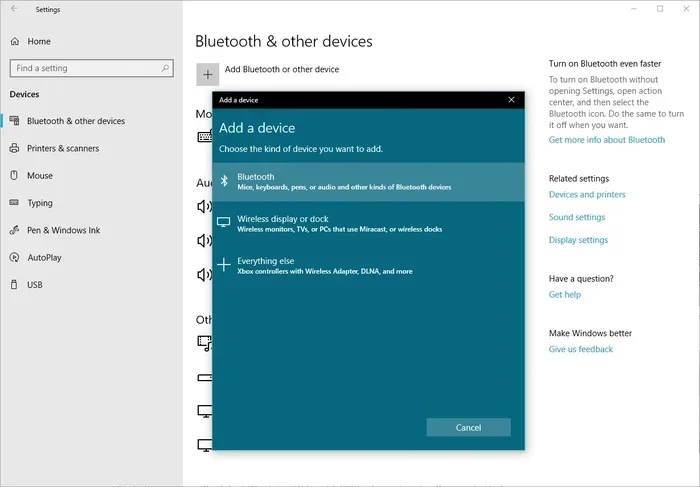
On a Windows PC, click the Start menu and type “Bluetooth.” Select “Bluetooth & Device Settings” from the results. If you see a toggle switch to turn Bluetooth on, your computer already has it built in. You are good to go!
If you do not see any Bluetooth options, your device likely does not support it natively. Do not worry. We will cover how to fix that in the next section.
Checking On Mac Computers
On a Mac, click the Apple menu in the top left corner. Select “System Settings” and look for “Bluetooth” in the sidebar. If it appears there, your Mac supports Bluetooth. You can turn it on right from the menu bar at the top of your screen.
Checking On TVs And Stereos
Smart TVs made in the last few years almost always include Bluetooth. Check your TV settings menu for a “Bluetooth” or “Wireless” option. Older TVs and traditional stereo systems usually do not have it. In that case, you will need an external adapter, which we will cover shortly.
Checking On Gaming Consoles And Other Devices
Some gaming consoles support Bluetooth headphones through specific settings. For example, you can pair Bluetooth headphones to Xbox One using the Xbox app or a wireless adapter. Always check the manufacturer’s website for your specific device to confirm Bluetooth support.
Ways To Add Bluetooth To Your Device
If your device does not have Bluetooth built in, do not panic. There are several simple and affordable ways to add it. Let us look at each option so you can pick the best one for your situation.
Option 1: USB Bluetooth Adapter
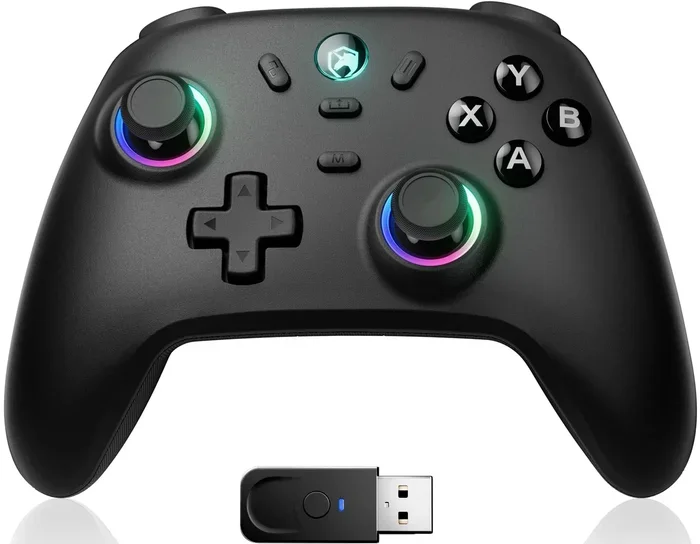
A USB Bluetooth adapter is the most popular and easiest way to add Bluetooth to any device. It is a small dongle that plugs into a USB port. Once plugged in, your computer or laptop recognizes it and installs the necessary drivers automatically.
Most adapters cost between $10 and $30. They work with Windows, Mac, and even some Linux systems. Look for an adapter that supports Bluetooth 5.0 or higher for the best range and speed. Plug it in, wait for the installation to finish, and you are ready to pair devices.
Quick Tip: If your computer does not auto-install the driver, visit the adapter manufacturer’s website and download the latest software. This ensures the best performance and compatibility.
Option 2: Bluetooth Audio Transmitter
A Bluetooth audio transmitter connects to your device’s audio output. It sends sound wirelessly to any Bluetooth speaker or headphones. This is a great option for older TVs, stereos, and desktop computers that have a 3.5mm audio jack or RCA outputs.
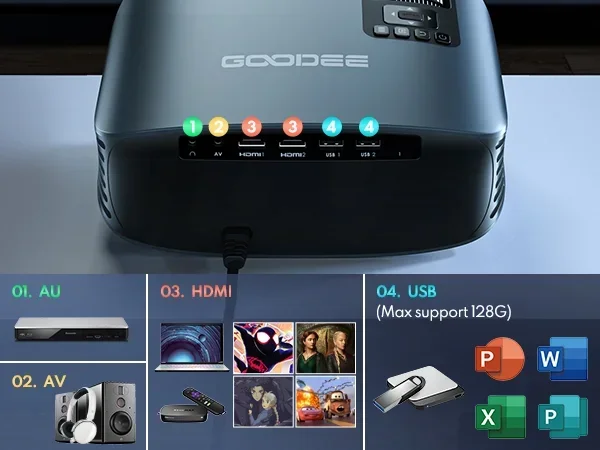
You plug the transmitter into the audio out port on your device. Then you pair it with your speaker or headphones just like you would with any Bluetooth gadget. This method works beautifully for use HDMI for video and Bluetooth for audio setups where you want sound without running a long cable.
Option 3: Upgrade Your Car Stereo
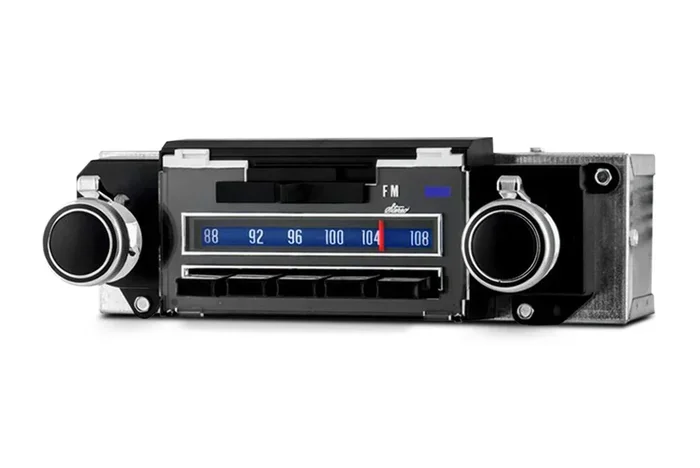
If you want to add Bluetooth to your car, consider upgrading your car stereo. Many modern stereos come with Bluetooth built in. You can also install an aftermarket Bluetooth receiver that plugs into your existing system.
Can I upgrade my car stereo to Bluetooth? Absolutely! Many aftermarket receivers are affordable and easy to install. They let you stream music from your phone and take calls hands-free. This is one of the most popular upgrades car owners make.
Option 4: Use A Smart Speaker As A Bridge
Some smart speakers like Amazon Echo devices can act as a Bluetooth bridge. You can connect your non-Bluetooth device to the speaker using a cable, and the speaker streams the audio wirelessly. This is a clever workaround if you already own a smart speaker at home.
Similarly, you can use Alexa as a Bluetooth speaker to stream audio from almost any device with a headphone jack. Just pair your device to the Echo and you are good to go.
How To Pair Your Bluetooth Device
Once you have Bluetooth set up on your device, the next step is pairing. Pairing is the process of connecting two Bluetooth devices together. It is quick and straightforward once you know the steps.
Step 1: Turn On Bluetooth
Go to your device’s settings and toggle Bluetooth on. On most phones and computers, you will also see a “Make Discoverable” or “Pair New Device” option. Turn this on so other devices can find yours.
Step 2: Put Your Bluetooth Device In Pairing Mode
Your speaker, headphones, or keyboard also needs to be discoverable. Most devices have a dedicated pairing button. On some, you hold down the power button for a few seconds until a light flashes. Check the manual if you are not sure.
Step 3: Select The Device From The List
Go back to your main device and look for the list of available Bluetooth devices. Tap or click on the one you want to connect. Within a few seconds, they should pair and connect automatically.
Once paired, the devices will remember each other. You usually only need to go through the pairing process once. After that, they connect automatically whenever both devices have Bluetooth turned on.
Step 4: Test The Connection
Play some music or a video to test the connection. If you hear sound through your Bluetooth speaker or headphones, you are all set! If not, move on to the troubleshooting section below.
Pro Tip: Keep your devices within about 30 feet of each other during the first pairing. Once paired, Bluetooth can reach much farther, but close proximity helps the initial connection go smoothly.
Troubleshooting Common Bluetooth Problems
Bluetooth connections are generally reliable, but sometimes things go wrong. Here are the most common issues and how to fix them fast.
Device Not Showing Up In The List
If your Bluetooth device does not appear in the list of available devices, try these steps. First, make sure the device is in pairing mode. The flashing light usually indicates this. Second, toggle Bluetooth off and back on your main device. Third, move closer to the device you are trying to pair.
Sometimes, restarting both devices solves the problem instantly. It is the oldest trick in the book, but it works surprisingly well for wireless connectivity issues.
Audio Keeps Cutting Out
Intermittent audio is one of the most frustrating Bluetooth problems. The most common cause is distance. Move closer to the source device and see if the problem improves.
Another frequent culprit is interference from other wireless devices. Wi-Fi routers, microwaves, and even USB 3.0 ports can disrupt Bluetooth signals. Try moving away from these sources and see if the audio stabilizes.
Paired But No Sound
If your devices are paired but you hear no sound, check the audio output settings. On most computers, you need to manually select the Bluetooth device as the audio output. Right-click the speaker icon in your taskbar and choose the Bluetooth device from the list.
On phones, go to Settings > Bluetooth and make sure the connected device is set as the audio output. Sometimes a simple restart of the Bluetooth device fixes this issue too.
Firmware And Driver Updates
Outdated drivers can cause all sorts of Bluetooth problems. On Windows, go to Device Manager, find your Bluetooth adapter, right-click it, and select “Update Driver.” On Mac, go to System Settings > Software Update to check for the latest updates.
For Bluetooth adapters and transmitters, visit the manufacturer’s website to download the latest firmware. This small step can solve many connection issues you might otherwise struggle with.
Tips For Getting The Best Bluetooth Performance
Once you have Bluetooth working, a few simple habits will keep your connection strong and reliable. Here are some expert-backed tips to get the most out of your wireless setup.
Keep Your Devices Close
Bluetooth works best within about 30 feet. While it can reach farther in ideal conditions, keeping devices close ensures a stable, uninterrupted connection. This is especially important for audio streaming where dropouts are noticeable.
Minimize Wireless Interference
Many household devices use the same 2.4 GHz frequency as Bluetooth. Wi-Fi networks, baby monitors, and cordless phones can all cause interference. If you experience connection issues, try moving your Bluetooth device away from these sources.
Keep Firmware Updated
Manufacturers regularly release updates that improve Bluetooth performance and fix bugs. Check for updates on your phone, computer, and any Bluetooth accessories periodically. A simple update can sometimes transform a frustrating connection into a smooth one.
Turn Off Bluetooth When Not In Use
This might seem obvious, but turning off Bluetooth when you are not using it helps in two ways. First, it saves battery life on your device. Second, it reduces clutter in the wireless spectrum, which can improve performance for your other Bluetooth devices.
Use The Right Bluetooth Version
Newer Bluetooth versions offer better range, faster speeds, and lower power consumption. When buying a Bluetooth adapter, look for one that supports Bluetooth 5.0 or higher. If your device supports an older version like Bluetooth 4.2, it will still work but with slightly reduced performance.
Expert Insight: Bluetooth 5.0 can reach up to 800 feet in open space compared to about 30 feet for older versions. If you plan to move around freely while listening to audio, investing in a Bluetooth 5.0 adapter makes a real difference.
Bluetooth Across Different Device Types
Bluetooth is incredibly versatile. It works with a wide range of devices beyond just speakers and headphones. Let us quickly look at how adding Bluetooth benefits different types of gadgets.
- Speakers: You can use a Bluetooth speaker without Bluetooth by adding a small adapter to it. This turns any wired speaker into a wireless one.
- Headphones: Bluetooth headphones give you freedom to move around while listening to music or taking calls. No tangled cords to deal with anymore.
- Car Audio: Adding Bluetooth to your car lets you stream music and take calls safely through your car speakers. It is a must-have upgrade for daily commuters.
- Keyboards And Mice: Wireless keyboards and mice use Bluetooth to connect to computers. This declutters your desk and gives you more flexibility.
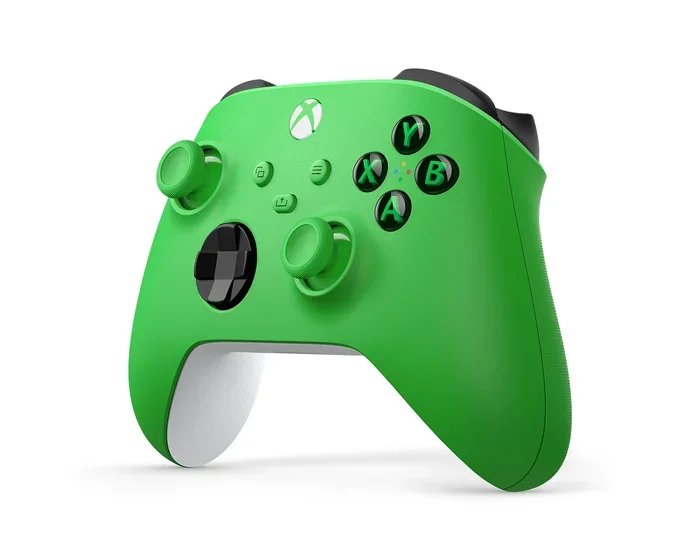
- Game Controllers: Many wireless game controllers connect via Bluetooth. You can even use Bluetooth headphones for gaming to enjoy immersive sound without disturbing others.
No matter what type of device you own, there is almost certainly a way to add Bluetooth to it. The key is finding the right adapter or transmitter for your specific setup.
Final Thoughts
So there you have it. You now know exactly how do I add Bluetooth to my device in simple, clear steps. Whether you use a USB adapter, a Bluetooth transmitter, or a smart speaker bridge, the process is straightforward and affordable.
Start by checking if your device already supports Bluetooth. If not, grab a compatible adapter and follow the pairing steps we covered. If you run into any issues, the troubleshooting tips will help you get back on track quickly.
Wireless audio has become a standard we all expect. Adding Bluetooth to your devices unlocks a level of convenience and freedom that wired connections simply cannot match. You will wonder how you ever lived without it. So go ahead, try it out, and enjoy the wireless experience!
Frequently Asked Questions
Can I add Bluetooth to any device?
Most devices can get Bluetooth through a USB adapter or audio transmitter. However, some very old or specialized devices may not support external Bluetooth additions. Check your device’s ports and compatibility before purchasing an adapter.
How much does a Bluetooth adapter cost?
USB Bluetooth adapters typically cost between $10 and $30. Higher-quality adapters with Bluetooth 5.0 support may cost a bit more. Audio transmitters range from $15 to $50 depending on features and brand.
Is adding Bluetooth safe for my device?
Yes, adding Bluetooth is completely safe. USB adapters and transmitters do not damage your device or void its warranty. They simply add wireless capability through a standard connection port.
How far can Bluetooth reach?
Standard Bluetooth has a range of about 30 feet. Bluetooth 5.0 can reach up to 800 feet in open space. Walls, furniture, and other obstacles reduce the effective range in real-world use.
Can I connect multiple Bluetooth devices at once?
Yes, most modern devices support multiple Bluetooth connections simultaneously. You can connect a speaker, headphones, and keyboard all at the same time. Just make sure your device has enough bandwidth to handle them all smoothly.
Why does my Bluetooth connection keep dropping?
Bluetooth dropouts are usually caused by distance, interference from other wireless devices, or outdated drivers. Try moving closer to the source device, reducing wireless interference, and updating your Bluetooth firmware to fix the issue.