Do Ipads Have Built In Wifi Everything You Need To Know
Do Ipads Have Built In Wifi? Yes, every iPad comes with a built-in WiFi chip that lets you connect to wireless networks right out of the box. Whether you own a WiFi-only model or a WiFi + Cellular version, the built-in WiFi functionality works the same way. In this guide, we will walk you through everything you need to know about iPad WiFi connectivity, setup, troubleshooting, and how to choose the right model for your needs.
Have you ever picked up an iPad and wondered, “Do Ipads Have Built In Wifi?” It is a simple question, but the answer opens up a lot of useful information. Whether you are a student, a professional, or someone who just loves streaming movies on a tablet, understanding your iPad’s WiFi capabilities matters a lot.
The good news is that every single iPad Apple has ever made comes with a built-in WiFi chip. This means you can connect to a wireless network without needing any extra accessories or dongles. But there is more to it than just a simple yes or no. Different iPad models support different WiFi standards, and some models give you the option of adding cellular service on top of WiFi. In this article, we will cover everything you need to know about iPad WiFi connectivity, how to set it up, what to do when things go wrong, and how to pick the right iPad model for your internet needs.
So grab your iPad, and let us dive into the world of wireless connectivity. By the end of this guide, you will know exactly how your iPad connects to WiFi, what makes each model different, and how to get the best possible wireless experience every single time.
Key Takeaways
- All iPads have built-in WiFi: Every iPad model, from the base iPad to the iPad Pro, includes a built-in wireless WiFi chip for connecting to local networks.
- WiFi-only and WiFi + Cellular models exist: WiFi-only iPads rely solely on wireless internet, while WiFi + Cellular models also support mobile data through a SIM card or eSIM.
- Setting up WiFi on an iPad is simple: You can connect to a wireless network in just a few taps through the Settings app.
- Troubleshooting is straightforward: Most iPad WiFi issues can be fixed with simple steps like restarting the device or resetting network settings.
- WiFi performance varies by model: Newer iPad models support WiFi 6 and offer faster speeds and better range compared to older models.
- Choosing the right model matters: If you always have access to a WiFi network, a WiFi-only iPad saves money. If you need internet on the go, consider the WiFi + Cellular version.
📑 Table of Contents
- What Does It Mean When We Ask Do Ipads Have Built In Wifi
- Which iPad Models Include Built In WiFi
- How to Set Up and Connect iPad to WiFi
- WiFi Only vs WiFi Plus Cellular iPad Models
- Troubleshooting Common WiFi Issues on iPad
- Tips to Get the Best WiFi Performance on Your iPad
- Frequently Asked Questions
- Final Thoughts
What Does It Mean When We Ask Do Ipads Have Built In Wifi
When we ask, “Do Ipads Have Built In Wifi,” we are really asking whether the iPad has a WiFi radio or wireless chip built into the device itself. The answer is yes. Every iPad has this chip soldered right onto the motherboard. You do not need to plug in any external adapter or attach any accessory to get WiFi working.
The built-in WiFi chip allows your iPad to communicate with a WiFi router or access point. This is the same technology that lets your phone or laptop connect to the internet wirelessly. Apple designs the WiFi hardware into the iPad during manufacturing, so it is always there, ready to go.
Here is what built-in WiFi on an iPad means in simple terms:
- No dongles needed: You do not need to buy a separate WiFi adapter.
- Always ready: The WiFi chip is always powered on when your iPad is on.
- Seamless integration: Apple optimizes the WiFi hardware and software together for smooth performance.
- Multiple band support: Most modern iPads connect to both 2.4 GHz and 5 GHz WiFi bands.
Understanding this basic fact helps you appreciate just how convenient the iPad really is. You can walk into any coffee shop, airport, or home with a WiFi network and get online in seconds. That built-in WiFi chip is one of the reasons the iPad has become such a popular device for work, school, and entertainment.
How WiFi Connects to Your iPad
When you turn on your iPad and go to the Settings app, the WiFi icon at the top of the screen lights up. This tells you the built-in WiFi radio is searching for nearby networks. Once you select a network and enter the password, the iPad and the router establish a secure wireless connection.
The connection happens over radio waves. Your router sends data through the air, and your iPad’s built-in WiFi receiver picks it up. This process happens thousands of times per second, which is why streaming video, browsing websites, and video calling all feel so smooth and instant.
Which iPad Models Include Built In WiFi
Every iPad model Apple sells includes built-in WiFi. From the entry-level iPad to the powerful iPad Pro, you get wireless connectivity across the entire lineup. Let us break down the different models and what WiFi features they support.
iPad (Base Model)
The standard iPad is the most affordable option, and yes, it has full WiFi support. The latest base model iPads support WiFi 6, which offers faster speeds and better performance in crowded areas like apartments or offices. If you are wondering, “Do Ipads Have Built In Wifi?” even the cheapest iPad has you covered.
iPad Air
The iPad Air also comes with built-in WiFi. It supports the same WiFi 6 standard as the base iPad, but it has a more powerful processor that handles wireless data faster. This makes the iPad Air a great choice if you want smooth WiFi performance for gaming or video editing.
iPad Mini
The compact iPad Mini is another WiFi-capable model. Its smaller screen does not mean less WiFi power. The Mini supports WiFi 6 and connects to networks just as reliably as any other iPad. It is perfect for people who want a portable device they can use anywhere.
iPad Pro
The iPad Pro is Apple’s flagship tablet, and it has the most advanced WiFi support. The latest iPad Pro models support WiFi 6E, which operates on a new 6 GHz band. This means even faster speeds, less interference, and a more stable connection. If you need the best WiFi performance from any iPad, the iPad Pro delivers.
Quick Comparison of WiFi Features Across iPad Models
| iPad Model | WiFi Standard | Frequency Bands | WiFi + Cellular Option |
|---|---|---|---|
| iPad (Base) | WiFi 6 | 2.4 GHz, 5 GHz | Yes |
| iPad Air | WiFi 6 | 2.4 GHz, 5 GHz | Yes |
| iPad Mini | WiFi 6 | 2.4 GHz, 5 GHz | Yes |
| iPad Pro (M4) | WiFi 6E | 2.4 GHz, 5 GHz, 6 GHz | Yes |
| iPad Pro (M2) | WiFi 6E | 2.4 GHz, 5 GHz, 6 GHz | Yes |
As you can see, all iPads have built-in WiFi. The differences lie in which WiFi standard each model supports and whether you can add cellular service. Newer models naturally support the latest WiFi standards, which means faster speeds and better range.
How to Set Up and Connect iPad to WiFi
Setting up WiFi on your iPad is incredibly easy. Apple designed the process to be simple and intuitive. Even if you are not very tech-savvy, you can connect to a wireless network in under a minute.
Here is a step-by-step guide on how to connect your iPad to WiFi:
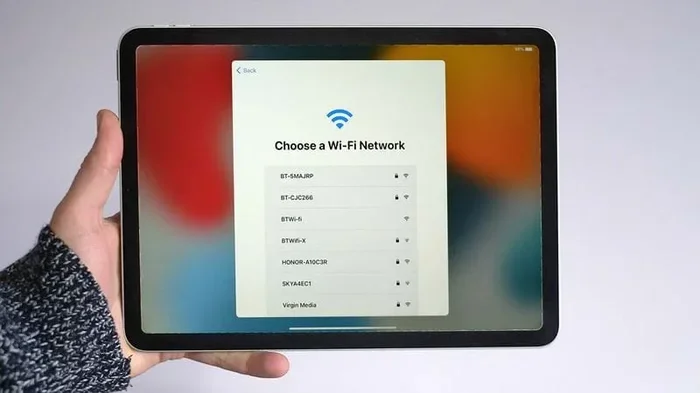
- Open the Settings app: Look for the gear icon on your home screen and tap it.
- Tap WiFi: This is usually the first option in the left sidebar of the Settings menu.
- Turn on WiFi: If the toggle switch is gray, tap it to turn it on. The WiFi icon will appear at the top of your screen.
- Select a network: Your iPad will scan for nearby networks. Tap on the name of the network you want to join.
- Enter the password: Type in the WiFi password carefully and tap “Join.”
- Wait for connection: Within a few seconds, your iPad will connect, and the WiFi icon will show signal bars.
That is it. You are now connected to the internet over WiFi. The process is the same whether you are at home, at school, or at a friend’s house.
Tips for a Smooth WiFi Setup
- Make sure you know the password: Ask the network owner if you are not sure.
- Stay close to the router: The closer you are, the stronger the signal will be during setup.
- Restart your iPad if it does not connect: Sometimes a quick restart fixes connection issues.
- Forget old networks: If your iPad keeps trying to connect to a network you no longer use, go to Settings > WiFi, tap the “i” icon next to the network, and select “Forget This Network.”
Connecting to Hidden WiFi Networks
Some WiFi networks are hidden, which means they do not show up in your list of available networks. To connect to a hidden network, go to Settings > WiFi, scroll to the bottom, and tap “Other.” Enter the network name, select the security type, and enter the password. Your iPad will then connect to the hidden network.
WiFi Only vs WiFi Plus Cellular iPad Models
When shopping for an iPad, you will notice two main options: WiFi-only models and WiFi + Cellular models. Both have built-in WiFi, but the cellular models offer an extra feature. Let us look at the differences so you can decide which one is right for you.
What Is a WiFi Only iPad?
A WiFi-only iPad connects to the internet only through wireless networks. You can use it at home, at school, in a cafe, or anywhere else with a WiFi network. But you cannot use it as a phone or connect to mobile data when there is no WiFi available.
WiFi-only iPads are generally cheaper than their cellular counterparts. If you always have access to WiFi at home, at work, or at school, a WiFi-only iPad can save you a significant amount of money.
What Is a WiFi Plus Cellular iPad?
A WiFi + Cellular iPad has everything a WiFi-only iPad has, plus a built-in SIM card slot or eSIM support. This means you can connect to mobile data networks through a cellular carrier, just like a smartphone.
With a cellular iPad, you can get internet anywhere there is cell phone coverage. You do not need to find a WiFi network. This is incredibly useful for people who travel often, work outdoors, or need internet access on the go.
Key Differences at a Glance
| Feature | WiFi Only iPad | WiFi + Cellular iPad |
|---|---|---|
| Built-in WiFi | Yes | Yes |
| Mobile data connectivity | No | Yes |
| SIM card or eSIM | No | Yes |
| Monthly carrier fee | None | Required |
| Purchase price | Lower | Higher |
| Works without WiFi | No (offline apps only) | Yes (with cellular data) |
So to answer the question again, “Do Ipads Have Built In Wifi?” both WiFi-only and WiFi + Cellular iPads have built-in WiFi. The cellular model just adds mobile data on top of that WiFi capability.
Which Model Should You Choose?
Think about how you will use your iPad. If you mostly use it at home or at a desk where WiFi is always available, go with the WiFi-only model. It is more affordable and does exactly what you need. If you travel a lot or need internet access in places without WiFi, the WiFi + Cellular model is worth the extra cost.
Troubleshooting Common WiFi Issues on iPad
Even though every iPad has built-in WiFi, you may run into connection problems from time to time. The good news is that most WiFi issues are easy to fix. Let us look at some common problems and how to solve them.
iPad Won’t Connect to WiFi
If your iPad refuses to connect to a WiFi network, try these steps:
- Make sure WiFi is turned on in Settings.
- Check that you entered the correct password. Passwords are case-sensitive.
- Restart your iPad by holding down the power button and sliding to power off.
- Restart your WiFi router by unplugging it for 30 seconds and plugging it back in.
- Move closer to the router to ensure a strong signal.
WiFi Keeps Disconnecting
If your iPad frequently drops the WiFi connection, the issue might be with the network or the iPad settings. Try “forgetting” the network and reconnecting. You can also go to Settings > General > Transfer or Reset iPad > Reset > Reset Network Settings. This will clear all saved WiFi networks and reset your Bluetooth and VPN settings.
Slow WiFi Speeds on iPad
Slow WiFi can be frustrating, especially when you are streaming videos or video calling. Here are some things to try:
- Move closer to the router: Walls and distance weaken the signal.
- Switch to the 5 GHz band: If your router supports it, 5 GHz is faster and less crowded than 2.4 GHz.
- Close background apps: Apps running in the background can slow down your connection.
- Check for iPad software updates: Go to Settings > General > Software Update to make sure your iPad is running the latest version of iPadOS.
- Restart your iPad: A simple restart can often fix slow WiFi speeds.
iPad Shows WiFi Icon but No Internet
Sometimes your iPad shows the WiFi icon and says it is connected, but you cannot access the internet. This usually means the problem is with the router or the internet service, not the iPad. Try opening a website on another device to confirm. If no device can access the internet, restart your router or contact your internet service provider.
Tips to Get the Best WiFi Performance on Your iPad
Once you understand how iPad WiFi works, you can take steps to get the best performance every time. Here are some practical tips that make a real difference.
Keep Your iPad Updated
Apple regularly releases iPadOS updates that improve WiFi performance and fix connectivity bugs. Keeping your iPad updated ensures you always have the best WiFi experience. Go to Settings > General > Software Update and install any available updates.
Place Your Router in a Good Location
The position of your WiFi router affects how well your iPad connects. Place the router in a central location in your home, away from walls and metal objects. Avoid putting it behind a TV or inside a cabinet. The more open space around the router, the better the signal reaches your iPad.
Use the 5 GHz Band When Possible
Most modern routers broadcast on both 2.4 GHz and 5 GHz bands. The 5 GHz band is faster and less congested, which means a better experience for your iPad. When setting up your iPad, look for the network name that ends with “5G” or “5GHz” and connect to that one.
Limit the Number of Connected Devices
Every device connected to your WiFi router shares the available bandwidth. If too many devices are connected at once, your iPad may experience slower speeds. Disconnect devices you are not using to free up bandwidth for your iPad.
Consider a WiFi Extender for Large Homes
If you have a large home and your iPad struggles to get a good signal in certain rooms, a WiFi extender can help. This device boosts the WiFi signal and extends its range. Place the extender halfway between your router and the area where you use your iPad most often.
Restart Your iPad and Router Regularly
Just like any electronic device, iPads and routers benefit from regular restarts. Restarting clears temporary glitches and refreshes the connection. Make it a habit to restart both your iPad and your router once a week for the best performance.
Frequently Asked Questions
Do all iPads come with built-in WiFi?
Yes, every iPad model Apple sells includes built-in WiFi. Whether you buy the base iPad, iPad Air, iPad Mini, or iPad Pro, you get a wireless WiFi chip built right into the device. You do not need to buy any extra accessories to connect to a WiFi network.
Can I use an iPad without WiFi?
Yes, you can use an iPad without WiFi for many tasks. You can listen to downloaded music, watch downloaded videos, read books, play offline games, take notes, and use many other apps that do not require an internet connection. However, you will not be able to browse the web, stream content, or use any app that needs an active internet connection.
What is the difference between WiFi-only and WiFi + Cellular iPads?
A WiFi-only iPad connects to the internet only through wireless networks. A WiFi + Cellular iPad has all the WiFi features plus a SIM card or eSIM that lets you connect to mobile data networks. The cellular model costs more but gives you internet access anywhere there is cell coverage.
How do I know if my iPad supports WiFi 6?
To check if your iPad supports WiFi 6, go to Settings > General > About and look for the model number. Then search the model number on Apple’s website. Any iPad released in 2020 or later supports WiFi 6, while older models support WiFi 5 or earlier standards.
Why does my iPad say “No Internet Connection” when connected to WiFi?
This usually means your iPad is connected to the WiFi router but cannot reach the internet. The problem could be with your internet service, your router, or a network configuration issue. Try restarting your router, checking if other devices can access the internet, or resetting your iPad’s network settings.
Can I use my iPad as a WiFi hotspot?
Yes, you can use your iPad as a personal hotspot, but this feature works differently depending on your model. WiFi + Cellular iPads can share their cellular data connection as a hotspot. WiFi-only iPads can also share their WiFi connection through a feature called “Personal Hotspot” if supported by your carrier and iPad model. Go to Settings > Personal Hotspot to set it up.
Final Thoughts
So, do Ipads Have Built In Wifi? Absolutely. Every iPad, no matter the model or price point, comes with a built-in WiFi chip that connects you to wireless networks quickly and easily. Whether you choose a WiFi-only model or a WiFi + Cellular model, you get reliable wireless connectivity that works just about everywhere.
Setting up WiFi on your iPad is simple, troubleshooting common issues is straightforward, and getting the best performance just takes a few smart habits. From understanding the differences between WiFi standards to choosing the right iPad model for your needs, this guide has covered everything you need to know.
Now that you know all about iPad WiFi, you can use your tablet with confidence. Connect to networks at home, at work, at the cafe, or on the go. Your iPad’s built-in WiFi is always ready to get you online. Enjoy the freedom and convenience that comes with wireless connectivity on your iPad, and make the most of every connection.