Does Your iPhone Have a Built In Wi Fi Calling Setting
Yes, iPhones do have a built-in Wi-Fi calling setting, and it is one of the most useful features for staying connected. This guide walks you through exactly where to find the Wi-Fi calling setting on your iPhone, how to turn it on, and what to do if it is missing. You will also learn about carrier support, common issues, and expert tips to improve your call quality.
Have you ever been in a spot where your cellular signal drops to nothing, and you desperately need to make a call? Maybe you are in a basement, a rural area, or a crowded stadium. This is exactly where Wi-Fi calling saves the day. It lets you make phone calls using your Wi-Fi network instead of relying on cellular towers. But here is the question many iPhone users ask: does iPhone have a Wi-Fi calling setting built right in?
The short answer is yes. iPhones come with a built-in Wi-Fi calling feature that is ready to use as long as your carrier supports it. In this article, we will walk you through everything you need to know. We will cover where to find the setting, how to turn it on, what to do if it is missing, and much more. By the end, you will be a Wi-Fi calling pro.
Before we dive in, let us quickly talk about why Wi-Fi calling matters so much. Traditional calls depend on your cellular network and nearby towers. If the signal is weak, your call quality suffers. Wi-Fi calling bypasses that problem entirely. It routes your calls through the internet, giving you crystal-clear voice quality in most cases. It also works great when you are traveling internationally and want to avoid roaming charges.
Key Takeaways
- iPhones have a built-in Wi-Fi calling setting located in the Phone or Cellular settings menu.
- You need carrier support to use Wi-Fi calling, and most major carriers offer it for free.
- Enabling Wi-Fi calling can improve call quality in areas with weak cellular signal.
- If the Wi-Fi calling option is missing, it may be due to carrier restrictions or outdated software.
- Wi-Fi calling uses your internet connection instead of cellular towers to place and receive calls.
- You can set Wi-Fi calling as the default calling method on your iPhone for seamless connectivity.
- Troubleshooting steps like restarting your phone or updating iOS can fix most Wi-Fi calling issues.
📑 Table of Contents
- What Is Wi-Fi Calling on iPhone?
- Where to Find the Wi-Fi Calling Setting on iPhone
- How to Enable Wi-Fi Calling on Your iPhone
- Troubleshooting: What If the Wi-Fi Calling Option Is Missing?
- Benefits of Using Wi-Fi Calling on iPhone
- Wi-Fi Calling vs. Regular Cellular Calls
- Does Wi-Fi Calling Use Data?
- Expert Tips for the Best Wi-Fi Calling Experience
- Final Thoughts
What Is Wi-Fi Calling on iPhone?
Wi-Fi calling is a feature that lets your iPhone make and receive phone calls over a Wi-Fi network instead of using the cellular network. Think of it as a backup plan for your calls. When your cellular signal is weak or unavailable, your iPhone automatically switches to Wi-Fi calling if the feature is turned on.
Here is how it works in simple terms. When you place a call, your iPhone sends the voice data over the internet through your home Wi-Fi network or a public Wi-Fi hotspot. The data reaches your carrier’s servers, and the call connects just like a normal call. The person on the other end does not even know you are using Wi-Fi calling. Everything looks and sounds normal.
One of the best things about Wi-Fi calling on iPhone is that it is free to use. You do not need any special apps or subscriptions. Your carrier handles everything behind the scenes. However, keep in mind that your regular data plan does not apply to Wi-Fi calls. The call data travels over your Wi-Fi network, not your cellular data.
Who Supports Wi-Fi Calling?
Most major carriers in the United States support Wi-Fi calling. This includes carriers like AT&T, Verizon, T-Mobile, and Boost Mobile. Many smaller carriers and MVNOs also offer this feature. If you are unsure whether your carrier supports it, you can check their website or call their customer service.
If you use Boost Mobile, you might be wondering specifically about Wi-Fi calling with Boost Mobile. The good news is Boost Mobile does support this feature. You can enable it directly from your iPhone settings. Just make sure your account is set up correctly and your phone is running a compatible version of iOS.
Where to Find the Wi-Fi Calling Setting on iPhone
Finding the Wi-Fi calling setting on your iPhone is straightforward. Apple keeps it in a logical place within the settings app. Here is exactly where to look.
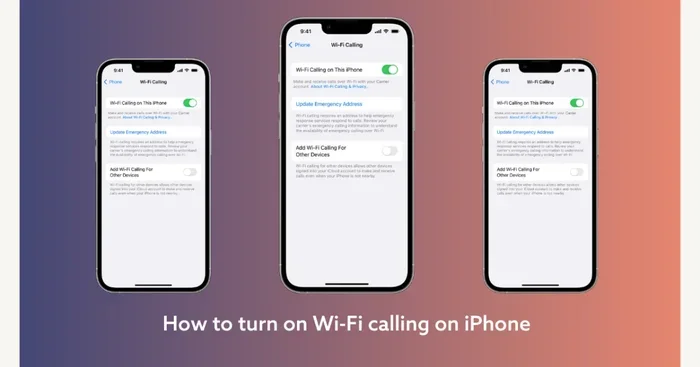
- Open the Settings app on your iPhone.
- Tap on Phone (on older iOS versions, look for Cellular).
- Tap on Wi-Fi Calling.
- Toggle the switch to turn it on.
That is it. Once you toggle it on, your iPhone will start using Wi-Fi calling whenever a Wi-Fi network is available. You will see a small Wi-Fi icon next to your carrier name in the status bar when Wi-Fi calling is active.
If you cannot find the Wi-Fi Calling option under Phone, try this alternative path. Go to Settings, then tap Cellular, and look for Wi-Fi Calling at the top. Some iOS versions organize the settings slightly differently, but the option is always there if your carrier supports it.
How to Enable Wi-Fi Calling on Your iPhone
Enabling Wi-Fi calling takes just a few taps. Let us walk through the process step by step so you do not miss anything.
Step-by-Step Guide
First, make sure your iPhone is connected to a Wi-Fi network. You can check this by looking at the Wi-Fi icon in the top right corner of your screen. If you are not connected, go to Settings and select your network.
Next, open the Settings app. Scroll down and tap on Phone. On some iPhones, you will see Cellular instead of Phone. Both lead to the same place. Tap on Wi-Fi Calling. You will see a toggle switch at the top. Slide it to the right to turn it on.
Your iPhone may ask you to confirm your address for emergency services. This is an important step. Wi-Fi calling uses your location to route emergency calls to the right responders. Enter your address and tap continue. Now your Wi-Fi calling is fully active.
Setting Wi-Fi Calling as Default
Some users prefer to make Wi-Fi calling their default calling method. This means your iPhone will always try to use Wi-Fi first for calls. To do this, go to Settings, then Phone, then Wi-Fi Calling. Turn on the toggle for Wi-Fi Calling on This iPhone. If you have multiple iPhones signed into the same Apple ID, you can also enable it on your other devices.
Troubleshooting: What If the Wi-Fi Calling Option Is Missing?
This is one of the most common questions we see. You follow all the steps, but the Wi-Fi calling setting simply does not appear. Do not worry. This happens more often than you think, and there are clear reasons behind it.
Common Reasons the Setting Is Missing
- Your carrier does not support Wi-Fi calling. Not all carriers offer this feature. Check with your carrier to confirm.
- Your iPhone software is outdated. Older iOS versions may not support the latest Wi-Fi calling features. Update your iPhone to the latest iOS.
- Your SIM card is not active or properly inserted. A loose or inactive SIM can prevent the option from appearing.
- Your carrier account needs to be activated for Wi-Fi calling. Some carriers require you to opt in through their website or app first.
Quick Fixes
If the Wi-Fi calling setting is missing, try these quick fixes. First, restart your iPhone. A simple reboot can refresh your network connections. Second, update your iOS. Go to Settings, then General, then Software Update. Third, remove and reinsert your SIM card. Fourth, contact your carrier and ask them to enable Wi-Fi calling on your account.
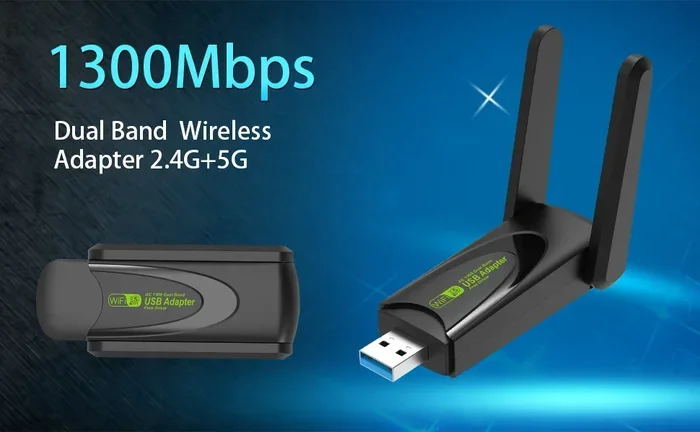
Another thing to check is whether you are using a Wi-Fi adapter or external device that might interfere with your iPhone’s native Wi-Fi calling feature. iPhones do not need external adapters for this feature. It works entirely through the built-in Wi-Fi chip. If you are trying to add Wi-Fi to a PC or other device, that is a different scenario entirely. But for iPhone users, everything you need is already built in.
Benefits of Using Wi-Fi Calling on iPhone
Now that you know how to find and enable the Wi-Fi calling setting, let us talk about why you should use it. There are many real-world benefits that make this feature a must-have.
Better Call Quality
The biggest advantage of Wi-Fi calling is improved call quality. When you are in an area with weak cellular signal, calls can drop or sound muffled. With Wi-Fi calling, your voice travels over the internet, which is often much more stable. You get clearer audio and fewer dropped calls.
No More Dead Zones
Do you have dead zones in your home or office? Maybe your basement or back bedroom always has poor cellular coverage. Wi-Fi calling eliminates this problem. As long as you have a working Wi-Fi network, you can make and receive calls anywhere in your home. This is a game changer for people who work from home or live in rural areas.
Free International Calling
Traveling abroad? Wi-Fi calling can save you a fortune in roaming charges. Many carriers allow you to call US numbers for free using Wi-Fi calling even when you are overseas. Just connect to any Wi-Fi network and make your calls as usual. Your carrier may still charge for international calls, but the rates are often much lower than standard roaming fees.
Works Alongside Your Cellular Plan
Wi-Fi calling does not replace your cellular plan. It works alongside it seamlessly. Your minutes and carrier services remain the same. The only difference is that your calls route through Wi-Fi when available. This means you get the best of both worlds without changing your plan or switching carriers.
Wi-Fi Calling vs. Regular Cellular Calls
How does Wi-Fi calling compare to regular cellular calls? Let us break it down with a quick comparison.
| Feature | Wi-Fi Calling | Regular Cellular Calls |
|---|---|---|
| Network Used | Wi-Fi network | Cellular towers |
| Signal Dependency | Depends on Wi-Fi signal strength | Depends on cellular tower coverage |
| Call Quality | Usually clearer in weak signal areas | Best when near a tower |
| Cost | Free (uses Wi-Fi, not data) | Included in your plan |
| Works Abroad | Yes, with Wi-Fi access | May incur roaming charges |
| Setup Required | Toggle setting on iPhone | No setup needed |
As you can see, Wi-Fi calling offers clear advantages, especially in areas with poor cellular coverage. It is not a replacement for your cellular plan but a powerful supplement. Use both together, and you will rarely miss a call.
Does Wi-Fi Calling Use Data?
A common concern is whether Wi-Fi calling eats up your data. The good news is that Wi-Fi calls do not use your cellular data. They travel over your Wi-Fi network instead. This means you can make long calls without worrying about eating into your data allowance.
However, if you are using a public Wi-Fi network, be mindful of your data usage on other apps. While Wi-Fi calling itself is free, other apps might consume data in the background. If you are at a hotel or café, you might also want to check if the hotel Wi-Fi blocks certain services. Some hotels block Wi-Fi features that require specific ports or protocols.
Expert Tips for the Best Wi-Fi Calling Experience
Want to get the most out of Wi-Fi calling on your iPhone? Here are some expert tips that make a real difference.
- Use a 5GHz Wi-Fi network when possible. It provides faster and more stable connections for calls.
- Keep your iPhone close to your router for the best signal strength during calls.
- Update your iOS regularly to ensure you have the latest Wi-Fi calling improvements.
- Enable Wi-Fi Assist in your settings. This feature automatically switches to cellular data if your Wi-Fi signal drops during a call.
- Restart your router periodically to keep your Wi-Fi network running smoothly.
Also, if you are ever in a situation where your Wi-Fi network is not available but you still need connectivity, consider using a hotspot instead of Wi-Fi. A personal hotspot can provide the internet connection needed for Wi-Fi calling when no traditional network is around. Similarly, if you are dealing with a Wi-Fi thermostat or other smart home devices that need a stable connection, make sure your router is placed centrally in your home for the best coverage.
One more thing worth noting. If you are trying to set up Wi-Fi calling while also managing other wireless devices in your home, a strong and secure Wi-Fi network is essential. You do not want your neighbor hopping on your network and affecting your call quality. Always use a strong password for your home Wi-Fi and consider enabling guest Wi-Fi for visitors.
Final Thoughts
Wi-Fi calling is one of the most underrated and useful features on your iPhone. It is built right in, free to use, and can save you from dropped calls and poor audio quality. Now that you know how to find the Wi-Fi calling setting on your iPhone, you can turn it on and start enjoying better calls today.
Remember, not all carriers support this feature, so check with yours if you run into any issues. Keep your iPhone updated, use a strong Wi-Fi network, and follow the tips we shared. You will wonder how you ever managed without it. Wi-Fi calling is simple, effective, and always there when you need it most.
Frequently Asked Questions
Does every iPhone support Wi-Fi calling?
Most iPhones running iOS 9 or later support Wi-Fi calling. However, your carrier must also support the feature. Check your carrier’s website or contact them directly to confirm compatibility with your specific iPhone model.
Is Wi-Fi calling free to use?
Yes, Wi-Fi calling is free. It uses your Wi-Fi network instead of cellular towers, so you do not pay extra. However, international calls may still incur charges depending on your carrier’s rates.
Can I use Wi-Fi calling without a Wi-Fi network at home?
No, Wi-Fi calling requires a Wi-Fi network connection. If you do not have Wi-Fi at home, you can still use cellular calls. You may also consider getting a Wi-Fi setup at home to take advantage of this feature.
Will my contacts know I am using Wi-Fi calling?
No, your contacts will not see any difference. Wi-Fi calling works seamlessly in the background. The person you are calling will see your regular phone number and hear your normal voice.
What should I do if Wi-Fi calling keeps turning off on its own?
This usually happens when your Wi-Fi signal drops or your iPhone switches to cellular data. Try updating your iOS, restarting your router, or resetting your network settings. If the issue persists, contact your carrier for help.
Can I make emergency calls using Wi-Fi calling?
Yes, you can make emergency calls using Wi-Fi calling. Your iPhone will use your registered address to route the call to the correct emergency responders. Make sure your address is always up to date in your Wi-Fi calling settings.