How Do I Activate My New Xfinity Modem Step by Step
Activating your new Xfinity modem is easier than you think. This step-by-step guide walks you through the entire process, from unboxing to getting online. You will learn how to use the Xfinity online portal, troubleshoot common issues, and set up your Xfinity modem activation like a pro.
So you just got a new Xfinity modem, and you are ready to get online. Maybe you moved to a new place, or your old modem finally gave up the ghost. Either way, the question on your mind is probably, “How do I activate this thing?” The good news is that activating your new Xfinity modem is a pretty straightforward process. You do not need to be a tech wizard to get it done. In this guide, we will walk you through every single step. We will cover the online activation method, the phone activation option, and what to do if something goes wrong.
Whether you are setting up an Xfinity xFi gateway or a standard modem, the process is similar. You will need your account details, a bit of patience, and about 15 to 30 minutes of your time. By the end of this article, you will know exactly how to get your internet connection running smoothly. Let us dive right in.
Key Takeaways
- Easy Activation Methods: You can activate your Xfinity modem online through the Xfinity portal or by calling customer support.
- Check Compatibility First: Make sure your modem is compatible with Xfinity services before starting the setup process.
- Watch the Lights: Understanding your modem indicator lights helps you spot problems early during Xfinity modem setup.
- Self-Install Saves Time: The self-install kit makes it simple to get your internet running without a technician visit.
- Reset When Needed: A quick modem reset can solve most activation hiccups and connectivity issues.
- Contact Support if Stuck: Xfinity support is available 24/7 if you run into any trouble during activation.
📑 Table of Contents
- What You Need Before Starting
- Step 1: Connect Your Modem to Power
- Step 2: Connect the Modem to Your Network
- Step 3: Activate Your Xfinity Modem Online
- Step 4: Activate by Phone (Alternative Method)
- Step 5: Set Up Your Wi-Fi Network
- Step 6: Test Your Connection
- Common Activation Problems and How to Fix Them
- Tips for a Smooth Activation Experience
- Final Thoughts
What You Need Before Starting
Before you begin the Xfinity modem activation process, gather a few things. Having everything ready will save you time and frustration. Here is a quick checklist:
- Your Xfinity account username and password. You can find these in your welcome email or on your billing statement.
- The modem itself. Make sure it is the correct model for Xfinity internet service.
- An Ethernet cable. This usually comes in the box with your modem.
- A computer or smartphone. You need a device to access the activation portal.
- A working power outlet. Plug your modem into a reliable power source.
- Your Xfinity service address. This is the address where your internet service is registered.
Also, make sure your modem is the right one for your plan. If you bought your own modem, check the Xfinity approved modem list first. Using an unsupported device can cause activation problems. If you are not sure, you can always call Xfinity support to confirm. And if you are thinking about using your own personal wifi router alongside your Xfinity modem, that is totally fine too. Just make sure they are compatible.
Step 1: Connect Your Modem to Power
Let us get physical for a moment. The first step in your Xfinity modem setup is connecting the device to power. It sounds obvious, but this is where many people skip ahead and run into problems later.
How to Connect the Power Cord
Take the power adapter that came with your modem. Plug the barrel end into the back of the modem. Then plug the other end into a wall outlet or a surge protector. Avoid using extension cords if possible. A direct connection gives the most stable power supply.
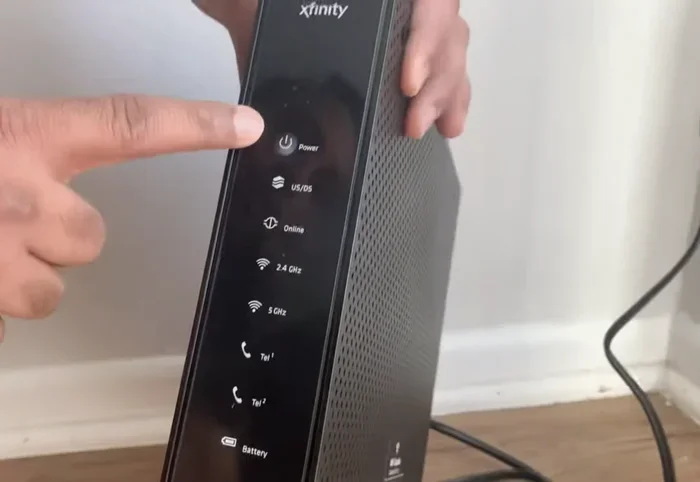
Once plugged in, look at the front of the modem. You will see a series of lights. At this point, some lights may start blinking. This is normal. The modem is booting up and running its initial diagnostics. Give it about 2 to 3 minutes to fully power on.
Quick Tip: If no lights come on at all, try a different outlet. The outlet might not be delivering power. Also, check that the power cord is firmly seated in both the modem and the wall.
What the Lights Mean
Understanding your Xfinity modem lights is really helpful during activation. Here is what to look for:
- Power Light: Solid green means the modem has power.
- Online Light: This should turn solid once the modem connects to the Xfinity network.
- Wi-Fi Light: Blinking means the wireless network is active and ready.
- Ethernet Light: This lights up when a device is connected via cable.
If the online light never turns solid, that is a sign something is wrong. Do not panic. We will cover troubleshooting later in this guide.
Step 2: Connect the Modem to Your Network
Now that your modem has power, it is time to connect it to your home network. You have two main options here: wired or wireless. Most people prefer the wired connection for the initial setup because it is more stable.
Using an Ethernet Cable
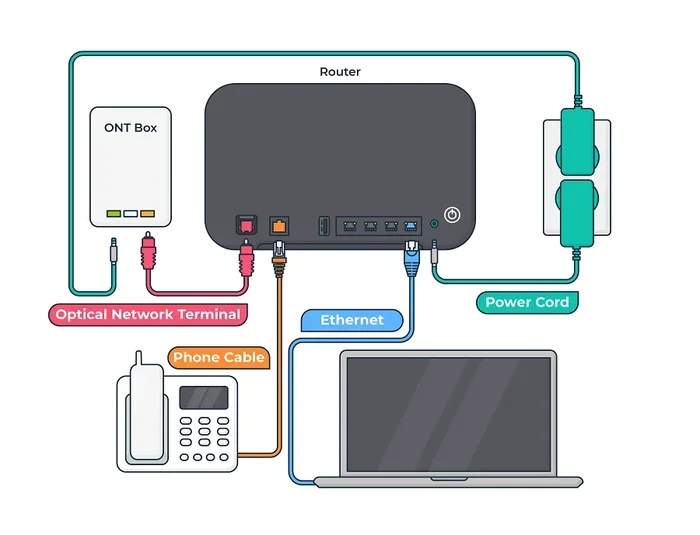
Take the Ethernet cable that came in the box. Plug one end into the Ethernet port on the back of your modem. Plug the other end into your computer or laptop. This creates a direct connection between your device and the modem.
If you do not have an Ethernet cable, you can set up a wireless connection. But for the first activation, we strongly recommend the wired route. It eliminates one variable if something goes wrong.
Also, if you already have an existing mesh router system or another router, you will want to connect the modem to that device during setup. The modem provides the internet signal, and your router distributes it throughout your home.
Using Wi-Fi for Setup
If you prefer to go wireless, you can connect to the modem’s default Wi-Fi network. The network name and password are usually printed on a sticker on the bottom or back of the modem. Look for something like “Xfinity-XXXX” followed by a password.
On your computer or phone, go to your Wi-Fi settings and connect to this network. Once connected, you are ready to move to the next step.
Step 3: Activate Your Xfinity Modem Online
This is the main event. Activating your modem online is the most common method, and it works for most users. Here is exactly what to do.
Using the Xfinity Activation Portal
Open your web browser and go to the Xfinity activation website. The URL is usually xfi.com/activate or xfinity.com/activate. You can also find the exact link in your welcome email.
Once on the activation page, follow these steps:
- Sign in to your Xfinity account. Enter your username and password. If you do not have an account yet, you will need to create one first.
- Enter your service address. This is the address where your Xfinity internet service is registered. Make sure it matches exactly.
- Select your modem. The system may auto-detect your modem. If not, choose the correct model from the list.
- Follow the on-screen prompts. The portal will walk you through the rest of the process.
The activation usually takes about 5 to 10 minutes. During this time, the modem is connecting to Xfinity’s servers and registering your account. Do not unplug the modem or turn it off during this process.
Expert Insight: If the activation portal says your modem is not recognized, double-check that you are using the right Xfinity account. Sometimes people have multiple accounts, and the modem might be tied to a different one. Also, make sure your modem is powered on and connected to the network before you start the portal process.
What If the Online Activation Fails?
Sometimes the online portal just will not cooperate. If you get an error message or the activation stalls, try these steps:
- Clear your browser cache. Old cached data can interfere with the activation page.
- Try a different browser. Chrome and Firefox work best for the Xfinity portal.
- Restart the modem. Unplug it, wait 30 seconds, and plug it back in.
- Try again later. Xfinity servers can sometimes be busy, especially after a system update.
If none of that works, do not worry. You still have the phone activation option as a backup.
Step 4: Activate by Phone (Alternative Method)
Not everyone likes doing things online, and that is perfectly fine. You can also activate your Xfinity modem by calling Xfinity customer support. This method works well if you are having trouble with the online portal or prefer a human touch.
How to Activate Over the Phone
Call the Xfinity activation number. You can find this number on the modem box or in your welcome email. When you reach a representative, have your account details ready.
The representative will walk you through the activation process step by step. They may ask you to confirm your service address and modem serial number. Once verified, they will activate your modem on their end. This usually takes just a few minutes.
Quick Tip: Call during off-peak hours if possible. Early mornings or late evenings tend to have shorter wait times. You can also try the Xfinity chat support option on their website if you do not want to wait on hold.
Can You Use a Different Provider Instead?
If you are not happy with Xfinity or are considering switching, you might explore other options. Some people look into getting a hotspot instead of wi-fi as an alternative. Others may consider switching to a different provider altogether. But for now, let us focus on getting your Xfinity modem up and running.
Step 5: Set Up Your Wi-Fi Network
Once your modem is activated, the next step is setting up your Wi-Fi network. This is where you make the internet actually usable in your home.
Accessing the Modem Settings
Open a web browser and type the modem’s default IP address into the address bar. For most Xfinity modems, this is 10.0.0.1 or 192.168.0.1. Check the sticker on your modem for the exact address.
Log in using the default admin credentials. These are also printed on the modem sticker. Once logged in, you can access the modem’s settings dashboard.
Configuring Your Wi-Fi Name and Password
Here is where you make the network your own. In the settings dashboard:
- Change the network name (SSID). Pick something recognizable but not too personal.
- Set a strong Wi-Fi password. Use a mix of letters, numbers, and symbols.
- Choose the right frequency band. 2.4 GHz covers more distance. 5 GHz offers faster speeds but shorter range.
- Save your settings. Your modem will restart with the new settings applied.
Quick Tip: If you have a larger home, you might want to consider adding a mesh system or a second router to extend your coverage. A strong and reliable home wifi connection makes a huge difference in your daily internet experience.
Step 6: Test Your Connection
Now comes the moment of truth. You have activated your modem and set up your Wi-Fi. It is time to test everything.
How to Test Your Internet Speed
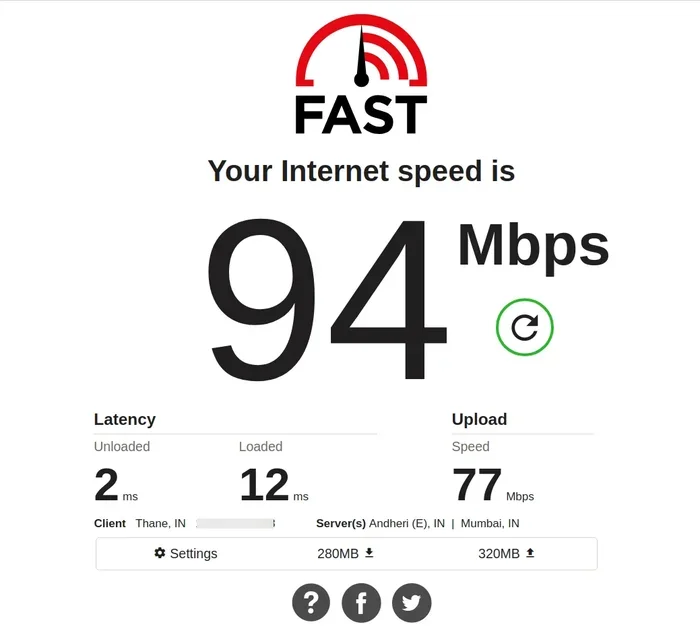
Open a web browser and go to a speed test website like fast.com or speedtest.net. Run the test and check the results.
- Download speed: This should be close to what your Xfinity plan promises.
- Upload speed: Important for video calls and uploading files.
- Ping/Latency: Lower is better, especially for gaming and video calls.
If your speeds are significantly lower than expected, try these things:
- Move closer to the modem and test again.
- Restart the modem and wait a few minutes.
- Check if other devices are using up bandwidth.
- Run the test at a different time of day.
Once your speeds look good, connect a few devices to your new network. Try your phone, laptop, and smart TV. If everything connects and works smoothly, you are all set.
Common Activation Problems and How to Fix Them
Even with the best instructions, things can go wrong. Here are the most common problems people face during Xfinity modem activation and how to solve them.
Modem Lights Not Behaving Normally
If your modem lights are blinking red or not changing at all, something is wrong. A blinking online light usually means the modem cannot connect to the Xfinity network. Try unplugging the modem, waiting 30 seconds, and plugging it back in. If the problem persists, the issue might be on Xfinity’s end. Check the Xfinity service status page for outages in your area.
Activation Error Messages
Error messages during activation can be confusing. Common ones include “Modem Not Found” or “Activation Failed.” These usually mean the modem is not properly connected or your account details are incorrect. Double-check your login credentials and make sure the modem is powered on and online before retrying.
Internet Works but Wi-Fi Does Not
If your wired connection works but Wi-Fi does not, the issue is likely with the wireless settings. Log into the modem dashboard and check if the Wi-Fi is enabled. Also, make sure you are connecting to the correct network name and using the right password.
Slow Speeds After Activation
Slow speeds right after activation are not uncommon. Your modem may still be downloading its full configuration. Wait about 10 to 15 minutes and test again. If speeds are still slow, try restarting the modem or contacting Xfinity support for help.
If you are exploring other options, some people wonder if they can get just wi-fi at home without a traditional modem setup. While Xfinity typically requires a modem or gateway, there are alternatives depending on your situation and location.
Tips for a Smooth Activation Experience
Here are some extra tips to make your Xfinity modem activation go as smoothly as possible:
- Activate as soon as you receive the modem. Do not let it sit in the box for weeks. The sooner you activate, the sooner you get online.
- Keep your modem in a central location. This gives the best Wi-Fi coverage throughout your home.
- Update the modem firmware. After activation, check for firmware updates in the modem settings. This keeps your modem secure and performing well.
- Document your settings. Write down your Wi-Fi name and password and keep it somewhere safe.
- Be patient. Activation can sometimes take longer than expected, especially during high-traffic periods.
Remember, if you ever need help, Xfinity support is just a phone call away. They can walk you through any issues and even remote into your modem if needed. Also, if you are considering whether you need a separate router, check out whether you can get a wi-fi stick for your pc as an alternative connectivity option.
Final Thoughts
Activating your new Xfinity modem does not have to be stressful. With the right steps and a little patience, you can be online in no time. Start by connecting your modem to power and your network. Then use the online portal or call customer support to complete the activation. Once activated, set up your Wi-Fi network and test your connection. If you run into any issues, the troubleshooting tips in this guide should help you resolve them quickly.
The key is to follow each step carefully and not rush through the process. Take your time, double-check your settings, and enjoy your new internet connection. Whether you are working from home, streaming your favorite shows, or just browsing the web, a properly activated modem makes all the difference.
Now that you know how to activate your modem, you are well on your way to a seamless internet experience. Happy surfing!
Frequently Asked Questions
How long does it take to activate a new Xfinity modem?
The online activation process usually takes about 5 to 10 minutes. However, if you need to call customer support, it might take a bit longer depending on wait times. Give yourself about 30 minutes total to be safe.
Can I activate my Xfinity modem without an account?
No, you need an active Xfinity account to activate your modem. If you do not have one yet, you can create an account on the Xfinity website before starting the activation process.
What should I do if my modem is not being recognized during activation?
First, make sure your modem is powered on and connected to the network. Double-check that you are signing into the correct Xfinity account. If the problem persists, try clearing your browser cache or using a different browser. You can also call Xfinity support for help.
Do I need to call a technician to activate my Xfinity modem?
No, you do not need a technician. Xfinity provides a self-install option that lets you activate the modem yourself. The process is straightforward and can be done online or over the phone.
Why is my Xfinity modem blinking white after activation?
A blinking white light usually means the modem is still booting up or connecting to the network. Wait a few minutes. If the light does not turn solid, try restarting the modem. If the issue continues, contact Xfinity support.
Can I use any modem with Xfinity internet service?
No, not all modems are compatible with Xfinity. You should use a modem from the Xfinity approved device list. Using an unsupported modem can lead to activation failures and connectivity issues.