How Can I Get Much Faster Download Speeds With Bitlord
Want to get much faster download speeds with BitLord? You can boost your torrent performance by adjusting bandwidth settings, optimizing your network hardware, and tweaking a few simple configuration tweaks. This guide walks you through proven methods to speed up BitLord downloads, from enabling port forwarding to choosing the right torrents. Whether you use Wi-Fi or Ethernet, these practical steps will help you get the most out of your internet connection.
Key Takeaways
- Adjust BitLord bandwidth settings: Setting upload and download limits correctly can dramatically improve your speeds.
- Use a wired Ethernet connection: Wired connections are more stable and faster than Wi-Fi for torrenting.
- Enable port forwarding: This helps your BitLord client connect to more peers, boosting download rates.
- Choose torrents with high seeder counts: More seeders means faster downloads and better availability.
- Upgrade your router if needed: A faster router can handle more connections and reduce bottlenecks.
- Avoid ISP throttling: Use encryption settings in BitLord to prevent your internet provider from slowing you down.
- Optimize your network configuration: Small tweaks to your setup can lead to big speed improvements.
📑 Table of Contents
- How to Get Much Faster Download Speeds With BitLord
- Optimize BitLord Settings for Maximum Speed
- Improve Your Network Setup
- Enable Port Forwarding on Your Router
- Choose the Right Torrents for Faster Downloads
- Upgrade Your Network Hardware
- Avoid Common Mistakes That Slow Down BitLord
- Expert Tips for Advanced Users
- Final Thoughts
How to Get Much Faster Download Speeds With BitLord
BitLord is a popular torrent client that lets you download files from peer-to-peer networks. But many users complain that their BitLord download speed feels slow. The good news is that you can fix this. With a few simple changes, you can get much faster download speeds and spend less time waiting.
Slow downloads are frustrating. You start a torrent, and then you wait. Hours pass, and the progress bar barely moves. This happens for a lot of reasons. Your network settings might be wrong. Your hardware might be holding you back. Or your internet service provider might be slowing things down. This guide will help you fix all of these issues.
We will walk you through every step. From adjusting BitLord settings to upgrading your network gear, you will learn exactly what to do. You do not need to be a tech expert. These tips are simple and work for beginners and advanced users alike. Let us get your download speeds up where they should be.
Why Is My BitLord Download So Slow?
Before we fix the problem, let us understand why it happens. Several factors can slow down your BitLord downloads. Knowing the cause helps you pick the right fix.
First, your internet connection speed matters. If your plan gives you slow speeds, no torrent client can fix that. Second, your network configuration might be limiting performance. Third, the torrent itself might have few seeders. And fourth, your ISP might be throttling torrent traffic. This means your provider slows down certain types of downloads on purpose.
Sometimes the problem is a mix of all these things. That is why a full approach works best. You fix what you can control and work around what you cannot.
Optimize BitLord Settings for Maximum Speed
The easiest way to get faster speeds is to tweak BitLord’s built-in settings. These controls let you manage how much bandwidth BitLord uses. When set correctly, you will see a big improvement.
Adjust Upload and Download Limits
BitLord has settings for both upload and download speed limits. By default, these are often set to unlimited or very low values. Here is what you should do.
- Set your download limit to match your internet speed. For example, if your plan gives you 100 Mbps, set the download limit to around 95 Mbps. This leaves room for other internet activity.
- Set your upload limit to about 80% of your upload speed. Most internet plans have much lower upload speeds than download speeds. Do not max out your upload, or it will hurt your download performance.
- Disable speed limits if you are not sure. Go to Settings, then Bandwidth. Turn off any speed caps and see if your speeds improve.
Increase the Number of Connections
BitLord connects to multiple peers to download pieces of a file. The more connections you have, the faster your downloads can be. Go to the Preferences menu and look for the connection settings.
- Increase the global maximum connections. Try setting this to 200 or higher.
- Increase connections per torrent. Set this to 100 or more for each active download.
- Be careful not to go too high. Too many connections can overwhelm your router and actually slow things down.
Enable Protocol Encryption
Many internet providers throttle torrent traffic. They look for BitTorrent patterns and slow them down. You can stop this by turning on protocol encryption in BitLord.
Go to Settings, then BitTorrent. Look for the encryption option. Set it to “Require encryption” or “Prefer encryption.” This makes your traffic harder for your ISP to identify and slow down. Many users see a noticeable speed boost just by enabling this one setting.
Improve Your Network Setup
BitLord settings are only part of the equation. Your network setup also plays a huge role in download speed. Let us look at how to optimize your network for better performance.
Use a Wired Ethernet Connection
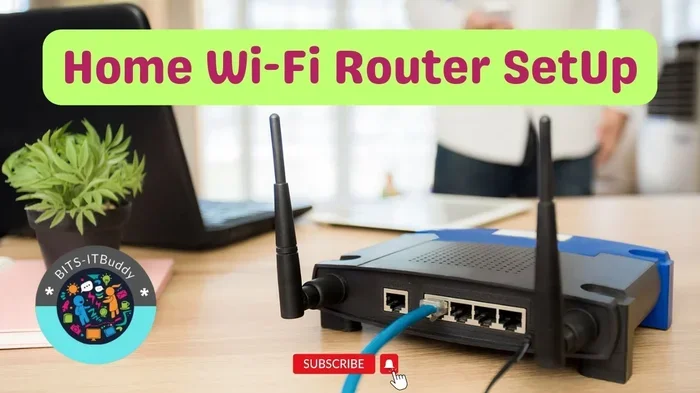
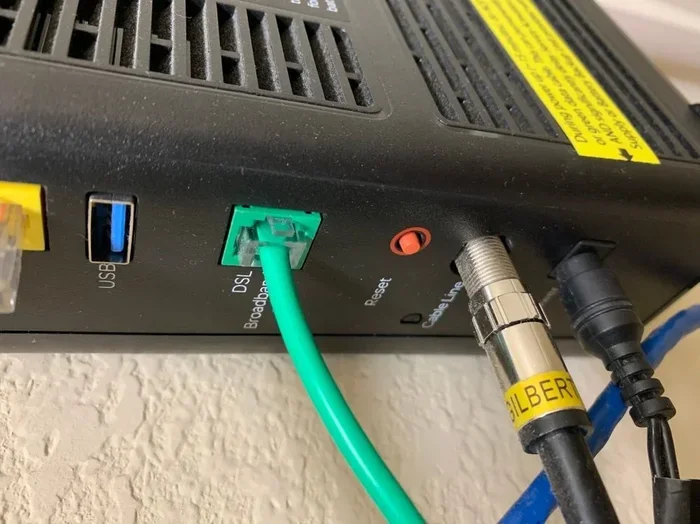
Wi-Fi is convenient, but it is not always the best choice for torrenting. Wired connections are faster and more stable. If you can, plug your computer directly into your router using an Ethernet cable.
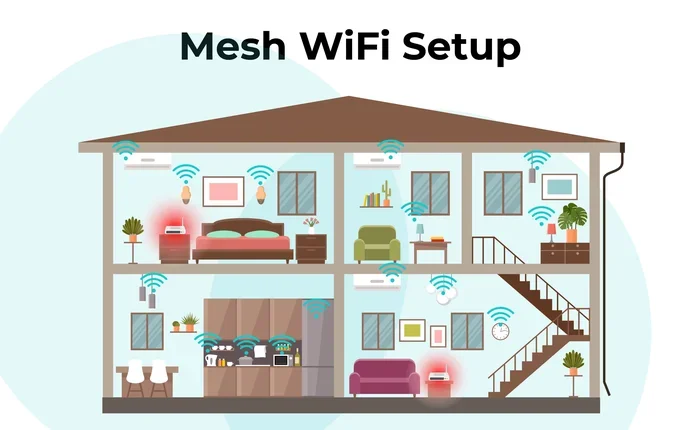
If running a cable is not possible, consider extending your Wi-Fi with an Ethernet cable to get the best of both worlds. This setup lets you place your computer closer to the router while still using a wired connection for the download device.
Here is why wired connections are better for BitLord:
- Lower latency. Wired connections have less delay than Wi-Fi.
- More stable speeds. Wi-Fi can fluctuate based on distance and interference.
- Better for many connections. BitLord opens many connections at once. Wired handles this more reliably.
Check Your Wi-Fi Signal Strength
If you must use Wi-Fi, make sure your signal is strong. A weak signal means slower speeds and more dropped connections. Try moving closer to your router. Remove physical obstacles between your computer and the router.
You can also check your signal strength in your computer’s network settings. If it shows low signal, consider moving your router or using a Wi-Fi extender. A strong signal makes a real difference in download performance.
Connect Your PC to Wi-Fi Without an Adapter
If your PC does not have a built-in Wi-Fi adapter, you might be using an older or slow external adapter. This can limit your speeds. If you want to explore options for getting Wi-Fi on a PC that lacks a built-in adapter, check out our guide on connecting to Wi-Fi without a Wi-Fi adapter.
Using the right adapter or connection method ensures your hardware does not become the bottleneck. Your download speed is only as fast as your weakest link in the chain.
Enable Port Forwarding on Your Router
Port forwarding is one of the most effective ways to speed up BitLord downloads. It tells your router to direct incoming traffic directly to BitLord. This helps you connect to more peers and download faster.
How to Set Up Port Forwarding
Setting up port forwarding sounds complicated, but it is easier than you think. Follow these steps:
- Find your BitLord listening port. Go to Settings, then Connections. Note the port number BitLord uses.
- Log in to your router. Open a web browser and type your router’s IP address. This is usually 192.168.1.1 or 192.168.0.1.
- Find the port forwarding section. This is often under Advanced Settings or NAT.
- Add a new port forwarding rule. Enter the BitLord port number and your computer’s local IP address.
- Save and restart BitLord. Test your connection to see if port forwarding is working.
Port forwarding can improve your speeds by 20-50% or more. It is one of the best things you can do for BitLord performance.
Choose the Right Torrents for Faster Downloads
Not all torrents are created equal. The torrent you choose has a huge impact on your download speed. Picking the right ones can mean the difference between waiting hours and finishing in minutes.
Look for Torrents with High Seeder Counts
Seeders are users who have the complete file and are sharing it with others. The more seeders a torrent has, the faster your download will be. When you search for torrents, always check the seeder count first.
- Look for torrents with 50 or more seeders. These will download quickly for most files.
- Avoid torrents with zero or very few seeders. Even if there are many leechers, few seeders means slow speeds.
- Check the health of the torrent. Some torrent sites show a health score. Higher is always better.
Use Multiple Torrent Trackers
Trackers are servers that help BitLord find peers. Using torrents that support multiple trackers gives you more options for finding fast connections. BitLord supports multi-tracker torrents, so make sure you are downloading files that use this feature.
Prioritize Your Downloads
If you have multiple torrents downloading at once, prioritize the ones you want most. BitLord lets you set download priorities for each torrent. Focus your bandwidth on the files that matter most to you right now.
You can also adjust the priority of individual files within a torrent. If you only need certain files, set those to high priority and pause or deprioritize the rest.
Upgrade Your Network Hardware
Sometimes software tweaks are not enough. Your hardware might be the limiting factor. Upgrading your network equipment can give you a major speed boost.
Buy a Faster Router
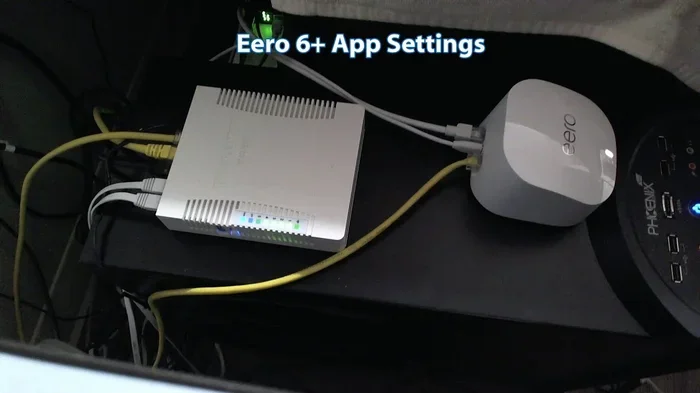
Your router handles all the traffic in your home network. An older or slower router can bottleneck your BitLord downloads. If your router is several years old, it might not support the latest Wi-Fi standards.
Consider buying a faster router that supports Wi-Fi 6 or newer. These routers handle more connections and deliver faster speeds. They also have better range and stability, which helps with large downloads.
Look for routers with these features:
- Dual-band or tri-band support. This gives you more bandwidth and less interference.
- Quality of Service (QoS) settings. QoS lets you prioritize torrent traffic over other devices.
- Gigabit Ethernet ports. If you use wired connections, gigabit ports ensure you get the full speed of your internet plan.
Consider Your Internet Plan Speed
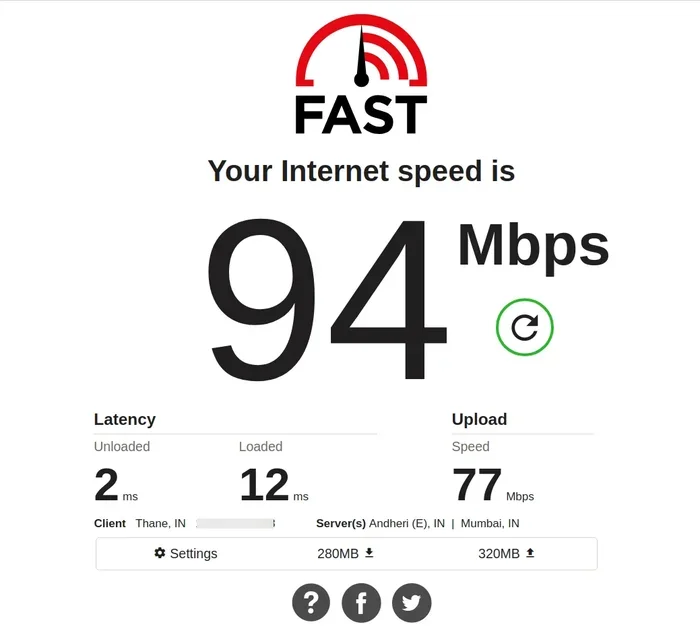
No matter how well you optimize BitLord, your internet plan sets the upper limit. If your plan only gives you 10 Mbps, you will not get blazing-fast downloads. Check your current plan speed and consider upgrading if needed.
Use a speed test tool to check your actual speeds. If they are much lower than what your plan promises, contact your ISP. There might be an issue with your connection that needs fixing.
Avoid Common Mistakes That Slow Down BitLord
Even with the best settings, some common mistakes can hold you back. Here are things to avoid when using BitLord.
Do Not Leave BitLord Running 24/7 on Slow Hardware
If your computer is old or slow, running BitLord constantly can cause problems. It uses CPU and memory to manage connections. On a weak system, this can slow everything down, including your downloads.
Try to close unnecessary programs while BitLord is downloading. This frees up resources and helps BitLord run more efficiently.
Do Not Ignore Software Updates
BitLord updates often include performance improvements and bug fixes. Running an outdated version means you miss out on these optimizations. Keep BitLord updated to get the best speeds.
Do Not Download During Peak Hours
If you share your internet connection with others, peak usage times can slow things down. Evening hours are typically the busiest. If possible, schedule large downloads during off-peak hours for better speeds.
Expert Tips for Advanced Users
For those who want to squeeze every bit of speed out of BitLord, here are some advanced tips.
Use a VPN to Bypass Throttling
A VPN encrypts all your internet traffic, making it impossible for your ISP to see that you are torrenting. This stops them from throttling your speeds. Many users report 2-3x faster download speeds after switching to a VPN.
Look for a VPN with fast speeds and good server coverage. Free VPNs are usually too slow for torrenting. Invest in a reputable paid VPN for the best results.
Tweak BitLord’s Cache Settings
BitLord uses a cache to store data before writing it to your hard drive. Increasing the cache size can improve speeds, especially on slower drives.
- Go to Settings, then Cache.
- Increase the read and write cache sizes. Try 512 MB or higher if you have enough RAM.
- Enable write caching if your drive supports it. This reduces the number of write operations and speeds things up.
Use a Download Accelerator Feature
Some torrent clients offer download acceleration features. BitLord does not have a dedicated accelerator, but you can achieve similar results by optimizing your connection settings and using the tips above. The combination of port forwarding, encryption, and bandwidth tuning acts as a natural download accelerator.
Final Thoughts
Getting much faster download speeds with BitLord is totally achievable. You do not need expensive equipment or advanced technical skills. Start with the simple fixes, like adjusting your bandwidth settings and enabling encryption. Then move on to port forwarding and network upgrades if needed.
Remember that your BitLord download speed depends on many factors. Your internet plan, your hardware, the torrent health, and your network setup all play a role. By working through the tips in this guide, you will address each of these factors and see real improvement.
Take action today. Open BitLord, check your settings, and make the changes outlined here. You will be surprised at how much faster your downloads can be. Happy torrenting, and enjoy those speedy downloads!
Frequently Asked Questions
Why is BitLord so slow even with a fast internet plan?
Slow speeds in BitLord are often caused by settings, not your internet plan. Check your bandwidth limits, connection settings, and encryption options. Also, make sure your router is not blocking or limiting BitLord traffic. A simple settings adjustment can often fix the problem.
Does using a VPN really speed up BitLord downloads?
Yes, in many cases. Internet providers sometimes throttle torrent traffic, which slows you down. A VPN hides your activity from your ISP, preventing throttling. Many users see a significant speed boost after switching to a VPN, especially during peak hours.
How many connections should I set in BitLord for best speeds?
A good starting point is 200 global connections and 100 connections per torrent. If your internet plan is fast, you can increase these numbers. Just be careful not to set them too high, as that can overwhelm your router and cause slowdowns.
Can my router affect BitLord download speeds?
Absolutely. Older routers may not handle many connections well, which limits your BitLord speeds. A faster router with better hardware and QoS settings can make a big difference. If your router is several years old, upgrading can be a worthwhile investment.
Should I use Wi-Fi or Ethernet for BitLord downloads?
Ethernet is always better for torrenting. It provides a more stable and faster connection with less interference. If you cannot use Ethernet, make sure your Wi-Fi signal is strong and consider using the latest Wi-Fi standards for the best performance.
What is the best way to find fast torrents in BitLord?
Look for torrents with high seeder counts and good health scores. More seeders means more sources to download from, which leads to faster speeds. Also, choose torrents that support multiple trackers for better peer availability.