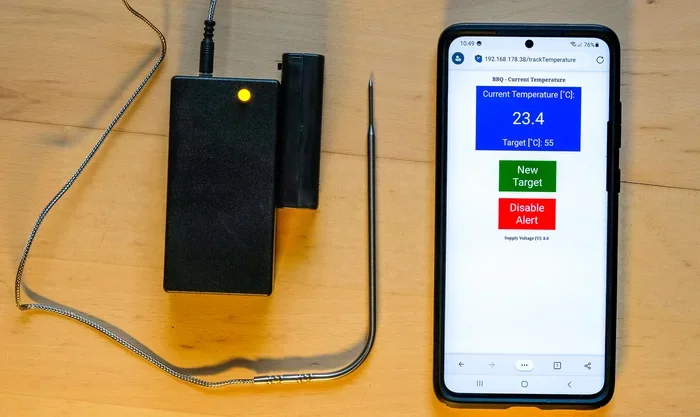
How Do I Calibrate My Inkbird Wifi Thermometer Correctly
Calibrating your Inkbird WiFi thermometer is essential for getting precise temperature readings in cooking, smoking, and home monitoring. This guide walks you through every step of the calibration process, from ice bath testing to WiFi setup adjustments. You will learn common mistakes to avoid, expert tips for maintaining accuracy, and how to troubleshoot connectivity issues.
Have you ever wondered if the temperature your Inkbird WiFi thermometer is showing you is actually correct? Whether you are smoking brisket in the backyard or monitoring your indoor climate, an uncalibrated thermometer can lead to bad food, wasted time, and frustrating results. Calibrating your Inkbird WiFi thermometer is a simple process that makes a huge difference in accuracy.
In this guide, we will walk you through every single step to calibrate your device the right way. You will learn the ice bath method, the boiling point test, and how to fix common WiFi issues that can mess with your readings. By the end, you will feel confident that your thermometer is giving you trustworthy numbers every time.
Key Takeaways
- Calibration ensures your Inkbird WiFi thermometer reads temperatures accurately for cooking, smoking, and home use.
- The ice bath method is the most reliable way to calibrate your thermometer at home using simple materials.
- Regular recalibration every few months keeps your thermometer performing at its best over time.
- WiFi connectivity issues can affect readings, so proper network setup is just as important as calibration.
- Common mistakes like skipping the ice bath or ignoring firmware updates can throw off your accuracy significantly.
📑 Table of Contents
- What Is an Inkbird WiFi Thermometer
- Why Calibration Matters for Your Inkbird Thermometer
- How to Calibrate Your Inkbird WiFi Thermometer Step by Step
- Common Calibration Mistakes to Avoid
- Maintaining WiFi Connectivity for Accurate Readings
- Expert Tips for Long-Term Thermometer Accuracy
- Comparison: Ice Bath vs. Boiling Point Calibration
- Conclusion
What Is an Inkbird WiFi Thermometer
An Inkbird WiFi thermometer is a smart temperature monitoring device that connects to your home wireless network. It lets you track temperatures from your phone, even when you are not in the same room. These thermometers are popular among home cooks, BBQ enthusiasts, and anyone who wants real-time temperature data without being tied to the kitchen.
The device typically includes a probe that goes into your food or environment and a base unit that connects to WiFi. The base sends data to the Inkbird app on your smartphone. This means you can monitor your WiFi connected thermometer readings from across the house or even when you are away.
How the WiFi Connection Works
Your Inkbird thermometer talks to your router using your home WiFi network. If your connection is weak or unstable, the readings might lag or drop entirely. That is why it helps to make sure your WiFi setup is solid before you start calibrating. If you are dealing with weak signals, you might want to look into extending your WiFi with an Ethernet cable to boost the connection near your thermometer.
Why Calibration Matters for Your Inkbird Thermometer
Factory settings are not always perfect. During manufacturing, tiny variations can throw off the sensor by a degree or two. That might not sound like much, but when you are smoking meat at precise temperatures, even a two-degree difference matters. Calibrating your Inkbird WiFi thermometer ensures the readings you trust are actually correct.
Here are some key reasons why calibration is so important:
- Food safety: Undercooked meat can harbor harmful bacteria. Accurate temperature readings help you cook safely.
- Better cooking results: Knowing the exact temperature helps you hit your target every time.
- Saving money: Overcooking or undercooking means wasted food and wasted ingredients.
- Consistency: Calibration gives you repeatable results, which is the foundation of great cooking.
When Should You Calibrate
You should calibrate your thermometer in a few key situations. First, always do it when you get a new device out of the box. Second, recalibrate every two to three months during regular use. Third, calibrate if you drop the thermometer or expose it to extreme conditions. Finally, if you notice readings that seem off, a quick calibration check can set things right.
How to Calibrate Your Inkbird WiFi Thermometer Step by Step
Calibrating your Inkbird WiFi thermometer is straightforward and does not require any special tools. There are two main methods: the ice bath method and the boiling point method. Most home users find the ice bath method to be the easiest and most reliable.
Method 1: The Ice Bath Calibration
The ice bath method uses the fact that pure ice water settles at exactly 32 degrees Fahrenheit (0 degrees Celsius). This gives you a reliable reference point to check your thermometer against.
- Fill a glass with crushed ice. Use small ice pieces for better contact with the water.
- Add cold water until the glass is about three-quarters full.
- Stir the mixture gently for about 30 seconds to create a uniform temperature.
- Insert the probe into the center of the ice water. Make sure it does not touch the sides or bottom of the glass.
- Wait 30 to 60 seconds for the reading to stabilize.
- Compare the reading to 32°F. If it reads 32°F, your thermometer is perfectly calibrated.
- Adjust if needed. Most Inkbird models let you offset the reading through the app or the device buttons.
Method 2: The Boiling Point Calibration
The boiling point method works well if you want a second reference point. However, keep in mind that water boils at different temperatures depending on your altitude. At sea level, pure water boils at 212°F (100°C). At higher elevations, the boiling point drops.
- Bring a pot of distilled water to a rolling boil.
- Insert the probe into the boiling water, making sure it does not touch the pot.
- Wait for the reading to stabilize. This usually takes about 60 seconds.
- Compare the reading to the expected boiling point for your elevation.
- Adjust the offset in the Inkbird app if the reading is off.
Adjusting the Offset in the Inkbird App
Once you find the difference between your thermometer reading and the known reference point, you can apply an offset. Open the Inkbird app on your phone. Go to the device settings. Look for the calibration or offset option. Enter the difference as a positive or negative value depending on whether your reading is too high or too low. This simple adjustment syncs your WiFi thermometer with accurate temperature data.
Common Calibration Mistakes to Avoid
Even with a clear guide, people make mistakes that throw off their calibration. Here are the most common errors and how to avoid them.
Using Tap Water Instead of Distilled Water
Tap water has dissolved minerals and gases that change its freezing and boiling points. Always use distilled water for the most accurate reference points. This small change makes a big difference in your calibration precision.
Not Letting the Thermometer Stabilize
Patience is key. If you pull the probe out too quickly or read the temperature before it settles, you will get an inaccurate result. Wait at least 30 to 60 seconds after inserting the probe before recording the reading.
Letting the Probe Touch the Container
The glass or pot can conduct heat differently than the liquid inside. Always keep the probe suspended in the center of the ice bath or boiling water. Touching the sides or bottom gives you false readings.
Skipping the WiFi Setup After Calibration
After you calibrate, make sure your device reconnects to your WiFi network properly. A weak or interrupted connection can cause your Inkbird WiFi thermometer to lose calibration settings or fail to sync data to your phone. If you are having trouble connecting, check whether your network requires a password or special setup. You can learn more about getting WiFi without a password if your network has security restrictions that interfere with the connection.
Forgetting to Recalibrate Regularly
Calibration is not a one-time task. Sensors drift over time, especially with frequent use and exposure to heat. Set a reminder every two to three months to check your calibration again.
Maintaining WiFi Connectivity for Accurate Readings
Your Inkbird WiFi thermometer depends on a stable internet connection to send data to your phone. If the WiFi signal is weak or drops frequently, your readings may lag or fail to update. Here are some tips to keep your connection strong.
Place Your Router Close to the Thermometer
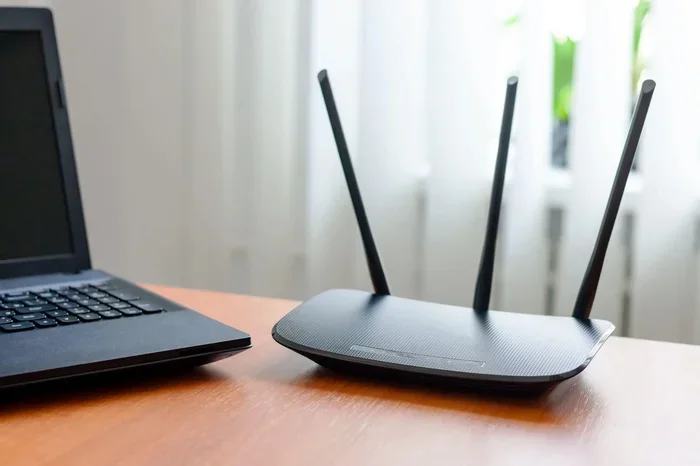
The closer your router is to where you use the thermometer, the stronger the signal will be. If your router is far away, consider moving it or adding a WiFi extender in that area.
Use the 2.4GHz Band
Most smart thermometers, including Inkbird devices, connect to the 2.4GHz WiFi band. This band has a longer range than the 5GHz band, which makes it better for devices placed far from the router. If your router uses both bands, make sure you are connecting to the right one.
Create a QR Code for Easy WiFi Setup
If you need to connect multiple devices or share your WiFi credentials easily, you can create a QR code for your WiFi network. This makes it simple to connect your Inkbird thermometer without manually typing in long passwords. It is a quick and convenient trick that saves time and reduces setup errors.
Check for Firmware Updates
Inkbird regularly releases firmware updates that fix bugs and improve WiFi performance. Open the Inkbird app and check for updates periodically. Keeping your device firmware current ensures the best connection and most accurate readings.
Troubleshooting Connection Issues
If your thermometer keeps losing connection, try these steps:
- Restart your router and wait 30 seconds before turning it back on.
- Move the thermometer closer to the router temporarily.
- Forget the WiFi network on the device and reconnect from scratch.
- Check that your router is not blocking the device’s MAC address.
- Make sure your internet plan provides a stable connection. If you are still having issues, you might want to explore options like getting a dedicated WiFi setup at home that prioritizes smart home devices.
Expert Tips for Long-Term Thermometer Accuracy
Keeping your Inkbird WiFi thermometer accurate over the long haul takes a little effort but pays off big time. Here are expert-backed tips to get the most from your device.
Store the Probe Properly
When you are not using the thermometer, store the probe in a clean, dry place. Never leave it plugged in or exposed to extreme heat when not in use. Proper storage protects the sensor and extends the life of your device.
Clean the Probe After Every Use
Food residue, grease, and oils can build up on the probe and affect readings. Wipe the probe with a gentle cleaner after each use. Do not submerge the entire device in water unless the manufacturer says it is safe.
Cross-Check with a Second Thermometer
If you want extra confidence, compare your Inkbird readings with a second trusted thermometer. If both devices agree, you know your calibration is solid. If they differ, it is time to recalibrate one or both devices.
Keep the App Updated
The Inkbird app receives updates that improve performance and fix bugs. An outdated app can cause syncing issues or display incorrect data even when the thermometer itself is working fine.
Comparison: Ice Bath vs. Boiling Point Calibration
| Factor | Ice Bath Method | Boiling Point Method |
|---|---|---|
| Accuracy | Very high (32°F reference) | Good but altitude-dependent |
| Ease of Setup | Very easy | Moderate |
| Equipment Needed | Ice, water, glass | Distilled water, pot |
| Best For | Home users, quick checks | Double-checking calibration |
| Time Required | 5 to 10 minutes | 15 to 20 minutes |
| Reliability | Excellent | Good with altitude adjustment |
For most users, the ice bath method is the go-to choice. It is fast, simple, and does not depend on your location or altitude. The boiling point method works well as a secondary check, especially if you want to verify both the low and high ends of your thermometer’s range.
Conclusion
Calibrating your Inkbird WiFi thermometer is one of the simplest things you can do to improve your cooking and monitoring experience. With the ice bath method, a few minutes of your time, and the Inkbird app, you can ensure your readings are spot-on every single time. Remember to recalibrate regularly, maintain your WiFi connection, and store your probe properly to get the longest life out of your device.
Whether you are a weekend BBQ smoker or a serious home cook, accurate temperature readings give you confidence in every meal you prepare. Take the time to calibrate your Inkbird WiFi thermometer today, and you will notice the difference in your results immediately. Your food will taste better, your cooking will be more consistent, and you will waste less food in the process.
Start with the ice bath method, apply the offset through the app, and make it a habit to check your calibration every few months. Once you see the difference accurate readings make, you will never skip this step again.
Frequently Asked Questions
How often should I calibrate my Inkbird WiFi thermometer?
You should calibrate your thermometer every two to three months with regular use. If you drop the device or notice readings that seem off, recalibrate immediately. Regular calibration keeps your temperature data trustworthy and your cooking results consistent.
Can I calibrate my Inkbird thermometer without WiFi?
Yes, calibration itself does not require WiFi. The ice bath and boiling point methods work offline. However, you do need WiFi to sync calibration offsets through the Inkbird app and to receive firmware updates that improve accuracy over time.
What if my Inkbird thermometer reads differently after calibration?
If readings are still off after calibration, try repeating the ice bath test with fresh distilled water. Make sure the probe is not touching the container. If the problem persists, check for firmware updates in the app or contact Inkbird support for assistance with your WiFi thermometer device.
Does altitude affect thermometer calibration?
Altitude mainly affects the boiling point method, not the ice bath method. Water boils at lower temperatures at higher elevations. If you use the boiling point method, look up the correct boiling temperature for your altitude before comparing it to your thermometer reading.
Can I use the Inkbird thermometer for both cooking and home monitoring?
Absolutely. Inkbird WiFi thermometers are versatile devices that work for cooking, smoking, home climate monitoring, and more. The calibration process is the same regardless of how you use the device. Just make sure to recalibrate periodically for the best results.
Is it normal for WiFi thermometers to lose connection occasionally?
Yes, occasional connection drops can happen due to router distance, interference from other devices, or weak signals. Placing your router closer to the thermometer and using the 2.4GHz band can significantly reduce connection issues and keep your readings synced properly.