How Do I Connect Multiple Tvs to One Source Easily
Connecting multiple TVs to one source is easier than you think. Whether you want to mirror the same content across every screen or share different content in different rooms, there is a solution for every budget and setup. This guide walks you through all the methods, from HDMI splitters to wireless transmitters, so you can pick the best option for your home.
Have you ever wanted to watch the same movie on every TV in your house at the same time? Or maybe you need to show a presentation on several screens in an office or a waiting room. Whatever your reason, connecting multiple TVs to one source is a practical skill that saves time and money. You do not need to be a tech expert to pull this off either. With the right tools and a little patience, you can have every screen displaying the same content in minutes.
The process depends on how far apart your TVs are and what kind of source device you are working with. Some methods use simple cables and boxes. Others rely on your home network or wireless signals. This guide breaks down every option so you can choose the one that fits your space, your budget, and your needs. Let us dive in.
Key Takeaways
- HDMI splitters are the most affordable way to duplicate one source across multiple TVs.
- Wireless HDMI transmitters give you freedom from cables and make multi-room setups simple.
- Network-based solutions let you stream content over your home Wi-Fi to every TV.
- An HDMI switch works best when you have multiple sources but only one display per room.
- Avoid signal loss by using powered splitters and quality cables for longer runs.
- Check your source device output capabilities before buying any equipment.
📑 Table of Contents
What Does It Mean to Connect Multiple TVs to One Source?
When we talk about connecting multiple TVs to one source, we mean taking a single device and sending its signal to two or more television screens. That source could be a cable box, a streaming stick, a gaming console, a laptop, or even a Blu-ray player. The goal is to share the same content across every display without needing a separate device for each TV.
There are two main scenarios people run into. The first is mirroring, where every TV shows the exact same thing at the same time. Think of a sports bar or a family room where everyone wants to watch the big game. The second is distribution, where you send the same source to different TVs but might want to control what plays on each one separately. Both scenarios are totally doable, and the method you pick depends on which one matches your situation.
Before you buy anything, take a look at the outputs on your source device. Most modern devices have at least one HDMI port. Some older ones might use composite or component connections. Knowing what you are working with helps you choose the right display distribution method right from the start.
Methods to Connect Multiple TVs to One Source
There are several ways to get your source signal onto multiple screens. Each method has pros and cons, so let us walk through them one by one.
Using an HDMI Splitter
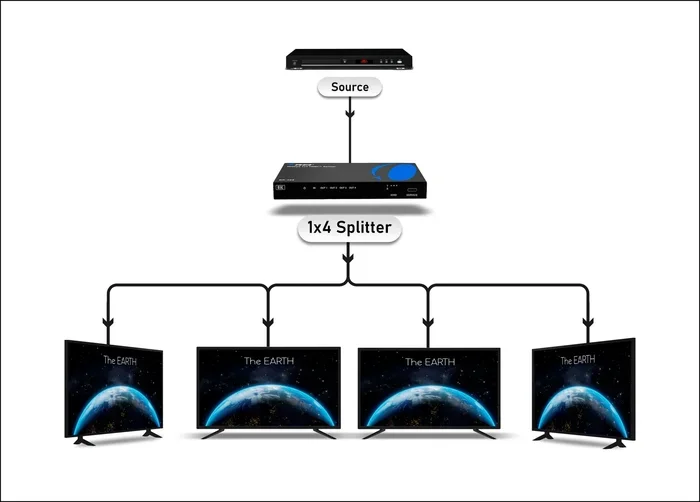
An HDMI splitter is the most popular and budget-friendly option for duplicating a signal across multiple TVs. You plug your source device into the splitter’s input, and then run separate HDMI cables from each output to every TV. The splitter copies the signal exactly, so every screen shows the same thing at the same time.
Splitters come in different sizes. A 1×2 splitter sends the signal to two TVs. A 1×4 splitter handles four screens. Some models even support eight or more outputs. The key thing to look for is a powered splitter, which uses an external power adapter to boost the signal. Passive splitters can cause signal loss, especially over long cable runs.
Here are a few tips when shopping for a splitter:
- Make sure it supports the resolution you need, such as 4K or 1080p.
- Check the maximum cable length it can handle without signal degradation.
- Look for models with built-in signal amplifiers for longer runs.
- Read reviews to avoid cheap models that introduce lag or audio issues.
If your TVs are close together, a basic splitter works great. But if you need to run cables across a large house, you might want to explore other options.
Using an HDMI Switch
An HDMI switch is different from a splitter. A switch lets you connect multiple source devices to one TV, not the other way around. However, if you have a setup where each TV needs access to several sources, you can use a switch at each TV location. This works well in offices or conference rooms where different laptops or devices need to connect to a shared display.
For a true multi-TV setup from a single source, a splitter is usually the better choice. But it is worth understanding the difference so you do not buy the wrong device.
Wireless HDMI Transmitter
If running cables feels like a hassle, a wireless HDMI transmitter is a game-changer. These kits include a transmitter and a receiver. You connect the transmitter to your source device and the receiver to each TV. The signal travels through the air, eliminating the need for long HDMI cables.
Wireless HDMI kits work well for distributing a signal to TVs in different rooms. Some models can reach up to 100 feet or more through walls. They are especially useful in home entertainment setups where you want a clean, cable-free look.
Here is what to keep in mind:
- Wireless systems can experience interference from other devices.
- Latency may be a concern for fast-moving content like sports or gaming.
- Higher-end models offer better range and picture quality.
- Some systems support only one receiver, so you may need multiple receivers for more TVs.
Many people find that wireless distribution is the most convenient option for multi-room setups. You avoid drilling holes or running long cables through walls.
Network-Based Distribution
If your source device can output over your home network, you can use a network-based distribution system to send content to multiple TVs. This works with streaming devices like Apple TV, Roku, or Chromecast. You simply set up each TV with its own streaming device and cast the same content from your source.
This method is very flexible. You can control what plays on each TV independently, even though they all pull from the same source. It also scales easily if you want to add more TVs later. The main requirement is a strong and reliable Wi-Fi network.
Some people also use media servers or smart home systems to manage content distribution across multiple screens. These setups take a bit more technical knowledge, but they offer the most control over what plays where.
Step-by-Step Guide to Setting Up Multiple TVs to One Source
Now that you know the main methods, let us walk through a basic setup using an HDMI splitter. This is the most common approach and works for most home setups.
Step 1: Gather your equipment. You will need an HDMI splitter, enough HDMI cables for each TV, and your source device. Make sure the splitter supports the resolution of your source device.
Step 2: Connect the splitter to the source. Plug one end of an HDMI cable into your source device and the other end into the splitter’s input port.
Step 3: Run cables to each TV. Connect an HDMI cable from each output on the splitter to each television. If the TVs are far apart, use longer cables or consider a signal booster.
Step 4: Power on the splitter. If your splitter has a power adapter, plug it in. Turn on all the TVs and the source device.
Step 5: Test the setup. Check each TV to make sure the picture and audio are working correctly. Adjust the resolution settings if needed.
For a wireless setup, the process is simpler in some ways. You connect the transmitter to the source, plug each receiver into a TV, and pair them. Always follow the manufacturer’s instructions for the best results.
Common Mistakes to Avoid
Setting up multiple TVs from one source can go wrong in a few common ways. Here are the mistakes to watch out for.
Using a passive splitter for long cable runs. Passive splitters divide the signal without boosting it. Over long distances, this leads to weak pictures and no sound. Always use a powered splitter for runs longer than 15 feet.
Ignoring resolution compatibility. If your source outputs 4K but your splitter only supports 1080p, you will lose picture quality. Check every piece of equipment in the chain and make sure they all support the same resolution.
Overloading your Wi-Fi network. If you choose a network-based distribution method, too many devices streaming at once can slow things down. Make sure your router can handle the load, or consider a wired Ethernet backhaul for stability.
Buying the wrong splitter type. Some splitters only duplicate the signal, while others can switch between inputs. Read the product description carefully to make sure you get what you need.
Expert Tips for Better Performance
Want to get the most out of your multi-TV setup? Here are some tips from people who have done this many times.
First, invest in quality HDMI cables. Cheap cables can introduce signal problems, especially at higher resolutions. Look for cables that are rated for the speed and bandwidth you need. A high-speed HDMI cable makes a real difference in picture and sound quality.
Second, keep your source device close to the splitter. The shorter the cable from the source to the splitter, the stronger the signal will be. If you must run a long cable from the source, use a quality cable and consider a signal booster.
Third, label your cables. When you have multiple TVs and multiple cables, it gets confusing fast. A simple label maker can save you a lot of troubleshooting time later.
Fourth, test one TV at a time. If something is not working, isolating each TV makes it much easier to find the problem. Start with the TV closest to the splitter and work your way out.
Fifth, consider your home entertainment system as a whole. If you have an AV receiver or soundbar connected to one of the TVs, make sure the splitter and cables can handle audio formats like Dolby Digital or DTS. Not all splitters pass through every audio format.
Which Method Is Right for You?
Choosing the right method depends on your specific situation. Here is a quick comparison to help you decide.
| Method | Best For | Cost | Ease of Setup | Signal Quality |
|---|---|---|---|---|
| HDMI Splitter | Close-together TVs, budget setups | Low | Very Easy | Excellent |
| Wireless HDMI Transmitter | Multi-room setups, cable-free needs | Medium to High | Easy | Very Good |
| Network-Based Distribution | Flexible, scalable setups | Medium | Moderate | Good (depends on Wi-Fi) |
| HDMI Over Ethernet | Long cable runs, existing Ethernet wiring | Medium | Moderate | Excellent |
If you just need to duplicate a signal to two or three TVs in the same room, an HDMI splitter is the way to go. If your TVs are in different rooms and you want a clean look, a wireless transmitter or network-based solution works better. For large installations with existing Ethernet wiring, HDMI over Ethernet is a reliable choice.
One thing to note: if you are dealing with older TVs that do not have HDMI ports, you may need to convert HDMI to VGA or use an adapter. Make sure your setup accounts for every TV’s input options.
Also, keep in mind that some source devices have limits on how many displays they can support. Check your device’s specifications before setting up more than two or three screens. Most modern streaming devices and gaming consoles handle at least two outputs without any issues.
Setting up multiple TVs to one source does not have to be complicated. Start with the simplest method that fits your needs, and upgrade if you find you need more flexibility. The goal is to enjoy your content on every screen without stress.
Whether you are building a home theater, setting up a waiting room, or creating a sports-watching station, the right distribution method makes all the difference. Take your time, pick the right equipment, and enjoy your multi-screen setup.
Remember, the best setup is the one that works reliably and fits your budget. Do not overcomplicate things. Start simple, test everything, and expand from there. With the right approach, connecting multiple TVs to one source becomes a straightforward project anyone can handle.
Conclusion
Connecting multiple TVs to one source opens up a lot of possibilities for your home or office. You can share one movie across every screen, run presentations on several displays at once, or create an immersive viewing experience throughout your house. The key is choosing the right method for your space and needs.
HDMI splitters remain the most popular choice for their simplicity and low cost. Wireless transmitters offer freedom from cables. Network-based solutions provide flexibility and scalability. No matter which route you take, the steps are manageable and the results are worth it.
Take the time to plan your setup before you buy anything. Measure your distances, count your TVs, and check your source device’s capabilities. With a little preparation, you will be enjoying content on every screen in no time.
Frequently Asked Questions
Do I need a special splitter to connect multiple TVs to one source?
You need an HDMI splitter that matches the resolution of your source device. A powered splitter is recommended for runs longer than 15 feet to avoid signal loss. Always check that the splitter supports the resolution and features you need, such as 4K or HDR.
Can I connect more than four TVs to one source?
Yes, you can. Multi-output HDMI splitters are available in 1×8 and even larger configurations. For very large setups, you may want to use a combination of splitters or a network-based distribution system to maintain signal quality.
Will connecting multiple TVs reduce the picture quality?
Not necessarily. Using a powered splitter and quality cables preserves the original picture quality. Signal loss only becomes a problem with passive splitters or very long cable runs without amplification.
Can I use a wireless HDMI system for outdoor TVs?
Some wireless HDMI systems are rated for outdoor use, but most are designed for indoor environments. For outdoor setups, consider weatherproof equipment or running shielded cables through conduit to protect the signal.
Do I need a separate streaming account for each TV?
If you are using a network-based distribution method, each TV needs its own streaming device. However, many streaming services allow you to log in on multiple devices with the same account. Check your service’s terms for simultaneous streaming limits.
What is the difference between an HDMI splitter and an HDMI switch?
An HDMI splitter takes one input and sends it to multiple outputs, duplicating the signal. An HDMI switch takes multiple inputs and sends them to one output, letting you choose which source to display. They serve opposite purposes, so make sure you buy the right one for your setup.