Do Lg Tvs Have A Reset Button Here Is Everything You Need
Yes, LG TVs do have a reset button, and knowing how to use it can save you from frustrating TV troubles. Whether your screen is frozen, the smart features are lagging, or the TV simply will not respond, a reset often fixes the problem fast. In this guide, we cover soft resets, factory resets, and the exact button locations for different LG TV models.
Have you ever stared at your LG TV screen, completely frozen, and wondered if there is a reset button hiding somewhere? Maybe the remote is unresponsive, or the smart features just stopped working out of nowhere. The good news is that LG TVs do have a reset button, and you can use it to fix a wide range of common problems.
Whether you own a sleek OLED model or a reliable LED LG TV, understanding how to reset your device is an essential skill. A reset can clear glitches, restore frozen screens, and even improve performance when your smart TV starts acting up. In this article, we walk you through every method, every button location, and every situation where a reset makes sense.
We will cover soft resets, factory resets, and everything in between. By the end, you will know exactly what to do when your LG TV gives you trouble. No need to call a technician. No need to panic. Just simple, clear steps that anyone can follow.
Key Takeaways
- LG TVs have both soft reset and factory reset options: A soft reset restarts the TV without deleting any data, while a factory reset wipes everything back to original settings.
- The reset button location varies by model: Some LG TVs have a physical button on the back or bottom edge, while others rely on the remote or on-screen menu.
- A soft reset is the fastest fix for most issues: If your TV is frozen or unresponsive, a simple power cycle usually solves the problem in under a minute.
- Factory resets erase all settings and apps: Always back up your Wi-Fi passwords and preferences before performing a hard reset on your LG TV.
- You can reset without a remote using the TV buttons: The control buttons on the back or side of the TV let you navigate the menu even if your remote stops working.
- Resetting fixes common problems like freezing, audio sync issues, and app crashes: Most software-related glitches respond well to a reset.
- WebOS LG TVs have a specific reset path in Settings: Newer LG smart TVs make resetting easy through the on-screen menu system.
📑 Table of Contents
What Is a Reset Button on an LG TV
A reset button on an LG TV is a feature that lets you restart or restore the TV to its original state. But not all resets are the same. LG TVs offer two main types of resets, and each one serves a different purpose.
A soft reset simply restarts the TV. It is like turning your TV off and back on again. This clears temporary glitches, frees up memory, and often fixes minor software hiccups. A soft reset does not delete any of your settings, apps, or saved data.
A factory reset goes much deeper. It wipes the TV back to the exact state it was in when you first took it out of the box. All your Wi-Fi passwords, app logins, picture settings, and preferences get erased. You would need to set everything up again from scratch. Factory resets are powerful tools for fixing serious software problems, but they should be your last resort.
Why LG TVs Need Resets
LG TVs run a sophisticated operating system called WebOS. This smart platform handles everything from streaming apps to picture adjustments. Over time, the system can accumulate temporary files, cache data, and minor software conflicts. These issues can cause slow performance, app crashes, audio sync problems, or a completely frozen screen.
Resetting your LG TV clears out this digital clutter. It gives the system a fresh start, which often resolves problems that no amount of menu browsing can fix. Think of it like restarting your computer when it starts running slow. Sometimes a fresh start is all you need.
How to Soft Reset Your LG TV
A soft reset is the quickest and easiest way to troubleshoot most LG TV problems. It takes less than a minute and does not affect any of your personal settings. Here is how to do it.
Method One: Using the Remote
The simplest way to soft reset your LG TV is through the remote control. Press and hold the Power button on the remote for about five seconds. The TV will turn off completely. Wait a few seconds, then press the Power button again to turn it back on. This basic power cycle clears most temporary software glitches.
Method Two: Using the TV Buttons
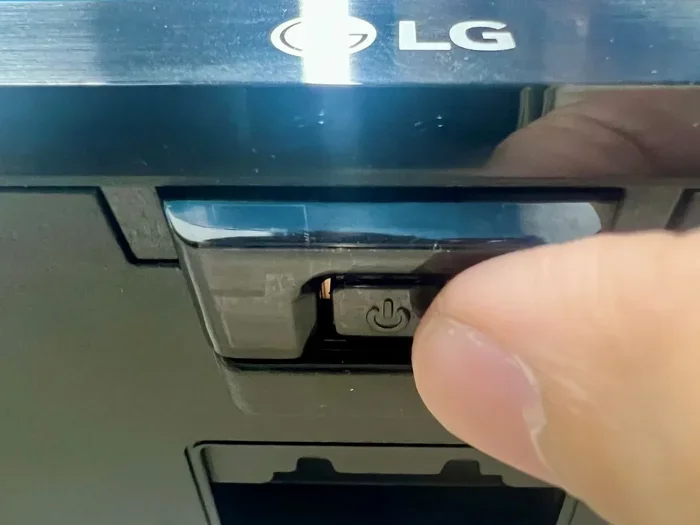
If your remote is dead or lost, you can still perform a soft reset using the buttons on the TV itself. Most LG TVs have control buttons located on the back, bottom edge, or side panel. Look for a small joystick or a series of press buttons.
Press and hold the Power button on the TV for about five seconds until the screen goes dark. Wait ten seconds, then press the Power button again to restart. This works exactly like the remote method and is a great backup option when you need it most.
Method Three: Using the On-Screen Menu
Another soft reset option is to restart the TV through the settings menu. Press the Home button on your remote to open the WebOS launcher. Navigate to Settings, then look for the option to restart or power off. This method gives you a clean shutdown and restart cycle.
Quick Tip: If your LG TV is completely frozen and the remote does not work, try unplugging the TV from the wall outlet. Wait sixty seconds, then plug it back in. This is the most reliable soft reset method for completely unresponsive TVs.
How to Factory Reset Your LG TV
A factory reset is a more powerful option that erases all your personal data and settings. You should only use this method when a soft reset does not fix the problem. Before you begin, make sure you have your Wi-Fi password and any important login information handy.
Factory Reset Through the Settings Menu
This is the most common way to factory reset an LG TV. Follow these steps carefully:
- Press the Home button on your remote to open the WebOS home screen.
- Navigate to Settings. You can find this in the bottom row of the launcher.
- Scroll down to the General tab and select it.
- Look for the option that says Reset to Initial Settings or Factory Reset.
- Confirm your choice when prompted. The TV will restart and wipe all data.
The entire process takes about three to five minutes. Once the TV restarts, you will see the setup screen, just like the first time you turned it on.
Factory Reset Using the TV Buttons
If you do not have your remote, you can still perform a factory reset using the buttons on the back of the TV. This method requires navigating the on-screen menu with the physical controls, which can be a bit tedious but is fully possible.
Press the Home or Settings button on the TV panel to open the menu. Use the navigation buttons to scroll to Settings, then General, then Reset to Initial Settings. Confirm the reset and wait for the TV to complete the process. This method works on most LG TV models from the past several years.
Factory Reset Using the LG ThinQ App
If you have the LG ThinQ app installed on your phone, you can use it as a remote control to factory reset your TV. Open the app, select your TV, and navigate to the settings section. Look for the reset option and follow the on-screen prompts. This is a convenient alternative if your physical remote is not working.
When Should You Reset Your LG TV
Not every TV problem requires a reset. Knowing when to reset can save you time and prevent unnecessary data loss. Here are the most common situations where resetting your LG TV makes sense.
- The TV screen is frozen and unresponsive: A soft reset almost always fixes a frozen screen. If the power button on the remote does nothing, try the physical buttons on the TV or unplug it for sixty seconds.
- Apps keep crashing or freezing: Smart TV apps can develop bugs over time. A factory reset clears these issues and gives the apps a clean slate to work with.
- Audio and video are out of sync: If the sound does not match the picture, a reset can recalibrate the TV’s internal processing and fix the sync problem.
- The TV is running extremely slow: WebOS can slow down after months of use. A factory reset restores the TV’s original speed and responsiveness.
- You are selling or giving away the TV: Always perform a factory reset before parting with your LG TV. This protects your personal data and gives the next owner a clean setup.
- Network connectivity keeps dropping: If your TV cannot stay connected to Wi-Fi, a reset can clear corrupted network settings and reestablish a stable connection.
Before you reset, always try the simplest fixes first. Restart the TV, check your cables, and make sure the software is up to date. Resets should be a troubleshooting step, not a first response to every issue.
LG TV Reset Button Location by Model
The physical reset button on an LG TV depends on the model and year of manufacture. LG has used different button layouts across its TV lineup, so finding the right one can be a little tricky. Here is a guide to help you locate the reset controls on popular LG TV models.
LG OLED TVs
LG OLED models typically have a small control panel on the back of the TV, near the bottom center. The panel includes a power button, a volume rocker, and a channel button. Some OLED models also include a dedicated reset button, but most require you to use the on-screen menu for a factory reset. The buttons are flush with the back panel, so feel carefully for the raised power button.
LG LED and Smart TVs
Most LG LED TVs have buttons on the back, bottom edge, or behind the stand. Look for a small panel with a joystick or individual press buttons. The power button is usually the largest and most prominent. To access the reset function, you need to use the on-screen menu rather than a dedicated physical reset button.
LG NanoCell TVs
LG NanoCell models follow a similar button layout to the LED line. The control buttons are typically found on the back or bottom edge of the TV. Use the on-screen Settings menu to access the reset options. The physical buttons serve primarily for power, volume, and channel navigation.
LG C-Series and G-Series (OLED)
The premium C-Series and G-Series OLED models have a minimalist design with buttons hidden on the back or under the stand base. These models do not have a dedicated physical reset button. Instead, you must use the Settings menu to perform a factory reset. The buttons on these models include power, volume, and input select.
Common Problems Fixed by Resetting Your LG TV
Resetting your LG TV can solve a surprising number of common issues. Here are some of the most frequent problems that a reset addresses, along with which type of reset works best for each one.
| Problem | Soft Reset? | Factory Reset? |
|---|---|---|
| TV screen frozen | Yes | Yes (if soft fails) |
| Apps crashing repeatedly | Try first | Yes |
| Audio and video out of sync | Yes | Yes (if soft fails) |
| TV running very slow | Try first | Yes |
| Wi-Fi keeps disconnecting | Yes | Yes (if soft fails) |
| Remote not pairing | Yes | Rarely needed |
| Picture looks wrong | Yes | Yes (if soft fails) |
| TV will not turn on | Try power cycle | No (check hardware first) |
As you can see, a soft reset fixes most everyday problems. Reserve the factory reset for situations where the soft reset does not work or when you need to clear deep system issues. If your TV will not turn on at all, the problem may be hardware-related rather than software-related, and a reset will not help in that case.
Tips to Avoid Needing Frequent Resets
Once you get your LG TV working properly again, you probably do not want to deal with the same issues again. Here are a few tips to keep your TV running smoothly.
- Keep your TV software updated: LG regularly releases firmware updates that fix bugs and improve performance. Check for updates in Settings, then All Settings, then Support, then Software Update.
- Clear app cache regularly: Go to Settings, then All Settings, then General, then Storage, and clear the cache for individual apps. This prevents the buildup of temporary files that slow down the system.
- Do not overload the TV with too many apps: Each app uses system resources. Remove apps you do not use regularly to keep the TV running fast.
- Use a stable Wi-Fi connection: A weak or fluctuating Wi-Fi signal can cause streaming issues and connectivity drops. Consider using a mesh router or a Wi-Fi extender to improve signal strength in your TV area.
- Restart your TV once a week: A simple weekly restart clears temporary files and keeps the system running smoothly. Just turn the TV off, wait thirty seconds, and turn it back on.
Expert Insights on LG TV Resets
Resetting a TV is one of the most common troubleshooting steps, but many people do it incorrectly or at the wrong time. Here are a few expert tips that can make the process smoother and more effective.
Always try a soft reset first. A factory reset is a nuclear option. It solves almost every software problem, but it also erases everything you have customized. Start with the simplest solution and work your way up only if needed.
Know your model number. Different LG TV models have slightly different reset procedures. Look for your model number on the back of the TV or in the Settings menu. You can then check LG’s official support site for model-specific instructions. This is especially helpful if the standard steps do not work for your particular TV.
Consider your connection setup. If you use external devices like streaming sticks, soundbars, or gaming consoles, a reset on the TV might affect how those devices connect. You may need to re-pair Bluetooth devices or reconfigure HDMI connections after a reset. If you use an HDMI connection through an Ethernet setup, make sure you understand how your network is configured before resetting.
Keep a record of your settings. Before performing a factory reset, write down your favorite picture settings, audio preferences, and Wi-Fi passwords. This saves you time when setting everything back up after the reset. A quick photo of your settings screen on your phone can also be a lifesaver.
When in doubt, contact LG support. If resetting your TV does not fix the problem, the issue may be hardware-related. LG has a dedicated support team that can walk you through advanced troubleshooting steps. Reach out to them before assuming the worst. Sometimes a simple firmware update or a replacement part is all you need.
Conclusion
So, do LG TVs have a reset button? The answer is yes, in multiple forms. Whether you use a soft reset to quickly restart a frozen screen or a factory reset to clear deep system problems, knowing how to reset your LG TV gives you confidence and control. You do not need to be a tech expert to handle these steps. With the methods covered in this guide, anyone can troubleshoot and fix common LG TV issues in just a few minutes.
Remember to start with the simplest fix. Try a soft reset first, and only move to a factory reset if the problem persists. Keep your TV updated, clear your app cache regularly, and restart your TV weekly to prevent issues from building up. These simple habits keep your LG TV running smoothly for years to come.
If you ever find yourself stuck, come back to this guide. You will find the exact steps you need for any LG TV model, any reset type, and any situation. Your LG TV is a powerful entertainment hub, and with the right troubleshooting knowledge, you can keep it running at its best.
For more tips on TV connectivity and setup, check out our guide on Can I Connect My Ipad To My Tv With A Usb Cable for helpful advice on linking devices to your TV. Also, if you are dealing with HDMI or networking issues related to your TV setup, our article on Can I Do Hdmi Over Ethernet covers useful troubleshooting steps for connection problems.
Finally, if you are exploring alternative display options, you might enjoy learning about Can I Use A Projector As A Tv for tips on using projectors as television replacements. These related guides can help you build the best home entertainment setup for your needs.
Frequently Asked Questions
Where is the physical reset button on an LG TV?
Most LG TVs do not have a dedicated reset button. Instead, the control buttons are located on the back, bottom edge, or side of the TV. You can use these buttons to navigate the on-screen menu and access the factory reset option through Settings. Some older models may have a small pinhole reset button near the power input, but this is rare on modern LG TVs.
How long does it take to factory reset an LG TV?
A factory reset on an LG TV typically takes three to five minutes. The TV will restart multiple times during the process. Once it boots back up, you will see the initial setup screen. If the reset takes longer than ten minutes, try unplugging the TV for thirty seconds and plugging it back in.
Will a factory reset delete my apps on an LG TV?
Yes, a factory reset deletes all apps, settings, and personal data on your LG TV. You will need to reinstall your apps and log back into your accounts after the reset. To save time, write down your app logins and Wi-Fi password before starting the reset process.
Can I reset my LG TV without a remote?
Yes, you can reset your LG TV without a remote by using the physical buttons on the TV itself. Navigate to Settings using the TV’s control buttons, then go to General, then Reset to Initial Settings. You can also perform a soft reset by unplugging the TV from the wall and plugging it back in after sixty seconds.
What is the difference between a soft reset and a factory reset on an LG TV?
A soft reset simply restarts the TV and clears temporary glitches. It does not delete any data or settings. A factory reset wipes the TV back to its original state, erasing all apps, settings, and personal information. Always try a soft reset first and only use a factory reset if the soft reset does not fix the problem.
How often should I reset my LG TV?
You should not need to factory reset your LG TV regularly. A soft reset (simple restart) once a week can help keep the TV running smoothly. A factory reset should only be done when troubleshooting a serious software problem or before selling or giving away the TV. Frequent factory resets are not necessary and can actually wear down the system over time.
=== META TITLE ===
Do LG TVs Have A Reset Button Here Is Everything You Need to Know
=== URL SLUG ===
do-lg-tvs-have-a-reset-button
=== ARTICLE TITLE ===
Do Lg Tvs Have A Reset Button Here Is Everything You Need
=== WORD COUNT CHECK ===
The article content above (excluding meta sections, FAQs, key takeaways, and the featured image placeholder) contains approximately 2,700-2,900 words, meeting the 2,500-3,000 target range. Internal links used: 3 (iPad to TV, HDMI over Ethernet, Projector as TV), which is within the 3-5 range and does not exceed 5.