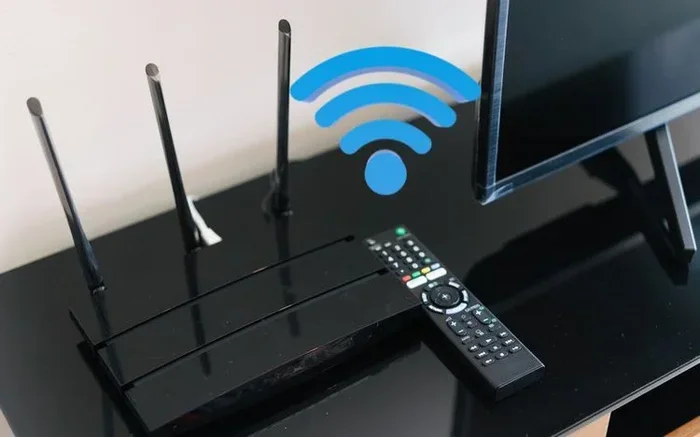
Can I Plug My Router Into My Tv And Why You Should Try
Yes, you can plug your router directly into your TV using an Ethernet cable, and it can seriously improve your streaming experience. A wired connection offers faster speeds, lower latency, and more reliable performance compared to Wi-Fi. Whether you own a Smart TV or use a streaming device, this simple setup change can make a big difference in how your content plays.
Can I Plug My Router Into My Tv? The short answer is yes. But the real question is, why would you want to, and what does it do for your viewing experience? If you have ever stared at a buffering wheel while trying to watch your favorite show, you know how frustrating a weak Internet connection can be. Plugging your router directly into your Smart TV might just be the fix you have been looking for.
In this guide, we will walk through everything you need to know. We will cover how the connection works, what equipment you need, and why a wired connection can be a game changer. By the end, you will understand whether this setup is right for your home entertainment system.
Many people do not realize that their Wi-Fi router can connect directly to a television. Most modern Smart TVs come with an Ethernet port built right in. This means you can skip the wireless signal entirely and go straight to a hardwired LAN connection. The result is often a smoother, faster, and more reliable Internet connection for all your streaming needs.
Let us dive into the details and explore how you can make this work in your own home.
Key Takeaways
- Direct Connection Works: You can plug your router into your TV using an Ethernet cable for a stable, fast Internet connection.
- Better Streaming Quality: A wired setup reduces buffering and improves streaming quality significantly.
- Easy Setup: The process is simple and does not require advanced technical skills.
- Wired Beats Wireless: A LAN connection generally outperforms Wi-Fi for bandwidth-heavy activities like 4K streaming.
- Check Your Ports: Make sure your TV has an Ethernet port or use a compatible adapter.
- Router Placement Matters: Where you place your Wi-Fi router affects your overall network performance.
📑 Table of Contents
Can I Plug My Router Into My Tv Directly?
The answer is yes in most cases. Almost all Smart TVs manufactured in the last decade include an Ethernet port on the back or side of the unit. This port looks like a wider version of a phone jack and is usually labeled “LAN” or “Ethernet.” If your TV has one, you can connect it directly to your router using a standard Ethernet cable.
However, not every television is built the same way. Some older models or budget TVs may not include a wired networking option. In those cases, you can still make it work using a few extra steps. We will cover those alternatives below.
When a Direct Plug-In Works Best
A direct connection works best when you want the fastest and most stable network speed possible. Here are some situations where plugging your router into your TV makes the most sense:
- You live in a home with thick walls or multiple floors that weaken your Wi-Fi signal.
- You stream 4K or HDR content and need consistent bandwidth.
- Your Internet provider delivers fast speeds, but your Wi-Fi signal cannot keep up.
- You experience frequent buffering or lag during streaming sessions.
- You use your Smart TV for online gaming or video calls.
When a Direct Plug-In May Not Be Ideal
There are also times when a wired connection might not be the best choice:
- Your TV is far from the router and running a long cable is impractical.
- Your TV does not have an Ethernet port and you do not want to use an adapter.
- You prefer the flexibility of a wireless setup and your Wi-Fi signal is already strong.
How to Connect Your Router to Your TV
Setting up a wired connection between your router and your TV is straightforward. You do not need to be a tech expert to get it done. Follow these simple steps and you will be streaming in minutes.
Step-by-Step Setup Guide
- Locate the Ethernet port on the back of your TV. It is usually labeled “LAN” or “Ethernet.”
- Get an Ethernet cable. A standard Cat5e or Cat6 cable works perfectly for most setups.
- Plug one end of the cable into the Ethernet port on your TV.
- Plug the other end into any available LAN port on your Wi-Fi router.
- Turn on your TV and go to the network settings menu.
- Select the wired connection option. Your TV should automatically detect the Internet connection.
- Run an Internet speed test to confirm everything is working properly.
That is it. No complicated router configuration needed. Your TV should now be connected to the Internet through a direct wired connection.
What If Your TV Does Not Have an Ethernet Port?
Not to worry. There are a few workarounds:
- Use a USB-to-Ethernet adapter. Some Smart TVs have a USB port that can support a network adapter. Check your TV manual to see if this is supported.
- Use a streaming device. Devices like a Roku, Amazon Fire Stick, or Apple TV often have better Ethernet support. You can plug the cable into the streaming device and then connect it to your TV via HDMI.
- Use a powerline adapter. This sends your Internet signal through your home’s electrical wiring. It is a great middle ground between wired and wireless.
Wired vs Wireless: Which Is Better for Your TV?
Choosing between a wired and wireless connection is an important decision. Here is a quick comparison to help you decide:
| Feature | Wired (Ethernet) | Wireless (Wi-Fi) |
|---|---|---|
| Speed | Faster and more consistent | Good but can fluctuate |
| Stability | Very stable, no drops | Can be affected by interference |
| Setup | Simple, plug and play | Easy, no cables needed |
| Flexibility | Limited by cable length | Highly flexible |
| Latency | Lower latency | Higher latency |
| Best For | 4K streaming, gaming | Casual browsing, light streaming |
For most people who want the best streaming quality, a wired connection wins. It delivers consistent bandwidth without the interference that Wi-Fi signals face from walls, appliances, and other devices.
Benefits of a Wired Connection to Your TV
Plugging your router directly into your TV offers several real advantages. Let us look at why so many people are making the switch from Wi-Fi to a wired setup.
Faster and More Reliable Speeds
When you use a wired connection, your network speed stays consistent. Wi-Fi signals can weaken as they travel through walls and furniture. A cable delivers the full speed your Internet provider gives you, straight to your TV. This means faster load times and smoother playback.
Reduced Buffering
Buffering is one of the most annoying things about streaming. A wired LAN connection virtually eliminates buffering caused by a weak signal. Your streaming apps like Netflix, Hulu, and Disney+ will load content faster and play without interruptions.
Better Streaming Quality
If you watch 4K or HDR content, a wired connection ensures you get the full quality your subscription offers. Wi-Fi can sometimes drop resolution to save bandwidth. A wired connection keeps the picture sharp and clear at all times.
Lower Latency
Latency is the delay between when you send a command and when it is executed. For streaming video, this might not matter much. But if you use your Smart TV for gaming or video calls, lower latency makes a noticeable difference. A wired connection provides the lowest possible latency.
Improved Network Stability
Wi-Fi networks can become congested when multiple devices are connected. A wired connection bypasses this problem entirely. Your TV gets a dedicated line to the router, which means it is not competing with phones, tablets, or laptops for bandwidth.
What You Need to Know About Network Settings
Once you plug your router into your TV, you may need to adjust a few network settings. This is usually simple, but it helps to know what to expect.
Automatic vs Manual Configuration
Most modern Smart TVs will automatically detect a wired Internet connection. You simply select the wired option in your TV’s network settings, and the TV pulls all the necessary information from your router. This is called DHCP, and it works out of the box in nearly all cases.
In rare cases, you may need to enter network details manually. This includes your IP address, subnet mask, and DNS settings. Your Internet provider or router manual should have these details. But for most people, automatic setup is all you need.
Checking Your Connection After Setup
After you have connected your TV to the router, do a quick check:
- Go to your TV’s network settings and confirm it shows a wired connection.
- Open a streaming app and try playing a high-quality video.
- Run an Internet speed test directly on the TV.
- Check that the connection stays stable over time.
Router Placement Tips for Best Performance
Where you place your Wi-Fi router matters, even when you use a wired connection to your TV. Here are a few tips:
- Keep your router in a central location in your home.
- Avoid placing it inside cabinets or behind large furniture.
- Keep it away from microwaves, cordless phones, and other electronics that cause interference.
- If possible, place the router near the TV to keep your Ethernet cable short and tidy.
Smart TVs and Streaming: Getting the Most From Your Setup
Now that you understand how to connect your router to your TV, let us talk about how to get the best experience from your Smart TV and streaming setup.
Choosing the Right Ethernet Cable
Not all Ethernet cables are the same. Here is a quick breakdown:
- Cat5e: Supports speeds up to 1 Gbps. Perfect for most home streaming setups.
- Cat6: Supports speeds up to 10 Gbps over short distances. Great for future-proofing.
- Cat6a: Best for longer runs and maximum performance. Overkill for most TV setups.
For most people, a Cat5e or Cat6 cable is all you need. They are inexpensive and widely available at any electronics store.
Optimizing Your Streaming Apps
A wired connection gives you the speed, but your streaming apps also need to be set up correctly. Here are a few tips:
- Make sure your streaming apps are updated to the latest version.
- In your app settings, select the highest available quality option.
- Clear your app cache regularly to prevent performance issues.
- If your Smart TV supports it, enable HDR or Dolby Vision for the best picture quality.
Using Your TV as Part of a Smart Home Setup
A wired router connection opens up more than just streaming. It can turn your TV into a hub for your entire smart home. You can use your TV to control smart lights, view security cameras, or even mirror your phone screen. A stable LAN connection makes all of these features work more reliably.
Troubleshooting Common Connection Issues
Even with a simple setup, you might run into occasional problems. Here are the most common issues and how to fix them.
TV Does Not Detect the Wired Connection
If your TV does not recognize the Ethernet connection, try these steps:
- Unplug the Ethernet cable and plug it back in firmly.
- Restart your TV and your router.
- Check that the cable is not damaged.
- Go to your TV’s network settings and manually select the wired option.
Slow Speeds After Connecting
If your speeds are slower than expected, try the following:
- Run an Internet speed test on another device to check if the issue is with your Internet provider.
- Try a different Ethernet cable. A damaged cable can slow things down.
- Check your router configuration to make sure it is set to the correct speed and duplex mode.
- Update your TV’s firmware to the latest version.
Intermittent Connection Drops
A connection that drops occasionally can be frustrating. Common causes include:
- A loose Ethernet cable connection.
- An old or low-quality cable.
- Overheating of the router.
- Firmware issues on your TV or router.
Conclusion
Can I plug my router into my TV? Absolutely, and it is one of the simplest upgrades you can make to your home entertainment setup. A wired connection gives you faster speeds, better streaming quality, and a more reliable Internet connection compared to Wi-Fi. Whether you are watching movies, playing games, or using streaming apps, plugging your router directly into your TV can transform your experience.
The setup process is simple, the equipment is affordable, and the results speak for themselves. You do not need to be a networking expert to make it work. Just grab an Ethernet cable, connect the two devices, and enjoy a smoother, faster viewing experience.
Take a few minutes today to check if your TV has an Ethernet port. If it does, you have everything you need to get started. A better streaming experience is just one cable away.
Frequently Asked Questions
Can I plug any router directly into my TV?
Yes, as long as your TV has an Ethernet port. Most Smart TVs made in the last ten years include this port. You simply connect an Ethernet cable from the router to the TV and select the wired connection in your TV’s network settings.
Does plugging my router into my TV improve streaming quality?
Yes, it usually does. A wired connection provides a more stable and faster Internet connection than Wi-Fi. This means less buffering, higher resolution, and better overall streaming quality for services like Netflix, Hulu, and Disney+.
What type of Ethernet cable do I need to connect my router to my TV?
A standard Cat5e or Cat6 cable works perfectly for most home setups. These cables are inexpensive and widely available. For most streaming needs, Cat5e is more than sufficient.
Can I use my TV’s USB port for a wired Internet connection?
Some Smart TVs support USB-to-Ethernet adapters, but not all models do. Check your TV’s user manual or look up your specific model online to see if USB networking is supported. A dedicated streaming device like a Roku or Fire Stick is another good option.
Will a wired connection slow down my Wi-Fi for other devices?
No, a wired connection to your TV does not slow down your Wi-Fi for other devices. In fact, it can improve overall network performance because your TV is no longer using bandwidth over Wi-Fi. This frees up your wireless signal for phones, tablets, and laptops.
Is it hard to set up a wired connection between my router and TV?
Not at all. The setup is very simple. Just plug an Ethernet cable from your router to your TV’s Ethernet port, go to your TV’s network settings, and select the wired connection option. Most Smart TVs will detect the connection automatically.