Can I Connect A USB C To My iPad And What Happens Next
Yes, you can connect a USB-C cable to your iPad if your model has a USB-C port. This opens up fast charging, external display support, file transfers, and accessory compatibility. Connecting USB-C to your iPad is simple, but knowing what happens next makes all the difference.
Key Takeaways
- USB-C iPads support faster charging: You get quicker battery top-ups compared to older Lightning models.
- You can connect external displays: Use your iPad as a second screen or mirror content to a TV or monitor.
- File transfers are much easier: Plug in USB drives, cameras, and other devices directly.
- Not all iPads have USB-C: Older models still use Lightning, so check your model first.
- The right cable matters: Not all USB-C cables are the same. Use certified cables for best results.
- Adapters expand your options: USB-C hubs and docks unlock even more connectivity.
📑 Table of Contents
- Can I Connect A USB C To My iPad And What Happens Next
- Which iPads Support USB-C
- What Happens When You Connect USB-C To Your iPad
- USB-C vs Lightning: What Is The Difference
- Common Mistakes When Connecting USB-C To iPad
- Best USB-C Accessories For iPad Users
- Troubleshooting USB-C Connection Issues
- Quick Tips For USB-C iPad Users
- Conclusion
Can I Connect A USB C To My iPad And What Happens Next
If you have been wondering whether you can plug a USB-C cable into your iPad, the answer is yes — but it depends on your iPad model. Apple made the switch to USB-C on many of its iPads starting in 2018. This change brought faster charging, better file transfers, and access to a wide world of accessories.
Connecting a USB-C cable to your iPad might seem simple. But what actually happens when you do it? You might charge your device. You might transfer photos. You might even connect an external monitor. The possibilities depend on your iPad model and the cable or adapter you use.
This guide walks you through everything you need to know. We will cover which iPads support USB-C, what you can do once connected, and the common mistakes to avoid. Whether you are new to USB-C or just looking for tips, this article has you covered.
If you are shopping for accessories, check out our guide on 10 Gadgets To Make Moms Life Easier for helpful ideas on organizing your tech setup.
Which iPads Support USB-C
Not every iPad uses USB-C. Apple has used two different ports over the years. Understanding which iPad you own is the first step.
iPad Models With USB-C
- iPad Pro (2018 and later) — All models from 2018 onward use USB-C.
- iPad Air (4th generation and later) — Released in 2020 and newer.
- iPad (10th generation) — The latest standard iPad switched to USB-C.
- iPad Mini (6th generation) — Uses USB-C as well.
iPad Models With Lightning
- iPad Pro (2017 and earlier) — These older models still use the Lightning connector.
- iPad Air (3rd generation and earlier) — Lightning port only.
- iPad (9th generation and earlier) — Uses Lightning.
- iPad Mini (5th generation and earlier) — Lightning connector.
To find your iPad model, go to Settings > General > About > Model Name. Once you know your model, you will know exactly what to expect when you plug in a USB-C cable.
What Happens When You Connect USB-C To Your iPad
So you have plugged in a USB-C cable. Now what? The result depends on what you connected and which iPad you own. Let us break it down.
Fast Charging Your iPad
One of the biggest benefits of USB-C is fast charging. A USB-C power adapter can charge your iPad much faster than the old Lightning cable. A 20W or higher USB-C adapter can give your iPad a significant boost in under an hour.
If you are using a USB-C to USB-C cable, the charging speed is excellent. Just make sure your adapter supports the right wattage for your iPad model.
Transferring Files and Photos
Plugging a USB drive or camera into your iPad opens up easy file transfers. You can import photos directly from a memory card. You can also move documents back and forth between your iPad and a USB flash drive.
On newer iPads, the Files app makes this process smooth. Just plug in the device, and it should appear in the Files app. This is a huge upgrade from the Lightning days.
Connecting External Displays
Many USB-C iPads support external display output. You can connect your iPad to a monitor or TV using a USB-C to HDMI adapter. This is great for presentations, streaming content on a bigger screen, or extending your workspace.
Some iPads support DisplayPort over USB-C. This means you can connect to compatible monitors without any extra adapters in many cases.
Using Keyboards, Mice, and Other Peripherals
USB-C makes it easy to connect keyboards, mice, and drawing tablets directly to your iPad. You do not need wireless Bluetooth connections if you prefer a wired setup. Just plug in and go.
This is especially helpful for people who use their iPad as a laptop replacement. A USB-C hub or dock can give you multiple ports in one convenient device.
USB-C vs Lightning: What Is The Difference
If you have used both Lightning and USB-C cables, you may have noticed some differences. Here is a simple comparison.
| Feature | USB-C | Lightning |
|---|---|---|
| Speed | Much faster data transfer | Slower data transfer |
| Charging Speed | Fast charging supported | Slower charging |
| Reversibility | Yes, plugs in either way | Yes, plugs in either way |
| Accessory Compatibility | Wide range of USB-C devices | Limited to Apple accessories |
| Availability | Standard on most modern devices | Only on older Apple devices |
The shift from Lightning to USB-C was a welcome change for most iPad users. USB-C is a universal standard. You can use the same cable to charge your iPad, phone, laptop, and many other devices.
Common Mistakes When Connecting USB-C To iPad
Even though connecting USB-C is straightforward, some mistakes trip people up. Here are the most common ones.
Using the Wrong Cable
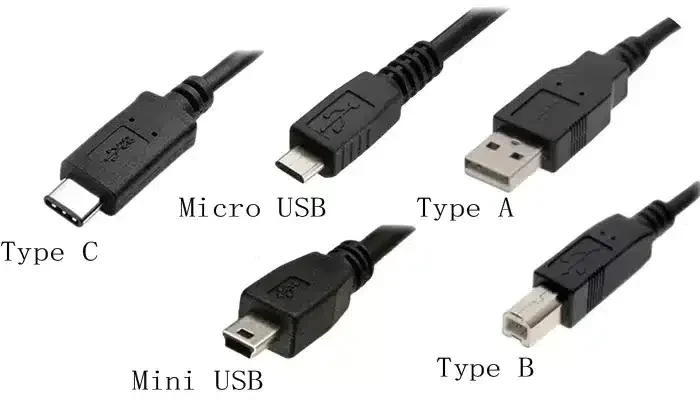
Not all USB-C cables are created equal. Some cables only support charging. Others support data transfer and video output. If your cable does not support data transfer, you will not be able to move files or connect peripherals.
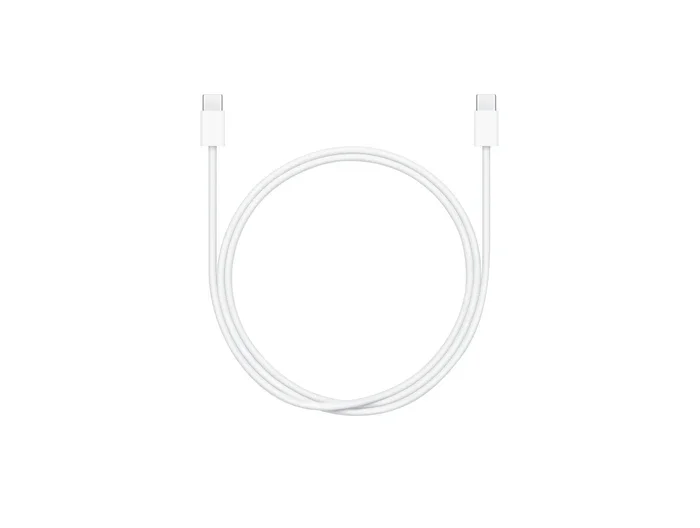
Always look for cables that are rated for both power delivery and data. A USB-C to USB-C cable that supports USB 3.0 or higher is ideal.
Ignoring Adapter Quality
Cheap adapters can cause problems. They may not charge your iPad properly. They might not support video output. In some cases, a low-quality adapter can even damage your device.
Stick with trusted brands and certified adapters. Look for MFi certification if you are buying from Apple or authorized sellers.
Forcing the Connector
USB-C connectors are reversible and should slide in easily. If you feel resistance, do not force it. Check that the cable is the right type and that the port is clean.
Dust or lint in the USB-C port can cause connection issues. A quick blow or a soft brush can fix this.
Not Updating iPadOS
Sometimes a USB-C device will not work because your iPad software is outdated. Apple regularly adds support for new accessories through iPadOS updates.
Go to Settings > General > Software Update to make sure you are running the latest version.
Best USB-C Accessories For iPad Users
If you have a USB-C iPad, the right accessories can transform how you work and play. Here are some top picks.
USB-C Hubs and Docks
A USB-C hub gives you extra ports on the go. You can add HDMI output, USB-A ports, SD card slots, and more. These are perfect for people who travel or work from different locations.
Look for a hub that supports the speed and features you need. Not all hubs are the same, so read reviews before buying.
USB-C Charging Adapters
A good USB-C power adapter makes a big difference. A 20W adapter works well for most iPads. If you have a larger iPad Pro, you may want a 30W or higher adapter for faster charging.
Many people already have USB-C chargers for their laptops. You can often use the same charger for your iPad.
USB-C to SD Card Adapters
If you are a photographer or videographer, a USB-C to SD card adapter is a lifesaver. You can pull photos and videos directly from your camera to your iPad. This is much faster and more convenient than wireless transfer options.
If you also use an iPhone, you may find it helpful to learn how to add prefixes to numbers on iPhone for better file organization across your Apple devices.
External Keyboards and Trackpads
A USB-C keyboard and trackpad combo turns your iPad into a productivity machine. You get the feel of a laptop without the bulk. Many options are available at different price points.
For those who work with spreadsheets and data, you might encounter issues with editing in apps like Excel. If a line wont delete in Microsoft Excel on your iPad, check our troubleshooting guide on A Line Wont Delete In Microsoft Excel.
Troubleshooting USB-C Connection Issues
Sometimes things do not work the way they should. Here is how to fix common USB-C connection problems on your iPad.
Device Not Recognized
If your iPad does not recognize a connected device, try these steps:
- Unplug the cable and wait a few seconds.
- Plug it back in firmly.
- Check that the device is compatible with iPadOS.
- Restart your iPad and try again.
Slow Charging
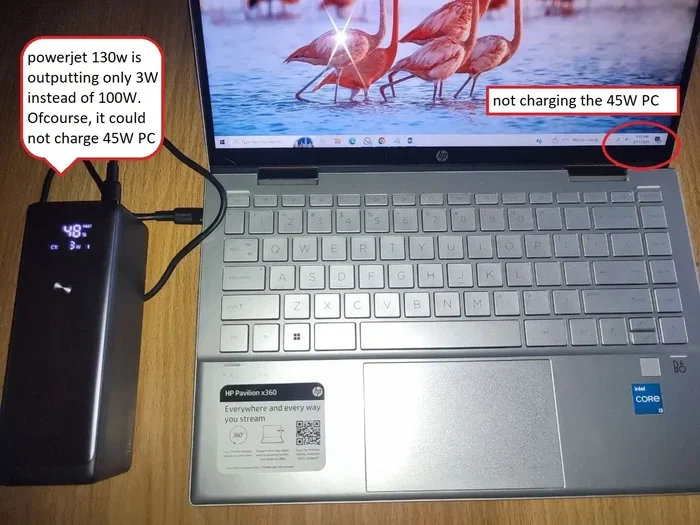
If your iPad is charging slowly, the cable or adapter might be the issue. Try a different USB-C cable. Make sure your adapter supports enough wattage for your iPad model.
Also, check if anything else is drawing power from the same source. A computer USB port usually provides less power than a wall adapter.
No Video Output
If you are trying to connect to a display but see nothing, the adapter might not support video. Not every USB-C adapter carries a video signal. Look for adapters specifically labeled as supporting HDMI or DisplayPort output.
Quick Tips For USB-C iPad Users
- Keep a spare cable: USB-C cables wear out over time. Having a backup saves headaches.
- Buy certified accessories: Look for MFi or USB-IF certification to ensure quality and safety.
- Clean your ports regularly: A can of compressed air works wonders for dust removal.
- Use the right adapter for the job: Not every adapter supports every function. Check the specs before buying.
- Update your iPad regularly: Software updates often improve USB-C compatibility.
For more tech tips and gadget ideas that simplify your daily routine, explore our collection of helpful guides on the LDG Technology blog.
Conclusion
So, can I connect a USB-C to my iPad? Absolutely. If your iPad model supports USB-C, you have access to faster charging, easier file transfers, external display support, and a world of accessories. The key is using the right cable, adapter, and device for your needs.
Connecting USB-C to your iPad opens up possibilities that the old Lightning port never could. Whether you are charging on the go, transferring photos from a camera, or connecting to a monitor for work, USB-C makes it all possible.
Take a few minutes to understand your iPad model and what it supports. Invest in good-quality cables and adapters. And do not be afraid to experiment with new accessories. Once you make the switch to USB-C, you will wonder how you ever managed without it.
The future of iPad connectivity is USB-C. Embrace it, and you will enjoy a faster, more versatile tablet experience every single day.
Frequently Asked Questions
Can I Use Any USB-C Cable With My iPad?
Most USB-C cables will charge your iPad, but not all support data transfer or video output. Look for cables rated for both power delivery and data. A high-quality USB-C to USB-C cable is your safest bet for full functionality.
Why Is My iPad Not Recognizing The USB-C Device?
This can happen if the cable is faulty, the adapter is incompatible, or your iPad software is outdated. Try a different cable first. Then restart your iPad and check for iPadOS updates. If the problem continues, the connected device may not be compatible with iPadOS.
Can I Connect My iPad To A TV Using USB-C?
Yes, if your iPad supports USB-C video output. You will need a USB-C to HDMI adapter or a compatible USB-C dock. Once connected, your iPad screen will mirror to the TV or act as an extended display on supported models.
Is USB-C Faster Than Lightning For Charging?
Yes, USB-C charges significantly faster than Lightning. A USB-C power adapter with 20W or higher can charge your iPad much quicker. The exact speed depends on your iPad model and the wattage of your adapter.
Do I Need A Special Adapter To Connect USB Devices?
It depends on the device. Some USB devices work directly with a USB-C to USB-A adapter. Others, like external hard drives, may need a powered hub. Check the requirements of your specific device before purchasing an adapter.
Which iPad Was The First To Use USB-C?
The iPad Pro (2018) was the first iPad to switch from Lightning to USB-C. Since then, Apple has expanded USB-C to the iPad Air, iPad Mini, and the standard iPad. If your iPad was made before 2018, it likely uses Lightning.