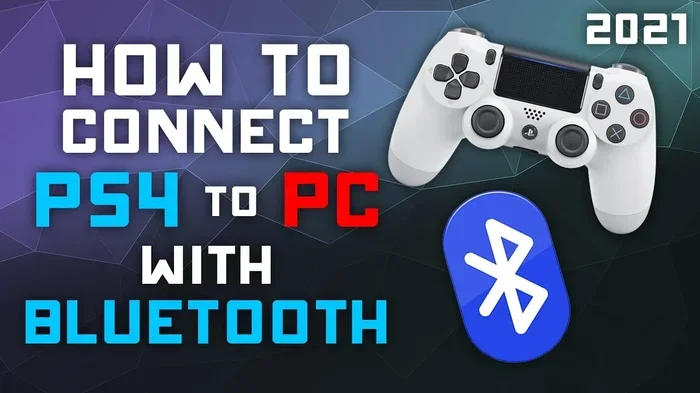
Can I Connect My PS4 Controller Wirelessly And Easily
Yes, you can connect your PS4 controller wirelessly to multiple devices including PCs, consoles, and Android devices. This guide covers every method step by step so you can get wireless gaming up and running fast. Whether you use Bluetooth, a wireless adapter, or a USB cable for initial setup, you will find the simple instructions you need right here.
Have you ever wanted to ditch the cables and game freely with your PS4 controller? The good news is that connecting your PS4 controller wirelessly is simpler than most people think. You do not need to be a tech expert to get it done. In this guide, we walk you through every step so you can start wireless gaming in minutes.
The DualShock 4 controller that comes with the PlayStation 4 is one of the best gamepads on the market. It feels great in your hands, the buttons respond quickly, and the built-in rechargeable battery lasts for hours. But the real question many players ask is whether this controller can connect wirelessly to devices other than the console itself. The answer is a clear yes.
Whether you want to use your PlayStation controller on a PC for Steam games, on an Android phone for mobile gaming, or even on a smart TV, the process is straightforward. We will cover every method, every tip, and every common mistake to avoid. By the end of this article, you will know exactly how to set up wireless gaming with your DualShock 4. Let us dive right in.
Key Takeaways
- Wireless Connection Is Easy: You can pair your PS4 controller wirelessly using Bluetooth on most modern devices.
- Multiple Devices Work: The DualShock 4 works with PCs, Android phones, and even some smart TVs.
- A Wireless Adapter Helps: Using a USB wireless adapter gives you a stable connection for PC gaming.
- Driver Setup Matters on Windows: Installing the right drivers ensures smooth controller pairing on your computer.
- Battery Life Is Key: Keep your rechargeable battery charged for the best wireless experience.
- Common Issues Have Simple Fixes: Most connection problems can be solved with a few quick steps.
📑 Table of Contents
- What Is the DualShock 4 and Why Does It Matter?
- How to Connect Your PS4 Controller Wirelessly to a PC
- Connecting Your PS4 Controller Wirelessly to a Console
- Using Your PS4 Controller Wirelessly with Android Devices
- Connecting to Other Devices and Smart TVs
- Common Problems and How to Fix Them
- Quick Tips for the Best Wireless Experience
- Expert Insights on PS4 Controller Wireless Gaming
- Key Takeaways
- Frequently Asked Questions
- Conclusion
What Is the DualShock 4 and Why Does It Matter?
The DualShock 4 is the official controller for the PlayStation 4. It has a sleek design with a built-in touchpad, a light bar, and responsive analog sticks. Many gamers prefer it over other controllers because of its precise input and comfortable grip. Understanding what makes this controller special helps you get the most out of your wireless connection.
Key Features of the DualShock 4
- Built-in Bluetooth: The controller supports Bluetooth 2.1 and later, making wireless connections possible.
- Rechargeable Battery: A built-in lithium-ion battery charges via micro-USB cable.
- Light Bar: The light bar helps with motion tracking and player identification.
- Touchpad: A clickable touchpad adds extra input options for games.
- Built-in Speaker: The controller has a small speaker for in-game audio cues.
These features make the DualShock 4 a versatile choice for wireless gaming across different platforms. But to use it wirelessly, you need to understand how Bluetooth pairing works on your specific device.
How to Connect Your PS4 Controller Wirelessly to a PC
Connecting your PS4 controller to a PC wirelessly is one of the most popular use cases. PC gamers love the DualShock 4 because it works well with Steam and many other platforms. There are two main ways to do this: using Bluetooth directly or using a wireless adapter.
Method 1: Using Bluetooth on Windows
This method works on most Windows 10 and Windows 11 PCs that have built-in Bluetooth. Here is how to do it step by step.
- Turn on your PS4 controller by pressing the PS button in the center.
- Hold down the Share button and the PS button at the same time for about three seconds. The light bar will start flashing rapidly.
- On your PC, open the Settings app and go to Bluetooth and devices.
- Click on Add a new device and select Bluetooth.
- Your PC should detect the controller listed as Wireless Controller.
- Click on it to pair and wait for the connection to complete.
Once paired, your PS4 controller wireless connection should be stable. The light bar will stop flashing and stay a solid color. You can now start gaming on your PC without any cables.
Method 2: Using a Wireless Adapter
Some players prefer using a USB wireless adapter for a more reliable connection. This is especially useful if your PC does not have great Bluetooth support. A popular option is the 8BitDo wireless adapter or similar Bluetooth adapters designed for game controllers.
Here is how it works:
- Plug the wireless adapter into a USB port on your PC.
- Hold the Share button and the PS button simultaneously to put the controller in pairing mode.
- The adapter should detect the controller automatically.
- Once connected, you can unplug the cable and game wirelessly.
Using a wireless adapter often gives you better input lag performance compared to built-in Bluetooth. This makes it a great choice for competitive gaming on PC.
Installing the Right Drivers on Windows
Windows does not always recognize the DualShock 4 right away. You may need to install drivers for the best experience. The DS4Windows tool is a free program that helps your PC communicate with the PS4 controller. It maps the controller inputs properly and lets you customize buttons and sensitivity settings.
To use DS4Windows:
- Download the latest version from the official website.
- Install the program and run it after connecting your controller.
- The tool will detect your controller and install the necessary drivers.
- You can then switch between Bluetooth mode and USB mode easily.
Using DS4Windows is one of the best ways to ensure smooth controller pairing and device compatibility on Windows.
Connecting Your PS4 Controller Wirelessly to a Console
The most obvious way to use your DualShock 4 wirelessly is by connecting it directly to a PlayStation 4 console. This is the native setup and requires no extra software or adapters.
Pairing with a PS4 Console
To pair your controller with a PS4 console:
- Connect the controller to the console using a USB cable.
- Press the PS button once while the cable is connected.
- The controller will pair with the console automatically.
- You can now unplug the USB cable and use the controller wirelessly.
This method works every time because the PS4 is designed to work with the DualShock 4 out of the box. The controller sync process is fast and reliable. Once paired, the controller stays connected until you turn it off or move too far away from the console.
Pairing with a PS5 Console
Good news for PS5 owners. The PS5 is backward compatible with the DualShock 4 for playing PS4 games. You can pair the PS4 controller with the PS5 using the same USB method described above. However, note that the DualShock 4 will not work with PS5-exclusive games that require the DualSense controller features.
For PS4 controller wireless play on PS5, stick to PS4 titles. You will get a great experience with full wireless freedom.
Using Your PS4 Controller Wirelessly with Android Devices
Android phones and tablets are surprisingly good platforms for wireless gaming with the DualShock 4. Most modern Android devices support Bluetooth game controllers, and the setup process is simple.
Step-by-Step Android Setup
- Make sure your Android device supports Bluetooth.
- Turn on your PS4 controller by pressing the PS button.
- Hold the Share button and the PS button together for three seconds until the light bar flashes.
- Open Bluetooth settings on your Android device.
- Search for available devices and look for Wireless Controller.
- Tap on it to pair.
Once connected, you can play supported games on your phone or tablet. Many popular games on the Google Play Store work great with the DualShock 4. The controller range is usually about 10 to 30 feet, which gives you plenty of room to move around.
Best Android Games for DualShock 4
- Emulators for classic PlayStation games
- Cloud gaming apps like GeForce NOW and Xbox Cloud Gaming
- Retro game collections on Steam Link for Android
- Action and racing games that support external controllers
Keep in mind that not every Android game supports external controllers. Check the game description before you download to make sure it works with the DualShock 4.
Connecting to Other Devices and Smart TVs
The DualShock 4 can connect wirelessly to more than just PCs and consoles. Some smart TVs and streaming devices also support Bluetooth game controllers. This opens up a world of wireless gaming possibilities beyond your gaming setup.
Smart TV Compatibility
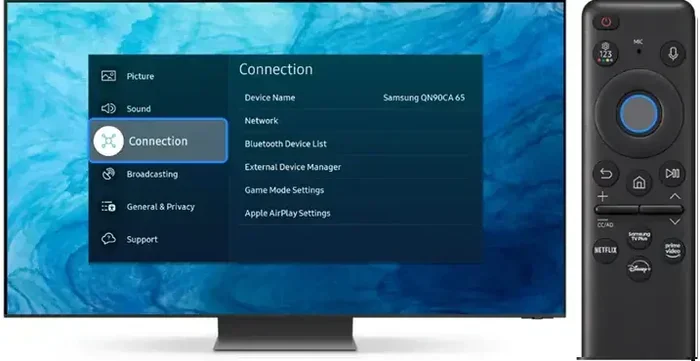
Some smart TVs from brands like Samsung, LG, and Sony have built-in Bluetooth support. You can try to pair your PS4 controller directly with the TV. However, compatibility varies from model to model. Check your TV’s user manual or settings menu for controller support.
Streaming Devices
Devices like the NVIDIA Shield TV and certain Amazon Fire TV models support Bluetooth controllers. The setup process is similar to connecting to an Android device. Put your DualShock 4 in pairing mode and search for it in the Bluetooth settings of the streaming device.
Steam Input Support
Steam has excellent support for the DualShock 4. When you connect your PS4 controller wirelessly to a PC and open Steam, the platform automatically detects it. You can configure button mappings, gyro controls, and trigger sensitivity through the Steam Big Picture mode. This makes the DualShock 4 one of the best choices for wireless gaming on Steam.
Common Problems and How to Fix Them
Even though connecting your PS4 controller wirelessly is usually smooth, you might run into some issues. Here are the most common problems and their solutions.
Controller Not Showing Up in Bluetooth
If your PC or device does not detect the controller, try these steps:
- Make sure the controller is in pairing mode. The light bar should be flashing.
- Restart Bluetooth on your device and try again.
- Check that your device is within the controller range of about 10 feet.
- Restart your PC or device and retry the pairing process.
Connection Drops Frequently
A loose connection can be frustrating. Here is what to do:
- Move closer to the device you are connecting to.
- Remove any Bluetooth devices that might be causing interference.
- Check that your controller firmware is up to date. Connect via USB and check for updates through the PS4 console.
- If you are using a wireless adapter, try a different USB port.
Controller Not Charging Wirelessly
The DualShock 4 does not support wireless charging out of the box. You need a USB cable to charge the rechargeable battery. If you want wireless charging, you can buy a charging dock that comes with a USB cable built in. Simply place the controller on the dock to charge.
Input Lag During Wireless Gaming
Some players notice a slight delay when using Bluetooth. To reduce input lag:
- Use a wireless adapter instead of built-in Bluetooth on PC.
- Keep the controller close to the receiving device.
- Close other Bluetooth devices that might compete for the signal.
- Make sure your controller firmware is current.
Quick Tips for the Best Wireless Experience
Here are some practical tips to keep your wireless gaming experience smooth and enjoyable.
- Keep Your Controller Charged: A low battery can cause connection drops. Charge your controller fully before long gaming sessions.
- Update Firmware Regularly: Connect your controller via USB every few weeks to check for firmware updates. Updated firmware improves device compatibility and performance.
- Use a Charging Dock: A charging dock keeps your controller ready to go and extends the life of the battery.
- Stay Within Range: Keep your controller within 10 feet of the receiving device for the strongest signal.
- Minimize Interference: Keep your controller away from Wi-Fi routers, microwaves, and other Bluetooth devices that can cause signal disruption.
- Use DS4Windows on PC: This free tool makes controller pairing on Windows much easier and more reliable.
- Clean Your Controller: Dust and grime can affect button responsiveness. Wipe your controller down regularly for the best performance.
Expert Insights on PS4 Controller Wireless Gaming
Wireless gaming has come a long way over the years. The DualShock 4 was released in 2013, and its wireless technology has held up well. According to gaming hardware experts, the Bluetooth connection on the DualShock 4 is stable for most casual and mid-range gaming sessions. For competitive players, a wireless adapter is recommended to minimize any potential input lag.
Many professional gamers and content creators use the DualShock 4 for PC gaming streams and recordings. The controller’s precise input and comfortable design make it a favorite for a wide range of game genres. From platformers to racing games, the DualShock 4 delivers a consistent wireless experience.
One thing to keep in mind is that the DualShock 4 is a legacy controller. Sony has moved on to the DualSense for the PS5. However, the DualShock 4 remains widely supported and continues to work reliably across many platforms. Its Bluetooth connection is well-established, and the community of users means plenty of support and troubleshooting resources are available online.
Key Takeaways
- Wireless Connection Is Easy: You can pair your PS4 controller wirelessly using Bluetooth on most modern devices.
- Multiple Devices Work: The DualShock 4 works with PCs, Android phones, and even some smart TVs.
- A Wireless Adapter Helps: Using a USB wireless adapter gives you a stable connection for PC gaming.
- Driver Setup Matters on Windows: Installing the right drivers ensures smooth controller pairing on your computer.
- Battery Life Is Key: Keep your rechargeable battery charged for the best wireless experience.
- Common Issues Have Simple Fixes: Most connection problems can be solved with a few quick steps.
- DS4Windows Is a Game-Changer: This free tool makes using the DualShock 4 on PC seamless and customizable.
Frequently Asked Questions
Can I connect my PS4 controller wirelessly without a USB cable?
Yes, you can. You only need the USB cable for the initial pairing process. Once the controller is paired with your device, you can disconnect the cable and use it wirelessly. The DualShock 4 uses Bluetooth to maintain the wireless connection.
Does the PS4 controller work wirelessly with PC games?
Absolutely. The DualShock 4 works wirelessly with most PC games, especially those on Steam. You may need to install DS4Windows or Steam’s built-in controller support for the best experience. Some games may require you to configure the controller settings manually.
How far can my PS4 controller be from the device it is connected to?
The controller range for Bluetooth is typically about 10 to 30 feet. The exact distance depends on your device and any obstacles between the controller and the receiver. Walls and other Bluetooth devices can reduce the effective range.
Why is my PS4 controller not connecting wirelessly?
The most common reasons are a low battery, being out of range, or the controller not being in pairing mode. Try charging the controller, moving closer to your device, and holding the Share and PS buttons together to enter pairing mode. Restarting Bluetooth on your device can also help.
Can I connect my PS4 controller to more than one device at a time?
No, the DualShock 4 can only be connected to one device at a time via Bluetooth. If you want to switch devices, you need to disconnect the controller from the current device and pair it with the new one. The pairing process is quick and easy.
Is there any input lag when using the PS4 controller wirelessly?
The input lag is minimal for most casual and mid-range gaming. Bluetooth connections on the DualShock 4 are fast enough for smooth gameplay. If you are a competitive gamer, using a wireless adapter instead of built-in Bluetooth can further reduce any latency.
Conclusion
Connecting your PS4 controller wirelessly is one of the best ways to enjoy flexible, cable-free gaming. Whether you are playing on a PC, an Android device, a PS4 console, or even a smart TV, the DualShock 4 delivers a reliable and comfortable wireless experience. The steps are simple, the setup is quick, and the results are well worth the effort.
Remember to keep your controller charged, stay within range, and use tools like DS4Windows for the smoothest experience on PC. With the tips and methods covered in this guide, you are fully equipped to set up wireless gaming with your PS4 controller today. So grab your DualShock 4, follow the steps, and enjoy the freedom of playing without cables. Happy gaming!