Can Usb C Carry Hdmi Here Is Everything You Must Know
Yes, USB C can carry HDMI signals through a feature called HDMI Alt Mode. This means you can connect a laptop, phone, or tablet to a display using a USB C to HDMI adapter or a USB C to HDMI cable. Understanding USB Type-C capabilities helps you choose the right gear for video output and digital display setups.
You plug in a cable, and nothing happens. You stare at your screen, wondering if your USB C port even supports video. This happens to millions of people every day. The good news is that USB C can carry HDMI, but the details matter a lot. Not every cable, not every adapter, and not every port work the same way.
In this guide, we break down exactly how USB Type-C handles HDMI signals. We cover what you need, what to avoid, and how to set up your digital display without frustration. Whether you are connecting a laptop to a TV or a phone to a monitor, this article has you covered.
Let us start with the basics and then dive into the technical details that actually make a difference when you are shopping for gear.
Key Takeaways
- USB C Can Carry HDMI: Through HDMI Alt Mode, USB C ports deliver video signals to external displays.
- You Need the Right Adapter or Cable: Not all USB C cables support HDMI. You need a certified USB C to HDMI adapter.
- Thunderbolt 3 and 4 Support HDMI: These ports offer the best video output quality and bandwidth.
- 4K and Even 8K Are Possible: Depending on the port version and cable quality, you can achieve high resolutions.
- Power Delivery Works Alongside HDMI: Many USB C hubs let you charge your device while outputting video.
- Compatibility Varies: Always check your device specs before buying a USB C to HDMI cable.
📑 Table of Contents
- What Is USB C and Why Does It Matter for HDMI?
- Can USB C Carry HDMI? The Short Answer
- USB C Versions and Their HDMI Support
- How to Set Up USB C to HDMI
- Resolution and Performance: What to Expect
- Common Mistakes to Avoid
- Expert Tips for the Best USB C to HDMI Experience
- Frequently Asked Questions
- Conclusion
What Is USB C and Why Does It Matter for HDMI?
Understanding USB Type-C Basics
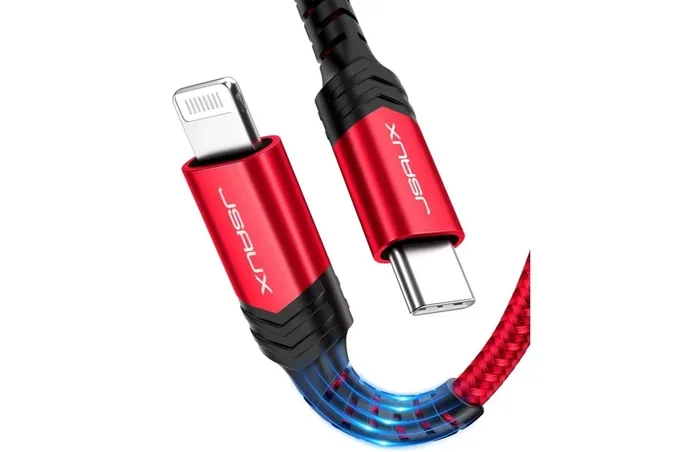
USB Type-C is a small, reversible connector that has become the standard for modern devices. You find it on laptops, smartphones, tablets, and even some monitors. The connector is tiny and oval-shaped, which makes it easy to plug in without flipping it over.
But here is the thing. USB C is not just one thing. It is a connector shape that can carry many types of signals. It can carry data, power, and video. The specific capabilities depend on what the device supports. This is where people get confused. They assume every USB C port can do everything. That is simply not true.
When we talk about USB C carry HDMI, we are talking about a specific feature called HDMI Alt Mode. This mode allows a USB C port to send an HDMI signal directly to a display. Without this feature, the port cannot output video in HDMI format.
How HDMI Alt Mode Works
HDMI Alt Mode is built into the USB C specification. When a device supports it, the port can convert its signal into HDMI format. This means you do not need a separate graphics card or a bulky docking station for basic setups.
Here is how it works in practice. Your device sends a digital video signal through the USB C port. An adapter or cable with HDMI Alt Mode support converts that signal into standard HDMI. You then plug in an HDMI cable to your TV or monitor. The display receives the signal and shows your screen.
The process is simple, but the quality depends on several factors. These include the USB C version, the adapter quality, and the cable you use. We will cover all of that in the sections below.
Can USB C Carry HDMI? The Short Answer
The short answer is yes. USB C can carry HDMI signals in most modern devices. But the long answer requires a closer look at your specific hardware and setup.
Many people buy a USB C to HDMI cable and expect it to work instantly. Sometimes it does. Other times, it does not. The difference comes down to what the port and the adapter actually support. Let us look at the key factors that determine whether USB C carry HDMI will work for you.
Device Compatibility
Not every device with a USB C port supports video output. Some USB C ports are designed only for data transfer and charging. These ports cannot carry HDMI signals at all.
Before buying any adapter, check your device specifications. Look for terms like HDMI Alt Mode, DisplayPort Alt Mode, or Thunderbolt. These terms confirm that the port supports video output. If you do not see any of these terms, your port might not work with HDMI.
Cable and Adapter Quality
The quality of your USB C to HDMI adapter or cable matters a lot. Cheap adapters often cause signal drops, flickering, or no signal at all. A high-quality adapter ensures stable digital display output and supports higher resolutions.
Look for adapters that are certified by HDMI or the USB Implementers Forum. These certifications guarantee that the product meets specific standards for performance and safety. Avoid no-name adapters from unknown brands. They might work once and then fail the next day.
USB C Versions and Their HDMI Support
Not all USB C ports are created equal. Different versions support different levels of video output. Understanding these versions helps you choose the right setup.
USB 3.1 and USB 3.2
USB 3.1 and USB 3.2 ports can support HDMI Alt Mode, but the bandwidth limits the resolution. Most setups with these ports handle 4K at 30Hz or 60Hz. That is fine for everyday use. You can watch movies, browse the web, and work on documents without any issues.
However, if you need 4K at 120Hz or 8K resolution, USB 3.1 and 3.2 might not be enough. These older USB C versions simply do not have the bandwidth to push that much data through the connection.
Thunderbolt 3 and Thunderbolt 4
Thunderbolt 3 and Thunderbolt 4 are the best USB C ports for HDMI support. These ports offer much higher bandwidth compared to standard USB C. Thunderbolt 3 supports up to 40Gbps of data transfer, and Thunderbolt 4 maintains that same speed while adding more display support.
With a Thunderbolt 3 or 4 port, you can easily output 4K at 120Hz or even 8K at 60Hz using the right USB C to HDMI adapter. These ports are found on high-end laptops, workstations, and some premium desktops. If your device has Thunderbolt, you are in great shape for USB C carry HDMI setups.
USB4 and the Future
USB4 is the newest standard and it takes video output to the next level. USB4 is built on the Thunderbolt 3 protocol, which means it offers the same impressive bandwidth. More and more devices are starting to include USB4 ports, and this trend will continue.
If you are buying new gear, look for USB4 support whenever possible. It ensures that your USB C to HDMI cable setup will work at the highest quality for years to come.
How to Set Up USB C to HDMI
Setting up a USB C to HDMI connection is straightforward. You do not need to be a tech expert. Here is a simple guide that works for most setups.
What You Need
- A device with a USB C port that supports HDMI Alt Mode
- A USB C to HDMI adapter or USB C to HDMI cable
- An HDMI cable to connect the adapter to your display
- A display with an HDMI input (TV, monitor, or projector)
Step-by-Step Setup
- Check your device for HDMI Alt Mode or Thunderbolt support.
- Plug the adapter into your USB C port.
- Connect an HDMI cable from the adapter to your TV or monitor.
- Turn on the display and select the correct HDMI input.
- Your screen should mirror or extend to the external display.
That is it. Most setups take less than a minute to configure. If the display does not show up, try a different adapter or cable. Sometimes the issue is simply a faulty connection.
Using a USB C Hub or Docking Station
A USB C hub or USB-C docking station adds multiple ports to your device. Many hubs include HDMI outputs alongside USB ports, SD card readers, and Ethernet connections. This is ideal for people who need a full workstation setup on the go.
When choosing a hub, make sure it supports HDMI Alt Mode. Some hubs only support data and charging, not video output. Check the product specs carefully before you buy. A good hub lets you USB C carry HDMI while also charging your device through USB Power Delivery.
Resolution and Performance: What to Expect
The resolution you can achieve depends on your port version, adapter quality, and cable length. Here is a quick breakdown of what you can expect from different setups.
| USB C Version | Max HDMI Resolution | Refresh Rate |
|---|---|---|
| USB 3.1 / 3.2 | 4K | 30Hz or 60Hz |
| Thunderbolt 3 | 4K | Up to 120Hz |
| Thunderbolt 4 | 4K | Up to 144Hz |
| Thunderbolt 4 / USB4 | 8K | Up to 60Hz |
Keep in mind that longer cables can reduce signal quality. If you need a cable longer than 6 feet, consider an active USB C to HDMI cable with built-in signal boosting. Passive cables work great for short distances but may struggle with high resolutions over longer runs.
Common Mistakes to Avoid
People make several common mistakes when setting up USB C carry HDMI connections. Avoiding these mistakes saves time, money, and frustration.
- Buying a cheap adapter. Low-cost adapters often fail to support the full resolution or cause flickering. Invest in a quality product from a reputable brand.
- Assuming all USB C ports support video. Some ports are data-only or charge-only. Always check your device manual or specs online.
- Using the wrong cable. Not all USB C cables are the same. Some only support data or power, not video. Make sure your cable supports HDMI Alt Mode.
- Ignoring cable length. Long passive cables can degrade the signal. Use shorter cables or active cables for best results.
- Not updating drivers. On some computers, outdated graphics drivers can prevent external displays from working properly. Always keep your drivers up to date.
Expert Tips for the Best USB C to HDMI Experience
Here are some practical tips from people who work with USB C to HDMI setups every day.
Tip 1: Buy a docking station instead of a simple adapter. A USB-C docking station gives you more flexibility. You get HDMI output, extra USB ports, and charging in one device. This is especially useful for office setups or travel.
Tip 2: Test your setup before important meetings. Always test your USB C to HDMI adapter before you need it in a presentation or meeting. Nothing is worse than a cable that does not work when the pressure is on.
Tip 3: Consider USB-C monitors. Some modern monitors have a USB-C port that supports video input and charging. This means you only need one cable to connect your laptop to the monitor. It is a clean, simple setup that reduces cable clutter.
Tip 4: Check for firmware updates. Some devices need firmware updates to enable full HDMI Alt Mode support. Visit the manufacturer website and check for any available updates for your device.
Tip 5: Use high-quality cables for 4K and above. If you want to push 4K at high refresh rates or 8K resolution, invest in premium cables. Cheap cables simply cannot handle that much data and will result in a poor picture or no signal at all.
Frequently Asked Questions
Can any USB C port carry HDMI?
No, not every USB C port supports HDMI. The port must support HDMI Alt Mode or Thunderbolt to output video. Check your device specifications to confirm compatibility before purchasing an adapter or cable.
Do I need a special cable to connect USB C to HDMI?
Yes, you need a USB C to HDMI cable or a USB C to HDMI adapter with a separate HDMI cable. Standard USB C cables do not carry HDMI signals. Make sure the adapter or cable you buy supports HDMI Alt Mode.
Can USB C carry 4K video over HDMI?
Yes, most modern USB C ports can carry 4K video over HDMI. USB 3.1 and 3.2 typically support 4K at 30Hz or 60Hz. Thunderbolt 3 and 4 can handle 4K at 120Hz or higher. The exact refresh rate depends on your port version and adapter quality.
Is Thunderbolt 3 better than standard USB C for HDMI output?
Yes, Thunderbolt 3 is significantly better than standard USB C for HDMI output. It offers much higher bandwidth, which means better resolution support and smoother performance. If you need reliable high-quality video output, Thunderbolt is the way to go.
Can I charge my device while using HDMI over USB C?
Yes, many USB C hubs and docking stations support USB Power Delivery alongside HDMI output. This means you can charge your laptop and output video at the same time using a single USB C port. Look for hubs that explicitly mention power delivery support.
What is the difference between a USB C to HDMI adapter and a USB C to HDMI cable?
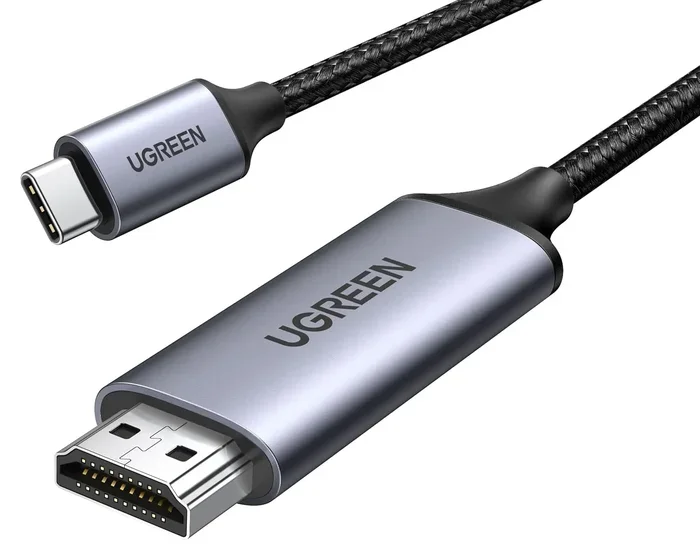
A USB C to HDMI cable is a single cable with a USB C connector on one end and an HDMI connector on the other. A USB C to HDMI adapter is a small dongle that plugs into the USB C port and has an HDMI port on the side for a separate HDMI cable. Both achieve the same goal, but adapters offer more flexibility with cable length and orientation.
Conclusion
USB C carry HDMI is a powerful feature that makes connecting your devices to external displays simple and convenient. Whether you are at home, in the office, or on the go, a USB C to HDMI adapter or cable lets you share your screen with almost any display.
The key is to understand your device. Check if your USB C port supports HDMI Alt Mode or Thunderbolt. Choose a quality adapter or cable that matches your resolution needs. And avoid the common mistakes that trip up so many users.
With the right setup, you get a reliable digital display connection that works every time. Invest in good gear, follow the tips in this guide, and you will enjoy seamless video output from your USB C device for years to come.