Can I Use Hdmi Instead Of Vga For My Computer Monitor
Yes, you can use HDMI instead of VGA for your monitor, but you may need an adapter or converter. HDMI delivers better picture quality, supports audio, and works with modern devices. However, older monitors with only VGA ports require a signal converter to connect to HDMI outputs.
You are sitting in front of your computer, ready to set up your monitor, and then you notice something. Your shiny new device only has HDMI ports, but your monitor has a VGA connector. What do you do now? Can you use HDMI instead of VGA for monitor setups? The short answer is yes. But the full answer is a bit more interesting than that.
Connecting a monitor to your computer might seem simple on the surface. You plug in a cable, and boom, you have a picture. But the truth is, the type of cable and port you use matters a lot. It affects your image quality, whether you get sound, and how well everything works together. If you have been wondering about HDMI vs VGA, you are in the right place. Let us break it all down in a way that makes sense.
VGA has been around since the 1980s. It was the standard for decades. HDMI came along later and changed the game completely. Today, most laptops, desktops, and gaming consoles use HDMI. But many monitors, especially older ones, still rely on VGA. This creates a common problem for people trying to connect their devices. Understanding how these two connection types work helps you make the best choice for your setup.
In this article, we will walk through everything you need to know about switching from VGA to HDMI. We will cover compatibility, adapters, image quality differences, and practical tips you can use right away. By the end, you will know exactly what to do with your monitor and computer display setup.
Key Takeaways
- HDMI is superior to VGA: HDMI carries both video and audio signals digitally, while VGA only transmits analog video.
- You need an adapter: If your monitor has only VGA and your device has HDMI, you will need an HDMI to VGA converter.
- Image quality improves with HDMI: HDMI supports higher resolutions and sharper image clarity compared to VGA.
- Not all adapters are equal: Passive adapters simply convert the signal, while active converters include signal processing chips.
- Check your ports first: Always verify what ports your monitor and computer have before buying any adapter or cable.
- VGA is becoming outdated: Newer devices are dropping VGA support entirely in favor of digital connections like HDMI.
- Signal degradation is real: VGA cables can lose quality over longer distances, while HDMI maintains signal integrity better.
📑 Table of Contents
What Is VGA and Why Does It Still Matter
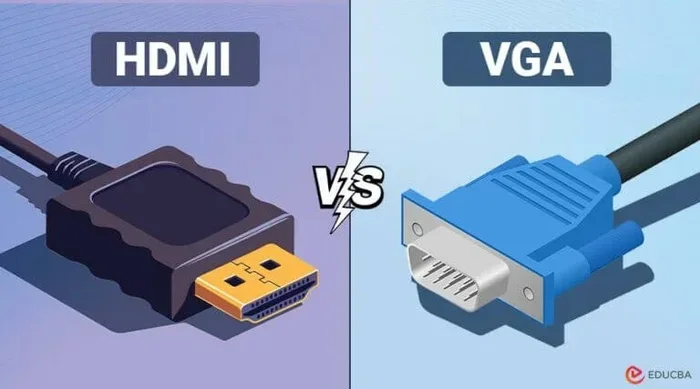
VGA stands for Video Graphics Array. It is an analog connection standard that has been used in computers since 1987. The VGA connector is the blue, trapezoid-shaped port you have probably seen on older monitors and projectors. Even though it is old, VGA is still found on many displays today.
The way VGA works is pretty straightforward. It sends an analog video signal from your computer to your monitor. This means the image is converted from digital to analog during transmission and then back to digital on the display side. That double conversion can cause some loss in image clarity. VGA also does not carry audio. You need a separate cable or setup if you want sound.
The History of VGA
VGA was introduced by IBM in 1987 as a standard for computer displays. Before VGA, there were several other standards, but VGA became the most widely adopted. For many years, every computer and monitor came with VGA ports. It was the go-to connection for office work, presentations, and everyday computing.
Over time, digital connections like HDMI and DisplayPort started to replace VGA. The reason is simple. Digital signals are cleaner and more reliable. They do not suffer from the same quality loss that analog signals do. Even so, VGA has not disappeared completely. Many projectors, industrial monitors, and budget displays still use VGA connections.
If you are using an older monitor or a projector, there is a good chance it has VGA. And that is perfectly fine. VGA still works well for basic tasks like browsing the web, writing documents, and watching videos at standard resolutions. The advantages and disadvantages of new technology show us that newer is not always necessary for every situation. Sometimes VGA gets the job done just fine.
What Is HDMI and Why It Has Become the Standard
HDMI stands for High-Definition Multimedia Interface. It is a digital connection that carries both video and audio through a single cable. HDMI was introduced in the early 2000s and quickly became the most popular connection type for TVs, monitors, laptops, and gaming consoles.
The biggest advantage of HDMI over VGA is that it is digital from end to end. Your computer sends a digital signal, the cable carries it without conversion, and your monitor displays it exactly as intended. This means sharper images, better color accuracy, and no signal loss. HDMI also supports much higher resolutions than VGA ever could.
HDMI Versions and What They Mean
There are several versions of HDMI, and they matter more than you might think. Here is a quick breakdown:
- HDMI 1.4: Supports 4K at 30Hz. Good for basic 4K content.
- HDMI 2.0: Supports 4K at 60Hz. Great for gaming and smooth video playback.
- HDMI 2.1: Supports 8K and even 10K at high refresh rates. This is the latest standard for demanding applications.
Most modern monitors and devices use HDMI 2.0 or newer. If you are connecting a gaming monitor or a 4K display, HDMI 2.0 or higher is what you want. The advantages and disadvantages of word processors and other computer accessories remind us that the connection type between devices can make a big difference in performance. A good cable is just as important as the device it connects.
Can You Really Use HDMI Instead of VGA
This is the question that brings most people here, and the answer depends on your specific setup. Let us look at the different scenarios you might face.
Scenario 1: Your Monitor Has HDMI and Your Computer Has HDMI
This is the easiest situation. You just grab an HDMI cable, plug one end into your computer and the other into your monitor, and you are done. You get the best possible video connection quality with no extra equipment needed. You also get audio through the same cable, which is a huge convenience.
Make sure both devices support the same HDMI version if you want the best resolution. If your computer has HDMI 2.0 and your monitor only has HDMI 1.4, you will be limited to 4K at 30Hz. For most everyday uses, this is perfectly fine.
Scenario 2: Your Monitor Has VGA and Your Computer Has HDMI
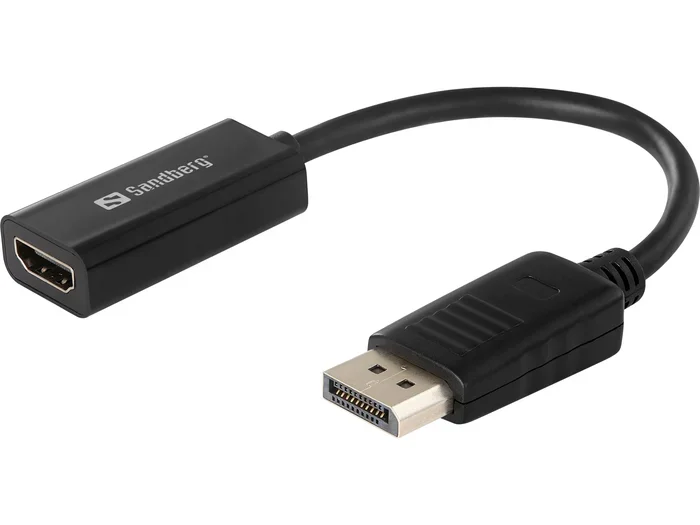
This is the most common scenario and the one that causes the most confusion. You cannot plug an HDMI cable directly into a VGA port. They are completely different types of connections. You need an HDMI to VGA adapter or converter.
Here is the thing you need to know. There are two types of converters:
- Passive adapters: These are cheap and simple. They just change the physical shape of the connector. They do not convert the signal. Passive adapters only work when your computer can output an analog signal through HDMI, which most modern computers cannot.
- Active converters: These contain a chip that actually converts the digital HDMI signal to an analog VGA signal. Active converters work with almost all modern computers and devices. They usually cost a bit more but they actually do the job.
Always buy an active converter if you need to go from HDMI to VGA. Passive adapters will not work with most modern devices and will just leave you frustrated.
Scenario 3: Your Monitor Has HDMI and Your Computer Has VGA
This is the reverse situation. Your computer has a VGA port and your monitor has HDMI. You will need a VGA to HDMI converter. These are also active converters that take the analog VGA signal and convert it to digital HDMI for your monitor.
Keep in mind that the quality of your output will be limited by your computer’s VGA output. VGA cannot carry high-resolution signals the way HDMI can. So even though your monitor is capable of 4K, your VGA output will limit you to lower resolutions.
HDMI vs VGA: A Side-by-Side Comparison
When you are deciding between HDMI and VGA, it helps to see the differences laid out clearly. Here is a comparison of the two connection types across the most important factors.
| Feature | HDMI | VGA |
|---|---|---|
| Signal Type | Digital | Analog |
| Carries Audio | Yes | No |
| Max Resolution | Up to 8K (HDMI 2.1) | Up to 2048×1536 |
| Cable Length Impact | Minimal signal loss | Signal degrades over distance |
| Connector Type | Small, rectangular | Large, blue trapezoid |
| Common Use | Modern monitors, TVs, consoles | Older monitors, projectors |
| Price of Cables | $5 to $25 | $3 to $15 |
| HDCP Support | Yes | No |
As you can see from the comparison, HDMI is the clear winner in almost every category. VGA still has a place in the world, especially for older equipment and projectors. But for a modern computer monitor, HDMI is the better choice by a wide margin. The advantages and disadvantages of network cables remind us that every type of cable has its strengths, but digital connections like HDMI generally outperform older analog standards.
How to Choose the Right Adapter or Converter
If you need to use HDMI with a VGA monitor, choosing the right adapter is critical. Not all adapters are created equal, and buying the wrong one can waste your time and money.
What to Look For in an HDMI to VGA Converter
- Active conversion: Make sure the product description says it has active signal conversion. This means it includes a chip to convert digital to analog.
- Resolution support: Look for converters that support at least 1080p. Some cheap adapters only support 720p, which will look blurry on a modern monitor.
- Audio support: Some active converters also pass through audio. This is helpful if you want sound through your monitor’s speakers or headphones.
- Build quality: Cheap adapters with flimsy connectors can cause signal issues. Look for adapters with solid construction and good reviews.
- Driver or software requirements: Some converters need drivers installed on your computer. Check this before you buy so there are no surprises.
A good active HDMI to VGA converter usually costs between $10 and $30. It is a small price to pay for a working setup. Think of it like the advantages and disadvantages of a computer mouse or any other accessory. The right tool for the job makes everything smoother and more enjoyable.
Quick Tips for Getting the Best Results
- Always test your setup before committing to a permanent desk arrangement.
- Use a short, high-quality HDMI cable between your computer and the converter.
- Adjust your display settings in your operating system after connecting.
- If you see a blurry image, check your resolution settings and adjust them to match your monitor’s native resolution.
- Keep your converter away from other cables to avoid interference.
Common Problems and How to Fix Them
Even with the right adapter, you might run into some issues when using HDMI instead of VGA. Here are the most common problems and their solutions.
No Signal or Black Screen
This is the most common issue. It usually happens because the converter is not being recognized or the signal type is wrong. Try these steps:
- Check that the HDMI cable is firmly connected at both ends.
- Make sure your computer is set to output the correct signal type in its display settings.
- Try a different HDMI port on your computer if available.
- Restart your computer with the adapter already connected.
No Sound Through the Monitor
HDMI carries audio, but VGA does not. If you are using an HDMI to VGA converter, you might not get sound through the monitor. To fix this, you can connect your monitor’s audio output to speakers or headphones using a 3.5mm cable. Or you can use speakers connected directly to your computer.
Image Looks Fuzzy or Low Quality
A blurry image usually means the resolution is set too low or the converter quality is poor. Go to your display settings and set the resolution to your monitor’s native resolution. If the image is still fuzzy, try a different active converter. Cheap passive adapters are the most common cause of this problem.
Flickering or Intermittent Signal
Flickering usually points to a loose connection or a low-quality cable. Try tightening the connections or replacing the HDMI cable. If the problem persists, the converter itself might be faulty. Active converters can sometimes overheat, which causes flickering. Letting the converter cool down for a few minutes often fixes this.
Should You Upgrade from VGA to HDMI
If you are still using a VGA monitor, you might be wondering if it is worth upgrading. The answer depends on what you use your computer for and what your budget allows.
For basic tasks like browsing the web, checking email, and writing documents, a VGA monitor is still perfectly usable. The advantages and disadvantages of new technology show us that sometimes older tech works just as well for simple needs. You do not always need the latest and greatest.
However, if you do any of the following, upgrading to an HDMI monitor makes a lot of sense:
- Gaming: HDMI supports higher refresh rates and faster response times.
- Video editing: Better color accuracy and higher resolution make a real difference.
- Movie watching: HDMI carries audio and video together for a seamless experience.
- Professional work: Sharper text and better image quality reduce eye strain during long work sessions.
- Multi-device setups: HDMI makes it easy to connect laptops, consoles, and streaming devices to the same monitor.
When you are ready to upgrade, look for a monitor with HDMI 2.0 or HDMI 2.1 support. This ensures you get the best picture quality and future-proof your setup. You can also find monitors that have both HDMI and VGA ports, giving you flexibility to connect older and newer devices.
The shift from VGA to HDMI is part of a larger trend in technology. Older analog standards are being replaced by digital connections that offer better quality and more features. This is similar to how the advantages and disadvantages of access control systems show us that upgrading security technology brings real benefits. The same principle applies to your monitor connections. Moving to HDMI gives you a better experience in almost every way.
Final Thoughts
So, can you use HDMI instead of VGA for your monitor? Absolutely. With the right adapter or converter, you can connect virtually any monitor to any computer. HDMI offers better image quality, audio support, and future-proof compatibility that VGA simply cannot match.
If your monitor only has VGA, do not worry. An active HDMI to VGA converter will get you up and running in minutes. Just make sure you buy the right type of adapter, check your resolution settings, and test your setup before you rely on it for important work.
The world of monitor connections can feel confusing at first, but it does not have to be. Once you understand the basics of HDMI and VGA, you can make smart decisions about your setup. Whether you are connecting a new monitor or making an old one work with modern equipment, the right cable and adapter make all the difference.
Take a few minutes to check your ports, buy the right converter, and enjoy a better display experience. Your eyes will thank you, and your productivity will thank you too. A good monitor connection is one of those small things that makes a big difference in how you work and play every day.
Frequently Asked Questions
Can I plug an HDMI cable directly into a VGA port?
No, you cannot plug an HDMI cable directly into a VGA port. They are completely different types of connectors and carry different types of signals. You need an active HDMI to VGA converter or adapter to bridge the two. Without a converter, the connection simply will not work.
Will using an HDMI to VGA adapter reduce image quality?
Yes, there can be a slight reduction in quality because HDMI is digital and VGA is analog. The converter has to change the signal from digital to analog, which can introduce some minor quality loss. However, with a good active converter, the difference is usually barely noticeable for most everyday tasks.
Do I need to install drivers for an HDMI to VGA converter?
Most active HDMI to VGA converters work plug and play without any drivers. However, some models may require you to install software or drivers for full functionality. Check the product manual or description before you buy to see if drivers are needed.
Can I get audio through an HDMI to VGA converter?
It depends on the converter. Some active converters include an audio output jack so you can connect headphones or speakers separately. Others do not pass audio at all because VGA does not support sound. Check the product specs to see if audio passthrough is included.
What is the maximum resolution I can get through HDMI to VGA?
Most active HDMI to VGA converters support up to 1080p or 1920×1200 resolution. Some higher-end models can support 4K, but this is less common. The actual resolution you get depends on both the converter quality and your monitor’s capabilities.
Is VGA still good enough for everyday use in 2024?
For basic tasks like web browsing, email, and document editing, VGA is still perfectly fine. The image quality is adequate for these activities. However, for gaming, video editing, or any task that benefits from high resolution and sharp image quality, HDMI is a much better choice.