Can I Plug Displayport Into Hdmi Here Is The Full Guide
Yes, you can plug DisplayPort into HDMI, but you need the right adapter or cable to make it work. This guide explains how the connection works, which adapters to buy, and common mistakes to avoid. Whether you want to connect a monitor, GPU, or laptop, you will find everything you need here.
You have a DisplayPort cable in your hand. Your monitor or TV only has an HDMI port. What do you do? Many people face this exact situation every day. The good news is that you can absolutely make this connection work. But it is not as simple as plugging one end in and calling it done. You need the right adapter, the right cable, and a little bit of knowledge. This guide walks you through everything you need to know about plugging DisplayPort into HDMI. Let us get started.
The question “can I plug DisplayPort into HDMI” comes up more often than you might think. Gamers, office workers, and content creators all run into this problem. Maybe your graphics card has DisplayPort outputs but your monitor only has HDMI. Or perhaps your new laptop has a DisplayPort connector but your home theater setup uses HDMI. Whatever the reason, the answer exists. You just need to understand how these two connection types work and what tools you need to bridge the gap.
Key Takeaways
- Direct connection is not possible: DisplayPort and HDMI use different signal types, so you need an adapter or active converter.
- Active adapters are usually the best choice: They handle signal conversion properly and support higher resolutions like 4K.
- Check your devices first: Not all ports support the same resolution or refresh rate, so compatibility matters a lot.
- Audio may or may not transfer: Some adapters carry audio, while others do not. Always check before buying.
- Cheap adapters can cause problems: Low-quality adapters may result in no signal, flickering, or limited resolution support.
- USB-C with DisplayPort Alt Mode is another option: Many modern laptops use USB-C, and the right cable can bridge the gap.
- Your setup determines the best solution: Desktop PC, laptop, and console setups all have different adapter needs.
📑 Table of Contents
- Understanding DisplayPort and HDMI Connections
- Can You Plug DisplayPort Directly Into HDMI?
- Types of Adapters and Cables You Can Use
- How to Choose the Right Adapter for Your Setup
- Common Mistakes and Troubleshooting Tips
- Expert Tips for the Best DisplayPort to HDMI Experience
- Frequently Asked Questions
- Conclusion
Understanding DisplayPort and HDMI Connections
Before you buy any adapter, it helps to understand what makes DisplayPort and HDMI different. They both carry video and audio signals. But they do it in different ways. Think of them like two different languages. They both communicate the same ideas, but they need a translator to understand each other.
What Is DisplayPort?
DisplayPort is a digital display interface developed by VESA. It is commonly found on graphics cards, monitors, and some laptops. DisplayPort comes in different versions. The most common ones you will see are DisplayPort 1.2, 1.4, and 2.0. Each version supports different resolutions and refresh rates. DisplayPort 1.4 can handle 4K at 120Hz or even 8K in some cases. It is a powerful standard for video output.
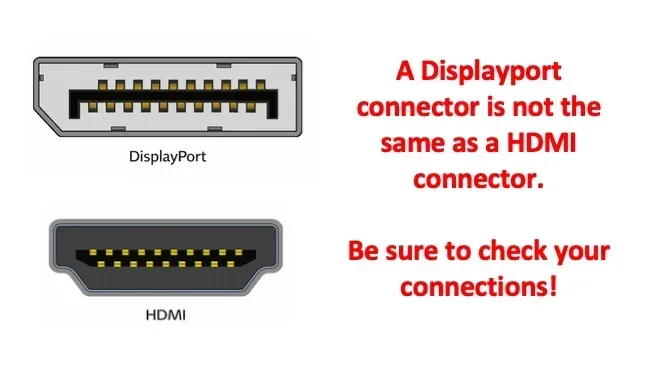
The DisplayPort connector has a slightly rectangular shape with one corner beveled. It is not the same as HDMI. The connector has 20 pins inside that carry the video and audio data. Some versions also support features like daisy-chaining multiple monitors from a single port.
What Is HDMI?
HDMI stands for High-Definition Multimedia Interface. It is the most common audio/video connector in the world. You find HDMI on TVs, monitors, projectors, game consoles, and Blu-ray players. HDMI also comes in different versions. HDMI 2.0 supports 4K at 60Hz. HDMI 2.1 supports 4K at 120Hz and even 8K at 60Hz.
The HDMI connector is smaller and more trapezoidal than DisplayPort. It carries both uncompressed video and compressed or uncompressed audio through a single cable. This is one reason why HDMI is so popular for home entertainment setups.
Key Differences Between DisplayPort and HDMI
Here are the main differences that matter when you want to connect these two ports together:
- Signal type: Both are digital, but the encoding method differs slightly.
- Connector shape: DisplayPort is rectangular with a beveled corner. HDMI is smaller and trapezoidal.
- Locking mechanism: DisplayPort has a clip that locks the cable in place. HDMI does not have this feature.
- Bandwidth: Newer DisplayPort versions offer higher bandwidth than older HDMI versions.
- Daisy-chaining: DisplayPort supports connecting multiple monitors in a chain. HDMI does not.
- Consumer vs. professional use: HDMI dominates consumer electronics. DisplayPort is more common in PC and professional environments.
Can You Plug DisplayPort Directly Into HDMI?
This is the most common question people ask. The short answer is no. You cannot plug a DisplayPort cable directly into an HDMI port. The connectors are physically different. The pins inside do not line up. Even if you could force a connection, the signal would not work because the two standards encode data differently.
So what does this mean for you? It means you need a conversion device. This device takes the DisplayPort signal and converts it into an HDMI signal. Without this conversion, the connection simply will not work. This is the fundamental reason why adapters exist for this purpose.
Some people wonder if a passive cable with different connectors on each end will work. In most cases, it will not. A passive cable simply reroutes pins. It does not convert the signal. You need an active adapter or active converter to translate the DisplayPort signal into HDMI.
Types of Adapters and Cables You Can Use
Now that you know a direct connection is not possible, let us look at the solutions. There are several types of adapters and cables that let you bridge the gap between DisplayPort and HDMI.
Active DisplayPort to HDMI Adapters
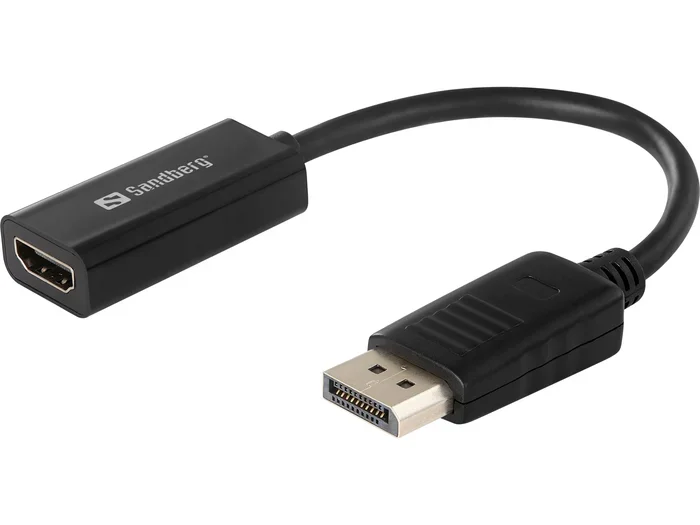
An active adapter is the most reliable option for most people. It contains a chip that converts the DisplayPort signal to HDMI. This chip handles the signal translation properly. Active adapters support higher resolutions and refresh rates. They also usually carry audio along with the video signal.
When shopping for an active adapter, look for one that supports your desired resolution. If you have a 4K monitor, make sure the adapter supports 4K. Many affordable adapters only support 1080p or 4K at 30Hz. For smooth 4K at 60Hz, you need a better-quality adapter that supports DisplayPort 1.2 or higher.
DisplayPort to HDMI Cables
Some cables come with a DisplayPort connector on one end and an HDMI connector on the other. These cables contain built-in conversion electronics. They work similarly to active adapters but are more convenient because the cable itself does the conversion.
These cables are great for permanent setups where you do not want an extra adapter block hanging off your desk. However, they can be harder to find in longer lengths. Most DisplayPort to HDMI cables max out at about 6 feet. If you need a longer run, an adapter plus a regular HDMI cable might be a better option.
USB-C to HDMI Adapters
Many modern laptops and tablets use USB-C ports. Some USB-C ports support DisplayPort Alt Mode. This means they can output a DisplayPort signal through the USB-C connector. If your device has a USB-C port with DisplayPort Alt Mode, you can use a USB-C to HDMI adapter to connect to an HDMI monitor.
This is not technically plugging DisplayPort into HDMI, but it achieves the same result. The USB-C port outputs a DisplayPort-compatible signal, and the adapter converts it to HDMI. Check your device specifications to confirm it supports DisplayPort Alt Mode before buying this type of adapter.
DisplayPort to HDMI Dongles
A dongle is essentially a small adapter that plugs directly into the DisplayPort output. These are very compact and portable. They are great for travel or for setups where you want a clean, clutter-free desk. However, dongles can sometimes overheat if they run for long periods at high resolutions.
Dongles are usually active adapters in a very small form factor. They work just as well as larger adapters but may lack extra features like USB passthrough ports. If you need a simple and portable solution, a DisplayPort to HDMI dongle is a solid choice.
How to Choose the Right Adapter for Your Setup
Not all adapters are created equal. Choosing the right one depends on your specific devices and what you want to achieve. Here are the key factors to consider.
Check Your Resolution and Refresh Rate Needs
What resolution does your monitor support? What refresh rate do you need? If you have a 1080p monitor at 60Hz, almost any adapter will work. But if you have a 4K monitor at 144Hz, you need a high-quality adapter that supports those specs.
Look for adapters that explicitly list their supported resolutions and refresh rates. A good adapter will say something like “supports 4K at 60Hz” on the packaging. If it does not list the specs clearly, it might not support what you need.
Does Your Adapter Support Audio?
Some adapters carry audio from the DisplayPort source to the HDMI output. Others do not. If you need audio to play through your HDMI monitor or TV, make sure the adapter supports audio passthrough.
Most active adapters handle audio without any issues. Passive adapters or very cheap cables might drop the audio signal entirely. If you are connecting your PC to a TV for movies or gaming, audio support is essential. Always check the product description before you buy.
Build Quality and Brand Reputation
Cheap adapters from unknown brands can cause all sorts of problems. You might get a flickering screen, no signal at all, or an adapter that stops working after a few weeks. Investing in a reputable brand saves you a lot of headaches.
Brands like Cable Matters, StarTech, and UGREEN make reliable DisplayPort to HDMI adapters. They might cost a little more, but they work consistently and last longer. When it comes to adapters, spending a bit more upfront usually pays off in the long run.
Driver and Software Requirements
Most DisplayPort to HDMI adapters work plug and play. You do not need to install any drivers. However, some adapters, especially those that support higher resolutions, may require you to update your graphics card drivers. Make sure your GPU drivers are up to date before troubleshooting any connection issues.
If you have an NVIDIA or AMD graphics card, visit their official websites to download the latest drivers. Sometimes a simple driver update fixes signal issues that seem like adapter problems. This is a quick and easy step that many people skip.
Common Mistakes and Troubleshooting Tips
Even with the right adapter, things can go wrong. Here are the most common mistakes people make and how to fix them.
Using a Passive Adapter Instead of an Active One
This is the number one mistake. Passive adapters or cables simply reroute pins. They do not convert the signal. If you use a passive adapter between DisplayPort and HDMI, it will not work in most cases. Always make sure your adapter is labeled as “active.”
Ignoring the DisplayPort Version
Not all DisplayPort ports are the same. An older DisplayPort 1.1 port might not support the resolutions your adapter can handle. Check what DisplayPort version your graphics card or laptop supports. This information is usually in the device specifications or on the manufacturer’s website.
Buying the Wrong Adapter Direction
Make sure you buy a DisplayPort to HDMI adapter, not an HDMI to DisplayPort adapter. The direction matters. If your source has DisplayPort and your display has HDMI, you need a DisplayPort to HDMI adapter. Buying the wrong direction means the adapter will not work at all.
Not Securing the Connection Properly
DisplayPort connectors have a locking clip. Make sure it clicks into place. A loose connection can cause signal drops or a blank screen. HDMI connectors do not lock, so they can work themselves loose over time. Check that both ends of the connection are firmly seated.
Overlooking Cable Length
Longer cables can degrade the signal, especially at higher resolutions. If you are running a DisplayPort to HDMI setup over 6 feet, use a high-quality cable. For runs longer than 10 feet, consider an active signal booster or a higher-grade cable rated for the resolution you need.
Expert Tips for the Best DisplayPort to HDMI Experience
Here are some expert-level tips that can make your setup smoother and more reliable.
- Test your adapter with your specific devices: Every setup is slightly different. What works for one person might not work for another. Test before you commit to a permanent setup.
- Keep your firmware updated: Some monitors and adapters have firmware updates that improve compatibility. Check the manufacturer’s website for updates.
- Use a docking station for complex setups: If you need multiple connections, a USB-C docking station with DisplayPort and HDMI outputs can simplify your setup.
- Label your cables and adapters: In a busy desk setup, it is easy to mix up cables. Labeling them saves time and frustration.
- Buy from reputable retailers: Avoid buying adapters from unknown sellers on marketplace sites. Stick to trusted brands and authorized sellers to avoid counterfeit products.
Frequently Asked Questions
Can I use a passive cable to connect DisplayPort to HDMI?
In most cases, no. Passive cables simply reroute pins without converting the signal. You need an active adapter or an active cable that contains conversion electronics to translate the DisplayPort signal into HDMI. Always check the product description to confirm it is active.
Does a DisplayPort to HDMI adapter carry audio?
Most active adapters do carry audio along with the video signal. However, some cheaper or older adapters may not support audio passthrough. If you need audio, check the product specifications before purchasing. Look for adapters that explicitly mention audio support in their description.
Can I get 4K resolution through a DisplayPort to HDMI adapter?
Yes, but only with the right adapter. You need an adapter that supports DisplayPort 1.2 or higher and explicitly lists 4K resolution support. Many budget adapters only support 1080p or 4K at 30Hz. For smooth 4K at 60Hz, invest in a quality adapter from a reputable brand.
Why does my DisplayPort to HDMI connection show no signal?
There are several possible reasons. Your adapter might be passive instead of active. Your drivers might be outdated. The cable might be loose or damaged. Try updating your graphics card drivers, checking all connections, and testing with a different adapter. If none of these work, the adapter itself might be faulty.
Can I connect multiple monitors using DisplayPort and HDMI together?
Yes, you can mix DisplayPort and HDMI monitors on the same setup. You would need a DisplayPort to HDMI adapter for the HDMI monitor while the other monitor connects directly via DisplayPort. Most modern graphics cards support multiple outputs with different connector types. Just make sure your GPU has enough output ports for all your monitors.
Is a USB-C to HDMI adapter the same as a DisplayPort to HDMI adapter?
Not exactly, but they achieve a similar result. USB-C with DisplayPort Alt Mode outputs a DisplayPort-compatible signal. A USB-C to HDMI adapter converts that signal to HDMI. However, not all USB-C ports support DisplayPort Alt Mode. Check your device specifications to confirm compatibility before buying a USB-C to HDMI adapter.
Conclusion
So, can I plug DisplayPort into HDMI? The answer is yes, but not directly. You need an active adapter or a DisplayPort to HDMI cable with built-in conversion electronics. The right adapter lets you connect any DisplayPort source to any HDMI display without hassle. Just remember to check your resolution needs, confirm audio support, and buy from a reputable brand.
Setting up a DisplayPort to HDMI connection is straightforward once you understand the basics. Avoid passive adapters, check your device specifications, and keep your drivers updated. With the right tools and a little patience, you will have your display running perfectly in no time. Do not let connector differences slow you down. The solution is simple, affordable, and easy to find. Plug in and enjoy your setup.