Can Hp Touch Screen Be Replaced Without Professional Help
Yes, you can replace an HP touchscreen without professional help. With the right tools, replacement parts, and a steady hand, most users can swap out a broken or unresponsive HP touch screen in under an hour. This guide walks you through every step, from gathering parts to calibrating the new display.
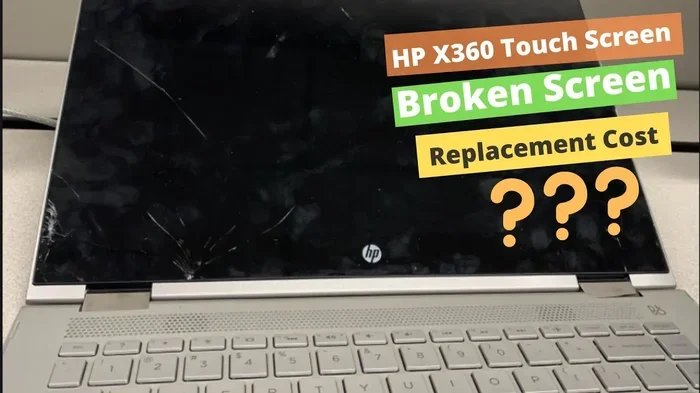
Have you ever tapped your HP laptop screen and nothing happened? Or maybe you dropped your device and now the HP touchscreen has a nasty crack that makes everything hard to use. It is frustrating, right? You might be wondering if you can just swap out the broken screen yourself. The good news is that HP touch screen replacement is something many people can do at home. You do not need to be a tech expert or spend a fortune on a repair shop. This guide will show you exactly how to do it, step by step, so you can get back to using your device without the headache of a cracked or unresponsive screen.
Touchscreen technology has become a standard feature on many HP laptops and tablets. Whether you own an HP Pavilion, an HP Envy, or an HP Spectre, the touchscreen is a big part of your daily experience. When it stops working, it can slow you down and make simple tasks feel impossible. The good news is that replacing the screen is not as scary as it sounds. With the right information and a little patience, you can do this yourself. Let us dive into everything you need to know about HP touchscreen repair at home.
Key Takeaways
- DIY Replacement Is Possible: You can replace an HP touchscreen on your own with basic tools and a compatible replacement part.
- Cost Savings Are Significant: Doing it yourself saves you hundreds compared to professional repair services.
- Compatibility Matters: Not all HP models use the same touchscreen assembly, so you must verify your exact model number.
- Warranty May Be Voided: Opening your device yourself can void the HP warranty, so check before you start.
- Patience Is Key: Rushing the process can damage cables, break clips, or lead to dust under the new screen.
- Calibration Is Essential: After installation, you should calibrate the touchscreen for accurate response.
📑 Table of Contents
- Can You Replace an HP Touch Screen Without Professional Help?
- How Much Does It Cost to Replace an HP Touch Screen?
- Step-by-Step Guide to Replacing Your HP Touch Screen
- Common Problems After Touchscreen Replacement
- HP Touchscreen Models and Compatibility
- Tips for a Successful HP Touchscreen Replacement
- Should You Do It Yourself or Hire a Pro?
- Key Takeaways
- Conclusion
Can You Replace an HP Touch Screen Without Professional Help?
The short answer is yes. Most HP touchscreen laptops use a standard display assembly that can be swapped out with basic tools. You do not need years of experience or expensive equipment. What you do need is a compatible replacement part, a screwdriver set, and a clean, well-lit workspace. Many people are surprised at how straightforward the process actually is. Once you see how the screen is connected, it makes a lot of sense. The whole thing is designed to be user-serviceable, which is great news for anyone willing to try.
That said, not every HP model is exactly the same. Some devices have more complex assemblies than others. The HP TouchScreen Laptop models from recent years are generally designed with easier access panels. Older models might require a bit more disassembly. Before you start, you should look up a teardown guide for your specific model. YouTube is full of helpful videos that show exactly what to do. Watching a few of these before you begin will save you a lot of confusion later on.
What You Need Before You Start
Before you crack open your laptop, make sure you have everything ready. Trying to stop in the middle of a repair to find a missing tool is not fun. Here is a quick list of what you will need:
- Replacement touchscreen assembly specific to your HP model
- Phillips and Torx screwdrivers (small sizes)
- Plastic spudger or pry tool to avoid scratching parts
- Anti-static wrist strap to protect internal components
- Soft microfiber cloth for cleaning
- Adhesive strips or double-sided tape for securing the new screen
- A small container to keep screws organized
Having all of these ready before you start makes the whole process smoother. It also reduces the risk of damaging other parts while you scramble for a tool. Trust me, preparation is half the battle when it comes to any kind of DIY screen repair.
How Much Does It Cost to Replace an HP Touch Screen?
Cost is one of the biggest reasons people try to do this themselves. Professional repair shops can charge anywhere from $150 to $400 or more, depending on your model. That is a lot of money for something you can do on your kitchen table. When you buy the replacement part yourself, you can expect to pay between $50 and $200, depending on the model and where you shop.
Factors That Affect the Price
Several things influence how much you will pay for a replacement HP touchscreen. Understanding these factors helps you make smart buying decisions:
- Model of your device: Premium models like the HP Spectre use more expensive parts than budget models like the HP Pavilion.
- Touchscreen resolution: Higher resolution displays cost more to replace.
- Where you buy the part: OEM parts cost more but fit and work better than cheap alternatives.
- New vs. refurbished: Refurbished screens can save money but may have shorter lifespans.
- Included features: Screens with built-in digitizers or special coatings cost more.
When you compare these costs to what a repair shop charges, the savings are obvious. Even if you make a mistake and need to buy a second part, you are still likely to spend less than a professional would charge. Just make sure you order the right part the first time by double-checking your model number.
Step-by-Step Guide to Replacing Your HP Touch Screen
Now let us get into the actual process. This is the part that might seem intimidating, but I promise it is very doable. Just take your time and follow each step carefully. Rushing through a touchscreen repair is the number one cause of mistakes.
Step 1: Power Down and Disconnect
Start by shutting your laptop completely down. Do not just put it to sleep. Turn it off all the way. Then unplug everything from the device, including the charger, USB drives, and any external monitors. If your laptop has a removable battery, take it out. For models with built-in batteries, disconnect the battery cable from the motherboard. This is a safety step that protects both you and your device. Working on a powered device can lead to electrical damage or even minor shocks.
Step 2: Remove the Bezel
The bezel is the plastic frame that holds the screen in place. Use your plastic spudger to gently pry it loose. Start at one corner and work your way around. These clips are designed to pop out with steady pressure, but they can break if you force them. Go slow and be gentle. If a clip feels stuck, try a different spot rather than pushing harder. Once all the clips are released, carefully lift the bezel off and set it aside.
Step 3: Disconnect the Old Screen
Now you will see the display assembly held in by a few screws. Remove these screws and keep them in your container. You will also see a cable connecting the screen to the motherboard. This is the display assembly connector. Gently disconnect it by lifting the small latch or pulling the connector straight out. Do not yank on the cable itself. Handle it by the connector only. Once disconnected, you can lift the old screen out of the frame.
Step 4: Install the New Touchscreen
Take your new HP touch screen replacement and place it into the frame. Make sure it sits properly and evenly. Reconnect the display cable by pressing the connector firmly into place until you hear or feel it click. Replace the screws that hold the assembly in place. Do not overtighten them, as this can strip the threads or crack the new screen.
Step 5: Replace the Bezel
Now put the bezel back on. Start at one corner and press it into place, working your way around until all the clips snap back in. This might take a little pressure, but it should feel secure when done correctly. Make sure no plastic is sticking out or uneven anywhere.
Step 6: Reconnect Power and Test
Reconnect the battery and plug in your charger. Power on the laptop and check if the new HP touchscreen is working. Touch different areas of the screen to make sure it responds everywhere. If it does, great job! You just saved yourself a lot of money and learned a valuable skill.
Common Problems After Touchscreen Replacement
Sometimes things do not go perfectly on the first try. That is totally normal, especially if this is your first time doing a DIY screen repair. Here are the most common issues and how to fix them:
Unresponsive Touch Areas
If parts of your new screen do not respond to touch, the connector might not be seated properly. Power down, disconnect the cable, and reconnect it firmly. Sometimes dust or debris on the connector can cause this problem. Use a soft cloth to clean the connector before plugging it back in.
Screen Flickering or Dim Display
A flickering screen usually means the display cable is loose or damaged during installation. Check that the cable is fully connected and not pinched by the bezel. If the cable looks damaged, you may need to replace it along with the screen.
Touchscreen Not Calibrated
After a replacement, your touch screen calibration might be off. Windows has a built-in calibration tool. Go to Settings, then Devices, then Pen and Touch, and select Calibrate. Follow the on-screen prompts to recalibrate the screen. This simple step fixes most touch accuracy issues.
Dust or Air Bubbles Under the Screen
If you see dust or air pockets, the bezel was not pressed in evenly. You will need to remove it again and reseat the screen more carefully. Using a microfiber cloth to press the screen into place can help eliminate trapped air.
HP Touchscreen Models and Compatibility
Not all HP devices use the same touchscreen. Before ordering a replacement part, you need to know exactly which model you have. Here are some popular HP touchscreen models and what you should know about their HP touchscreen replacement process:
- HP Pavilion TouchSmart: One of the most common models with a straightforward replacement process. Parts are widely available and affordable.
- HP Envy TouchScreen: These use a slimmer display assembly, so the replacement parts are slightly different. Take extra care with the thin cables.
- HP Spectre TouchScreen: Premium models with high-resolution screens. The parts cost more, but the replacement process is similar to other models.
- HP ProBook TouchScreen: Business-class devices that are built for durability. The screens are a bit sturdier but the replacement steps are similar.
- HP EliteBook TouchScreen: These often have additional security features built into the display. The replacement process may require an extra step or two.
To find the right part, look at the label on the back of your laptop or check the system information in Windows. The model number will tell you exactly which replacement part to order. Taking five minutes to verify this can save you from buying the wrong part and wasting money.
Tips for a Successful HP Touchscreen Replacement
Doing a touchscreen repair at home is rewarding, but it helps to know a few insider tips that make the process easier:
- Take photos at every step. This sounds obvious, but it is so helpful when you are trying to remember where a cable goes or which screw fits where.
- Work on a soft surface. A microfiber cloth or towel on your table prevents scratches and gives you a stable workspace.
- Keep screws organized. Use a muffin tin or a small container with compartments. Mixing up screws can cause damage when you put the wrong one back in.
- Do not force anything. If a part does not fit or a clip will not pop, stop and figure out why. Forcing things is the fastest way to break something.
- Clean everything before reassembling. A little compressed air can remove dust from the frame and screen edges. This prevents particles from getting trapped under the new display.
- Test before fully reassembling. After installing the new screen but before replacing the bezel, power on and test the touch response. This saves you from having to redo the whole process if something is wrong.
These small steps make a big difference. They are the kind of things that experienced repair techs do automatically, and following them will give you a much better result.
Should You Do It Yourself or Hire a Pro?
This is a question a lot of people ask, and the answer depends on your comfort level and the stakes. If your HP laptop is out of warranty and you are willing to learn, a DIY replacement is a great option. You save money, you learn a new skill, and you get the satisfaction of fixing it yourself.
However, if your device is still under warranty, opening it up yourself will likely void the coverage. In that case, it is worth paying for a professional repair or contacting HP support directly. Also, if you are not comfortable working with small electronics, it is okay to seek help. There is no shame in that. A botched repair can cause more damage than the original problem, so knowing your limits is important.
For most people with an older HP laptop or tablet, the DIY route makes a lot of sense. The parts are affordable, the process is well-documented, and the satisfaction of fixing it yourself is hard to beat. Just go into it with patience and a willingness to learn.
Key Takeaways
- DIY Replacement Is Possible: You can replace an HP touchscreen on your own with basic tools and a compatible replacement part.
- Cost Savings Are Significant: Doing it yourself saves you hundreds compared to professional repair services.
- Compatibility Matters: Not all HP models use the same touchscreen assembly, so you must verify your exact model number.
- Warranty May Be Voided: Opening your device yourself can void the HP warranty, so check before you start.
- Patience Is Key: Rushing the process can damage cables, break clips, or lead to dust under the new screen.
- Calibration Is Essential: After installation, you should calibrate the touchscreen for accurate response.
Conclusion
Replacing an HP touch screen without professional help is absolutely doable. It takes a little patience, some basic tools, and the right replacement part, but the results are well worth the effort. Whether your screen is cracked, unresponsive, or flickering, a DIY replacement can bring your device back to life for a fraction of what a repair shop would charge. Just remember to verify your model number, order the correct part, and follow each step carefully. The process is simpler than most people expect, and once you have done it once, you will feel confident tackling it again if needed. So go ahead, give it a try, and enjoy the satisfaction of fixing your own device.
Frequently Asked Questions
Can I replace the HP touchscreen myself if I have never done any repair before?
Yes, you can. Many first-time repairers successfully replace their HP touchscreen with the help of online tutorials. The process is designed to be user-friendly, and as long as you follow each step carefully, you should be fine. Start by watching a few video guides for your specific model to get comfortable with the process before you begin.
How long does it take to replace an HP touchscreen at home?
Most people complete the entire replacement in 30 to 90 minutes. Your first time might take a little longer as you get used to the steps, but subsequent repairs become much faster. The key is not to rush and to take your time with each step.
Will replacing the HP touchscreen void my warranty?
If your HP device is still under warranty, opening it up yourself will likely void the warranty. HP and most manufacturers consider unauthorized repairs as a warranty violation. If your device is still covered, it is best to contact HP support or an authorized service center for assistance.
Where can I buy a replacement HP touchscreen part?
You can find replacement parts on Amazon, eBay, and specialized electronics parts websites like iFixit. Make sure to order the part that matches your exact HP model number. Reading reviews before purchasing can also help you find a quality replacement part that will last.
Do I need any special software after replacing the HP touchscreen?
You may need to recalibrate the touchscreen after installation. Windows has a built-in calibration tool in the Settings menu under Devices and Pen and Touch. Most replacements do not require any additional software downloads, but keeping your display drivers updated is always a good practice.
What should I do if the new touchscreen still does not work after installation?
First, check that the display cable is fully connected and the connector latch is secure. Try restarting the laptop and running the touchscreen calibration tool. If the problem persists, the replacement part may be defective. Contact the seller for a return or exchange, as most reputable parts suppliers offer a warranty on their replacement screens.