Can I Put A Wi Fi Adapter On My Pc And Is It Possible
Yes, you can put a Wi Fi adapter on your PC and it is one of the simplest ways to add wireless connectivity to any desktop or laptop. Whether you choose a USB wifi adapter or an internal pci wifi card, the process is straightforward and does not require advanced technical skills. This guide walks you through every step, from picking the right adapter to troubleshooting common issues. You will learn about different types of wireless network adapters, installation methods, and expert tips to maximize your wifi speed and range. By the end, you will feel confident setting up your own wifi adapter on PC and enjoying seamless wireless internet.
Have you ever looked at your desktop computer and wished it could connect to the internet without a cable? Maybe your laptop is too old to support modern wireless networks, or your PC simply does not have built in wifi. The good news is that you can put a wifi adapter on your PC and get online in minutes. This simple device opens up a world of wireless connectivity, letting you browse, stream, game, and work without being tied to a router with an ethernet cord.
A wifi adapter is a small hardware device that gives your computer the ability to connect to wireless networks. Think of it as a bridge between your PC and your wireless router. It picks up the Wi Fi signal from your router and translates it into data your computer can understand. Whether you are using a desktop tower on your desk or a compact mini PC in the living room, a wireless adapter makes it all possible.
You might be wondering if this is really as easy as it sounds. The short answer is yes. People of all skill levels install wifi adapters every day. Some plug right into a USB port and work instantly. Others need a quick driver installation. Either way, the process is far simpler than most people expect. In this guide, we will cover everything you need to know about adding a wifi adapter to your PC, from choosing the right type to getting it up and running.
Key Takeaways
- Easy Setup: Adding a wifi adapter to your PC is simple and does not require professional help or expensive tools.
- Multiple Options: You can choose from USB wifi adapters, internal PCIe cards, or dual band adapters depending on your needs and budget.
- Boosts Connectivity: A wireless network adapter gives your desktop or older laptop access to modern wireless networks without running ethernet cables.
- Affordable Solution: Most wifi adapters cost between $15 and $60, making them a budget friendly way to go wireless.
- Driver Matters: Installing the correct adapter driver is essential for stable performance and speed.
- Works on All PCs: Whether you have a Windows PC, a Mac, or a Linux machine, there is a compatible wifi adapter for you.
📑 Table of Contents
- What Is A Wi Fi Adapter And Why Do You Need One?
- Types Of Wi Fi Adapters You Can Use On Your PC
- How To Install A Wi Fi Adapter On Your PC
- Benefits Of Using A Wi Fi Adapter On Your PC
- Common Mistakes To Avoid When Setting Up A Wi Fi Adapter
- Expert Tips For Getting The Best Wi Fi Performance
- Conclusion
What Is A Wi Fi Adapter And Why Do You Need One?
A wifi adapter, also called a wireless network adapter or wireless card, is a piece of hardware that enables your computer to communicate with a wireless router. Without one, your PC relies solely on a wired ethernet connection. This works fine, but it limits your mobility and makes it hard to move your computer around the house.
Here is why a wifi adapter for PC is so useful:
- Wireless Freedom: You can place your computer anywhere in your home without worrying about cable length.
- Modern Networks: Many older PCs only support outdated wireless standards. An adapter lets you connect to Wi Fi 5 or Wi Fi 6 networks.
- No Built In Wifi: Many desktop computers do not come with wifi built in. A wireless adapter fills this gap.
- Better Signal: Some adapters offer stronger antennas that pick up a better Wi Fi signal than your laptop or PC originally had.
- Easy Upgrades: If your current wireless connection is slow, swapping in a new adapter can dramatically improve your wifi speed.
You do not need to be a tech expert to understand how this works. Your wireless router sends out a radio signal, much like a radio station broadcasts music. The network adapter in your computer receives that signal and turns it into the internet connection you see on your screen. When your PC does not have one built in, you simply add it yourself.
The beauty of a USB wifi adapter is its simplicity. You plug it in, install the driver, and you are connected. An internal PCIe wifi card works the same way but installs inside your computer case. Both options are effective, and we will explore them in detail below.
Types Of Wi Fi Adapters You Can Use On Your PC
Not all wireless adapters are the same. Different types offer different speeds, ranges, and features. Choosing the right one depends on what you need from your wireless connection. Here are the most common options available today.
USB Wi Fi Adapters
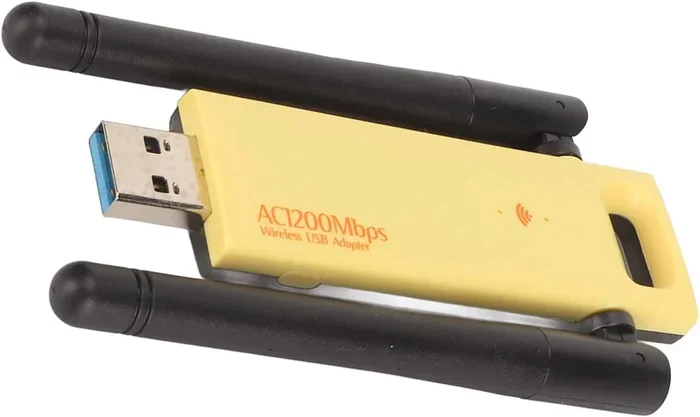
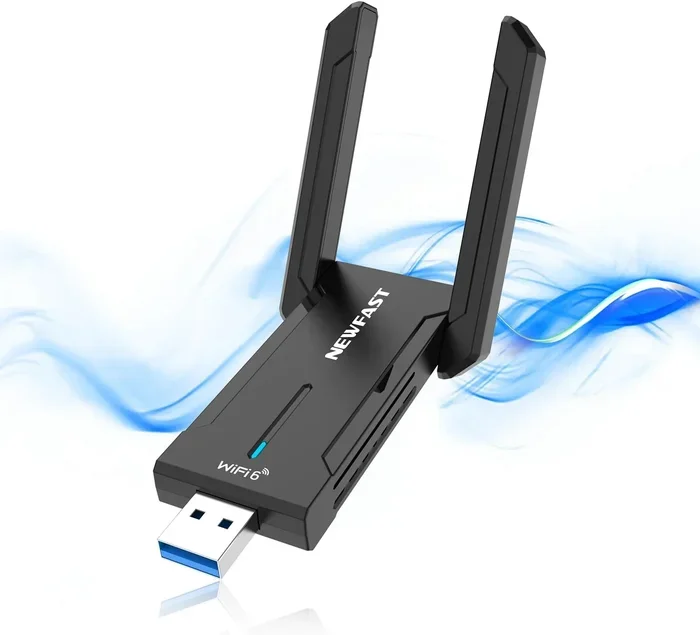
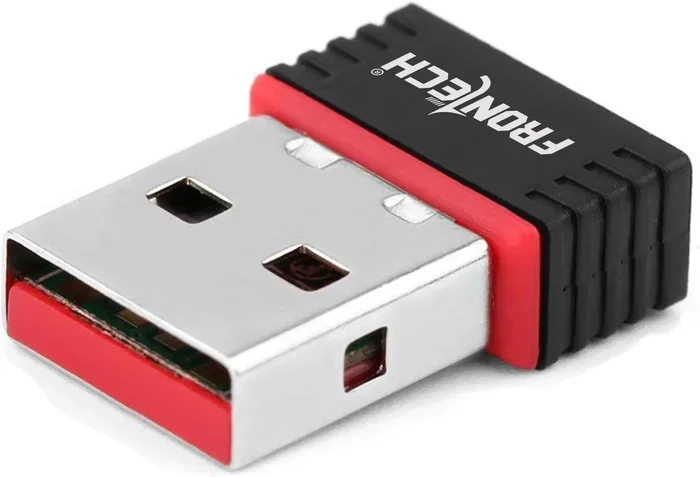
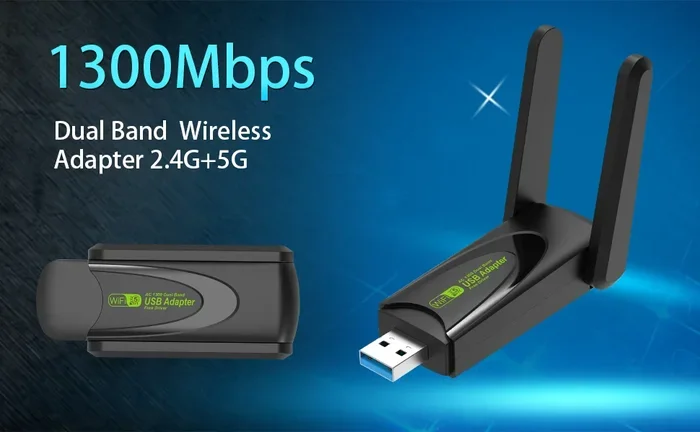
A USB wifi adapter is the most popular choice for most users. It looks like a small USB flash drive with one or more antennas sticking out. You simply plug it into a USB port on your PC, and it starts working. No opening your computer case, no tools, no fuss.
USB adapters come in two main categories:
- Basic Models: These support Wi Fi 4 or Wi Fi 5 and offer speeds up to 300 Mbps. They cost around $10 to $20 and are perfect for light browsing and email.
- Advanced Models: These support Wi Fi 6 or Wi Fi 6E and can reach speeds of 1200 Mbps or more. They usually cost between $30 and $70 and are great for streaming, gaming, and large file downloads.
One of the biggest advantages of a USB adapter is portability. You can unplug it, take it with you, and use it on another computer. This makes it a great option if you need wireless connectivity on the go.
Internal PCIe Wi Fi Cards
An internal PCIe wifi card installs directly onto your motherboard inside the PC case. These cards offer excellent performance and a more permanent solution. They are especially popular among gamers and users who want the strongest possible wireless connection.
Here is what you should know about internal cards:
- Performance: PCIe cards often deliver faster speeds and more stable connections than USB adapters because they connect directly to the motherboard.
- Antenna Placement: Many PCIe cards come with external antennas you can position for the best possible Wi Fi signal reception.
- Size: They take up a PCIe slot on your motherboard, so make sure you have an available slot before purchasing one.
- Installation: You need to open your PC case and physically install the card. This takes about 10 minutes and requires a screwdriver.
USB vs Internal: Which Is Right For You?
Still not sure which type to choose? Here is a quick comparison to help you decide.
| Feature | USB Wi Fi Adapter | Internal PCIe Card |
|---|---|---|
| Ease of Setup | Plug and play | Requires opening PC case |
| Speed | Good to excellent | Excellent to best |
| Portability | Highly portable | Not portable |
| Price Range | $10 to $70 | $25 to $100 |
| Signal Strength | Good | Very good to excellent |
| Best For | Quick setup, laptops, travel | Desktops, gaming, heavy use |
If you want the fastest and most reliable wireless connection, a PCIe wifi card is the way to go. If you want something quick, easy, and portable, a USB wifi adapter is your best bet. Both options will give you the wireless connectivity you need.
How To Install A Wi Fi Adapter On Your PC
Installing a wifi adapter on your PC is easier than you might think. The process is different depending on whether you choose a USB adapter or an internal PCIe card. Let us walk through both methods step by step.
Installing a USB Wi Fi Adapter
Follow these simple steps to get your USB adapter working:
- Plug it in: Insert the USB wifi adapter into an available USB port on your PC. A rear USB port on a desktop is best for a stronger signal.
- Wait for detection: Windows usually detects the adapter automatically and begins installing a basic driver.
- Install the official driver: Visit the adapter manufacturer website and download the latest driver. This ensures the best performance and stability.
- Restart your PC: After the driver installation, restart your computer to apply all changes.
- Connect to your network: Click the network icon in your taskbar, select your wireless network, and enter your password.
That is it. In less than five minutes, your PC is connected to your wireless network. No cables, no tools, no headaches.
Installing an Internal PCIe Wi Fi Card
Installing an internal card takes a little more effort, but it is still very manageable. Here is what to do:
- Turn off your PC: Shut down your computer completely and unplug the power cable.
- Open the case: Remove the side panel of your PC case using a screwdriver.
- Find an empty PCIe slot: Look for an available slot on your motherboard. Remove the corresponding metal bracket from the back of the case.
- Insert the card: Carefully align the PCIe wifi card with the slot and press it in firmly until it clicks into place.
- Secure it: Use a screw to fasten the card to the case bracket.
- Connect the antenna: Attach the included antennas to the card if they are not already connected.
- Close the case: Put the side panel back on and plug in your power cable.
- Turn on your PC: Boot up your computer and install the driver from the manufacturer website.
- Connect to Wi Fi: Select your wireless network and enter your password.
Quick Tip: Before you buy a PCIe card, check that your motherboard has an available slot. Most modern desktops have at least one free slot, but it is always good to double check.
Updating the Adapter Driver
After installing your wireless adapter, it is important to keep the driver updated. Outdated drivers can cause slow wifi speeds, connection drops, and other problems. Most manufacturers offer a simple tool on their website that automatically checks for and installs the latest driver updates.
You can also update drivers through Windows Device Manager. Simply right click the Start button, select Device Manager, expand the Network Adapters section, right click your wifi adapter, and choose Update Driver. This is a quick way to make sure everything is running smoothly.
Benefits Of Using A Wi Fi Adapter On Your PC
Adding a wifi adapter to your PC brings many benefits that go beyond just getting rid of a cable. Here are some of the most notable advantages.
1. Freedom From Cables
The most obvious benefit is freedom from ethernet cables. You can move your PC anywhere in your home and still stay connected to the internet. This is especially helpful if you use a desktop in a room far from your router.
2. Access to Faster Wireless Standards
Many older PCs only support older wireless standards like 802.11n. A new wifi adapter supports Wi Fi 5 or Wi Fi 6, which means much faster speeds, better range, and improved performance in crowded areas where many networks overlap.
3. Dual Band Connectivity
Most modern adapters support dual band or even tri band connections. This means your adapter can connect to both the 2.4 GHz and 5 GHz bands on your wireless router. The 5 GHz band offers faster speeds for streaming and gaming, while the 2.4 GHz band provides longer range for general browsing.
4. Improved Wi Fi Signal
If your PC currently struggles to pick up a strong Wi Fi signal, a new adapter with better antennas can make a huge difference. Some adapters come with high gain antennas that can boost your wifi range significantly.
5. Cost Effective Upgrade
Compared to buying a new computer or paying for professional installation, a wifi adapter is an incredibly affordable upgrade. You can get a reliable dual band adapter for under $40, and a high end PCIe card for around $70 to $100.
Common Mistakes To Avoid When Setting Up A Wi Fi Adapter
Even though setting up a wireless adapter is simple, there are a few common mistakes that can cause problems. Avoiding these pitfalls will save you time and frustration.
Skipping Driver Installation
Some people plug in a USB adapter and assume it will work perfectly with the default Windows driver. While it might connect, you will likely miss out on performance improvements and stability fixes. Always install the manufacturer driver for the best results.
Using a USB Hub With Low Power
If you plug your USB wifi adapter into a powered USB hub instead of a direct port, you might experience connection issues. Some hubs do not provide enough power for wireless adapters. Always plug the adapter directly into a USB port on your PC for the most reliable connection.
Ignoring Antenna Placement
If your adapter comes with external antennas, do not just leave them lying flat on your desk. Position them vertically or at a 45 degree angle for the best signal reception. Antenna placement matters more than most people realize.
Choosing the Wrong Band
Many users connect their adapter to the 2.4 GHz band because it has a longer range. However, if your router supports 5 GHz and you are close to it, the 5 GHz band will give you much faster speeds. Always choose the right band for your situation.
Forgetting to Update Firmware
Just like drivers, your adapter firmware can become outdated. Check the manufacturer website periodically for firmware updates. These updates often fix bugs and improve performance.
Expert Tips For Getting The Best Wi Fi Performance
Once your wifi adapter on PC is up and running, you can take a few extra steps to get the best possible performance.
Placement matters: Try to keep your PC near your wireless router. Walls, floors, and large furniture can weaken the Wi Fi signal. The closer you are, the stronger your connection will be.
Use the 5 GHz band when possible: If you are streaming videos, playing online games, or downloading large files, the 5 GHz band delivers much faster speeds than the 2.4 GHz band.
Keep your adapter drivers updated: Manufacturers regularly release driver updates that improve speed, fix bugs, and add support for new wireless standards. Check for updates once a month.
Reduce interference: Other electronic devices like microwaves, baby monitors, and cordless phones can interfere with your wireless signal. Keep your adapter and router away from these devices.
Consider a wifi extender: If your adapter struggles to reach the router, a cheap wifi extender can bridge the gap. Place the extender halfway between your router and your PC for the best results.
Restart your router regularly: A simple router restart can clear up many connection issues and improve your overall wireless performance. Make it a habit to restart your router once a week.
Conclusion
The answer to the question Can I Put A Wi Fi Adapter On My Pc And Is It Possible is a resounding yes. Whether you choose a simple USB wifi adapter or a powerful internal PCIe wifi card, adding wireless connectivity to your PC is quick, affordable, and incredibly rewarding. You gain the freedom to move around your home, access faster wireless networks, and enjoy a clutter free workspace without ethernet cables.
With the right adapter, the correct driver, and a few simple tips, your PC can connect to any wireless network with ease. The process is straightforward enough for beginners and effective enough for power users. Do not let an outdated PC or a missing built in wifi chip hold you back from the modern wireless experience.
Take action today. Pick the right wifi adapter for your PC, follow the installation steps in this guide, and enjoy seamless wireless internet. Your computer will thank you, and you will wonder why you did not do it sooner.
Frequently Asked Questions
Can I Use A Wi Fi Adapter On Any PC?
Yes, you can use a wifi adapter on virtually any PC. USB wifi adapters work with most Windows, Mac, and Linux computers. Internal PCIe cards are designed for desktop PCs with an available motherboard slot. Always check the adapter specifications to confirm compatibility with your operating system before purchasing.
Do I Need To Install Drivers For My Wi Fi Adapter?
Most adapters work with a basic Windows driver right out of the box. However, installing the official driver from the manufacturer website is strongly recommended. The official driver unlocks better speeds, improved stability, and access to advanced features like dual band support and power management settings.
Will A Wi Fi Adapter Slow Down My PC?
No, a wifi adapter will not slow down your PC. In fact, it can improve your overall experience by giving you access to faster and more reliable wireless networks. The adapter uses minimal system resources and does not affect your computer performance in any negative way.
What Is The Difference Between Wi Fi 5 And Wi Fi 6 Adapters?
Wi Fi 5 (802.11ac) is the older standard that offers speeds up to 1300 Mbps on the 5 GHz band. Wi Fi 6 (802.11ax) is the newer standard that offers faster speeds, better performance in crowded areas, and improved energy efficiency. If your router supports Wi Fi 6, a Wi Fi 6 adapter will let you take full advantage of those benefits.
Can I Use A Wi Fi Adapter On A Desktop Without Built In Wireless?
Absolutely. Many desktop computers do not come with built in wifi, and that is perfectly normal. A USB wifi adapter or an internal PCIe wifi card solves this problem instantly. You simply plug in or install the adapter, install the driver, and connect to your wireless network.
How Much Does A Good Wi Fi Adapter Cost?
A good wifi adapter typically costs between $15 and $100. Budget USB adapters with basic speeds start around $10 to $20. Mid range dual band adapters cost $25 to $50 and offer excellent performance for most users. High end PCIe cards with the latest Wi Fi 6 support range from $50 to $100. The price depends on speed, range, and wireless standard support.