Does Iphone Have A Free Qr Scanner Right On Your Phone
Yes, your iPhone has a free QR scanner built right into the camera app. You do not need to download any extra app to scan QR codes on your phone. The feature works on most iPhones running iOS 11 or newer, making it super easy to scan menus, tickets, and links. Apple made this a native tool so you can scan quickly and safely. Keep reading to learn exactly how it works on your device.
Key Takeaways
- Built-In Scanner: Every modern iPhone comes with a free QR scanner inside the native camera app.
- No App Needed: You can scan QR codes instantly without downloading any third-party software.
- Easy To Use: Just open the camera, point it at the code, and tap the notification that appears.
- Works Across Models: The feature supports iPhone 11 and all newer models running updated iOS.
- Safety Built In: iOS shows a preview link before you open it, helping you avoid risky codes.
- Settings Toggle: You can enable or disable the QR scanner in your iPhone settings if needed.
📑 Table of Contents
- Does Iphone Have A Free Qr Scanner Right On Your Phone?
- How To Scan A Qr Code On Your Iphone
- Which Iphone Models Support The Free Qr Scanner?
- Third Party Qr Scanner Apps: Do You Really Need Them?
- What Can You Do With A Qr Scanner On Iphone?
- Common Problems And How To Fix Them
- Is It Safe To Scan Qr Codes On Iphone?
- Quick Tips For Using The Iphone Qr Scanner
- Expert Insights On Qr Code Usage In 2024
- Key Takeaways
- Frequently Asked Questions
- Conclusion
Does Iphone Have A Free Qr Scanner Right On Your Phone?
The short answer is yes. Your iPhone has a free QR scanner right on your phone, and you have probably been using it without even knowing. Apple built this feature into the native camera app years ago. It works on almost every iPhone model released since 2017.
A QR code is a quick response code. It looks like a square box with a pattern of black dots. When you scan it, your phone reads the information inside. This could be a web link, a Wi-Fi password, a restaurant menu, or even a digital ticket. The point is, you do not need a separate app to make this work.
Many people still download free QR scanner apps from the App Store. But honestly, you do not need to do that anymore. Apple made sure the iPhone camera handles this task perfectly. The built-in tool is fast, safe, and completely free.
If you have an iPhone running iOS 11 or later, you already have this feature. The only thing you need to do is know where to look and how to use it. That is exactly what this guide will walk you through.
Scanning a QR code takes just a few seconds. Once you learn the steps, you will never need to fumble with a third-party app again. Let us dive into how this works on your specific iPhone model.
How To Scan A Qr Code On Your Iphone
Scanning a QR code on your iPhone is incredibly simple. The process takes less than five seconds. Here is exactly what you need to do.
Step 1: Open The Camera App
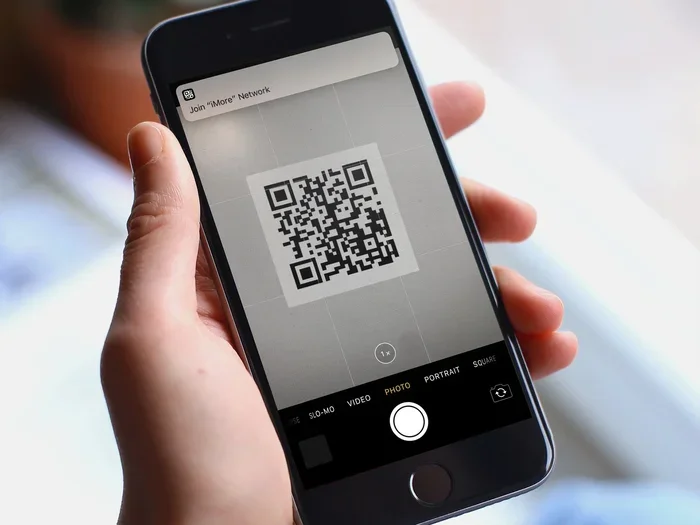
Unlock your iPhone. Find the camera app on your home screen. Tap it to open. You can use either the front or back camera, but the rear camera works best for most codes.
Step 2: Point Your Camera At The Qr Code
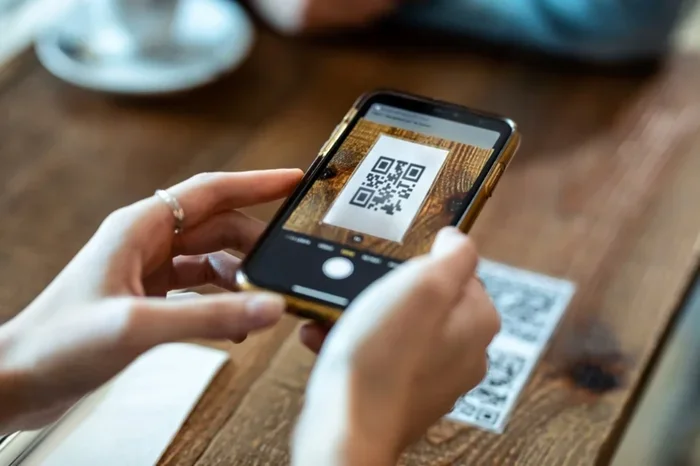
Hold your phone steady. Point the camera at the QR code. Make sure the code fits inside the screen frame. Keep a reasonable distance. About 8 to 12 inches away usually works well.
Step 3: Tap The Notification
After a moment, your iPhone will recognize the code. A yellow banner or notification will appear at the top of your screen. Tap on that notification to open the link or action. That is it. You are done.
Some people ask, “where is the QR scanner on my iPhone?” The answer is simple. It is right inside the camera app. There is no separate scanner tab. You just use the camera as normal, and it handles the rest.
Make Sure Qr Scanning Is Turned On
Sometimes the QR scanner might not work right away. This usually means the feature is turned off in settings. Here is how to check.
- Open the Settings app on your iPhone.
- Scroll down and tap Camera.
- Look for the toggle labeled Scan QR Codes.
- Make sure it is switched to the green ON position.
Once you turn this on, your camera will instantly recognize QR codes. If you ever need to turn it off, you can do the same steps. This setting gives you full control over the feature.
Which Iphone Models Support The Free Qr Scanner?
Apple introduced the native QR scanner with iOS 11 in 2017. This means most iPhone models from that era and newer support it. Let us break it down by model.
Iphone Xr, Xs, And Newer Models
The iPhone XR, XS, and all models after them come with full QR scanner support. This includes the iPhone 11, iPhone 12, iPhone 13, iPhone 14, and iPhone 15 series. Every single one of these phones has the built-in scanner ready to go.
Older Models Like Iphone 7 And 8
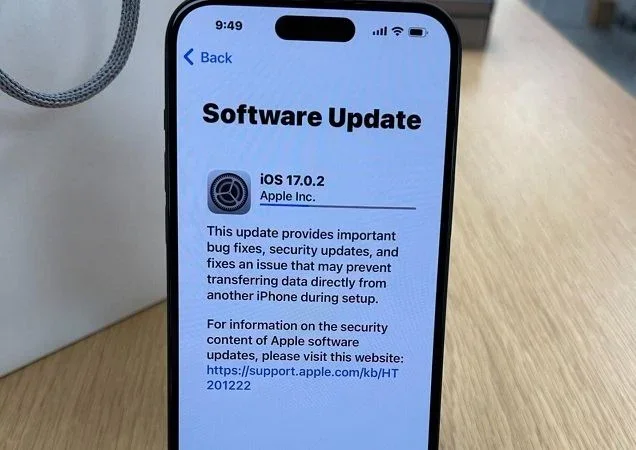
If you have an iPhone 7 or iPhone 8, you can also use the QR scanner. These models support iOS 11 and newer versions. Just make sure your software is up to date. Go to Settings, then General, then Software Update. Install the latest version if needed.
However, very old models like the iPhone 6 or earlier may not support this feature. Apple stopped adding new camera features to devices that are too outdated. If your phone cannot run iOS 11, you will need a different solution.
Third Party Qr Scanner Apps: Do You Really Need Them?
Walk into any app store and you will find hundreds of QR scanner apps. Many of them claim to be the best free QR scanner for iPhone. But the truth is, you probably do not need them.
Why The Built-In Scanner Is Better
The native camera scanner is fast. It does not drain your battery like extra apps do. It also keeps your data private. Third-party apps sometimes ask for unnecessary permissions. They might track your location or collect your data. The built-in tool does none of that.
Here are a few reasons to skip the extra apps:
- No extra downloads: You already have the tool on your phone.
- No ads: Built-in features do not show you annoying pop-ups.
- Better privacy: Apple does not sell your scanning data.
- Faster results: The native camera recognizes codes almost instantly.
- Less clutter: One less app taking up space on your home screen.
When A Third Party App Might Help
There are a few rare cases where a dedicated app could be useful. For example, if you scan QR codes for your business all day long, a specialized app might offer extra features. Some apps let you create QR codes or track scan statistics. But for everyday personal use, the built-in scanner is more than enough.
If you still want to explore options, search for free QR scanner app in the App Store. Look for apps with good ratings and simple interfaces. Avoid apps with lots of ads or suspicious permissions.
What Can You Do With A Qr Scanner On Iphone?
The uses for a QR scanner on your iPhone are everywhere. Once you start noticing QR codes, you will see them in stores, restaurants, and even on packaging. Here are some common ways people use the scanner.
Restaurant Menus
Many restaurants now put their menus in QR codes. You just scan the code on the table, and the menu opens right in your browser. No need to grab a physical menu or wait for a server to bring one. This became very popular during the pandemic and has stayed around.
Wi-Fi Login
Hotels, cafes, and airports often share their Wi-Fi through a QR code. You scan it, and your iPhone connects to the network automatically. No need to type in long passwords. This is one of the most convenient uses of the scanner.
Event Tickets And Boarding Passes
Concerts, flights, and movie theaters use QR codes for tickets. You can store your boarding pass or event ticket on your iPhone. When you arrive, just scan the code at the entrance. It is fast and paperless.
Digital Payments
Some payment systems use QR codes for transactions. You can scan a code to pay at a store or send money to a friend. Apps like Apple Pay and PayPal sometimes use QR codes for quick transfers.
Contact Information
Business cards are going digital. Many professionals share their contact info through a QR code. When you scan it, the details save directly to your iPhone contacts. No need to type in names, emails, or phone numbers manually.
Product Information
Manufacturers put QR codes on product boxes. Scanning the code takes you to the product page. You can read reviews, watch tutorials, or register your warranty. It is a quick way to learn more about what you bought.
Common Problems And How To Fix Them
The built-in QR scanner works great most of the time. But sometimes things go wrong. Here are the most common issues and how to solve them.
The Scanner Does Not Recognize The Code
If your camera does not pick up the QR code, try these fixes. First, make sure the Scan QR Codes setting is turned on. Go to Settings, then Camera, and check the toggle. Second, clean your camera lens. A smudgy lens can confuse the scanner. Third, make sure you are not too far from the code. Hold your phone closer and steady your hands.
The Notification Does Not Appear
Sometimes the camera recognizes the code but no notification shows up. This could mean your notifications are turned off for the Camera app. Go to Settings, then Notifications, then Camera. Make sure Allow Notifications is enabled.
The Code Takes You To A Weird Website
Be careful with unfamiliar QR codes. Some bad actors create codes that lead to phishing sites. Always check the URL in the notification before you tap it. If the link looks suspicious, do not open it. iPhone’s built-in safety features help protect you, but staying alert is still important.
Your Iphone Camera App Crashes
If the camera app crashes when you try to scan, try restarting your phone. Close the app completely and reopen it. If the problem continues, check for a software update. Go to Settings, General, Software Update, and install any available updates.
Is It Safe To Scan Qr Codes On Iphone?
This is a great question, and it is one many people worry about. The short answer is yes, scanning QR codes on your iPhone is generally safe. Apple has built strong protections into iOS.
When you scan a code, your iPhone shows you the link first. You can see exactly where the code will take you before you open it. This gives you a chance to decide if the link looks trustworthy. If it looks weird or suspicious, simply do not tap it.
Here are a few safety tips to keep in mind:
- Only scan codes from trusted sources. If a code is on a reputable sign or official product, it is usually safe.
- Check the URL before tapping. Look for misspelled words or strange domain names.
- Do not scan codes in public places that look tampered with. Scammers sometimes place fake codes over real ones.
- Keep your iPhone updated. Apple releases security patches regularly. Staying current helps protect you.
The built-in scanner does a lot of the heavy lifting for you. It warns you about unsafe links and keeps your data protected. But no tool is perfect. Staying aware is your best defense.
Quick Tips For Using The Iphone Qr Scanner
Here are some handy tips to make your scanning experience even better.
- Use the default camera app. It is the fastest and most reliable option on your phone.
- Make sure your screen brightness is up. This helps the camera read codes in dim lighting.
- Hold your phone steady. A shaking hand can make it harder for the scanner to focus.
- Keep the code in the center of your screen. The camera auto-detects codes best when they are framed properly.
- Update your iOS regularly. New updates improve camera performance and security.
- Use Face ID or Touch ID to confirm actions. This adds an extra layer of security when opening links from scanned codes.
Expert Insights On Qr Code Usage In 2024
QR codes have come a long way since they were first invented in 1994. Back then, they were used mainly in car manufacturing. Today, they are everywhere. Restaurants, retail stores, airports, and even gravestones use them.
Apple has been a big part of this shift. By making the QR scanner a native feature, they removed the biggest barrier to adoption. People no longer need to find an app or worry about security. The experience is seamless.
Industry experts predict that QR code usage will only grow. More businesses are moving toward digital interactions. Contactless menus, digital wallets, and instant payments all rely on QR technology. Your iPhone is already ready for all of this.
The QR scanner on iPhone is one of those features that quietly makes your life easier. You do not think about it until you need it. And when you do need it, it is right there in your pocket.
Key Takeaways
- Built-In Scanner: Every modern iPhone comes with a free QR scanner inside the native camera app.
- No App Needed: You can scan QR codes instantly without downloading any third-party software.
- Easy To Use: Just open the camera, point it at the code, and tap the notification that appears.
- Works Across Models: The feature supports iPhone 11 and all newer models running updated iOS.
- Safety Built In: iOS shows a preview link before you open it, helping you avoid risky codes.
- Settings Toggle: You can enable or disable the QR scanner in your iPhone settings if needed.
Frequently Asked Questions
Do I need to download an app to scan QR codes on my iPhone?
No, you do not need to download any app. The free QR scanner is already built into your iPhone camera app. Just open the camera, point it at the code, and tap the notification that appears on screen.
Which iPhone models have a built-in QR scanner?
Any iPhone running iOS 11 or newer has the built-in QR scanner. This includes iPhone XR, XS, and all models released after that. If your phone is too old to run iOS 11, you may need to update or use an alternative method.
Is it safe to scan QR codes with the iPhone camera?
Yes, it is generally safe. Apple built safety features into iOS that show you the URL before you open it. You can check the link and decide if it looks trustworthy. Always be cautious with codes from unknown sources.
Why is my iPhone camera not scanning QR codes?
This usually happens when the QR scanner setting is turned off. Go to Settings, tap Camera, and make sure Scan QR Codes is switched on. Also check that your camera lens is clean and your iPhone is updated to the latest iOS version.
Can I create QR codes using my iPhone for free?
The built-in camera only scans QR codes. To create them, you will need a free QR code generator app or website. Many reliable options exist in the App Store and online. The scanning feature itself is completely free and native to your device.
Does scanning QR codes use a lot of battery on my iPhone?
No, using the camera to scan QR codes uses very little battery. It is no different from taking a regular photo. The built-in scanner is designed to be efficient, so you can use it all day without worrying about draining your battery.
Conclusion
Does iPhone have a free QR scanner right on your phone? Absolutely yes. You have had this tool on your device for years. Apple put a QR scanner right inside the camera app, and it works beautifully. You do not need to download anything, pay for anything, or worry about your privacy.
The built-in scanner handles everything from restaurant menus to boarding passes with ease. It is fast, safe, and always ready when you need it. Whether you are at a cafe, an airport, or a store, your iPhone can read any QR code in seconds.
Now that you know how it works, you can start using it every day. Turn on the scanner in your settings, open your camera, and point it at any code. The experience is simple and seamless.
The free QR scanner on your iPhone is one of those hidden gems that makes everyday life a little easier. Once you start using it, you will wonder how you ever lived without it. So go ahead, open your camera, and give it a try. Your phone already has everything you need.