Do Any Graphic Designers Actually Use Canva for Work
Yes, many graphic designers use Canva for work, but the answer is more nuanced than you might think. Professional designers rely on Canva for quick projects, social media graphics, and client drafts, while reserving tools like Photoshop for complex tasks. This guide reveals how Canva fits into real design workflows and whether it deserves a spot in your toolkit.
You have probably heard the debate. Can graphic designers use Canva for real work? Some people think Canva is only for beginners or small business owners. Others swear by it as a legitimate design tool. The truth is somewhere in the middle, and it is more interesting than you might expect.
Do any graphic designers use Canva for professional projects? Absolutely. The platform has grown a lot since its early days. Today, many working designers keep Canva in their toolkit for specific tasks. It is fast, affordable, and surprisingly powerful when used the right way. This article breaks down exactly how and why designers use it.
Whether you are a freelancer, a marketing professional, or someone just curious about design tools, this guide has you covered. We will explore real use cases, compare Canva to other software, and share honest opinions from designers in the field. By the end, you will have a clear picture of where Canva fits in the design world.
Key Takeaways
- Graphic designers do use Canva: Many professionals incorporate it into their daily workflow for specific tasks.
- Canva excels at speed: It saves hours on social media posts, presentations, and simple marketing materials.
- It is not a full replacement: Complex branding and print work still require traditional tools like Photoshop or Illustrator.
- Canva Pro offers powerful features: Brand kits, background remover, and premium templates make it more professional.
- Collaboration is a major strength: Teams love Canva’s real-time editing and sharing capabilities.
- Beginners and pros alike benefit: Canva lowers the barrier to entry while offering enough depth for experienced designers.
📑 Table of Contents
- Why the Question “Do Graphic Designers Use Canva” Matters
- How Professional Graphic Designers Use Canva
- Canva vs Traditional Design Software
- Canva Pro Features That Impress Designers
- Common Mistakes Designers Make With Canva
- What Designers Say About Using Canva
- Quick Tips for Using Canva Like a Pro
- Key Takeaways
- Conclusion
Why the Question “Do Graphic Designers Use Canva” Matters
The design industry has changed a lot in the last decade. Not too long ago, Photoshop and Illustrator were the only real options. Then Canva came along and changed the game. Suddenly, anyone could create a polished graphic in minutes. This shift sparked a big conversation among professionals.
Some veteran designers dismissed Canva right away. They called it too simple or not “real” design software. But the market does not always agree with the critics. Businesses need content fast and cheap. Canva delivers on both fronts. That is why the question matters so much. It is not just about what is possible. It is about what the industry actually needs.
The Rise of Canva in the Design World
Canva launched in 2013 with a simple promise. Make design easy for everyone. At first, many professionals ignored it. But the platform kept improving. It added features like brand kits, magic resize, and background removal. Today, Canva has over 135 million monthly users. That number includes plenty of working designers.
The rise of social media created a huge demand for visual content. Brands needed posts, stories, ads, and banners every single day. Traditional design software could not keep up with that pace. Canva filled the gap perfectly. It gave designers a way to produce high-quality work quickly. That speed factor is a big reason why so many pros started using it.
How Professional Graphic Designers Use Canva
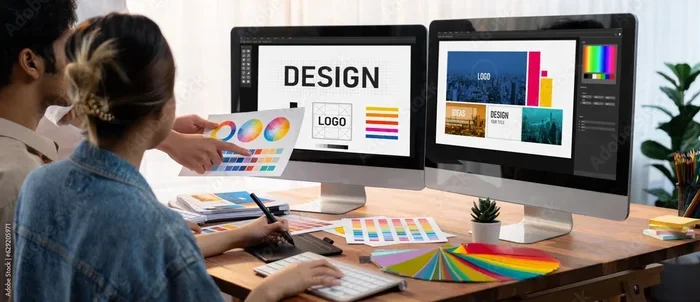
So what exactly do designers do with Canva in their daily work? The answer might surprise you. It is not just about making pretty pictures. Designers use Canva for a wide range of practical tasks. Let us look at the most common ways professionals put it to work.
Social Media Graphics
This is the number one use case. Almost every designer creates social media content for clients or their own brand. Canva has templates for every platform. You can make Instagram posts, Facebook covers, LinkedIn banners, and Pinterest pins in minutes. The drag and drop interface makes this process incredibly fast.
Many designers build a library of reusable templates. They save these in Canva’s brand kit feature. Then they can customize them for each client in seconds. This workflow saves hours every week. It also means clients get their content faster. Speed is a huge advantage in the social media world.
Client Presentations and Mood Boards
Presenting ideas to clients is a big part of any designer’s job. Canva makes this process much smoother. You can create beautiful mood boards and pitch decks without spending hours on formatting. The platform has hundreds of presentation templates that look professional and clean.
Designers also use Canva for style guides. They can compile brand colors, fonts, and logo rules into one easy to share document. Clients love this. It keeps everyone on the same page. And it shows the designer is organized and prepared.
Quick Marketing Materials
Not every project needs a full Photoshop session. Sometimes a client just needs a simple flyer or a newsletter. Canva handles these tasks perfectly. You can create brochures, event posters, email headers, and promo cards in no time.
For small businesses, this is a game changer. They can handle their own marketing without hiring a designer for every little task. Many designers also use Canva to mock up packaging, business cards, and menus. These quick wins keep clients happy and projects moving forward.
Collaboration with Teams
Canva is built for teamwork. Multiple people can work on the same design at the same time. This is a huge benefit for agencies and in house teams. Designers can share files with copywriters, marketers, and clients. Everyone can leave comments and suggestions directly on the design.
The real time collaboration feature rivals Google Docs in its simplicity. You do not need to email files back and forth. You do not need to worry about version control. Everything stays in one place. This kind of workflow is hard to replicate with traditional design tools.
Canva vs Traditional Design Software
Every designer has to choose the right tool for the job. Canva and traditional software each have strengths and weaknesses. Let us compare them side by side so you can see where each one shines.
| Feature | Canva | Photoshop / Illustrator |
|---|---|---|
| Learning Curve | Very easy | Steep |
| Speed of Output | Very fast | Slower for simple tasks |
| Customization Depth | Good for most needs | Extremely deep |
| Price | Free or low cost | Expensive subscriptions |
| Print Design | Basic to intermediate | Professional grade |
| Collaboration | Excellent | Limited |
| Vector Editing | Limited | Full support |
| Photo Editing | Basic | Advanced |
The comparison shows that Canva and traditional tools serve different purposes. Canva is not trying to replace Photoshop. It is filling a different niche. Smart designers use both. They pick the right tool based on the project requirements.
When to Choose Canva
Choose Canva when you need speed and simplicity. It is perfect for social media graphics, presentations, and quick marketing materials. If you are working with a tight deadline, Canva gets the job done fast. It is also ideal for non designers on your team who need to create basic visuals.
Another great reason to use Canva is for client collaboration. You can share designs easily and get feedback in real time. The platform also works well for brainstorming and mood boarding. These are tasks where deep customization is not necessary.
When to Choose Photoshop or Illustrator
Traditional tools win when you need precision and control. Complex photo retouching, detailed vector illustrations, and print ready files all require professional software. If you are designing a logo from scratch, you need Illustrator. If you are editing product photos for an e-commerce site, you need Photoshop.
Large scale print projects also demand traditional tools. Things like billboards, packaging, and brochures need precise color management and high resolution output. Canva can handle some of these tasks, but the results are not always at the same level. Know your project requirements before you choose.
Canva Pro Features That Impress Designers
Canva’s free version is already useful. But Canva Pro takes things to a whole new level. Many professional designers subscribe to the paid version because of its powerful features. Let us look at what makes Canva Pro worth the investment.
Brand Kit Feature
The brand kit is a game changer for designers who work with multiple clients. You can store brand colors, fonts, logos, and templates in one place. This ensures consistency across all your designs. No more guessing hex codes or digging through old files.
For agencies, this feature saves a ton of time. You can switch between client brands effortlessly. Everything stays organized and on brand. This is something that is hard to achieve with traditional software without extra setup.
Background Remover and Magic Resize
Canva Pro includes a one click background remover. This alone saves designers hours of tedious work. You can remove backgrounds from photos in seconds and keep them transparent. The magic resize feature lets you adapt one design to multiple formats instantly.
Need an Instagram post and a Facebook banner from the same design? Magic resize handles that in one click. These features add real value for professionals who work on many projects at once. They make the design process smoother and more efficient.
Premium Templates and Assets
Canva Pro gives you access to millions of premium templates, photos, and graphics. The free version has a solid library, but Pro takes it to another level. These high quality assets help designers create polished work quickly. You do not need to be a skilled illustrator to make something look professional.
Many designers use these premium assets as starting points. They customize templates to match client branding. This approach is perfectly valid and very common in the industry. It allows designers to deliver great results without starting from scratch every time.
Common Mistakes Designers Make With Canva
Canva is powerful, but it is easy to misuse. Even experienced designers sometimes fall into bad habits. Here are the most common mistakes and how to avoid them.
Overusing Templates Without Customization
The biggest mistake is using templates as they are. Clients can tell when you have not put in the effort. A generic template makes your work look lazy. Always customize colors, fonts, and layouts to match the client’s brand. Put your own creative spin on things.
A good rule is to change at least three elements in every template you use. Swap out the font. Adjust the color scheme. Rearrange the layout. These small changes make a big difference. They show that you have put thought into the design.
Ignoring File Format Limitations
Canva has some limitations when it comes to file formats. You cannot export in CMYK for print without Canva Pro. Vector files like SVG are not fully supported. If you are working on print projects, you need to be aware of these constraints.
Always check the requirements before you start a project. If the client needs a print ready PDF in CMYK, you may need to use a different tool. Understanding these limitations helps you set the right expectations with clients.
Relying Too Heavily on Canva for Complex Projects
Canva is not the best choice for every project. Complex illustrations, detailed photo editing, and advanced typography work need professional tools. Trying to force Canva to do what it cannot do will lead to frustration and mediocre results.
Smart designers know when to switch tools. They use Canva for what it does best and traditional software for the rest. This hybrid approach gives you the best of both worlds. It also keeps your workflow efficient and your quality high.
What Designers Say About Using Canva
We asked several working designers about their thoughts on Canva. The responses were interesting and varied. Here is a look at what real professionals have to say about using Canva in their daily work.
Many designers appreciate Canva for its speed. They say it is the best tool for quick turnaround projects. One freelance designer shared that she uses Canva for 60 percent of her social media work. She reserves Photoshop for more complex tasks. This hybrid approach gives her the best results in the shortest time.
Other designers love Canva for client communication. They use it to present ideas and get feedback quickly. The sharing and collaboration features make it easy to work with clients who are not design professionals. It bridges the gap between designers and their clients.
However, some designers remain skeptical. They feel Canva oversimplifies the design process. They worry that it trains clients to expect quick, cheap designs. These professionals prefer to use traditional tools and educate clients about the value of custom design. Both perspectives have merit. The key is knowing your audience and your goals.
Quick Tips for Using Canva Like a Pro
Want to get more out of Canva? Here are some practical tips that experienced designers swear by.
- Use keyboard shortcuts. They speed up your workflow dramatically. Learn the ones for undo, duplicate, and download.
- Create a brand kit early. Save your client colors, fonts, and logos. This keeps everything consistent and saves time.
- Use Canva on desktop for complex work. The desktop version has more features than the mobile app. Use it for anything beyond simple edits.
- Explore Canva’s free courses. They offer design tutorials that can sharpen your skills. Even pros learn new tricks from time to time.
- Save templates you create. Build a personal library of reusable designs. This makes future projects much faster.
- Use Canva for client approvals. Share a link and let clients comment directly on the design. This keeps feedback organized and clear.
Key Takeaways
- Graphic designers do use Canva: It is a legitimate tool used by professionals every day.
- Canva is best for speed and simplicity: Social media graphics, presentations, and quick marketing materials are its sweet spot.
- It does not replace professional software: Photoshop and Illustrator are still essential for complex projects.
- Canva Pro adds real value: Brand kits, background remover, and premium assets make it worth the investment.
- Collaboration is a major advantage: Teams and clients can work together seamlessly on the platform.
- Common mistakes are easy to avoid: Customize templates, respect file limitations, and know when to switch tools.
Conclusion
The answer to the question is clear. Do any graphic designers use Canva for work? Yes, they absolutely do. Canva has earned its place in the professional design world. It is not a replacement for traditional tools, but it is a valuable complement to them.
The best designers use Canva where it makes sense. They leverage its speed, simplicity, and collaboration features for the right types of projects. At the same time, they rely on professional software for complex and high precision work. This balanced approach gives them the best results.
If you are a designer wondering whether Canva deserves a spot in your workflow, the answer is yes. Start with the free version and explore its features. See how it fits into your projects. You might be surprised at how much time and energy it saves you. The design world is evolving. Canva is a big part of that evolution. Embrace it as a tool in your arsenal, and you will be better equipped to meet the demands of modern design work.
Whether you are a seasoned professional or just starting out, Canva offers something valuable. It makes design more accessible, more efficient, and more collaborative. That is a winning combination in today’s fast paced creative industry. Give it a try and see what it can do for you.
Frequently Asked Questions
Is Canva really used by professional graphic designers?
Yes, many professional graphic designers use Canva as part of their workflow. They use it for social media graphics, client presentations, and quick marketing materials. It is not their only tool, but it is a trusted one.
Can Canva replace Photoshop or Illustrator?
No, Canva cannot fully replace Photoshop or Illustrator. It lacks the deep customization and precision that professional software offers. However, it works well alongside these tools for tasks where speed matters more than complexity.
Is Canva Pro worth it for designers?
Canva Pro is worth it for designers who work with multiple clients or create a lot of social media content. The brand kit, background remover, and premium assets save significant time and effort. It is a smart investment for busy professionals.
What kind of design projects is Canva best for?
Canva is best for social media graphics, presentations, flyers, posters, and simple branding materials. It shines when you need to produce quality work quickly. It is not ideal for detailed photo editing or complex vector illustrations.
Do designers prefer Canva over other tools?
Some designers prefer Canva for certain tasks, especially quick turnarounds and client collaboration. Others stick to traditional software for most of their work. Most designers use a mix of both depending on the project needs.
Can beginners become professional designers using Canva?
Canva can help beginners learn design basics and build a portfolio. However, becoming a professional designer requires deeper skills in typography, color theory, and advanced software. Canva is a great starting point but not the only step on the journey.