Can Ipad Be Used As A Laptop Everything You Need To Know
Yes, you can use an iPad as a laptop for many tasks, especially with the right accessories and apps. The iPad has grown powerful enough to handle email, document editing, web browsing, and even creative work. However, it still has some gaps compared to a full laptop. Let us explore everything you need to know about using an iPad as a laptop replacement.
Key Takeaways
- iPad can handle most tasks: With the right setup, an iPad can replace a laptop for email, browsing, documents, and creative work.
- Accessories matter: A keyboard case, Apple Pencil, and trackpad support make the iPad feel much more like a laptop.
- iPadOS is the key: The latest iPadOS brings multitasking, file management, and desktop-class browsing to the iPad.
- Limitations exist: Specialized software, heavy multitasking, and certain file workflows can still be challenging on an iPad.
- Best models for replacement: iPad Pro and iPad Air are the strongest candidates for replacing a laptop.
- Know your needs: If your work involves heavy software or complex multitasking, a traditional laptop may still be better.
📑 Table of Contents
Can an iPad Really Replace a Laptop?
This is a question many people ask. Maybe you want a lighter device. Maybe you want something that boots up instantly and lasts all day. Whatever your reason, the iPad has come a long way. It is no longer just a device for watching videos or playing games.
Today, the iPad can handle many tasks we normally associate with a laptop. You can write reports, edit photos, manage emails, and even run professional apps. The real question is whether it fits your specific needs. Let us break it all down.
The short answer is yes. The longer answer depends on what you do for work or school. If your tasks are straightforward, an iPad can absolutely work. If you need heavy specialized software, you might still need a traditional laptop. Let us dig deeper.
Why People Want an iPad Instead of a Laptop
There are several reasons people consider the iPad as a laptop replacement. Here are the most common ones:
- Portability: iPads are thin and light. You can carry them anywhere without feeling weighed down.
- Battery life: Most iPads last 10 hours or more on a single charge.
- Instant on: No waiting for boot-up. You open the cover and start working.
- Touch interface: The touchscreen adds a layer of interaction a laptop cannot offer.
- Apple Pencil support: Great for note-taking, sketching, and annotations.
These advantages are real. But they do not mean the iPad is perfect for everyone. Let us look at the other side too.
Best iPad Models for Laptop Replacement
Not all iPads are created equal. Some models are much better suited for replacing a laptop. Here is a breakdown of the most popular options.
iPad Pro
The iPad Pro is the most powerful iPad Apple makes. It features the M4 chip, which delivers desktop-class performance. The 12.9-inch model also has a stunning Liquid Retina XDR display. It handles multitasking, video editing, and professional apps with ease.
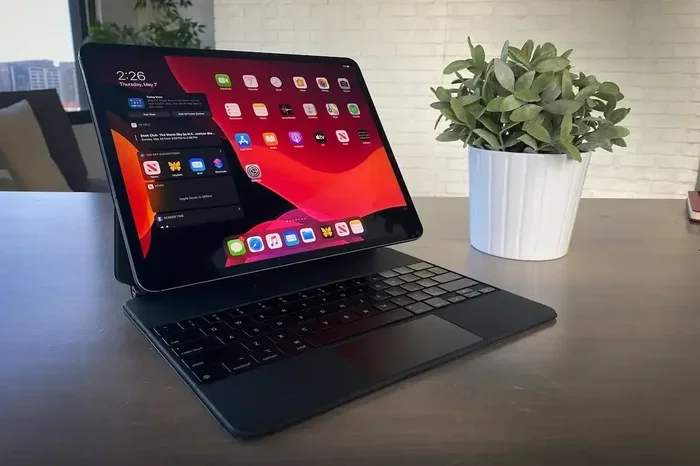
If you want the closest thing to a laptop experience on an iPad, this is it. The iPad Pro supports the Magic Keyboard and trackpad. It also has USB-C for connecting external devices.
iPad Air
The iPad Air is a strong middle ground. It is lighter than the Pro but still packs a punch. The M2 chip handles most productivity tasks smoothly. It also supports the Magic Keyboard and Apple Pencil. For many users, the iPad Air is the sweet spot for iPad productivity.
iPad (10th or 11th Generation)
The standard iPad is more budget-friendly. It can handle basic tasks like email, web browsing, and document editing. However, it lacks some advanced features like trackpad support in certain configurations. It works well if your needs are simple. But for heavy use, you may feel limited.
iPad mini
The iPad mini is portable but small. It is great for reading and quick tasks. However, the screen size makes it less ideal for long work sessions. It can work as a secondary device but not as a full laptop replacement.
Comparison Table
| Model | Best For | Keyboard Support | Trackpad Support | Performance |
|---|---|---|---|---|
| iPad Pro | Professional work | Yes | Yes | Excellent |
| iPad Air | Everyday productivity | Yes | Yes | Very Good |
| iPad (10/11 gen) | Basic tasks | Yes | Limited | Good |
| iPad mini | Portable reading | Yes | No | Good |
Essential Accessories You Will Need
Buying an iPad is just the start. To make it feel like a laptop, you need the right iPad accessories. Here is what you should consider.
Keyboard Case
A keyboard case is probably the most important accessory. It turns your iPad into a device you can type on comfortably. Apple offers the Magic Keyboard for iPad Pro and iPad Air. There are also many great third-party options from Logitech and Brydge.
Without a keyboard, typing long documents is frustrating. With one, the iPad becomes genuinely usable for writing and coding. This single accessory changes the experience completely.
Apple Pencil
The Apple Pencil adds a whole new dimension. You can take handwritten notes, sketch designs, and annotate PDFs. It is especially useful for students, artists, and professionals who need precise input.
Pair it with apps like GoodNotes or Notability, and you have a powerful note-taking setup. The Apple Pencil makes the iPad more versatile than any laptop can be.
Trackpad
Trackpad support was added in iPadOS 13.4. It is a game-changer for navigation. You can move the cursor, select text, and scroll through pages just like on a Mac or PC.
Not all keyboard cases include a trackpad. But if you get one that does, the iPad starts feeling much more like a traditional computer. This is a key feature for anyone asking can an iPad replace a laptop.
USB-C Hub or Docking Station
If you use a USB-C iPad model, a hub can expand your ports. You can connect monitors, external drives, and peripherals. This makes multi-device setups much easier. It bridges the gap between iPad and laptop connectivity.
Cloud Storage
Cloud storage is essential for any mobile workflow. Apple iCloud, Google Drive, and Dropbox all work well on the iPad. They keep your files accessible across devices. This is something you will rely on heavily.
Limitations of Using an iPad as a Laptop
Let us be honest. The iPad is not a full laptop for every situation. Here are some real limitations you should know about before making the switch.
Software Limitations
Some desktop applications simply do not exist on iPad. You cannot run the full version of Photoshop, Visual Studio, or many professional tools. iPad apps are often simplified versions. They work well, but they lack some features.
For example, if you need advanced coding environments or specific enterprise software, the iPad may not meet your needs. Always check if your critical apps are available on iPadOS before committing.
File Management
iPadOS has improved file management a lot. The Files app lets you browse local and cloud storage. You can unzip files, rename them, and organize folders. But it still feels less intuitive than Windows File Explorer or macOS Finder.
Working with multiple file types can be cumbersome. Some file formats open in specific apps only. You may need to convert or download additional software. This is one area where laptops still win.
Multitasking Constraints
iPadOS supports split view and slide over for multitasking. You can run two or three apps side by side. But the experience is still limited compared to a desktop operating system.
You cannot have unlimited windows open. App switching can feel clunky during heavy workflows. If you regularly run many complex apps at once, you may find the iPad limiting.
Peripheral Support
While USB-C has helped a lot, not all peripherals work seamlessly with the iPad. Some printers, scanners, and external devices have compatibility issues. Driver support is still developing on iPadOS compared to Windows or macOS.
Storage Limitations
Most iPads do not have expandable storage. You are stuck with whatever storage you bought. If you work with large media files, this can become a problem. External drives help, but they are not always convenient.
How to Set Up Your iPad for Maximum Productivity
Once you decide to use an iPad as a laptop, the setup matters. A well-configured iPad can be incredibly productive. Here is how to get the most out of it.
Enable Multitasking Features
Go to Settings and make sure multitasking is enabled. Open Stage Manager if your iPad model supports it. This gives you better window management and makes the iPad feel more desktop-like.
Practice using Split View and Slide Over. These features let you work with multiple apps simultaneously. The more comfortable you are with them, the more productive you will be.
Customize the Control Center
The Control Center gives you quick access to settings. Customize it so your most-used toggles are front and center. This saves time and reduces friction in your workflow.
Use Keyboard Shortcuts
Did you know the iPad supports keyboard shortcuts? When using a keyboard case, you can mimic familiar shortcuts from other platforms. For example, Command+C for copy and Command+V for paste work on iPad.
You can also create custom shortcuts. This speeds up repetitive tasks significantly. Take some time to learn them. It makes a big difference.
Set Up Cloud Sync
Make sure your cloud storage is synced across all devices. Use iCloud if you are in the Apple ecosystem. Use Google Drive if you work across platforms. This keeps your files safe and accessible.
Also, enable offline access for important documents. This way, you can work even without internet. It is a practical tip many people overlook.
Choose the Right Apps
App selection is crucial. Here are some top picks for iPad productivity:
- Pages: Free word processing from Apple
- Microsoft Office: Full-featured Word, Excel, and PowerPoint
- Notion: Great for notes and project management
- GoodNotes: Excellent for handwritten notes
- LumaFusion: Professional video editing on iPad
- Affinity Photo: Powerful photo editing alternative
These apps cover most productivity and creative needs. With the right app lineup, your iPad can handle a surprising amount of work.
Quick Tips for iPad Productivity
- Use Safari for desktop-class browsing. Safari on iPad can show full desktop websites, unlike many mobile browsers.
- Drag and drop text between apps. This works in Split View and saves a lot of time.
- Use the Files app regularly. It becomes your central hub for managing documents.
- Enable Hotspot tethering. Turn your iPhone into a hotspot for internet on your iPad when needed.
- Keep your iPadOS updated. Each update brings new features and improvements for productivity.
Who Should Use an iPad Instead of a Laptop?
Not everyone should ditch their laptop. But some people will benefit greatly from making the switch. Here is a closer look.
Students
Students are ideal candidates for an iPad. Note-taking, research, reading textbooks, and writing papers are all easy on the device. The Apple Pencil adds a unique advantage for handwriting and annotating lecture materials. Most students do not need heavy desktop software, so the iPad works well for them.
Creative Professionals
Illustrators, photographers, and designers can thrive on an iPad Pro. Apps like Procreate, Affinity Photo, and LumaFusion are incredibly powerful. The touch and pencil input feel natural for creative work. Many creatives use the iPad as a primary or secondary device.
Mobile Workers
If you travel frequently or work from coffee shops, an iPad is excellent. It is lightweight, has great battery life, and connects easily to the internet. Email, calendars, documents, and video calls all work well. Paired with a keyboard, it covers most mobile work needs.
For casual users who browse the web, check email, and watch media, an iPad is more than enough. You do not need a full laptop. The iPad handles these tasks beautifully and offers a more enjoyable experience than a small laptop screen.
Who Should Stick with a Laptop
Some users should not switch. If your work involves heavy software development, running virtual machines, or using specialized enterprise tools, a laptop is still necessary. Also, if you do extensive data analysis in Excel or need complex multi-window workflows, you will likely feel frustrated on an iPad.
Expert Insights on iPad as a Laptop
Many tech experts have shared their views on this topic. The general consensus is clear. The iPad can replace a laptop for many people, but not everyone.
Technology analyst John Gruber has noted that the iPad Pro with a keyboard is close to a laptop for most users. However, he points out that the operating system still holds it back. iPadOS is improving every year, but it is not macOS or Windows.
Many reviews from reputable tech outlets highlight the same pattern. The iPad Pro with Magic Keyboard handles about 80 to 90 percent of typical productivity tasks. The remaining 10 to 20 percent involves specialized needs that still require a traditional computer.
Here are some expert-backed takeaways:
- Try before you commit. Use the iPad for a week or two before deciding to replace your laptop.
- Keep your old device. Even if you switch, keep your laptop as a backup for tough tasks.
- Stay updated. Apple adds laptop-like features to iPadOS every year. What is limited today may not be limited tomorrow.
Conclusion
So, can an iPad be used as a laptop? Absolutely, in many cases. The iPad has matured into a genuinely capable productivity device. With the right model, accessories, and apps, it can handle most everyday tasks effectively.
However, it is not a perfect replacement for everyone. If you need specialized software, extensive file management, or heavy multitasking, a traditional laptop still has the edge. The best approach is to evaluate your specific needs honestly.
Consider your workflow. Think about the apps you rely on most. Test the iPad with a real-world trial period before making a final decision. The technology is moving fast. What works today may work even better tomorrow.
Whether you are a student, a creative, or a frequent traveler, the iPad deserves serious consideration. It is lightweight, powerful, and versatile. With the right setup, it might just be the best device for your lifestyle.
Frequently Asked Questions
Can an iPad run Windows or macOS?
No, the iPad runs iPadOS, which is designed specifically for touch-based devices. You cannot install Windows or macOS on an iPad. However, many popular apps have iPad versions that work similarly to their desktop counterparts.
Is an iPad better than a laptop for students?
It depends on the major and coursework. For most general students, an iPad with a keyboard is excellent for note-taking, research, and writing. However, students in fields like engineering or computer science may need laptop-specific software that is not available on iPadOS.
Can you use a USB drive with an iPad?
Yes, if your iPad has a USB-C port, you can connect external drives directly. You can also use the Files app to manage content from USB drives. This is a big improvement over earlier iPad models that only supported Lightning connections with limited compatibility.
Does the iPad support external monitors?
Yes, newer iPad Pro and iPad Air models support external displays through USB-C. With Stage Manager enabled, you can use the external display as a separate workspace. This feature significantly boosts productivity for users who need more screen space.
How long does an iPad last compared to a laptop?
iPads typically receive software updates for about 5 to 6 years. With proper care, the hardware can last even longer. However, performance may decline over time as newer apps demand more power. A well-maintained iPad can serve you reliably for several years, similar to a laptop.
Is the iPad Pro powerful enough for video editing?
Yes, the iPad Pro with its M4 chip is very powerful. Apps like LumaFusion and DaVinci Resolve for iPad offer professional-grade video editing. You can edit 4K footage smoothly. For most video editors, the iPad Pro is now a viable primary or secondary editing device.