How to Find Your Dell Serial Number Using the Service Tag
Finding your Dell serial number from the service tag is quick and easy. Whether you need it for warranty claims, tech support, or device registration, the service tag is your fastest path to the information you need. This guide walks you through every method to look up your Dell serial number using nothing but your service tag.
You have a Dell computer, and you need the serial number. Maybe you are calling support, checking warranty status, or trying to register your device. But all you have is the service tag. So, can you get a serial number from the service tag Dell? The short answer is yes. The service tag on your Dell device is a unique identifier that connects directly to your product details, including the serial number. In this guide, we will show you exactly how to find your Dell serial number using the service tag, step by step.
Whether you have a Dell laptop, desktop, or workstation, this process is straightforward. You do not need to be a tech expert. We will cover every method you can use, from checking the physical sticker on your device to using online tools and built-in Windows commands. By the end of this article, you will know exactly how to get your Dell serial number from the service tag in minutes.
Let us dive in. No fluff, no confusion, just clear and practical steps you can follow right now.
Key Takeaways
- Every Dell device has a unique service tag that links directly to its serial number and warranty details.
- You can find the service tag on a physical sticker, through the Dell support website, or via command prompt.
- Dell serial number lookup takes less than a minute when you use the right method.
- Missing or damaged service tags can still be resolved using alternative identification methods.
- Avoid common mistakes like confusing the service tag with the Express Service Code.
- Regularly save your Dell device information for easy access during support calls.
📑 Table of Contents
- What Is a Dell Service Tag?
- Why You Need Your Dell Serial Number
- How to Find Your Dell Serial Number Using the Service Tag
- What If the Service Tag Is Missing or Damaged?
- Common Mistakes When Looking Up Your Dell Serial Number
- Expert Tips for Managing Your Dell Device Information
- Can I Get Serial Number From Service Tag Dell? Final Answer
What Is a Dell Service Tag?
The Dell service tag is a short alphanumeric code printed on your Dell device. It usually has seven characters, combining letters and numbers. Think of it as your device’s fingerprint. Every Dell product has one, and no two service tags are the same.
The service tag is different from other codes you might see on your device. For example, the Express Service Code is another identifier, but it serves a different purpose. The service tag is the one you want when you need to look up your Dell serial number. It links directly to Dell’s database, which stores your device model, configuration, warranty status, and serial number.
When you call Dell tech support, the first thing they ask for is your service tag. That is how much this little code matters. It is the key to unlocking all your device information.
Where to Find the Service Tag on Your Dell Device
Before you can use the service tag, you need to find it. Here are the most common places to look:
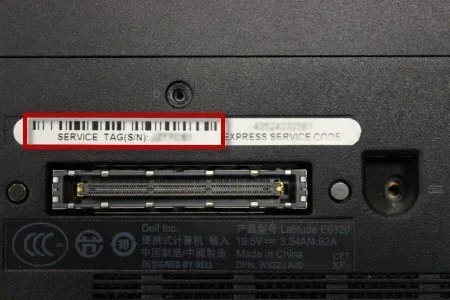
- On the bottom of a Dell laptop — there is usually a white sticker with the service tag printed on it.
- On the back or side of a Dell desktop — look for a small label on the chassis.
- On the packaging — the original box often has the service tag on a barcode sticker.
- In the BIOS or UEFI settings — you can find it when you boot into your system settings.
- On the Dell service invoice — if you purchased the device, the invoice may list the service tag.
If the sticker is worn off or missing, do not worry. We have backup methods for that too.
Why You Need Your Dell Serial Number
You might wonder why the serial number matters so much. The serial number is more than just a string of digits. It is a unique identifier for your specific device. Dell uses it to track your product through its entire lifecycle.
Here are the main reasons you need your Dell serial number:
- Warranty claims — Dell needs your serial number to verify your warranty status and coverage dates.
- Tech support requests — support agents use the serial number to pull up your device details quickly.
- Repairs and replacements — authorized service centers require the serial number before they can process any work.
- Asset management — businesses use serial numbers to track their Dell equipment inventory.
- Insurance claims — if you file a claim for a stolen or damaged device, the serial number proves ownership.
- Software licensing — some Dell software licenses are tied to the serial number of your device.
As you can see, the serial number is essential. And the easiest way to get it is through your service tag. That is why learning how to look up your Dell serial number using the service tag is such a valuable skill.
How to Find Your Dell Serial Number Using the Service Tag
Now let us get to the main event. There are several ways to find your Dell serial number from the service tag. We will walk through each method so you can pick the one that works best for you.
Method 1: Check the Physical Sticker on Your Device
The simplest way is to look at the service tag sticker on your Dell device. Once you find the service tag, you can use it to get the serial number through Dell’s online tools. But if you want the serial number directly from the sticker, here is what to do.
On most Dell devices, the physical sticker shows both the service tag and the express service code. However, the serial number may not always be printed on the sticker itself. In many cases, the sticker only shows the service tag. This is why you need to use Dell’s lookup tools.
Quick tip: If the sticker is still legible, take a photo of it and save it in your phone. This way, you always have the service tag handy for future support calls.
Method 2: Use the Dell Support Website
This is the most reliable method. Dell has a free online tool that lets you enter your service tag and instantly see all your device details, including the serial number.
Here is how to do it:
- Go to Dell’s support website at dell.com/support.
- Click on the “Identify Product” option or look for the service tag input field.
- Enter your seven-character service tag.
- Click “Submit” or “Get Support.”
- Your device page will load, showing the model, service tag, express service code, and serial number.
That is it. The Dell serial number lookup takes less than a minute. You will also see your warranty status, drivers, and manual links on the same page. This is a great way to get all your Dell device information in one place.
Pro tip: Bookmark the Dell support page for your device. You will need it again if you ever have to call tech support or check warranty details.
Method 3: Use Command Prompt or PowerShell
If you are already sitting at your Dell computer, you can find the serial number without leaving your seat. Windows has built-in commands that pull up device information directly from the BIOS.
Here is how to use Command Prompt:
- Press the Windows key and type “cmd.”
- Right-click on Command Prompt and select “Run as administrator.”
- Type wmic bios get serialnumber and press Enter.
- The serial number will appear on the screen.
You can also use PowerShell for the same result:
- Right-click the Start button and select “Windows PowerShell.”
- Type Get-WmiObject Win32_BIOS and press Enter.
- Look for the “SerialNumber” field in the output.
These commands read the serial number stored in your Dell device’s BIOS. They work whether or not the service tag sticker is still on your device. However, the serial number shown here is directly tied to the service tag in Dell’s system.
Quick tip: If the command returns a string of zeros, your BIOS may not have the serial number populated. In that case, use the Dell support website method instead.
Method 4: Check the BIOS or UEFI Settings
Your Dell computer’s BIOS stores the serial number and service tag. You can view this information by entering the BIOS setup during boot.
Here is how to access the BIOS:
- Restart your Dell computer.
- Press F2 repeatedly as soon as the Dell logo appears on the screen.
- You will enter the BIOS setup utility.
- Look for the “System Information” or “General” tab.
- The serial number and service tag are listed there.
This method is helpful when your computer is running slowly or when you cannot access Windows. The BIOS information is always available, even if the operating system has issues.
Once you find the serial number in the BIOS, you can write it down or take a photo with your phone. This is a reliable backup method that works on every Dell device.
What If the Service Tag Is Missing or Damaged?
Sometimes the service tag sticker falls off, fades, or gets damaged. This can happen after years of use, especially on laptops that get moved around a lot. If your service tag is missing, you still have options to find your Dell serial number.
Check the Original Packaging
If you kept the Dell box your device came in, check the outside label. The service tag and serial number are usually printed on the shipping barcode sticker. This is one of the easiest backup methods, especially if you still have the box stored somewhere.
Look at the Dell Service Invoice or Receipt
If you purchased your Dell device online or from a retailer, your receipt or invoice may list the service tag. Dell also sends a confirmation email after purchase that includes the service tag and serial number. Check your email inbox for messages from Dell or your retailer.
Contact Dell Support Directly
If you cannot find the service tag anywhere, you can contact Dell tech support. They can look up your device using other information, such as the model number and purchase date. You may need to provide proof of purchase, so keep your receipt handy.
Expert insight: Dell support agents are trained to help customers in this situation. They have access to internal tools that can identify your device using alternative methods. Do not hesitate to reach out if you are stuck.
Common Mistakes When Looking Up Your Dell Serial Number
People make avoidable mistakes when trying to find their Dell serial number. Here are the most common ones and how to prevent them.
Confusing the Service Tag with the Express Service Code
The service tag and the Express Service Code look similar, but they are different. The service tag is seven characters and is used for general support and warranty lookups. The Express Service Code is longer and is used specifically for ordering parts. Mixing them up can lead to errors when you are trying to get help from Dell support.
Using an Outdated or Wrong Service Tag
Some Dell devices have multiple service tags, especially if they have been serviced or upgraded. Make sure you are using the original service tag, not one that was added during a repair. The original service tag is the one that matches your warranty period.
Not Verifying the Serial Number
After you find your serial number, always double-check it. A single wrong character can lead to incorrect warranty information or support results. Compare the serial number you find with what is shown on the Dell support website to make sure everything matches.
Ignoring the BIOS Method
Many people forget that the BIOS stores the serial number. If the sticker is gone and you do not have the original packaging, the BIOS method is your best friend. It takes just a minute and works every time.
Expert Tips for Managing Your Dell Device Information
Once you have your Dell serial number, it is smart to keep it organized. Here are some expert tips to help you manage your device information effectively.
- Save the serial number in a cloud document. Use Google Docs, OneDrive, or Dropbox to store your Dell device details. This way, you can access them from any device.
- Create a simple spreadsheet. List each Dell device you own with its service tag, serial number, model name, and purchase date. This is especially helpful for businesses managing multiple devices.
- Set a warranty reminder. Note your warranty expiration date in your calendar. This prevents surprises when you need support after the warranty period ends.
- Register your device on Dell’s website. Dell offers free registration that gives you access to extended support resources and priority service.
- Use Dell’s SupportAssist tool. This free application automatically detects your Dell device and stores its details, including the serial number.
Taking a few minutes to organize your Dell device information now can save you a lot of time and frustration later. Whether you are a home user or a business, this small step pays off.
Can I Get Serial Number From Service Tag Dell? Final Answer
Yes, you absolutely can get your Dell serial number from the service tag. The service tag is the bridge between your physical device and Dell’s database. By using the methods we covered in this article, you can find your Dell serial number quickly and easily.
Whether you check the physical sticker, use the Dell support website, run a command in Command Prompt, or look in the BIOS, each method gets you the same result. The serial number linked to your service tag gives you access to warranty information, support resources, and device details.
Remember to keep your service tag and serial number stored safely. You never know when you will need them. With the tips in this guide, you are now fully equipped to handle any Dell serial number lookup task that comes your way.
Key takeaway: Your Dell service tag is more than just a small sticker. It is the most important piece of information for your Dell device. Treat it with care, save it in a safe place, and use it whenever you need to look up your Dell serial number.
Now you know the answer to “can I get serial number from service tag Dell.” Go ahead and try these methods today. You will be glad you did the next time you need your Dell serial number for a warranty claim, a support call, or a device registration.
Frequently Asked Questions
Can I find my Dell serial number without the service tag?
Yes, you can. You can use the Command Prompt command “wmic bios get serialnumber” or check the BIOS settings during boot. You can also contact Dell support with your model number and proof of purchase to get the serial number.
What is the difference between a Dell service tag and a serial number?
The service tag is a seven-character alphanumeric code used to identify your Dell device on Dell’s support system. The serial number is a longer unique identifier that Dell uses for warranty tracking and repairs. The service tag links to the serial number in Dell’s database.
How do I check my Dell warranty using the service tag?
Go to Dell’s support website at dell.com/support, enter your service tag in the lookup field, and click submit. The warranty status, including start and end dates, will be displayed on your device page along with the serial number and model details.
What if my Dell service tag sticker has worn off?
You can still find your serial number by checking the BIOS settings (press F2 during boot), using Command Prompt with the wmic command, or looking at the original packaging or purchase invoice. You can also contact Dell support for help with alternative identification methods.
Can I use the Express Service Code instead of the service tag?
The Express Service Code is useful for ordering replacement parts, but it is not the same as the service tag. For general support, warranty checks, and serial number lookups, you should use the service tag instead of the Express Service Code.
Is it safe to share my Dell service tag and serial number?
Yes, it is safe. Dell uses the service tag to identify your device and provide accurate support. However, avoid sharing these numbers on public forums or unverified websites. Only share them with Dell support or authorized service providers.
=== CONCLUSION ===
Finding your Dell serial number using the service tag is simple, fast, and free. You now know four reliable methods to get the job done, from checking the physical sticker to using online tools and built-in Windows commands. The service tag is your gateway to all the important details about your Dell device, including the serial number, warranty status, and support options.
Keep your service tag and serial number stored in a safe place. Use the tips and expert advice in this guide to stay organized and prepared. The next time you need to contact Dell support or check your warranty, you will be ready.
Now that you know how to find your Dell serial number from the service tag, you have taken control of your device information. Use these methods anytime you need them, and you will never be stuck without the details Dell support requires.