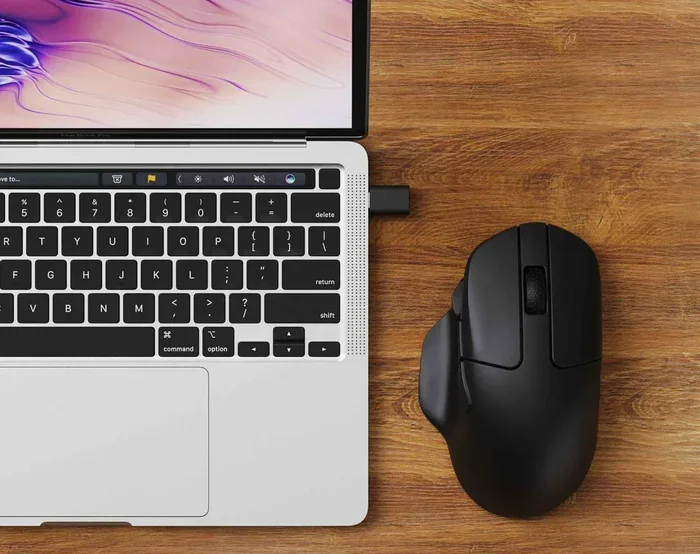
Can Any Mouse Be Used With A Laptop For Work And Play
Yes, you can use almost any mouse with a laptop, but compatibility depends on the connection type, driver support, and your laptop’s ports. Whether you prefer a wireless mouse, a wired option, or a Bluetooth device, this guide breaks down everything you need to know. Learn which mice work best for work, gaming, and everyday use, and avoid common mistakes that cause connection problems.
You just got a new laptop, or maybe your old mouse finally gave up. The first thing you probably want to know is this: can any mouse be used with a laptop? The short answer is yes. The longer answer is a little more nuanced, and that is exactly what this article covers.
Whether you work from home, game on weekends, or just browse the web, your mouse matters. A good laptop mouse can make your daily tasks faster and more comfortable. A bad one can cause frustration, wrist pain, and wasted money. So let us walk through everything you need to know about pairing a mouse with your laptop.
In this guide, we will look at wired mice, wireless mice, Bluetooth options, and gaming mice. We will also talk about compatibility, setup, and common mistakes people make. By the end, you will know exactly which mouse for laptop fits your needs and budget.
Key Takeaways
- Most mice work with laptops: USB, Bluetooth, and wireless mice are generally compatible with modern laptops.
- Check the connection type first: Make sure your laptop has the right port or Bluetooth capability before buying.
- Plug and play is real: Many mice work instantly without installing extra software or drivers.
- Gaming mice offer extra features: They provide customizable DPI, programmable buttons, and precise tracking for work and play.
- Watch out for driver issues: Some mice need specific software that may not be available for all operating systems.
- Portability matters for laptops: Compact and portable mice are ideal for people who travel or work on the go.
- Battery life varies: Wireless mice need charging or battery replacements, so factor that into your choice.
📑 Table of Contents
- Understanding Mouse Connection Types
- Will Any Mouse Work With Your Laptop
- Best Mice for Work and Productivity
- Best Mice for Gaming on a Laptop
- How to Connect a Mouse to Your Laptop
- Common Mistakes People Make When Choosing a Laptop Mouse
- Expert Tips for Getting the Most Out of Your Laptop Mouse
- Frequently Asked Questions
- Conclusion
Understanding Mouse Connection Types
Not all mice connect to laptops the same way. Before you buy anything, it helps to understand the different types of connections available today. Each type has its own pros and cons, and knowing them saves you time and money.
Wired Mice
A wired mouse connects directly to your laptop through a USB cable. These are the simplest options available. You plug them in, and they work. There is no pairing process, no batteries to charge, and no lag to worry about.
Wired mice are great for people who want a reliable connection at all times. They also tend to be more affordable than wireless versions. The main downside is the cable itself. It can get tangled, and it limits how far you can move your mouse from the laptop.
Most modern laptops come with at least one USB port. This means almost any wired mouse will work right out of the box. If your laptop has limited ports, a small USB hub can solve that problem easily.
Wireless Mice
A wireless mouse connects to your laptop using a small USB receiver. You plug the receiver into a USB port, and the mouse communicates with your laptop through radio frequency or infrared signals.
These mice are very popular because they give you freedom of movement. There is no cable to deal with, and the range is usually quite good. Most wireless mice work within a range of about 10 meters, which is plenty for a home or office setup.
The downside is that wireless mice need batteries. Some use replaceable AA or AAA batteries, while others come with rechargeable ones. You will need to keep an eye on battery levels, especially during long work sessions or gaming marathons.
Bluetooth Mice
A Bluetooth mouse connects to your laptop without any extra hardware. You just pair the mouse with your laptop through the Bluetooth settings. This makes Bluetooth mice incredibly convenient, especially for laptops that do not have extra USB ports.
Bluetooth mice are compact and portable. Many of them are designed specifically for travel and on-the-go use. They also tend to look sleek and modern, which is a nice bonus if you care about aesthetics.
The tradeoff is that Bluetooth mice can sometimes have a slight delay compared to wired or USB receiver mice. For everyday tasks like browsing and office work, this delay is barely noticeable. For fast-paced gaming, it might be a problem.
Will Any Mouse Work With Your Laptop
Here is the big question. The good news is that most mice work with most laptops. But there are a few things you should check before making a purchase.
Operating System Compatibility
Your laptop runs on an operating system like Windows, macOS, or ChromeOS. Most mice support all three, but not all of them. Some mice are designed specifically for Windows and may not work well with macOS. Always check the product description for operating system compatibility before you buy.
For example, Apple mice use a proprietary connector called Lightning or USB-C. They work best with MacBooks but can also work with Windows laptops if you have the right adapter. Similarly, some gaming mice come with software that only works on Windows.
USB Port Availability
If you want to use a wired mouse or a wireless mouse with a USB receiver, you need a free USB port on your laptop. Many laptops have two to four USB ports, but some ultrabooks only have one or two. If all your ports are already in use, you might need a USB hub.
USB hubs are inexpensive and very handy. They give you extra ports so you can connect your mouse, keyboard, external drive, and more all at once. Just make sure you get a powered USB hub if you plan to connect multiple devices.
Bluetooth Support
If you are considering a Bluetooth mouse, check whether your laptop has Bluetooth capability. Most modern laptops do, but older models might not. You can usually find this information in your laptop’s specifications or settings menu.
If your laptop does not have built-in Bluetooth, you can buy a Bluetooth adapter. These small USB dongles cost very little and add Bluetooth functionality to any laptop. It is an easy and affordable fix.
Driver and Software Requirements
Most basic mice are plug and play. This means they work the moment you connect them, without needing any extra software. However, some advanced mice, especially gaming mice, require driver software to unlock all their features.
Before buying a mouse, check if it needs specific drivers. If it does, make sure those drivers are available for your operating system. Some manufacturers only support Windows, which can be a problem if you use a Mac or Chromebook.
Best Mice for Work and Productivity
Not all mice are created equal when it comes to work. If you spend hours typing, clicking, and scrolling, you want a mouse that feels comfortable and keeps up with your pace.
Ergonomic Mice
An ergonomic mouse is designed to reduce strain on your hand and wrist. These mice often have a vertical or angled shape that keeps your arm in a more natural position. They are perfect for people who work long hours at a desk.
Repetitive strain injuries are a real concern for office workers. Using an ergonomic mouse can help prevent these problems. Look for mice with adjustable angles, soft grips, and programmable buttons to customize your workflow.
Compact and Portable Mice
If you travel often or work from different locations, a portable mouse is a great choice. These mice are small, lightweight, and easy to carry. Many fold up or come with a carrying case, making them ideal for travel.
Compact mice usually have a smaller footprint, which is great for small desks and tight spaces. They often use Bluetooth for wireless connectivity, so you do not need to worry about losing a USB receiver.
Trackball Mice
A trackball mouse is a unique option that might surprise you. Instead of moving the whole mouse, you roll a ball with your fingers to move the cursor. This means the mouse stays in one place, and only your fingers move.
Trackball mice are excellent for people with limited desk space or those who want to reduce wrist movement. They take a little getting used to, but once you get the hang of them, many users prefer them over traditional mice.
Best Mice for Gaming on a Laptop
Gaming on a laptop is more popular than ever. But can you use a gaming mouse with a laptop? Absolutely. In fact, a good gaming mouse can make a huge difference in your gameplay.
DPI and Sensitivity
DPI stands for dots per inch, and it measures how sensitive a mouse is. A higher DPI means the cursor moves faster across the screen with less physical movement. Gaming mice often let you adjust DPI on the fly with a button press.
For most work tasks, a DPI of 800 to 1600 is plenty. For gaming, especially fast-paced shooters, a higher DPI of 4000 or more can give you an edge. The best gaming mouse for laptop lets you switch between DPI levels easily.
Programmable Buttons
Many gaming mice come with extra buttons that you can program for specific actions. In a game, you might assign one button to reload, another to crouch, and another to use a special ability. For work, you can program buttons to copy, paste, or switch between applications.
This feature is one of the biggest advantages of gaming mice over regular ones. It can speed up both your gaming and your productivity tasks significantly.
RGB Lighting and Aesthetics
Let us be honest. RGB lighting looks cool. Many gaming mice come with customizable lights that you can change to match your setup. While this does not affect performance, it does add to the overall experience and makes your setup look awesome.
If aesthetics matter to you, look for mice with per-key or per-zone RGB lighting. Some mice even sync with other RGB devices in your setup for a unified look.
How to Connect a Mouse to Your Laptop
Connecting a mouse to a laptop is usually very simple. Here is a quick guide for each connection type.
Connecting a Wired Mouse
Just plug the USB cable into any available USB port on your laptop. Wait a few seconds, and the mouse should start working immediately. No installation is needed in most cases.
If the mouse does not work right away, try a different USB port. Sometimes a faulty port can cause connection issues. You can also restart your laptop to refresh the USB connections.
Connecting a Wireless Mouse with a USB Receiver
Plug the USB receiver into an available port. Turn on the mouse and wait for the laptop to recognize it. Most wireless mice will connect automatically within a few seconds.
Keep the receiver close to the mouse for the best signal strength. If you experience lag or disconnections, try moving the receiver to a port closer to the front of the laptop.
Connecting a Bluetooth Mouse
Open your laptop’s Bluetooth settings and turn on Bluetooth. Put your mouse in pairing mode, usually by holding down a button on the bottom or side. Your laptop should detect the mouse, and you can click to pair.
Once paired, the mouse will connect automatically every time you turn it on, as long as Bluetooth is enabled on your laptop. This makes daily use very convenient.
Common Mistakes People Make When Choosing a Laptop Mouse
Avoiding these mistakes can save you money and frustration. Here are the most common errors people make when buying a mouse for their laptop.
Ignoring Compatibility
Not every mouse works with every laptop. Some mice are designed for Windows only, while others work across multiple operating systems. Always check compatibility before you buy.
Read the product specifications carefully. Look for information about supported operating systems, connection types, and any required software or drivers.
Choosing Style Over Function
A pretty mouse might look great on your desk, but it might not feel good to use. Comfort and functionality should always come before looks. If a mouse hurts your hand after an hour of use, it is the wrong choice no matter how good it looks.
Pay attention to grip style, button placement, and overall shape. What feels good for one person might not feel good for another, so try before you buy if possible.
Overlooking Battery Life
If you choose a wireless mouse, battery life matters a lot. Some mice last only a few days on a single charge, while others can go weeks or even months. If you hate constantly charging or replacing batteries, look for a mouse with long battery life.
Rechargeable mice are a great option because you do not need to buy batteries. Many of them come with USB charging cables, so you can charge them from your laptop or any USB wall charger.
Forgetting About Portability
If you carry your laptop around, your mouse should be just as portable. A heavy, bulky mouse is annoying to transport. Look for lightweight, compact options that are easy to throw into a bag.
Some mice come with travel cases or snap-on covers that protect them during transport. These small details can make a big difference if you are constantly on the move.
Expert Tips for Getting the Most Out of Your Laptop Mouse
Here are some practical tips from people who use mice with laptops every day.
Clean your mouse regularly. Dust and grime can build up on the sensor and buttons, causing tracking issues. A quick wipe with a microfiber cloth keeps things working smoothly.
Adjust your mouse speed in settings. Both Windows and macOS let you change your cursor speed. Find a speed that feels natural and comfortable for your workflow.
Use a mouse pad for precision. Even though modern optical sensors work on almost any surface, a good mouse pad improves accuracy and extends the life of your mouse.
Keep your drivers updated. If your mouse comes with software, check for updates regularly. Updated drivers often fix bugs and improve performance.
Consider a mouse with a scroll wheel. A good scroll wheel makes navigating long documents and web pages much faster. Some mice even have horizontal scrolling, which is handy for spreadsheets and timelines.
Frequently Asked Questions
Can I use any wireless mouse with my laptop?
Most wireless mice will work with any laptop that has a USB port or Bluetooth support. However, you should always check for compatibility with your specific operating system. Some wireless mice require drivers that may not be available for all systems, so it is always a good idea to verify before purchasing.
Do I need to install software to use a mouse with my laptop?
Most basic mice are plug and play and do not require any software installation. Advanced mice, especially gaming models, may need driver software to unlock features like customizable buttons and DPI settings. Check the product details to see if software is required.
Can I use an Apple Magic Mouse with a Windows laptop?
Yes, you can use an Apple Magic Mouse with a Windows laptop, but with some limitations. You will need a Bluetooth adapter or a laptop with built-in Bluetooth. Some features like gesture controls may not work the same way as they do on macOS, and you may need third-party software for full functionality.
Why is my new mouse not working with my laptop?
Try plugging the mouse into a different USB port or restarting your laptop. Make sure Bluetooth is turned on if you are using a wireless mouse. Also check if the mouse needs driver software or if it is compatible with your operating system. A quick restart often solves most connection issues.
Is a gaming mouse good for everyday work tasks?
Yes, a gaming mouse can be great for everyday work. It offers higher precision, programmable buttons, and adjustable DPI, which can boost productivity. The main downside is that gaming mice can be larger and heavier than standard office mice, so choose a model that fits your hand comfortably.
How do I know which mouse size is right for me?
The right mouse size depends on your hand size and grip style. If you have larger hands, go for a full-size mouse. If you have smaller hands or prefer portability, a compact mouse will work better. Ergonomic mice come in various shapes and sizes, so try to test them in person if possible.
Conclusion
So, can any mouse be used with a laptop? The answer is a resounding yes. Almost any mouse you pick up today will work with your laptop, whether it is wired, wireless, or Bluetooth. The key is to check compatibility, understand your connection options, and choose a mouse that fits your needs.
For work, an ergonomic mouse or a compact portable option can make your day more comfortable. For play, a gaming mouse with adjustable DPI and programmable buttons gives you the precision and speed you need. And for everyday tasks, a simple plug-and-play mouse gets the job done without any fuss.
Take your time when choosing a mouse. Consider your laptop’s ports, your operating system, your hand size, and how you plan to use the mouse. A little research goes a long way toward finding the perfect match. With the right mouse for laptop, your work and play will feel smoother, faster, and more enjoyable every single day.