Can You Install Microsoft Office On Surface Go Step By Step
Yes, you can install Microsoft Office on Surface Go easily. Whether you use a Microsoft 365 subscription or a one-time purchase, the Office suite runs smoothly on this compact device. This guide walks you through every step, from downloading Office to fixing common problems.
Can you install Microsoft Office on Surface Go? The short answer is absolutely yes. If you own a Surface Go and need the full power of Word, Excel, PowerPoint, or Outlook, you are in luck. The Surface Go is a capable little device that handles Microsoft Office like a champ. In this guide, we walk you through every single step. You will learn how to download, install, activate, and troubleshoot Microsoft Office on your Surface Go.
Many people wonder whether the smaller screen and lower specs of the Surface Go can handle a full desktop Office suite. The good news is that Microsoft designed Office to work on a wide range of devices. From powerful desktops to lightweight tablets like the Surface Go, the Office installation process is simple and straightforward. Let us dive right in and get you set up.
Key Takeaways
- Full Office Installation: You can install the complete Microsoft Office suite on Surface Go using a Microsoft 365 subscription.
- Microsoft Store Option: The Microsoft Store offers a lightweight Office app that works great for basic tasks.
- Web Version Available: Office Online works in any browser without installation.
- Surface Go Compatibility: Both Surface Go 1, 2, 3, and the newer models support full Office installation.
- Storage Matters: Make sure your Surface Go has enough free space for the Office suite to install properly.
- Free Trial Available: New users can try Microsoft 365 for free before committing to a purchase.
📑 Table of Contents
- What You Need Before Installing Microsoft Office
- Step-by-Step Guide to Installing Microsoft Office on Surface Go
- Installing Office via the Microsoft Store
- Using Office Online on Surface Go
- System Requirements for Microsoft Office on Surface Go
- Troubleshooting Common Installation Issues
- Tips for Getting the Best Office Experience on Surface Go
- Office Licensing and Subscription Options
- Frequently Asked Questions
- Conclusion
What You Need Before Installing Microsoft Office
Before you start the Office setup process, there are a few things you need to have ready. Gathering these items ahead of time saves you frustration later. Here is what you need:
- A Microsoft account or a work/school account linked to your organization.
- A Microsoft 365 subscription or a valid product key for a one-time purchase.
- A stable Wi-Fi connection for downloading the Office installer.
- Enough storage space on your Surface Go to hold the Office suite.
- Your Surface Go running Windows 10 or Windows 11.
Take a moment to check your Surface Go storage. The Office desktop apps take up around 4 to 6 gigabytes of space. If your device is running low, consider freeing up some room before you begin. A clean system makes the Office installation faster and smoother.
Step-by-Step Guide to Installing Microsoft Office on Surface Go
Now that you have everything ready, let us walk through the actual Office installation process. Follow these steps carefully, and you will be up and running in no time.
Step 1: Sign In to Your Microsoft Account
Open your web browser on the Surface Go. Go to the Microsoft Office website at office.com. Click the Sign In button in the top right corner. Enter your Microsoft account email address and password. If you do not have an account yet, you can create one for free. This account is your gateway to all Microsoft Office services.
Step 2: Install the Office Apps
Once signed in, look for the Install Office button on the dashboard. Click it and choose the 32-bit or 64-bit version. Most modern Surface Go devices use the 64-bit version. The download will start automatically. Wait for the Office installer file to finish downloading. This may take a few minutes depending on your internet speed.
Step 3: Run the Installer
Locate the downloaded file in your Downloads folder. Double-click the setup file to launch the Office setup wizard. You may see a User Account Control prompt asking for permission. Click Yes to continue. The installer will prepare the files for installation on your Surface Go.
Step 4: Accept the License Terms
Read through the license agreement carefully. If you agree to the terms, check the box and click Accept. This step is required to proceed with the Office installation. The installer will now begin copying files to your device.
Step 5: Choose Your Installation Options
You will see options for where to install Office and which apps to include. By default, all Microsoft Office apps are selected. You can deselect apps you do not need to save space. For most users, the default settings work perfectly. Click Install to begin the process.
Step 6: Wait for Installation to Complete
The installation progress bar will show you how far along you are. This usually takes 5 to 10 minutes on a Surface Go. Do not turn off your device during this time. Once the progress bar reaches 100 percent, you will see a Congratulations message. Click Close to finish.
Step 7: Activate Microsoft Office
Open any Microsoft Office app like Word or Excel. The app will prompt you to activate. Sign in with your Microsoft account again if needed. The activation process links your subscription to the app. You should see a message confirming that Office is activated.
Installing Office via the Microsoft Store
If the desktop version feels like too much, you have another option. The Microsoft Store on your Surface Go offers a streamlined version of Office. This is a great choice for users who mainly need basic editing and document creation.
How to Install Office from the Microsoft Store
- Click the Start menu on your Surface Go.
- Open the Microsoft Store app.
- Search for “Microsoft Office” in the search bar.
- You will see the free Office app listed in the results.
- Click Get or Install to download it.
- Once installed, open the app and sign in with your Microsoft account.
The Microsoft Store version of Office gives you access to Word, Excel, and PowerPoint through a single app. It uses a tabbed interface similar to a web browser. This version works well for everyday tasks. However, it does not include Outlook or Access. If you need those apps, go with the full desktop installation.
Using Office Online on Surface Go
Not everyone needs the full desktop version of Microsoft Office. If you only need to edit documents occasionally, Office Online is a fantastic option. It is free, requires no installation, and works in any web browser.
To use Office Online, simply go to office.com in your browser. Sign in with your Microsoft account. You will see icons for Word, Excel, PowerPoint, and more. Click any icon to open the app in your browser. Everything saves automatically to OneDrive, Microsoft cloud storage.
The Office web version works great on the Surface Go. It uses minimal storage and does not slow down your device. For students, casual users, or anyone who needs quick document edits, this is a smart choice. The web apps are continuously updated by Microsoft, so you always have the latest features.
System Requirements for Microsoft Office on Surface Go
Before you install Microsoft Office, it helps to know the system requirements. The Surface Go meets all the minimum requirements, but let us look at the details.
| Requirement | Minimum | Recommended |
|---|---|---|
| Operating System | Windows 10 | Windows 11 |
| Processor | 1 GHz or faster | Intel Core m3 or better |
| RAM | 4 GB | 8 GB or more |
| Hard Disk Space | 4 GB free | 10 GB free |
| Display | 1280 x 720 resolution | 1920 x 1080 resolution |
| Graphics | DirectX 10 compatible | DirectX 11 compatible |
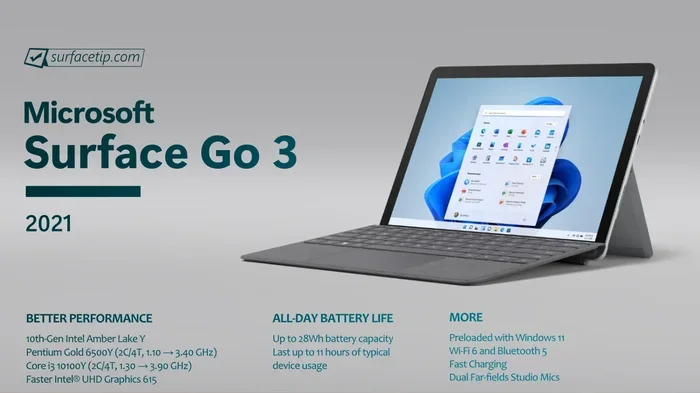
Most Surface Go models meet or exceed these requirements. The newer Surface Go 3 and Surface Go 4 models come with powerful processors and ample RAM. This makes them excellent choices for running Microsoft Office without any lag.
Troubleshooting Common Installation Issues
Sometimes the Office installation does not go as smoothly as we hope. Do not worry. Most issues have simple fixes. Here are common problems and how to solve them.
Installation Fails or Freezes
If the Office setup freezes during installation, try restarting your Surface Go. Run the installer again after a fresh reboot. Make sure your Wi-Fi connection is stable. A weak connection can interrupt the download and cause errors.
Activation Errors
Getting an activation error after installing Microsoft Office? First, check that your subscription is active. Go to your Microsoft account dashboard and verify your Microsoft 365 subscription status. If it is active, sign out of Office and sign back in. This often resolves activation issues quickly.
Office Apps Are Slow on Surface Go
If your Office apps feel sluggish, close other running programs. The Surface Go has limited RAM compared to larger laptops. Running too many apps at once can slow things down. You can also try restarting your device to clear memory. Keeping your Windows operating system updated helps with performance too.
Missing Apps After Installation
Did you not install all the Office apps you need? No problem. You can add more apps anytime. Open any Office app, go to Account, and click Add an App. This lets you install additional Microsoft Office programs without reinstalling everything.
Tips for Getting the Best Office Experience on Surface Go
Owning a Surface Go is great, but you can make the Office experience even better with a few simple tips. Here are some expert recommendations to help you get the most out of your device.
- Use a mouse and keyboard: The Surface Go works best with a keyboard attached. The Type Cover makes typing in Word and Excel much more comfortable.
- Enable dark mode: Dark mode reduces eye strain during long work sessions. You can turn it on in Office settings under General.
- Keep OneDrive synced: Save your documents to OneDrive for automatic cloud backup. This protects your files if anything happens to your device.
- Use the touchscreen wisely: The Surface Go has a great touchscreen. Use touch gestures in Word and Excel for quick navigation and editing.
- Update regularly: Microsoft releases Office updates frequently. Keep your apps updated for the best security and performance.
- Manage storage: The Surface Go has limited storage space. Regularly clean up old files and documents to keep your device running fast.
These small adjustments make a big difference. Your Surface Go becomes a powerful productivity machine when paired with Microsoft Office. Whether you are a student, a professional, or a casual user, these tips help you work smarter.
Office Licensing and Subscription Options
Understanding Office licensing helps you choose the right plan for your needs. Microsoft offers several options for Surface Go users. Let us break them down.
Microsoft 365 Personal is the most popular choice. It costs around $99 per year and gives you access to the full Office suite on up to five devices. You also get 1 TB of OneDrive storage and premium features in Word and Excel.
Microsoft 365 Family costs about $129 per year. It supports up to six users, each with their own 1 TB of OneDrive storage. This is a great value for families or small teams who share a Surface Go.
Office 2021 One-Time Purchase is another option. You pay once and own the license permanently. However, this version does not include cloud storage or ongoing updates. It is a good choice for users who prefer a one-time payment over a subscription.
Office 365 Free Trial lets you try Microsoft 365 for 30 days at no cost. This is perfect if you are not sure which plan suits you. You get full access to all Office apps during the trial period.
Frequently Asked Questions
Can I install Microsoft Office on Surface Go for free?
Yes, you can use Office Online for free through your web browser. It includes Word, Excel, PowerPoint, and more without any cost. You just need a free Microsoft account to get started. The free version works well for basic document editing and does not require any installation.
Does the Surface Go support the full desktop version of Microsoft Office?
Absolutely. The Surface Go runs full Windows 10 or Windows 11, which means you can install the complete Microsoft Office desktop suite. All apps including Word, Excel, PowerPoint, Outlook, and Access are available for full installation on your device.
How much storage do I need for Microsoft Office on Surface Go?
The full Office desktop suite requires about 4 to 6 gigabytes of free space. The Microsoft Store version takes up less space, around 2 to 3 gigabytes. We recommend having at least 10 GB of free storage for the best performance after installation.
Can I use Office on multiple devices with one subscription?
Yes, a single Microsoft 365 subscription allows you to install Office on up to five devices at the same time. This includes your Surface Go, laptop, desktop, or tablet. Each user can sign in and access their personalized Office settings across all devices.
What should I do if Office keeps asking me to sign in on my Surface Go?
This usually happens when your Microsoft 365 subscription needs to be renewed or when there is a sync issue. Go to your Office Account settings and check your subscription status. Signing out and signing back in often fixes the issue. If it persists, try repairing the Office installation through the Control Panel.
Is the Surface Go powerful enough for heavy Office work?
For most users, the Surface Go handles Microsoft Office tasks with ease. It works great for writing documents, creating spreadsheets, and building presentations. However, very heavy tasks like large database work in Access or complex macros might feel slower. For everyday Office use, the Surface Go is more than capable.
Conclusion
Installing Microsoft Office on your Surface Go is simple and straightforward. Whether you choose the full desktop version, the Microsoft Store app, or Office Online, you have multiple paths to get your work done. The Surface Go is a versatile device that handles Microsoft Office beautifully for most users.
Follow the step-by-step guide in this article and you will have Office running on your Surface Go in under 15 minutes. Remember to keep your subscription active, update your apps regularly, and use the tips we shared to get the best experience. Your Surface Go is ready to be a powerful productivity tool with Microsoft Office installed.
Now that you know exactly how to install Microsoft Office on Surface Go, there is nothing stopping you. Get started today and make the most of your device. Happy working!