Can Factory Reset Fix Bluetooth Issues and Restore Sound
A factory reset can often fix Bluetooth issues by wiping corrupted settings and restoring default connections. This guide explains how Can Factory Reset Fix Bluetooth Issues and restore sound on your devices, with step-by-step instructions and expert tips.
Bluetooth problems can ruin your day. Whether you are listening to music or taking a call, Bluetooth issues are annoying. A common question is: Can Factory Reset Fix Bluetooth Issues? The short answer is yes, in many cases. A factory reset clears corrupted settings and restores default connections. This guide will show you how a reset can bring back your Bluetooth sound. You will learn when to reset, how to do it safely, and what to do if it does not work.
Many people face Bluetooth disconnects randomly or no audio at all. Before you try a factory reset, understand why these problems happen. This article will walk you through the process step by step. You will find practical tips, real examples, and expert advice. By the end, you will know exactly when a reset helps and when to look for other solutions.
Key Takeaways
- Factory reset can fix Bluetooth issues: It clears corrupted settings that cause disconnections and no sound.
- Know when to reset: Only reset when basic troubleshooting fails and Bluetooth problems persist.
- Backup paired devices first: A reset erases all Bluetooth pairings, so reconnect manually afterward.
- Different devices need different resets: Phones, laptops, and speakers have unique reset procedures.
- Reset is not a magic cure: Hardware problems or outdated drivers may require other fixes.
- Prevent future issues: Keep firmware updated and avoid interference to maintain stable Bluetooth connections.
📑 Table of Contents
- Why Bluetooth Problems Happen
- What Is a Factory Reset and How It Helps Bluetooth
- Step-by-Step: Factory Resetting Different Devices
- Comparison: Factory Reset vs Other Bluetooth Fixes
- When a Factory Reset Won’t Fix Bluetooth
- Preventing Bluetooth Problems After a Reset
- Final Thoughts: Can Factory Reset Fix Bluetooth Issues?
Why Bluetooth Problems Happen
Bluetooth connectivity issues can come from many sources. Sometimes the problem is simple, like a software glitch. Other times, it is a deeper issue. Knowing the cause helps you choose the right fix.
Common Bluetooth Glitches
Most Bluetooth problems start with small software errors. Your device may forget a paired device. The audio might cut out during a call. You might see a Bluetooth pairing failed message. These glitches often happen after a system update or when you connect to a new device. A simple restart can fix many of these issues. But when the problem stays, you need to dig deeper.
Software vs Hardware Issues
Software issues are the most common cause of Bluetooth problems. Corrupted settings, outdated drivers, or a buggy app can break your connection. Hardware issues are rarer but more serious. A damaged Bluetooth antenna or chip will not work after any reset. If your device has been dropped or exposed to water, hardware may be the culprit. In that case, a factory reset will not help.
Quick Tip: Before trying a factory reset, toggle Bluetooth off and on. Also, restart your device. These simple steps fix many Bluetooth problems without erasing your data.
Common Mistake: Do not assume a reset will fix a broken antenna. If the Bluetooth chip is physically damaged, no software fix will work.
Expert Insight: Most Bluetooth issues are software-related, not hardware. A factory reset can often restore Bluetooth connectivity by clearing the software clutter that causes conflicts.
What Is a Factory Reset and How It Helps Bluetooth
A factory reset wipes your device back to its original settings. It removes all personal data, apps, and Bluetooth pairings. This process can fix deep software problems that a simple restart cannot reach. When you ask, Can Factory Reset Fix Bluetooth Issues, the answer is usually yes, if the issue is software-based.
Soft Reset vs Factory Reset
A soft reset is just a restart. It turns your device off and back on. It does not delete any data. A factory reset is a full wipe. It erases everything and restores the factory software. For Bluetooth problems, a soft reset is always the first step. If that fails, a factory reset can clear stubborn corrupted Bluetooth settings.
| Method | What It Does | When to Use | Risk Level |
|---|---|---|---|
| Soft Reset | Restarts the device without deleting data | First step for any Bluetooth glitch | Low |
| Factory Reset | Wipes all data and settings, including Bluetooth pairings | When basic fixes fail and Bluetooth problems persist | High |
| Driver Update | Updates the Bluetooth software driver | When Bluetooth stops working after an OS update | Low |
| Re-pairing | Deletes and re-adds a Bluetooth device | When one specific device will not connect | Low |
A factory reset can fix Bluetooth issues by removing corrupted pairing data and resetting the Bluetooth module to its default state. This often restores Bluetooth sound and fixes audio stuttering or latency.
Quick Tip: Always try a soft reset first. Only proceed to a factory reset when the simple restart does not solve the problem.
Common Mistake: Do not factory reset without trying to update your Bluetooth driver first. A driver update is faster and safer than a full reset.
Step-by-Step: Factory Resetting Different Devices
Every device has a different reset process. The steps for a phone are not the same as for a laptop or a speaker. Here is how to factory reset the most common devices to fix Bluetooth problems.
Factory Reset on Smartphones
On Android, go to Settings, then System, then Reset options. Choose Erase all data (factory reset). You will need to enter your PIN or password. On iPhone, go to Settings, then General, then Transfer or Reset iPhone. Tap Erase All Content and Settings. Both phones will erase all Bluetooth pairings. After the reset, you must re-pair your devices.
Expert Insight: Before you reset, write down your paired device names. This saves time when you need to reconnect them.
Factory Reset on Laptops
On Windows, go to Settings, then System, then Recovery. Under Reset this PC, choose Remove everything. On Mac, restart and hold Command and R to enter Recovery Mode. Use Disk Utility to erase the disk, then reinstall macOS. A laptop reset will clear Bluetooth settings and remove all paired devices.
Factory Reset on Bluetooth Speakers
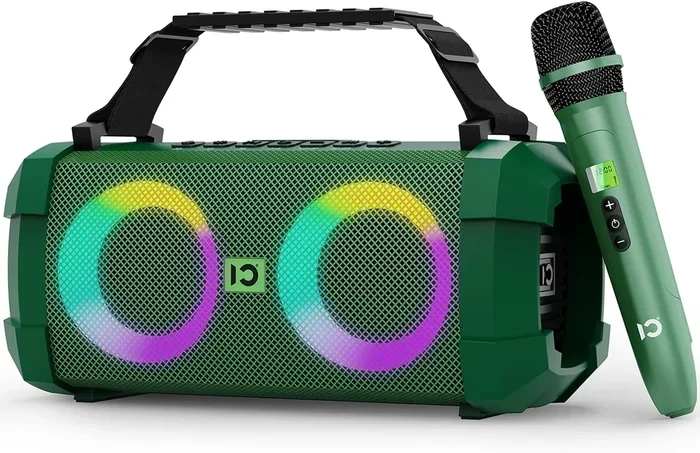
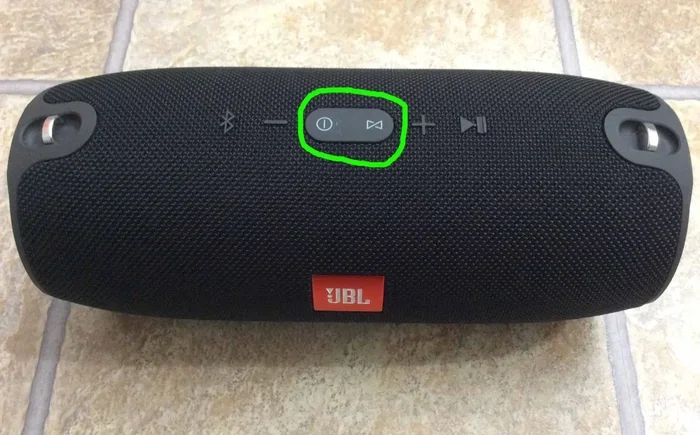
Most Bluetooth speakers have a reset button or a key combination. For example, many JBL speakers require you to hold the volume up and play button for 10 seconds. Check your speaker’s manual for the exact steps. A speaker reset will clear all paired phones and restore the Bluetooth module to its default state.
Common Mistake: Forgetting to unpair devices before a reset can cause confusion. You will have to re-pair everything from scratch, and some devices may not auto-connect.
Quick Tip: After a factory reset, update your device’s firmware before re-pairing. This ensures the Bluetooth module has the latest fixes.
Comparison: Factory Reset vs Other Bluetooth Fixes
When Bluetooth problems strike, you have several options. A factory reset is one tool in your toolbox. Here is how it compares to other common fixes.
| Fix | How It Works | Best For | Time Needed |
|---|---|---|---|
| Factory Reset | Wipes all settings and data, restoring the device to out-of-box state | Deep software corruption, persistent Bluetooth disconnects | 30-60 minutes |
| Bluetooth Driver Update | Installs the latest software for the Bluetooth adapter | Bluetooth not working after a Windows update | 5-10 minutes |
| Re-pairing Devices | Removes a device from the list and pairs it again | One specific device will not connect | 2-5 minutes |
| Firmware Update | Updates the Bluetooth module’s internal software | Audio stuttering, latency, or compatibility issues | 10-20 minutes |
| Network Settings Reset | Resets Wi-Fi, Bluetooth, and cellular settings without deleting data | Bluetooth connectivity issues after a network change | 5 minutes |
A factory reset is the most powerful fix, but it is also the most disruptive. Use it only when other methods fail. If your Bluetooth audio stuttering or latency is caused by a bad driver, updating the driver is a faster and safer choice.
Quick Tip: If you are not sure which fix to try, start with a driver update and re-pairing. These take only minutes and often solve the problem.
When a Factory Reset Won’t Fix Bluetooth
Sometimes a factory reset does not fix Bluetooth issues. This happens when the problem is hardware or when the reset is done incorrectly. Knowing the limits of a reset saves you time and frustration.
Hardware Failures
If the Bluetooth antenna or chip is physically damaged, no software reset will help. Signs of hardware failure include the Bluetooth icon never appearing, the device not showing up in Bluetooth settings at all, or the Bluetooth module getting very hot. In these cases, you need professional repair or a new device.
Outdated Drivers
A factory reset will not fix outdated drivers if the device does not have internet access to download them. After a reset, you must reconnect to Wi-Fi and update your system. If the Bluetooth driver is too old, it may still not work even after a fresh start.
Interference Issues
Bluetooth uses the 2.4 GHz wireless band. Other devices like microwaves, baby monitors, or even USB 3.0 ports can cause interference. A factory reset does not remove physical interference. If your Bluetooth disconnects randomly only in a certain room, the problem is likely interference, not software.
Common Mistake: Ignoring physical damage or water exposure. If your device was dropped or wet, a reset will not repair a broken Bluetooth module.
Expert Insight: If a factory reset fails to fix your Bluetooth problems, run a Bluetooth troubleshooter on your device. On Windows, go to Settings, then System, then Troubleshoot, then Bluetooth. On Mac, use the built-in Bluetooth diagnostics tool. These tools can pinpoint the exact cause.
Preventing Bluetooth Problems After a Reset
A factory reset can restore sound and fix Bluetooth issues, but it does not prevent future problems. To keep your Bluetooth connections stable, follow these simple habits.
Keep Firmware Updated
Device manufacturers release firmware updates that fix Bluetooth bugs. After a reset, connect to Wi-Fi and check for updates immediately. Update your phone, laptop, and speaker firmware. This simple step prevents many Bluetooth connectivity issues.
Reduce Interference
Place your Bluetooth device away from other wireless electronics. Avoid putting your phone next to a microwave or a USB 3.0 hub. If you have many Bluetooth devices, space them out. Less interference means fewer disconnects and better audio quality.
Proper Pairing Habits
Always pair devices in a quiet environment with minimal interference. Do not pair too many devices at once. If a device asks to update during pairing, let it do so. These small habits keep your Bluetooth connections strong and reliable.
Quick Tip: Turn off Bluetooth when you are not using it. This saves battery and reduces the chance of random connection attempts that can cause stuttering or latency.
Common Mistake: Leaving Bluetooth on all the time, even when you do not need it. This can lead to background pairing attempts and Bluetooth audio distortion.
Final Thoughts: Can Factory Reset Fix Bluetooth Issues?
A factory reset is a powerful way to fix Bluetooth issues and restore sound. It clears the corrupted settings that cause disconnections, audio stuttering, and pairing failures. When you ask, Can Factory Reset Fix Bluetooth Issues, remember that it works best for software-related problems. It wipes the slate clean and lets your Bluetooth module start fresh.
However, a reset is not a magic cure. It will not fix a broken antenna or a hardware defect. It also erases all your paired devices, so you must reconnect them afterward. Use a factory reset only when basic troubleshooting fails, and always back up your data first.
If you follow the steps in this guide, you can often bring your Bluetooth back to life. Start with a soft reset, then try driver updates and re-pairing. If those do not work, a factory reset is your next best option. With the right approach, you can enjoy seamless Bluetooth connectivity and crystal-clear sound again.
Frequently Asked Questions
Will a factory reset delete my Bluetooth paired devices?
Yes, a factory reset erases all Bluetooth pairings. You will need to re-pair your devices after the reset is complete. This is why it is important to back up your paired device list before you start.
How long does it take to factory reset a device to fix Bluetooth?
A factory reset usually takes between 30 and 60 minutes. The time depends on the device and how much data you have. After the reset, you will also need time to update software and re-pair your Bluetooth devices.
Can a factory reset fix Bluetooth on a Windows PC?
Yes, a factory reset can fix Bluetooth issues on a Windows PC. It clears corrupted Bluetooth settings and drivers. However, you must reinstall your Bluetooth drivers after the reset and ensure Windows is fully updated.
What should I do if a factory reset doesn’t fix my Bluetooth?
If a reset does not work, the problem may be hardware-related. Check for physical damage, update your Bluetooth driver manually, or run the built-in Bluetooth troubleshooter. You can also try resetting the Bluetooth module through your device’s service menu.
Is it safe to factory reset a Bluetooth speaker?
Yes, it is safe and often effective. A factory reset clears all paired devices and resets the Bluetooth module. Check your speaker’s manual for the exact reset button combination. After the reset, you can pair the speaker again with your phone or computer.
How often should I factory reset my device for Bluetooth issues?
You should only factory reset your device as a last resort. Frequent resets can wear down your device and erase your data. If Bluetooth problems keep coming back, focus on firmware updates and proper pairing habits instead of repeated resets.