Can I Connect 2 Monitors To My Laptop And Boost Productivity
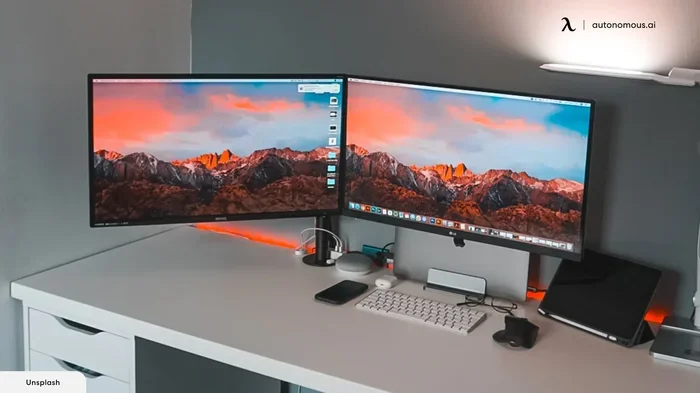
Connecting two monitors to your laptop is one of the simplest ways to boost productivity and transform your workspace. Whether you use Windows or Mac, most modern laptops support external displays through HDMI, USB-C, or docking stations. This guide walks you through every step, from choosing the right cables to configuring your dual monitor setup like a pro.
Have you ever stared at your laptop screen and wished you had more room? You are not alone. Many people want to know can I connect 2 monitors to my laptop and the answer is almost always yes. Adding a second screen changes how you work. You can keep emails open on one display while writing reports on the other. It feels like unlocking a new level of efficiency.
Setting up a dual monitor setup is easier than most people think. You do not need to be a tech expert. With the right cable or adapter, you can have two screens running in minutes. This guide covers everything you need to know. We will talk about ports, cables, setup steps, and common mistakes to avoid. By the end, you will feel confident setting up your own multi-monitor configuration at home or in the office.
Key Takeaways
- Most laptops support dual monitors: Check your ports and graphics capabilities before buying any equipment.
- Choose the right cable or adapter: HDMI, USB-C, and Thunderbolt are the most common connection types.
- A docking station simplifies everything: It gives you multiple ports and a cleaner desk setup.
- Windows and Mac have different setup steps: Learn how to configure extended displays on your operating system.
- Avoid common mistakes: Match resolutions, use quality cables, and adjust display angles for comfort.
- Wireless options exist too: Miracast and AirPlay let you go cable-free in some cases.
- Productivity gains are real: Studies show multitasking improves significantly with an extended display.
📑 Table of Contents
- Why Connect Two Monitors to Your Laptop?
- Check Your Laptop’s Connection Options
- Choose the Right Cables and Adapters
- Setting Up Two Monitors on Windows
- Setting Up Two Monitors on macOS
- Using a Laptop Docking Station for Dual Monitors
- Wireless Options for Connecting Two Monitors
- Common Mistakes to Avoid When Setting Up Dual Monitors
- Expert Tips for Maximizing Productivity with Two Monitors
- Frequently Asked Questions
- Final Thoughts
Why Connect Two Monitors to Your Laptop?
The biggest reason people add a second screen is productivity boost. When you have more screen space, you do not need to constantly switch between windows. Research shows that multitasking becomes faster and less stressful with an extended display. You can compare documents side by side, watch videos while working, or keep communication apps visible at all times.
Real-World Benefits of a Dual Monitor Setup
Think about your daily work routine. How often do you toggle between your browser and a spreadsheet? How many times do you minimize a window to find something underneath? A second monitor eliminates that friction. Here are some practical benefits:
- Faster multitasking: Keep reference materials on one screen and your main work on the other.
- Better workflow: Drag files, images, and text between screens instantly.
- Improved focus: You keep your primary task front and center without distractions.
- Enhanced creativity: Designers and video editors benefit from extra space for tools and timelines.
- Reduced eye strain: You can position the second monitor at a more comfortable angle.
Even if you do not work in a creative field, the benefits apply. Students, writers, programmers, and business professionals all gain from extra screen real estate. The productivity boost is real and measurable.
Check Your Laptop’s Connection Options
Before you buy any cables or monitors, you need to know what ports your laptop has. This is the most important first step. Different laptops come with different outputs, and not all of them support two external displays.
Common Port Types on Modern Laptops
Most laptops made in the last five years include at least one of these ports:
- HDMI port: The most common output for connecting an external monitor. Many laptops have at least one HDMI port.
- USB-C port: Newer laptops often use USB-C for video output. This single cable can carry both power and display signals.
- Thunderbolt 3 or 4: These ports look like USB-C but offer much higher bandwidth. They support multiple monitors through a single dock.
- DisplayPort: Less common on laptops but found on some business models. It delivers excellent video quality.
- VGA or DVI: Older ports that you may still find on legacy machines. They work but offer lower quality.
Check the sides of your laptop right now. Count how many video output ports you see. If you have at least two video outputs, you can likely connect two monitors directly. If you only have one, do not worry. We will cover solutions for that too.
How to Check If Your Laptop Supports Two External Displays
Not every laptop can run two external screens at the same time. Your graphics card and external monitor support depend on your hardware. Here is how to check:
- Open your search bar and type “Display Settings.”
- Click on “Advanced Display Settings.”
- Look for information about your display resolution and graphics adapter.
- Search online for your laptop model and “dual monitor support.”
Most modern laptops from brands like Dell, HP, Lenovo, and Apple support at least one external display. Many support two. MacBooks with M1, M2, or M3 chips have specific limitations, which we will cover later in this article.
Choose the Right Cables and Adapters
Once you know what ports your laptop has, the next step is picking the right cables. This part trips up a lot of people. The wrong cable means no signal or poor quality. Let us make it simple.
Cable Types for Dual Monitor Connections
Your choice of monitor cable types depends on the ports available on both your laptop and your monitors. Here is a quick breakdown:
- HDMI cables: Affordable and widely compatible. Great for most standard monitors. Supports up to 4K resolution on newer versions.
- USB-C to HDMI cables: Perfect for laptops with USB-C ports. One cable handles both video and sometimes power.
- USB-C to DisplayPort cables: Offers high bandwidth for high-resolution displays.
- Thunderbolt cables: The best option for MacBook users and laptops with Thunderbolt ports.
- DisplayPort cables: Excellent for high refresh rate and high resolution setups.
- VGA or DVI cables: Older but still functional. Use these only as a last resort.
If you need to connect two monitors but your laptop only has one video output, an adapter converter is your best friend. These small devices plug into your existing port and split the signal to two monitors. They cost between $15 and $50 and work surprisingly well.
Quick Tips for Choosing the Right Cable
Do not just grab any cable off the shelf. Follow these tips:
- Match the cable type to your laptop port and monitor input.
- Buy certified cables from reputable brands.
- Check the cable version for 4K support if you need high resolution.
- Keep cables as short as possible for the best signal quality.
- Avoid cheap unbranded cables that may cause flickering or no signal.
Setting Up Two Monitors on Windows
Windows makes it easy to set up a dual monitor setup. Whether you use Windows 10 or Windows 11, the process is similar. Here is exactly what to do.
Step-by-Step Windows Setup Guide
Follow these steps to get your two monitors running:
- Connect both monitors to your laptop using the appropriate cables.
- Turn on both monitors and your laptop.
- Right-click on your desktop and select “Display Settings.”
- You will see two rectangles representing your screens. If you do not see the second one, click “Detect.”
- Scroll down to the “Multiple Displays” dropdown menu.
- Select “Extend these displays.” This is the key step that turns two separate screens into one big workspace.
- Drag the rectangles to match the physical arrangement of your monitors on your desk.
- Click “Apply” and then “Keep Changes.”
That is it. You now have an extended desktop across two screens. You can move your mouse freely from one display to the other. You can drag windows back and forth. It feels natural within minutes.
Adjusting Display Settings for the Best Experience
After you extend your displays, take a few minutes to fine-tune the settings. This makes a big difference in comfort and usability:
- Match resolutions: If your monitors are different sizes, set them to their recommended resolutions. A screen resolution mismatch can cause blurry text on one screen.
- Set the primary display: Click on the rectangle that represents your main monitor and check “Make this my main display.”
- Adjust scaling: If text looks too small or too large, change the scaling percentage in the Display Settings.
- Arrange monitors correctly: The on-screen layout should match how your monitors sit on your desk. If your second monitor is to the left, drag its rectangle to the left.
Setting Up Two Monitors on macOS
Apple laptops work a bit differently. macOS has its own approach to external displays, and recent chips have specific limitations. Here is how to set up a dual monitor setup on a Mac.
Mac Setup for Intel and Apple Silicon Macs
If you have an Intel-based MacBook, the setup is straightforward:
- Connect your external monitors using HDMI, USB-C, or Thunderbolt cables.
- Go to System Settings and click “Displays.”
- Select “Extend display” instead of “Mirror display.”
- Arrange the displays by dragging them in the settings menu.
If you have a MacBook with M1, M2, or M3 chip, things are a bit different. Apple Silicon Macs natively support only one external display. To connect two monitors, you need a docking station or a display with a built-in hub. The docking station connects via USB-C or Thunderbolt and provides the additional video output for your second monitor.
Recommended Docking Stations for Mac Users
A laptop docking station is a game-changer for Mac users who want dual monitors. These devices plug into a single port on your laptop and offer multiple outputs. Look for docks that explicitly support dual displays with Apple Silicon. Popular options include USB-C docking stations from brands like CalDigit, Anker, and Belkin.
Using a Laptop Docking Station for Dual Monitors
A laptop docking station is one of the easiest ways to connect two monitors. Instead of juggling multiple cables, you plug one cable into your laptop and connect everything to the dock. It keeps your desk clean and your setup organized.
Benefits of a Docking Station
- One-cable connection: Plug in one USB-C or Thunderbolt cable and your monitors, keyboard, and mouse all connect instantly.
- More ports: Docks provide HDMI, DisplayPort, USB-A, Ethernet, and sometimes even SD card readers.
- Cleaner workspace: Fewer cables tangled around your desk means less clutter.
- Easy to switch: You can disconnect your laptop from the dock and take it with you, then reconnect it later and everything works again.
- Better power delivery: Many docks charge your laptop while managing your displays.
If you work from a desk most of the time, a docking station is worth every penny. It turns your laptop into a full desktop workstation with minimal effort. The multi-monitor configuration becomes seamless and reliable.
Wireless Options for Connecting Two Monitors
Not everyone wants cables running across their desk. If you prefer a wireless setup, there are options available. These are not as common as wired connections, but they work well for certain situations.
Wireless Display Technologies
Here are the main wireless options for extending your laptop screen:
- Miracast (Windows): Built into Windows 10 and 11. It lets you wirelessly project your screen to a compatible display. It works best for screen mirroring rather than extended display.
- AirPlay (Mac): Apple users can mirror or extend their display to an Apple TV or AirPlay-compatible smart TV.
- Third-party wireless adapters: Devices like the IOGEAR Wireless Display Adapter or Microsoft Wireless Display Adapter let you send your laptop screen to a monitor without cables.
- SpaceDesk and similar software: These apps turn another device like a tablet or spare laptop into a second monitor over your local network.
Wireless options work well for casual use or presentations. For serious work with constant window dragging and multitasking, a wired connection is still faster and more reliable. But if cable-free is your priority, wireless display tech has come a long way.
Common Mistakes to Avoid When Setting Up Dual Monitors
Even though setting up two monitors is straightforward, people make mistakes that cause frustration. Here are the most common ones and how to avoid them.
Mistake 1: Using the Wrong Cable
Not all cables are created equal. A cheap HDMI cable might not support 4K resolution or may cause signal drops. Always buy cables that match your needs. If your monitor supports 4K, get a Premium High Speed HDMI cable or a certified USB-C cable.
Mistake 2: Ignoring Resolution Mismatch
If your two monitors have different sizes or resolutions, you may notice that text and icons look different on each screen. This is a screen resolution mismatch problem. Fix it by setting each monitor to its native resolution in the Display Settings. The difference will become much less noticeable.
Mistake 3: Forgetting to Extend the Display
The most common setup error is leaving the displays in “Mirror” mode instead of “Extend” mode. In mirror mode, both screens show the same image. You want “Extend” mode so each screen shows different content. Double-check this setting if your second monitor seems unresponsive.
Mistake 4: Poor Monitor Placement
Your workspace ergonomics matter more than you think. If your second monitor is too far to the side, you will strain your neck turning constantly. Position both monitors so the centers are roughly at eye level. The primary monitor should be directly in front of you, and the secondary monitor should be slightly angled toward you.
Mistake 5: Overlooking Graphics Driver Updates
Outdated graphics drivers can cause display issues, flickering, or failure to detect the second monitor. Keep your graphics card drivers up to date. On Windows, use Device Manager or your laptop manufacturer’s support website. On Mac, updates come through System Settings.
Expert Tips for Maximizing Productivity with Two Monitors
Once your dual monitor setup is running, you can get even more out of it with a few smart habits. These tips come from people who use multi-monitor setups every day.
Use Keyboard Shortcuts to Manage Windows
Windows offers great shortcuts for dual monitor users. Press Windows key plus Left Arrow to snap a window to the left screen. Press Windows key plus Right Arrow to move it to the right screen. These small shortcuts save hours over time.
Use a Monitor Stand or Arm
A monitor stand or monitor arm elevates your screens to the proper height. It frees up desk space underneath and lets you adjust the angle easily. Some monitor arms even let you switch between landscape and portrait mode for coding or reading documents.
Set Up Different Backgrounds on Each Screen
This is a small trick but it helps your brain distinguish between screens. Set one wallpaper on your primary monitor and a different one on the secondary. You will always know which screen you are looking at without even thinking about it.
Consider Monitor Size and Alignment
For the best experience, try to use two monitors of the same size and model. If that is not possible, at least match the heights so the top edges align. A display resolution mismatch combined with different sizes can make the transition between screens feel jarring.
Frequently Asked Questions
Can I connect two monitors to any laptop?
Most modern laptops support at least one external display, and many support two. Check your laptop’s ports and graphics capabilities first. If your laptop has only one video output, you can still connect two monitors using a docking station or an adapter converter that splits the signal.
Do I need special cables to connect two monitors?
It depends on your laptop’s ports. Common options include HDMI cables, USB-C to HDMI cables, and Thunderbolt cables. You do not need anything exotic, but using certified, high-quality cables ensures the best performance and reliability.
Can I use two different monitors with different sizes and resolutions?
Yes, you can mix and match monitors. However, you may notice differences in text sharpness and scaling. Set each monitor to its native resolution in your display settings to get the best results. The setup will still work, but matching monitors provides a more seamless experience.
Will connecting two monitors slow down my laptop?
For most everyday tasks, running two monitors has almost no impact on performance. If you work with heavy video editing or 3D rendering, your graphics card matters more. In general, a modern laptop handles dual displays without any noticeable slowdown.
Can I connect two monitors wirelessly to my laptop?
Yes, wireless options exist through Miracast on Windows or AirPlay on Mac. Third-party wireless adapters and software solutions like SpaceDesk also work. However, wired connections offer better performance, lower latency, and more reliable results for daily work.
How do I set up dual monitors on a MacBook with Apple Silicon?
MacBooks with M1, M2, or M3 chips support one external monitor natively. To connect two monitors, you need a USB-C or Thunderbolt docking station that supports dual displays. The dock provides the additional video output your Mac needs to run two external screens.
Final Thoughts
So, can you connect 2 monitors to your laptop and boost productivity? Absolutely. The process is simpler than most people expect. You just need to check your laptop’s ports, get the right cables or a docking station, and follow a few setup steps. Whether you use Windows or Mac, the dual monitor setup will transform your workspace.
The productivity boost from having two screens is something you cannot fully appreciate until you try it. Once you experience the freedom of spreading your work across two displays, going back to a single screen feels restrictive. It is one of those upgrades that pays for itself in saved time and reduced frustration.
Start with what you have. Check your ports, grab the right cable, and set up your extended display today. You do not need expensive equipment to get started. Even a basic setup with two affordable monitors will make a noticeable difference in how you work. The key is to take that first step. Your future, more productive self will thank you.